
Are you wondering why your computer feels slow or overheats sometimes? Checking your CPU usage in Windows 10 can give you quick answers.
When your CPU is working too hard, it can affect everything you do on your PC. But don’t worry—finding out how much of your CPU is being used is easier than you think. In this guide, you’ll learn simple steps to monitor your CPU usage and take control of your computer’s performance.
Keep reading, and you’ll discover how to spot problems early and keep your PC running smoothly.
Access Task Manager
Accessing the Task Manager is the first step to checking CPU usage on Windows 10. Task Manager shows how your computer uses resources. It helps find programs that slow down your PC. You can open Task Manager in different ways. Choose the one that suits you best.
Open With Keyboard Shortcut
Press Ctrl + Shift + Esc keys together. This shortcut opens Task Manager instantly. It works on almost all Windows 10 computers. No need to click through menus. Just press these keys, and Task Manager appears.
Open Via Start Menu
Click the Start button on the bottom-left corner. Type “Task Manager” in the search box. Click the Task Manager app from the list. This way is easy for users who prefer using the mouse. It also helps if you forget the shortcut keys.
Using Run Command
Press Windows key + R to open Run. Type “taskmgr” in the box and press Enter. Task Manager opens immediately. This method is quick and works well for users who like typing commands. It is another simple way to access Task Manager.

Credit: softwareg.com.au
Locate Cpu Usage
Finding your CPU usage on Windows 10 helps you see how hard your computer works. It shows which programs use the most power. This info can help you fix slow or lagging computers. Windows 10 has built-in tools that make checking CPU usage simple and quick.
Check Processes Tab
Open Task Manager by pressing Ctrl + Shift + Esc keys. Click the “Processes” tab at the top. This tab lists all running programs and background tasks. Look under the “CPU” column to see each process’s CPU usage. The highest numbers show which apps use the most CPU power right now. You can sort the list by clicking the “CPU” column header. This lets you find heavy users fast.
Review Performance Tab
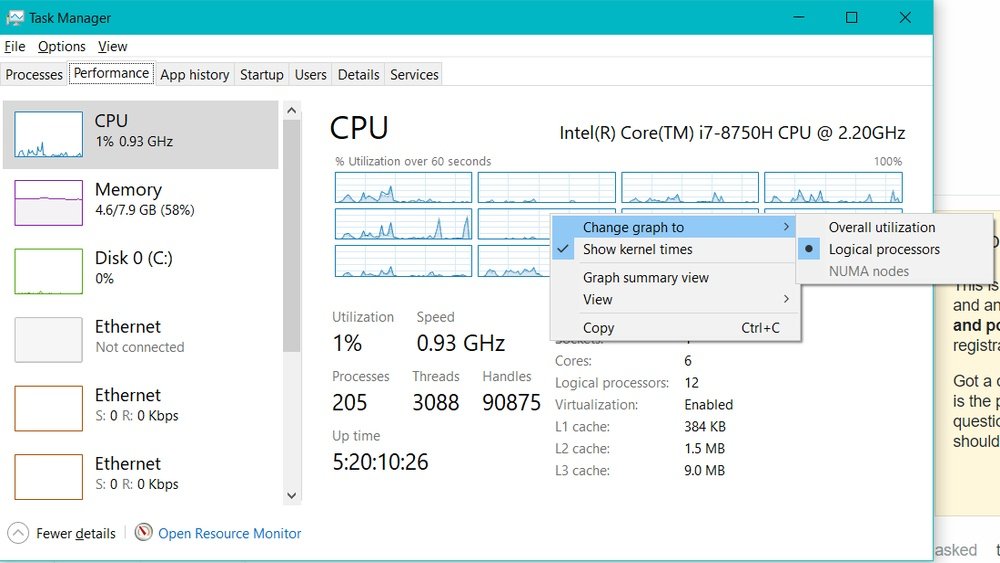
Switch to the “Performance” tab in Task Manager. Click on “CPU” in the left menu. This view shows a live graph of CPU usage over time. The graph updates every second to reflect current activity. Below the graph, see details like CPU speed and cores. This tab gives an overview of total CPU use instead of individual apps. It helps check if your CPU is overloaded or running normally.
Use Resource Monitor
Resource Monitor is a built-in tool in Windows 10. It shows detailed information about CPU usage. This tool helps you see which programs use the most CPU power. It gives a clear view of your computer’s performance. Resource Monitor is useful for checking CPU load and finding issues.
Open Resource Monitor
Press Ctrl + Shift + Esc to open Task Manager. Click the Performance tab. At the bottom, click Open Resource Monitor. You can also type Resource Monitor in the Start menu search box and press Enter. The Resource Monitor window will open.
Analyze Cpu Usage Details
In Resource Monitor, click the CPU tab. You will see a list of processes using CPU power. The “Processes” section shows each program’s CPU usage percentage. The “Services” section lists running services and their CPU use. You can watch the “CPU Usage” graph for real-time data. Use this information to spot programs that slow your PC down.

Credit: softwareg.com.au
Use Command Prompt
The Command Prompt in Windows 10 is a useful tool for checking CPU usage. It lets you see real-time data without opening heavy apps. Using simple commands, you can find details about how your CPU is performing. This method is fast and works on all Windows 10 versions.
Run Cpu Usage Commands
First, open the Command Prompt. Press the Windows key, type “cmd,” and hit Enter. Next, type the command wmic cpu get loadpercentage and press Enter. This shows the current CPU load as a percentage. For continuous updates, use typeperf "Processor(_Total)% Processor Time". It will display CPU usage every second until you stop it with Ctrl + C.
Interpret Command Results
The number you see after running the commands is your CPU usage percentage. A low number means the CPU is idle or lightly used. High numbers, like above 80%, show heavy CPU use. Continuous high use may slow down your computer. Use this information to decide if you need to close some apps or check for problems.
Use Third-party Tools
Using third-party tools to check CPU usage in Windows 10 offers more details than built-in options. These tools show real-time data and historical trends. They help spot problems early and keep your PC running smoothly.
Popular Cpu Monitoring Software
Many third-party tools exist for CPU monitoring. Some are free, others paid. Examples include HWMonitor, Core Temp, and Speccy. These programs display CPU temperature, usage, and speed. They often support alerts for high CPU use.
Features To Look For
Choose tools with clear graphs and easy controls. Real-time updates and low system impact are important. Look for history logs to review past CPU performance. Alerts for unusual CPU spikes help prevent crashes. Compatibility with your Windows 10 version matters too.
Credit: softkeys.uk
Tips To Manage High Cpu Usage
High CPU usage can slow down your Windows 10 computer and cause frustration. Managing it helps keep your system fast and responsive. Follow these simple tips to reduce CPU load and improve performance.
Identify Problematic Processes
Open Task Manager by pressing Ctrl + Shift + Esc. Look under the Processes tab. Find programs using too much CPU. End tasks that are not needed. This frees up resources and lowers CPU usage.
Optimize Startup Programs
Too many programs start with Windows. This can increase CPU use at startup. Go to Task Manager and select the Startup tab. Disable apps that you rarely use. This speeds up boot time and reduces CPU load.
Update Drivers And Software
Outdated drivers or software can cause high CPU usage. Check for updates regularly. Use Windows Update or visit the manufacturer’s website. Updated drivers fix bugs and improve efficiency. Keep your system running smoothly this way.
Frequently Asked Questions
How Can I Check Cpu Usage On Windows 10?
Open Task Manager by pressing Ctrl + Shift + Esc. Click the “Performance” tab. Select “CPU” to view real-time usage.
What Causes High Cpu Usage In Windows 10?
High CPU usage can be caused by background apps, malware, or software bugs. It may slow down your system performance.
How Do I Reduce Cpu Usage On Windows 10?
Close unnecessary apps, disable startup programs, update drivers, and run a malware scan to lower CPU usage effectively.
Can Task Manager Show Cpu Usage History?
Yes, Task Manager displays CPU usage history in the Performance tab with a graph showing usage over time.
Conclusion
Checking CPU usage in Windows 10 helps you keep your computer healthy. It shows which programs use the most power. This way, you can close apps that slow down your system. The Task Manager and Resource Monitor make it easy to track usage.
Regular checks can prevent crashes and improve speed. Stay aware of your CPU load to keep your PC running smooth. Simple steps bring better control over your device’s performance. Try these tips today and see the difference yourself.
