
Are you worried that your PC might be running too hot? Keeping an eye on your CPU temperature is essential to make sure your computer runs smoothly and avoids damage.
If you use Windows 11, you might wonder how to check these temps quickly and easily. You’ll discover simple methods to monitor your CPU temperature without any hassle. By the end, you’ll know exactly how to keep your system cool and protect your investment.
Keep reading—you don’t want to miss these important tips!

Credit: www.wikihow.com
Why Monitor Cpu Temps
Monitoring your CPU temperature is important for your computer’s health. It helps avoid overheating problems that can slow down or damage your system. Watching the temps keeps your PC running smoothly and safely.
High CPU temperatures can cause crashes and shorten your hardware lifespan. Checking temps lets you catch issues early. You can then take steps to cool down your CPU and protect your device.
Understanding Cpu Temperature Limits
Each CPU has a safe temperature range. Knowing this range helps you spot danger signs fast. Staying within limits prevents permanent damage and ensures steady performance.
Preventing Overheating Damage
Overheating can break your CPU or other parts. Heat causes wear and tear over time. Monitoring temps helps you avoid costly repairs or replacements.
Improving System Stability
High temps often cause system crashes and freezes. Keeping your CPU cool improves stability. Your programs run better without sudden shutdowns.
Extending Hardware Lifespan
Heat speeds up hardware aging. Lower temps mean longer life for your CPU. Careful monitoring helps you get the most from your computer.
Signs Of Overheating Cpu
Checking the signs of an overheating CPU is important for keeping your computer safe. An overheating CPU can cause many problems. It can slow down your system or even cause it to shut down suddenly. Knowing the signs helps you act quickly and avoid damage.
Sometimes, the computer becomes very hot and noisy. This happens because the fan runs faster to cool the CPU. Overheating can also cause your system to freeze or restart without warning. These problems show that your CPU is too hot and needs attention.
High Fan Noise And Heat
The CPU fan gets louder when the processor heats up. You may hear constant loud noise from the fan. The computer’s surface can also feel very hot to touch. This noise and heat are early warnings of CPU overheating.
Slow Performance And Freezes
Your computer might run slower than usual. Programs take more time to open or respond. Sometimes, the screen freezes for a few seconds or more. These issues often point to a CPU that is too hot.
Unexpected Shutdowns Or Restarts
The computer can turn off without warning. It may restart on its own while you are working. These sudden shutdowns happen to protect the CPU from damage. They are clear signs of overheating.
Warning Messages From The System
Windows 11 can show alerts about high CPU temperature. These messages tell you the CPU is too hot. Ignoring these warnings can lead to serious hardware problems. Always pay attention to system alerts.
Built-in Tools For Cpu Temperature
Checking CPU temperature is important to keep your computer safe and fast. Windows 11 has some built-in tools that help you see your CPU’s temperature. These tools do not need extra downloads or software. They give quick and easy ways to check if your CPU is too hot.
Using built-in tools can save time and avoid risks from third-party apps. These tools provide basic information about your CPU’s health. Let’s explore two simple ways to check CPU temperature in Windows 11.
Task Manager Insights
Task Manager is a handy tool in Windows 11. It shows you real-time data about your CPU and other system parts. To open it, press Ctrl + Shift + Esc or right-click the taskbar and select “Task Manager.”
In Task Manager, go to the “Performance” tab. Here, you see CPU usage, speed, and other details. Windows 11 may show CPU temperature for some devices in this section. Look for a temperature reading under the CPU graph.
This method is quick but depends on your PC model. Not all devices show temperature in Task Manager. Still, it’s a good first step to check CPU health without extra tools.
Bios And Uefi Temperature Check
The BIOS or UEFI firmware stores detailed hardware information. It shows CPU temperature directly from the motherboard sensors. To check this, restart your PC and press the BIOS key (like Delete, F2, or Esc) during startup.
Inside BIOS or UEFI, find the “Hardware Monitor,” “PC Health,” or similar section. Here, you will see CPU temperature and other sensor data. This reading is very accurate since it comes from the hardware itself.
BIOS is useful if Windows tools don’t show CPU temperature. It also helps check temperature before the operating system loads. Remember to exit BIOS without changing settings unless you know what to do.
Using Third-party Software
Using third-party software is an easy way to check CPU temperatures on Windows 11. These tools provide clear, real-time data about your CPU’s heat levels. They offer more details than the built-in Windows options. Most of these apps are free and simple to use. They help you keep your PC safe by showing if your CPU gets too hot.
Popular Cpu Temp Monitoring Apps
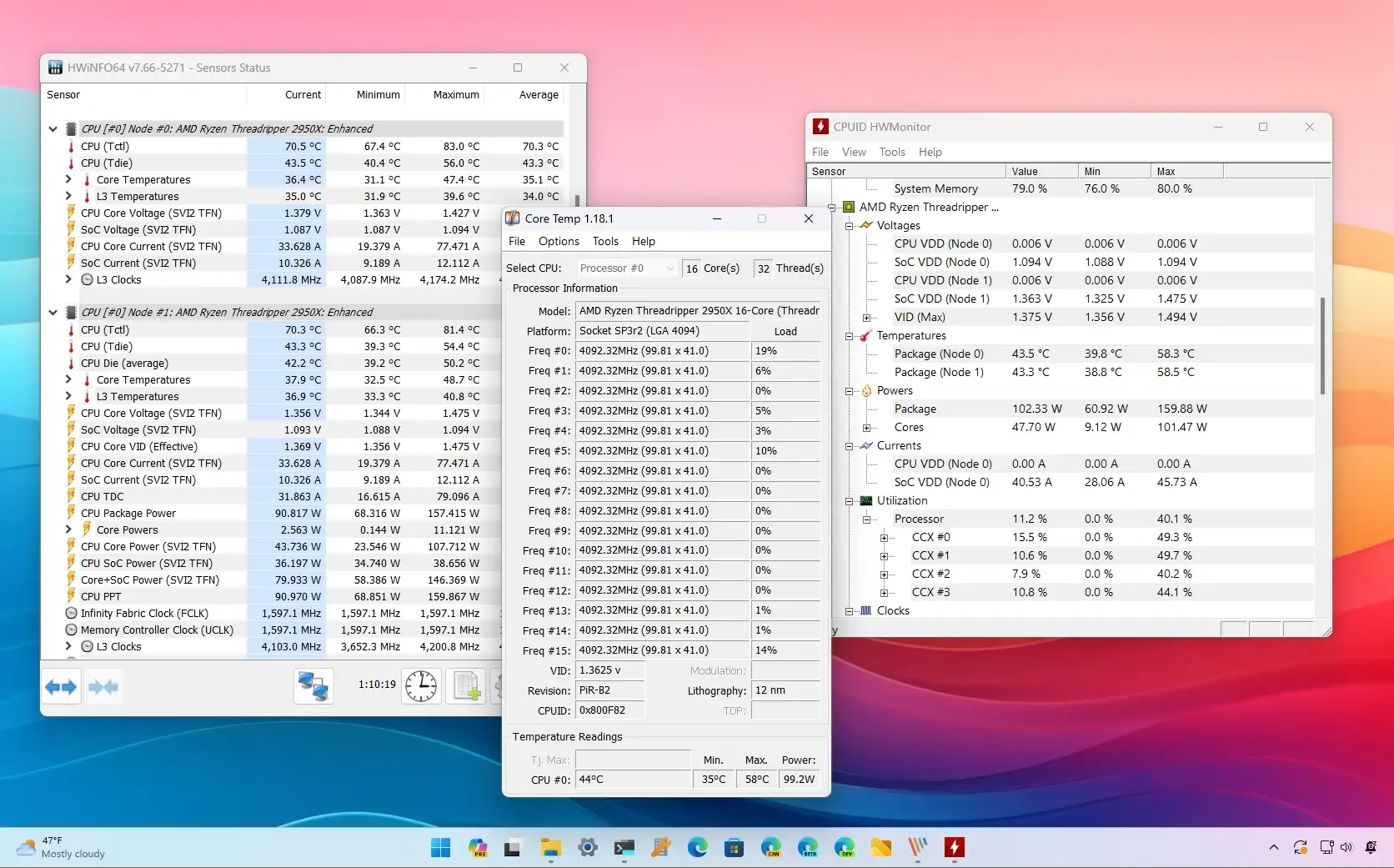
Several apps are popular for CPU temperature monitoring. HWMonitor shows temps, voltages, and fan speeds. Core Temp focuses on CPU temperature only. SpeedFan tracks temperatures and controls fan speeds. MSI Afterburner is great for gamers and overclockers. These apps work well on Windows 11 and give accurate readings.
How To Install And Use Monitoring Tools
Start by downloading the software from the official website. Run the installer and follow the simple instructions. Open the app after installation. The main screen displays CPU temperature and other stats. Check the temperature during normal use and under heavy load. Close the app when done. You can keep it running in the background for constant monitoring.
Interpreting Temperature Readings
Understanding CPU temperature readings helps keep your computer safe. These readings show how hot your CPU is during use. High temperatures may cause your PC to slow down or shut off to protect itself. Knowing how to read these temperatures helps you decide if your system is healthy or needs attention.
Safe Temperature Ranges
Most CPUs work best between 30°C and 50°C when idle. During heavy use, temperatures up to 70°C are usually okay. Some CPUs can handle temperatures up to 85°C without damage. Try to keep your CPU below 80°C for long-term safety. If temperatures stay high for a long time, it may shorten your CPU’s life.
When To Take Action
Take action if your CPU temperature goes above 85°C often. This can cause crashes or slow performance. Check if your fans or cooling system are working properly. Clean dust from vents and fans to improve airflow. Consider applying new thermal paste if your CPU runs too hot. Lowering CPU temperature helps keep your PC stable and fast.

Credit: www.youtube.com
Tips To Lower Cpu Temperature
Keeping your CPU temperature low helps your computer run better and last longer. High temperatures can cause slowdowns and damage. Simple steps can reduce heat and keep your PC safe.
Try these tips to lower your CPU temperature easily and effectively.
Improving Airflow
Good airflow moves hot air out and cool air in. Make sure your PC case has space around it. Avoid blocking vents with walls or objects. Use extra fans if your case supports them. Position fans to push hot air out and pull cool air in.
Updating Drivers And Bios
Drivers and BIOS control how your hardware works. Old versions can cause your CPU to overheat. Check the manufacturer’s website for updates. Install them carefully to improve cooling and performance. Updated software helps your CPU run cooler and smoother.
Cleaning Dust And Debris
Dust blocks airflow and traps heat inside your PC. Turn off and unplug your computer before cleaning. Use compressed air to blow dust from fans and vents. Clean inside your case gently to remove dirt. Regular cleaning keeps your CPU cooler and your PC healthy.
Setting Up Alerts For High Temps
Setting up alerts for high CPU temperatures helps protect your PC. It warns you before the system gets too hot. This prevents damage and keeps your computer running smoothly.
Many software tools let you set temperature limits. When the CPU hits these limits, the program sends alerts. These alerts can be pop-ups, sounds, or emails.
Choosing The Right Software For Alerts
Select software that supports temperature alerts. Look for simple tools with clear instructions. Popular options include HWMonitor, SpeedFan, and Core Temp. These apps monitor CPU temps and allow alerts.
Configuring Temperature Thresholds
Set a safe temperature limit based on your CPU model. Usually, 80°C is a good warning point. Input this value in your chosen software’s alert settings. This triggers alerts when temps rise above this level.
Enabling Notifications And Alerts
Turn on notifications in the software settings. Choose how you want to be alerted: pop-up, sound, or email. Test the alerts to confirm they work correctly before relying on them.
Monitoring Alerts And Taking Action
Watch your alerts closely. If you get a high temp warning, close heavy programs. Clean your PC fans and vents to cool down the system. This keeps your CPU safe and stable.
Credit: pureinfotech.com
Frequently Asked Questions
How Can I Check Cpu Temperature On Windows 11?
You can check CPU temperature using built-in BIOS or third-party apps like HWMonitor. Open the app to view real-time temperature readings.
What Is A Safe Cpu Temperature Range In Windows 11?
A safe CPU temperature typically ranges from 30°C to 70°C during normal use. Temperatures above 85°C may risk hardware damage.
Can Windows 11 Monitor Cpu Temperature Without Extra Software?
Windows 11 doesn’t have a built-in CPU temp monitor. You need third-party apps like Core Temp or HWMonitor for real-time data.
Why Is My Cpu Temperature High On Windows 11?
High CPU temperature may result from poor cooling, dust buildup, or heavy workloads. Ensure proper ventilation and clean your PC regularly.
Conclusion
Checking CPU temperatures on Windows 11 is simple and important. Keeping an eye on temps helps your PC run smoothly. Use built-in tools or free apps to monitor heat. Watch for high numbers that might cause problems. Regular checks protect your computer from damage.
Stay calm, follow easy steps, and keep your system safe. Now, you can manage your CPU temps with confidence and ease.
