
Are you worried that your PC might be running too hot? Knowing how to check your CPU temperature in Windows 11 is key to keeping your computer safe and running smoothly.
If your processor gets too hot, it can slow down your system or even cause damage. But don’t worry—this guide will show you simple and effective ways to monitor your CPU temp right now. By the end, you’ll have the tools to protect your PC and boost its performance.
Ready to take control of your computer’s health? Let’s dive in.
Why Monitor Cpu Temperature
Monitoring your CPU temperature is important for your computer’s health. It helps you keep your system running smoothly and avoids damage. Knowing the temperature can save you from costly repairs and slowdowns. Understanding why you need to watch this number matters a lot for every Windows 11 user.
Impact On Performance
High CPU temperature can slow down your computer. The processor may reduce its speed to cool down. This drop in speed causes programs to run slower. Watching the temperature helps keep your PC fast and efficient. It ensures your system works at its best all the time.
Preventing Overheating
Too much heat can cause your CPU to overheat. Overheating can lead to sudden shutdowns or crashes. It may also damage your hardware permanently. Checking the temperature lets you act before problems start. Preventing overheating keeps your computer stable and safe.
Extending Hardware Lifespan
Keeping the CPU cool helps extend its life. High temperatures wear out parts faster. Cooler CPUs last longer and need fewer repairs. Regular temperature checks protect your investment. It helps your computer stay reliable for many years.
Built-in Tools For Checking Cpu Temp
Checking your CPU temperature helps keep your computer safe from overheating. Windows 11 has some built-in tools to help with this task. These tools give basic information without needing extra software. They are easy to use and ready to go.
Using Task Manager
Task Manager shows how your CPU works but does not show temperature. You open it by pressing Ctrl + Shift + Esc. It helps see CPU usage and performance. This tool is good for checking CPU load, not temperature.
Windows Security App
The Windows Security app protects your PC from threats. It does not provide CPU temperature data. It focuses on security and system health. You can use it to check virus status and firewall settings.
Limitations Of Built-in Tools
Windows 11 built-in tools do not show CPU temperature directly. They give CPU usage and health info but no heat details. To check CPU temperature, you need third-party apps. These apps give accurate and detailed temperature readings.
Third-party Software Options
Using third-party software to check CPU temperature on Windows 11 gives you detailed and real-time information. These apps offer more features than built-in tools. They help you monitor your CPU health easily.
You can find many reliable apps online. Each has unique features and ease of use. Choosing the right one depends on your needs and experience.
Popular Cpu Temperature Apps
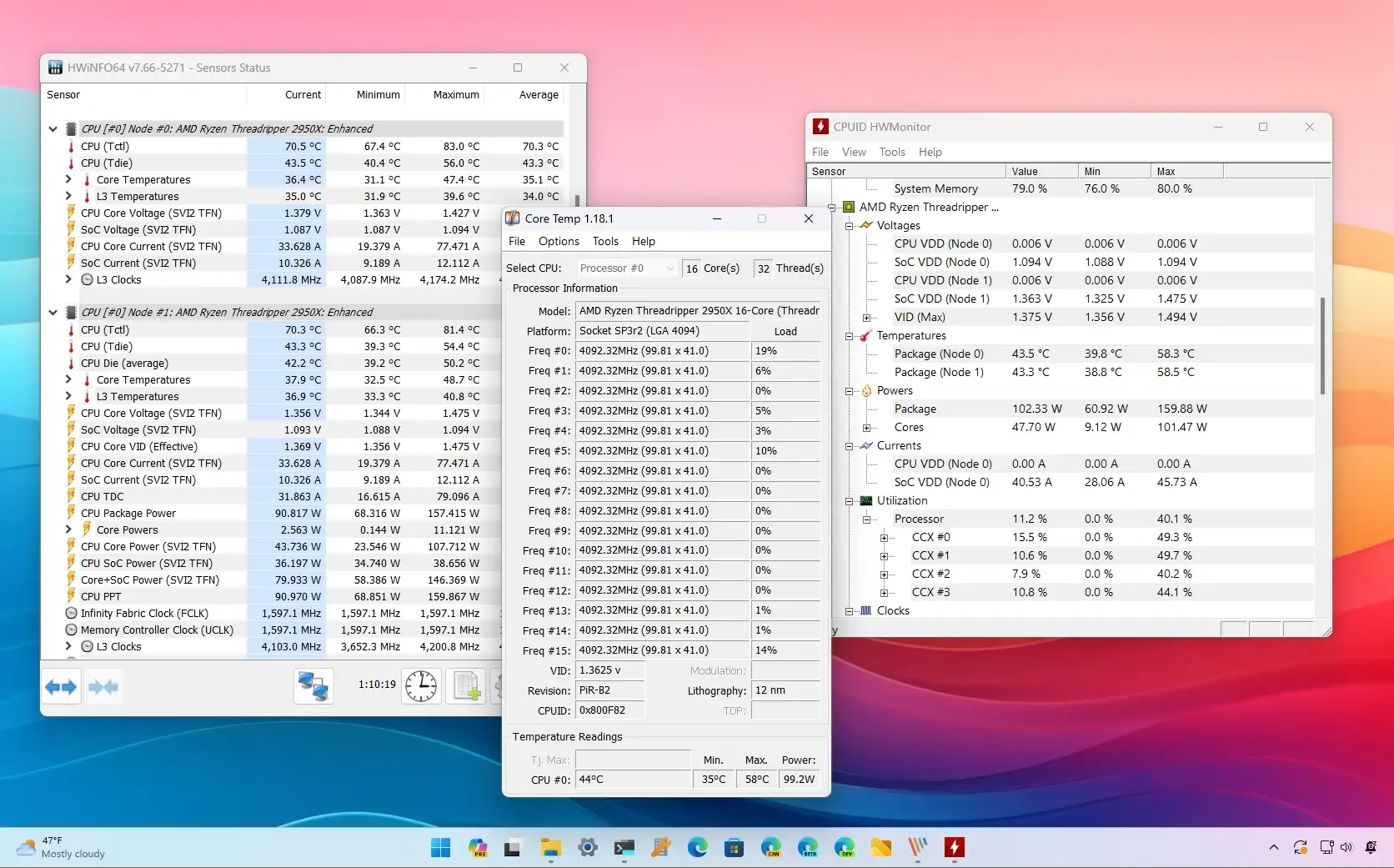
Core Temp is a simple app that shows CPU temperature clearly. HWMonitor provides detailed info about your CPU, GPU, and system voltages. SpeedFan helps track temperatures and control fan speeds. MSI Afterburner is popular for gamers, giving both temperature and performance stats.
Features To Look For
Look for apps that update temperature readings quickly. Easy-to-understand interface matters most. Alerts for high CPU temperature can prevent damage. Compatibility with your CPU and Windows 11 is important. Extra features like fan control or logging data add value.
Installation And Setup Tips
Download software from official or trusted sites only. Run the installer and follow on-screen instructions carefully. Avoid adding extra programs during installation. Open the app and allow necessary permissions. Check settings to customize temperature alerts and display options.
Credit: pureinfotech.com
Step-by-step Guide To Check Cpu Temp
Checking your CPU temperature helps keep your PC safe and fast. Overheating can cause slowdowns or damage. This guide shows simple ways to find your CPU temp on Windows 11. Follow these steps to monitor your system easily.
Accessing Bios For Temperature Info
Restart your PC and press the BIOS key during startup. Common keys are F2, Delete, or Esc. The BIOS screen shows hardware info, including CPU temperature. Find a section like “Hardware Monitor” or “PC Health Status.” Temperature readings here update in real-time. Exit BIOS without saving changes to avoid issues.
Using Software To Monitor Temps
Download trusted software like HWMonitor or Core Temp. Install and open the program. It displays detailed CPU temperatures and other system info. These tools update temps continuously and run in the background. Easy to check anytime without restarting your PC.
Interpreting Temperature Readings
Ideal CPU temps range from 30°C to 50°C at idle. Under heavy use, 60°C to 80°C is normal. Consistently above 85°C may cause damage. High temps mean check cooling fans or clean dust. Keeping temps low improves performance and hardware life.
Tips To Keep Cpu Temperature Low
Keeping your CPU temperature low is important for your computer’s health. High temperatures can cause slowdowns and damage parts. Simple steps can help keep your CPU cool and running well. These tips protect your PC and make it last longer.
Improving Airflow
Good airflow moves hot air out of your computer. Place your PC in a spot with space around it. Avoid tight spaces like closed cabinets. Use extra fans inside your case to push air through. Make sure cables do not block air paths. Proper airflow lowers the CPU temperature effectively.
Cleaning Dust And Debris
Dust blocks air and traps heat inside your PC. Clean your computer regularly to remove dust. Use a soft brush or compressed air to clean vents and fans. Turn off your PC and unplug it before cleaning. Removing dust helps cool the CPU better and prevents damage.
Using Cooling Pads And Fans
Cooling pads help lower laptop temperatures. They have fans that increase airflow around your device. Use a cooling pad on flat surfaces for best results. Desktop users can add extra case fans or replace stock fans. Better cooling keeps your CPU running smoothly and safely.

Credit: www.wikihow.com
When To Be Concerned About Cpu Temps
Knowing when to be concerned about your CPU temperature is important for your computer’s health. The CPU handles many tasks, and too much heat can cause problems. It can slow down your system or even damage components. Watching the temperature helps you keep your PC running smoothly.
Safe Temperature Ranges
Most CPUs run well between 30°C and 60°C during regular use. Under heavy tasks, temperatures up to 85°C are usually safe. Temperatures above 90°C can be risky and cause damage over time. Always check your CPU’s specific temperature limits for best results.
Signs Of Overheating
Unexpected shutdowns or restarts can signal high CPU heat. Your computer may also run slower or freeze often. Fans running loudly for long periods is another sign. Watch for error messages about thermal issues too. These signs show the CPU needs attention.
Actions To Take If Temps Are High
Turn off your PC and let it cool down. Clean dust from fans and vents to improve airflow. Make sure your computer’s cooling system works properly. Close heavy programs or reduce tasks to lower heat. Consider applying new thermal paste or upgrading cooling hardware if needed.

Credit: www.youtube.com
Frequently Asked Questions
How Can I Check Cpu Temperature On Windows 11?
You can check CPU temperature using built-in tools or third-party apps. Windows 11 does not have a direct feature, so use software like HWMonitor or Core Temp for real-time monitoring.
What Is A Safe Cpu Temperature Range In Windows 11?
A safe CPU temperature typically ranges from 30°C to 70°C under normal use. Temperatures above 85°C may cause overheating and performance issues on Windows 11 systems.
Does Windows 11 Show Cpu Temperature In Task Manager?
No, Windows 11 Task Manager does not display CPU temperature. You need specialized software like HWMonitor or SpeedFan to view accurate CPU temperature readings.
Can High Cpu Temperature Affect Windows 11 Performance?
Yes, high CPU temperatures can cause Windows 11 to slow down or crash. Overheating may trigger thermal throttling, reducing CPU speed to prevent damage.
Conclusion
Monitoring your CPU temperature helps keep your Windows 11 PC safe. Use simple tools to check the heat anytime you want. Watch for high temperatures to avoid damage or slowdowns. Regular checks improve your computer’s performance and lifespan. Stay aware and keep your system running smoothly.
Small steps make a big difference in PC health.
