
Are you worried that your computer might be overheating? Knowing how to check your CPU temperature on Windows 10 is easier than you think—and it’s one of the smartest ways to keep your PC running smoothly.
If your CPU gets too hot, it can slow down your system or even cause damage. But don’t worry, this guide will show you simple steps to monitor your CPU temp quickly and accurately. Stick with me, and you’ll learn how to protect your computer and boost its performance with just a few clicks.
Ready to take control of your PC’s health? Let’s dive in!
Why Monitor Cpu Temperature
Monitoring CPU temperature helps prevent overheating and keeps your computer running smoothly. Checking CPU temp in Windows 10 lets you spot problems early and protect your device. Simple tools make this task quick and easy.
Monitoring CPU temperature helps keep your computer safe and fast. The CPU is the brain of your PC. It works hard and can get very hot. High temperatures can cause problems.
Too much heat can slow down your computer. It may also cause unexpected shutdowns. In some cases, the CPU can get damaged permanently. Checking the temperature helps you avoid these issues.
Prevent Overheating
Overheating can shorten your CPU’s life. It can also affect other parts inside your PC. By watching the temperature, you can stop overheating early. This keeps your system stable and healthy.
Improve Performance
When the CPU gets too hot, it slows down. This is called thermal throttling. Monitoring temperature helps keep your CPU cool. A cool CPU works faster and runs better.
Detect Cooling Problems
Fans and cooling systems keep your CPU cool. If they fail, the temperature rises quickly. Monitoring helps find these problems fast. You can fix cooling issues before damage happens.
Ensure Safe Overclocking
Some users increase CPU speed for better performance. This is called overclocking. It raises temperature a lot. Monitoring temperature is very important during overclocking. It keeps your CPU safe from harm.

Credit: softwareg.com.au
Signs Of Overheating Cpu
Overheating can harm your CPU and affect your computer’s performance. Knowing the signs of an overheating CPU helps you act fast. It prevents damage and keeps your system running smoothly. Watch for these common symptoms to protect your PC.
Unexpected Shutdowns Or Restarts
Your PC may turn off suddenly without warning. It is a safety measure to stop damage. Overheating causes the system to shut down or restart randomly. This prevents the CPU from getting too hot.
Slow Performance And Lag
The computer might run slower than usual. Programs can freeze or respond late. High CPU temperature makes the processor slow down. This reduces heat but affects your work or gaming.
Fan Noise Increases
Fans spin faster to cool the CPU. Loud fan noise is a clear sign of overheating. Your PC works harder to lower the temperature. Constant loud noise should not be ignored.
System Freezes Or Blue Screens
Overheating can cause your computer to freeze. You might see the Blue Screen of Death (BSOD). These errors happen when the CPU gets too hot. It affects system stability and can cause data loss.
High Cpu Temperature Readings
Checking CPU temperature helps identify overheating early. Normal temps stay below 70°C during use. Temperatures above this mean the CPU is too hot. Use software tools to monitor and stay safe.
Built-in Tools For Temperature Check
Checking your CPU temperature helps keep your computer safe. Overheating can cause slowdowns or damage. Windows 10 offers built-in tools for this task. These tools let you check temperatures without extra software. They are simple and quick to use. Below are two common ways to check CPU temperature using Windows 10 built-in options.
Using Task Manager
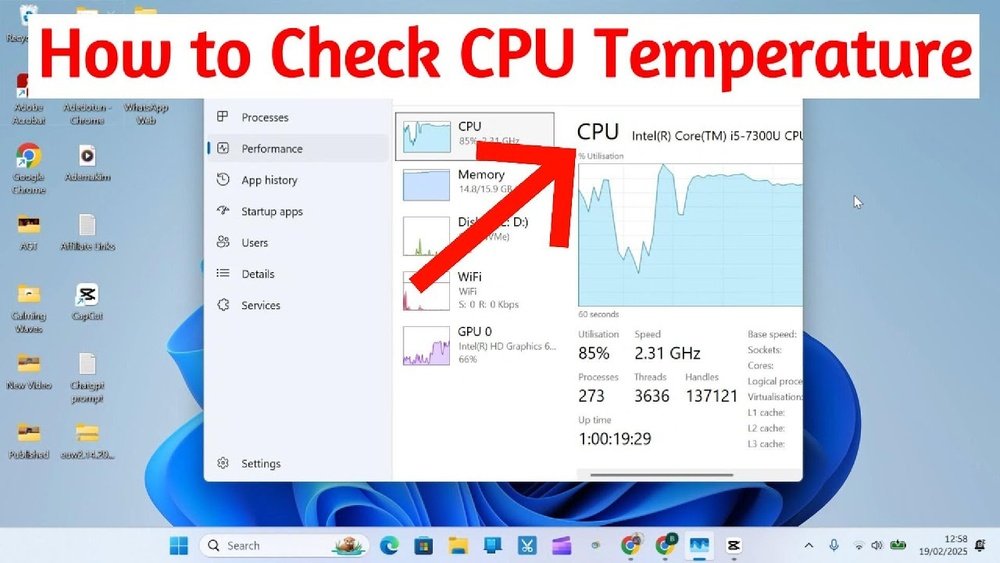
Task Manager shows many system details but does not display CPU temperature directly. It helps monitor CPU usage and performance. Open Task Manager by pressing Ctrl + Shift + Esc. Click the “Performance” tab to see CPU activity. For temperature details, Task Manager alone is not enough. You need third-party apps for exact CPU temperature readings.
Bios/uefi Access
BIOS or UEFI is the firmware interface of your computer. It provides hardware information including CPU temperature. Restart your PC and press the setup key (like F2, Del, or Esc) during boot. This opens BIOS/UEFI settings. Look for a section like “Hardware Monitor” or “PC Health.” Here, you can find the current CPU temperature. Checking temperature this way is reliable but not real-time during normal use.
Third-party Software Options
Checking your CPU temperature on Windows 10 can be simple with third-party software. These tools offer clear information and easy monitoring. They help you keep your computer safe from overheating. Below are three popular options that are reliable and user-friendly.
Core Temp
Core Temp shows the temperature of each CPU core. It updates in real time and is very light on system resources. The interface is simple and easy to read. Core Temp also supports alerts if the temperature gets too high.
Hwmonitor
HWMonitor tracks many hardware sensors, including CPU temperature. It displays voltages, fan speeds, and more. This tool helps you see the overall health of your PC. The layout is straightforward, making it easy to find temperature data.
Speccy
Speccy offers a detailed summary of your system’s hardware. It shows CPU temperature along with other important stats. The design is clean and beginner-friendly. Speccy also allows you to save reports for later review.
Step-by-step Guide To Use Core Temp
Checking your CPU temperature helps keep your PC safe and fast. Core Temp is a simple tool that shows real-time CPU temperature. This guide explains how to use Core Temp step by step.
Follow the steps carefully to install and run Core Temp. You will learn to read the temperature and understand its meaning. This way, you can avoid overheating problems.
Download And Install Core Temp
Go to the official Core Temp website. Find the download link for Windows 10. Click to download the installer file. Open the file and follow the setup instructions. Choose the options you want and finish the installation.
Open Core Temp And Check Initial Settings
Launch Core Temp from the Start menu or desktop icon. Look at the main window showing CPU details. Check the temperature readings for each core. Adjust settings if needed in the menu for better display.
Read And Understand Cpu Temperature
Notice the temperature values in degrees Celsius. Normal temperatures range from 30°C to 60°C. High temperatures above 80°C may cause problems. Keep an eye on these numbers while your PC works.
Use Core Temp Features For Monitoring
Set alerts for high temperature warnings. Enable logging to save temperature history. Use the tray icon to see temps without opening the app. These features help track CPU health easily.
Tips For Accurate Temperature Monitoring
Monitoring your CPU temperature helps keep your computer safe and running well. Accurate readings let you catch problems early. It avoids overheating that can damage parts. Follow simple tips to get the best temperature data on Windows 10.
Use Reliable Software For Temperature Checks
Pick trusted programs designed for Windows 10. These apps read sensors directly from your CPU. Avoid unknown or suspicious tools. Examples include HWMonitor, Core Temp, and SpeedFan. Regular updates improve accuracy and security.
Check Temperature At Idle And Load
Measure your CPU temperature when the computer is idle. Then check again during heavy tasks. This shows how well your cooling system works. It also reveals if the CPU runs too hot under pressure.
Keep Your Computer Clean And Cool
Dust buildup can block airflow and raise temperature. Clean fans and vents regularly. Place your PC in a cool, open space. Avoid soft surfaces that trap heat. Good airflow improves sensor readings and hardware health.
Monitor Temperature Over Time
Watch your CPU temperature at different times and days. Note any sudden spikes or trends. This helps spot potential hardware issues early. Use software with logging features for easy tracking.
Preventing Cpu Overheating
Preventing CPU overheating is key to keeping your computer safe and fast. High temperatures can slow down your PC and damage parts. Regular care helps your CPU run cool and last longer.
Cleaning Dust And Fans
Dust blocks air and stops fans from working well. Turn off your PC and open the case carefully. Use a soft brush or canned air to clean dust from fans and vents. Clean fans spin better and keep your CPU cool.
Improving Airflow
Good airflow moves hot air out and brings cool air in. Arrange cables neatly to avoid blocking airflow inside the case. Keep your PC in a space with enough room around it. Avoid placing it on soft surfaces like beds or carpets.
Applying Thermal Paste
Thermal paste helps heat move from the CPU to the cooler. Old or dried paste can stop heat transfer. Remove the old paste with rubbing alcohol and a soft cloth. Apply a small, even layer of new thermal paste before reattaching the cooler.

Credit: openhardwaremonitor.org

Credit: softwareg.com.au
Frequently Asked Questions
How Can I Check Cpu Temperature On Windows 10?
You can check CPU temperature on Windows 10 using third-party apps like HWMonitor or Core Temp. These tools display real-time temperature readings clearly.
Does Windows 10 Have A Built-in Cpu Temperature Monitor?
No, Windows 10 does not include a built-in CPU temperature monitor. You need third-party software for accurate readings.
What Is A Safe Cpu Temperature Range In Windows 10?
A safe CPU temperature range is typically between 30°C and 70°C under normal use. Temperatures above 85°C may indicate overheating.
Can High Cpu Temperature Slow Down My Windows 10 Pc?
Yes, high CPU temperatures can cause thermal throttling, slowing your PC to prevent damage. Monitoring helps avoid performance issues.
Conclusion
Checking your CPU temperature helps keep your computer healthy. You can use built-in tools or free apps for this. Watch for high temperatures to avoid damage or slowdowns. Regular checks help you spot issues early. Keep your PC cool by cleaning fans and improving airflow.
Stay aware, and your computer will run smoother and last longer. Simple steps make a big difference. Try checking your CPU temp today for better performance tomorrow.
