
Is your Mac running slower than usual or making unexpected noises? Your CPU temperature might be the hidden culprit.
Knowing how to check your Mac’s CPU temperature can help you spot problems before they turn serious. You’ll discover simple and effective ways to monitor your Mac’s CPU heat. By the end, you’ll feel confident keeping your device cool and running smoothly.
Ready to protect your Mac? Let’s dive in!
:max_bytes(150000):strip_icc()/how-to-check-macbook-temperature-51841464-3aa2d26ccbe9448fa74f087e753e4dd0.jpg)
Credit: www.lifewire.com
Why Monitor Mac Cpu Temperature
Monitoring your Mac’s CPU temperature is important for many reasons. It helps keep your computer safe and running well. The CPU is the brain of your Mac, and it can get very hot during use. Knowing the temperature can stop problems before they start.
Checking the CPU temperature can save you money. It helps avoid damage to parts that are costly to fix. Also, it keeps your Mac working fast and smooth. A hot CPU can slow your computer down or cause crashes. Watching the temperature is a simple way to keep your Mac healthy.
Understanding Cpu Overheating Risks
High CPU temperatures can cause damage to your Mac. Overheating can shorten the life of your processor. It may also harm other parts inside your computer. Heat can make your Mac run slower or freeze. Protecting your Mac means watching the CPU heat closely.
Improving Mac Performance
A cool CPU works better and faster. If the CPU stays too hot, your Mac may slow down. This is called thermal throttling. It lowers speed to reduce heat. Checking CPU temperature helps keep your Mac running at full speed.
Preventing Unexpected Shutdowns
Your Mac may turn off without warning if it gets too hot. This protects the hardware from damage. Frequent shutdowns can cause data loss. Monitoring CPU temperature helps avoid sudden power offs and keeps your work safe.
Extending Your Mac’s Lifespan
Keeping the CPU cool extends your Mac’s life. Heat wears down computer parts over time. Watching temperature helps you take action early. Cooling your Mac properly keeps it working longer and better.
Credit: osxdaily.com
Signs Of Overheating Mac
Mac computers usually manage heat well. But sometimes, they get too hot. Overheating can cause problems. It can slow down your Mac and even damage parts. Spotting signs of overheating early helps protect your device. Here are some common signs to watch for.
Unusual Fan Noise
Fans inside your Mac work to cool it down. Loud or constant fan noise can mean your Mac is too hot. Fans running at high speed often show the CPU is under heat stress.
Slow Performance
Overheating makes your Mac slow. Programs may take longer to open. Your Mac might freeze or lag during tasks. This slowdown is a warning sign of high temperature.
Unexpected Shutdowns
Your Mac may shut down without warning. This happens to protect itself from damage. Sudden shutdowns often mean the CPU temperature is dangerously high.
Hot Surface
The outside of your Mac feels very warm. Especially near the keyboard or bottom case. This heat shows the internal parts are overheating.
Battery Drain
Overheating can make your battery run out faster. High temperatures affect battery health. You might notice your Mac loses charge quickly during use.
Built-in Tools For Temperature Check
Checking your Mac’s CPU temperature helps keep it safe from overheating. Mac does not show CPU temperature directly in the system. You can use some built-in tools to get insights about your Mac’s performance and temperature indirectly. These tools can help you monitor your Mac without extra apps.
Activity Monitor Insights
Activity Monitor shows how your Mac uses its CPU. It displays CPU usage for each app and process. High CPU usage can cause your Mac to heat up. Look for apps that use a lot of CPU power. Closing or managing these apps can reduce temperature. Activity Monitor helps spot heavy CPU users. It does not show exact temperature, but it hints at heating issues.
Using Terminal Commands
Terminal lets you access deeper system info using commands. Some commands show CPU status and performance. You can check system logs for temperature warnings. One useful command is powermetrics. It provides details about CPU power and thermal levels. Run sudo powermetrics --samplers smc in Terminal. This shows sensor data including temperature. You need admin rights to run this command. Terminal gives more technical details about CPU heat.

Credit: beebom.com
Top Third-party Apps For Cpu Temp
Checking your Mac’s CPU temperature helps keep your computer safe and running well. Built-in tools do not always show this info clearly. Third-party apps fill this gap. They show real-time temperature and other useful details.
These apps are easy to use and give accurate readings. They help you avoid overheating and extend your Mac’s life. Here are some popular choices for Mac users.
Istat Menus
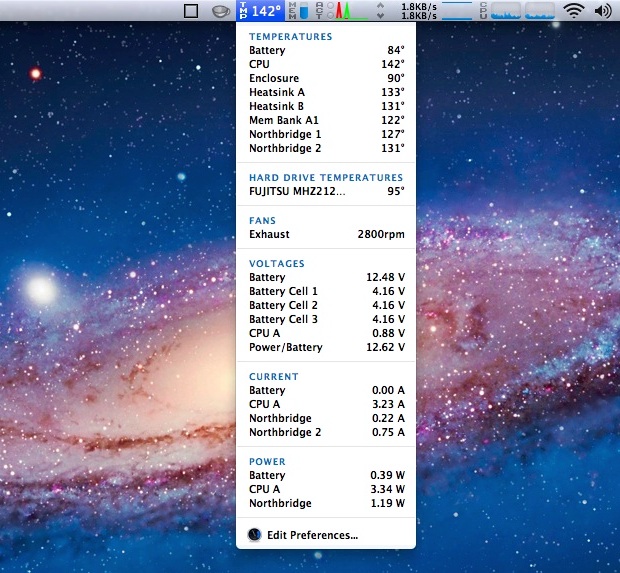
iStat Menus shows CPU temperature in your menu bar. It also tracks fan speed and other system stats. The app updates data every few seconds. It has a clean design and is simple to read. You can customize what you see with it.
Intel Power Gadget
Intel Power Gadget works well with Intel-based Macs. It displays CPU temperature, power usage, and frequency. The app provides graphs to watch changes over time. It is lightweight and uses little battery. This app is good for detailed CPU monitoring.
Macs Fan Control
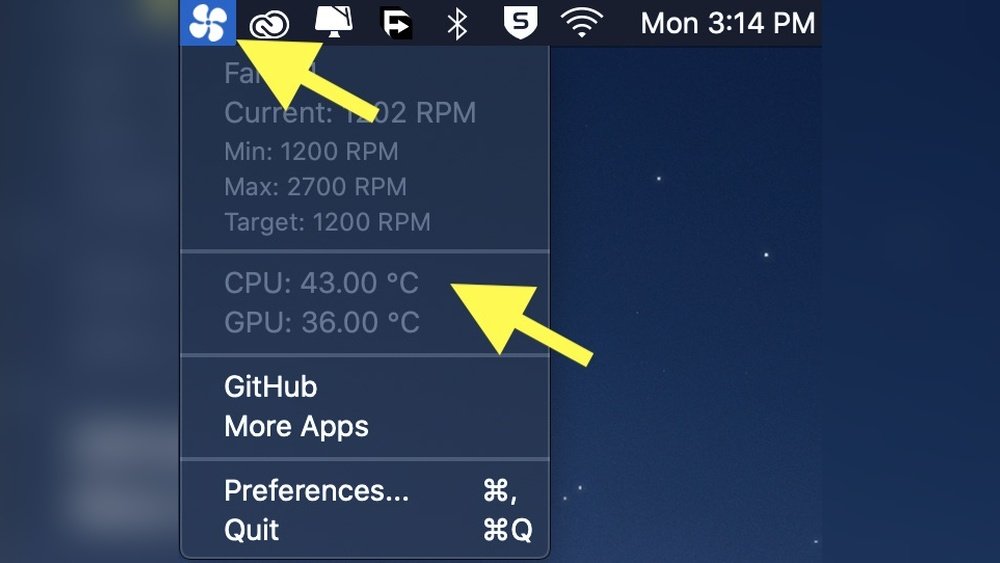
Macs Fan Control shows CPU temperature and controls fan speed. It helps you cool your Mac faster if needed. The app displays temperatures for different parts of your Mac. It is useful for preventing overheating during heavy use. You can set custom fan rules too.
Steps For Accurate Temperature Monitoring
Accurate temperature monitoring is important for your Mac’s health and performance. Knowing the exact CPU temperature helps prevent overheating and damage. Follow these simple steps to get the most reliable temperature readings.
These steps improve the accuracy of your temperature checks. They help your Mac give clear and true information about its CPU heat level.
Ensuring Software Updates
Keep your Mac’s software up to date. Updates often fix bugs and improve sensor accuracy. Updated software works better with temperature monitoring tools. Check for updates regularly through the System Preferences menu. This keeps your Mac running smoothly and readings more reliable.
Running Background Tasks Minimally
Close unnecessary apps and background tasks before checking CPU temperature. Running many programs raises CPU load and heat. This can give false high readings. Keep only essential apps open to get a true picture of your CPU temperature. This also helps your Mac cool down faster.
Calibrating Sensors
Calibrate your Mac’s sensors for precise temperature data. Some apps offer sensor calibration options. Follow the app’s instructions carefully to reset sensor readings. Calibration helps fix any sensor errors or drift over time. This step ensures your temperature data stays accurate and dependable.
Preventing Overheating On Mac
Preventing overheating on your Mac keeps it fast and safe. High temperatures can slow your Mac and damage parts. Taking simple steps helps your computer run cool and smooth. Here are easy ways to avoid heat problems.
Optimizing Airflow
Place your Mac on a hard, flat surface. Soft surfaces block air vents and trap heat. Keep vents clear of dust and objects. Use a laptop stand to improve air circulation. Good airflow helps your Mac stay cool during use.
Cleaning Dust Build-up
Dust inside your Mac traps heat and blocks fans. Clean vents and fans regularly with a soft brush or compressed air. Avoid using a vacuum directly on your Mac. Removing dust improves cooling and extends your Mac’s life.
Managing Intensive Apps
Apps that use many resources increase your Mac’s temperature. Close apps you don’t need. Use Activity Monitor to find apps using high CPU power. Lowering app load reduces heat and keeps your Mac working well.
Frequently Asked Questions
How Can I Check Cpu Temperature On Mac?
To check your Mac’s CPU temperature, use third-party apps like iStat Menus or Macs Fan Control. These apps provide real-time temperature data and detailed system monitoring.
Is There A Built-in Way To Monitor Mac Cpu Temperature?
MacOS doesn’t offer a built-in CPU temperature monitor. You need third-party software to access accurate temperature readings and hardware info.
Why Is Monitoring Cpu Temperature Important On Mac?
Monitoring CPU temperature helps prevent overheating, improving Mac’s performance and lifespan. It alerts you to cooling issues or potential hardware problems early.
What Is A Safe Cpu Temperature Range For Mac?
A safe Mac CPU temperature usually ranges between 30°C and 60°C during normal use. Temperatures above 80°C may indicate overheating and require attention.
Conclusion
Checking your Mac’s CPU temperature helps keep it safe and fast. Use simple apps or built-in tools to monitor heat. Watch for high temperatures to avoid damage. Regular checks can extend your Mac’s life and performance. Stay aware, and your Mac will run smoothly every day.
Easy steps, big benefits.
