
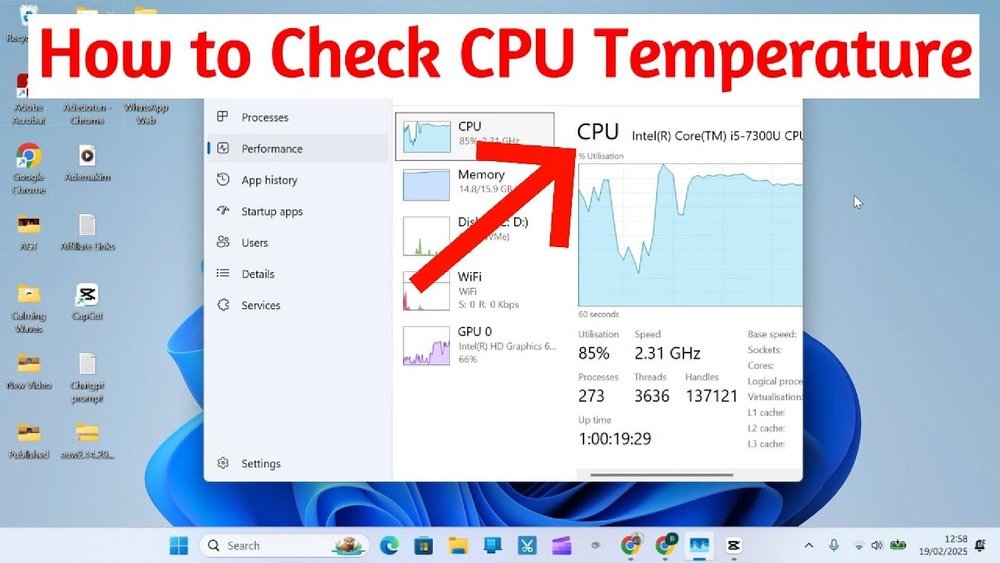
Is your computer running slower than usual or suddenly shutting down? It might be overheating, and checking your CPU temperature is the first step to fixing this.
Knowing how to check your CPU temp helps you protect your device from damage and keeps it running smoothly. You’ll discover simple, easy ways to monitor your CPU temperature—no tech jargon, just straightforward steps you can follow right now. Keep reading to learn how to take control of your computer’s health before small problems turn into costly repairs.
Why Cpu Temp Matters
CPU temperature is important for your computer’s health. It shows how hot your processor is running. A safe temperature helps your CPU work well and last longer. High temperatures can cause problems and slow your computer down. Watching your CPU temperature can stop damage before it happens.
Effects Of Overheating
Overheating can make your computer shut down suddenly. It may cause your system to freeze or crash. High heat can damage CPU parts permanently. Your computer might run slower to cool down. Over time, this stress reduces the CPU’s lifespan.
Signs Of High Cpu Temperature
Your computer might get very hot to touch. Fans may run loudly and constantly. Programs may respond slowly or stop working. You could see error messages or blue screens. These signs mean your CPU is too hot and needs attention.

Credit: openhardwaremonitor.org
Tools To Check Cpu Temp
Checking your CPU temperature helps keep your computer safe and fast. Using the right tools makes this task simple. Some tools come with your system. Others you can download. Both types show CPU temperature clearly. Let’s explore these options.
Built-in System Utilities
Most computers have built-in tools to check CPU temperature. Windows users can access BIOS or UEFI settings during startup. This shows hardware information, including CPU temperature. Some Windows versions also offer Task Manager or Command Prompt tools for basic info.
Mac users can use the Activity Monitor for system details. It does not always show temperature, but it helps check CPU load. Linux users can run terminal commands like lm-sensors to get temperature readings. These built-in tools are free and easy to access.
Third-party Software Options
Third-party software provides detailed CPU temperature data. Many programs display real-time temperature and other hardware stats. They often include alerts for high temperatures, helping prevent damage.
Popular free options include HWMonitor, Core Temp, and SpeedFan. These programs support most CPUs and offer easy-to-read interfaces. Some paid tools add more features like logging and remote monitoring. Choose one based on your needs and comfort level.
Step-by-step Cpu Temp Check
Checking your CPU temperature helps keep your computer safe. High temperatures can cause damage or slow down performance. This step-by-step guide shows easy ways to check your CPU temperature. Follow along to keep your system cool and running well.
Using Task Manager And Bios
Task Manager does not show CPU temperature directly. You need to check BIOS for accurate readings. Restart your computer and press the BIOS key during startup. Common keys are F2, Delete, or Esc. Look for the “Hardware Monitor” or “PC Health” section. Find the CPU temperature listed there. Note the temperature before exiting BIOS. This method works without extra software.
Using Popular Monitoring Apps
Many free apps show CPU temperature easily. Download and install a trusted program like HWMonitor or Core Temp. Open the app to see real-time temperature readings. These apps also show other details like fan speed and voltage. Keep the app running to watch temperature during heavy tasks. This method is user-friendly and provides detailed info.
Interpreting Cpu Temperature Readings
Understanding CPU temperature readings helps keep your computer safe. It shows how hot the processor runs during work. Knowing what numbers are normal avoids damage and slowdowns. This section explains how to read CPU temperatures and what they mean for your device.
Safe Temperature Ranges
Most CPUs run well between 30°C and 50°C when idle. Under heavy use, temperatures up to 70°C are usually safe. Some processors can handle up to 85°C without problems. Consistently high temperatures above 90°C risk hardware damage. Check your CPU model for exact safe limits.
When To Take Action
Take action if the CPU temperature stays above 85°C for long periods. Sudden spikes over 95°C need immediate attention. Clean your computer’s fans and vents to improve airflow. Replace old thermal paste if heat stays high. Consider adding extra cooling or reducing workload.
Tips To Prevent Cpu Overheating
Preventing CPU overheating is essential for your computer’s health and performance. High temperatures can cause crashes, slowdowns, and even hardware damage. Taking simple steps can keep your CPU cool and running smoothly.
Improving Airflow And Cooling
Good airflow helps remove heat from inside the computer case. Arrange cables neatly to avoid blocking air paths. Use fans to bring cool air in and push hot air out. Place your computer in a cool, open space, not inside a closed cabinet.
Consider upgrading to better cooling solutions. A quality CPU cooler or liquid cooling system can lower temperatures significantly. Make sure the cooler is properly installed with enough thermal paste.
Regular Maintenance Practices
Dust buildup can block airflow and trap heat. Clean your computer’s interior every few months using compressed air. Check fans and heatsinks to ensure they spin freely and are not clogged.
Keep your software updated. Sometimes, updates improve how your CPU manages power and heat. Avoid running too many programs at once, which can overwork the CPU and raise temperatures quickly.

Credit: www.alcpu.com

Credit: softwareg.com.au
Frequently Asked Questions
How Can I Check My Cpu Temperature On Windows?
You can check CPU temperature using software like HWMonitor or Core Temp. Install and run the app to view real-time CPU temps.
What Is A Safe Cpu Temperature Range For Laptops?
A safe CPU temperature for laptops is usually 30°C to 70°C under load. Temperatures above 80°C may cause overheating issues.
Why Is My Cpu Temperature Suddenly High?
High CPU temps can result from dust buildup, poor airflow, or failing fans. Check cooling components and clean your PC regularly.
Can Bios Show Cpu Temperature Without Software?
Yes, many BIOS setups display CPU temperature under hardware monitoring or system status sections without needing extra software.
Conclusion
Checking your CPU temperature helps keep your computer safe. High temps can cause slowdowns or damage. Use simple tools to watch the numbers closely. Regular checks help you fix problems early. Stay alert and keep your PC cool. This small step protects your work and games.
Keep your system running smooth and long. Easy to do, and very useful too.
