
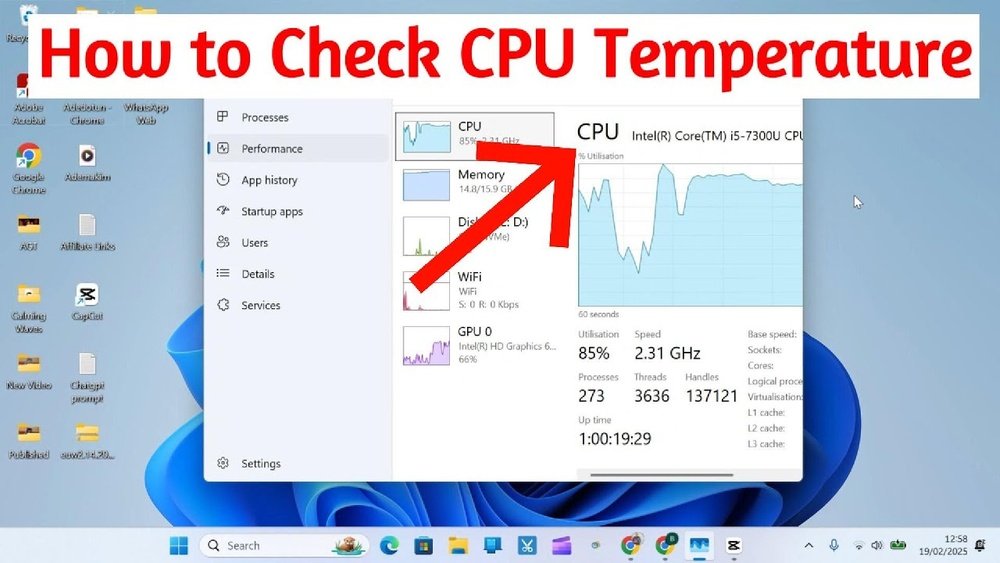
Are you worried your computer might be overheating? Knowing how to check your CPU temperature is key to keeping your device running smoothly and avoiding costly damage.
You’ll discover simple, effective ways to monitor your CPU temp right now. You don’t need to be a tech expert to protect your computer—you just need the right tools and easy steps. Keep reading to learn how to spot problems before they slow you down or cause serious issues.
Your CPU’s health depends on it!

Credit: openhardwaremonitor.org
Why Monitor Cpu Temperature
Monitoring your CPU temperature is important for every computer user. The CPU works hard and can get very hot. Checking its temperature helps keep your computer safe and fast. It also stops problems before they start. Understanding why temperature matters can help you take better care of your device.
Effects Of Overheating
Overheating can cause many problems. Your computer may slow down or freeze. It can shut down suddenly to protect itself. Long-term heat damage can reduce your CPU’s life. Some parts may stop working properly. High temperatures can cause data loss too. Avoiding overheating keeps your computer stable and reliable.
Benefits Of Temperature Monitoring
Monitoring CPU temperature gives you control. You can spot heat issues early. It helps you know if cooling is working well. You can prevent crashes and data loss. It also improves your computer’s performance. Keeping the temperature in check saves money on repairs. Temperature monitoring is a simple way to protect your device.
Signs Of High Cpu Temperature
High CPU temperature can cause many problems for your computer. It affects performance and can damage parts over time. Knowing the signs helps you act before serious damage occurs.
Watch for changes in how your system runs. Your computer tries to protect itself but shows clear signs when it gets too hot. Spotting these signs early can save you time and money.
System Slowdowns
Your computer may become slow and unresponsive. Programs take longer to open. Tasks that were quick start lagging. This happens because the CPU reduces speed to cool down. It lowers performance to avoid damage.
Unexpected Shutdowns
The system may turn off suddenly without warning. This is a safety feature to stop overheating. Frequent shutdowns mean your CPU is too hot. It protects itself by shutting down before parts fail.
Fan Noise Increase
You might hear your fan running louder than usual. Fans spin faster to cool the CPU. Constant loud noise indicates high temperature. It means your computer is working hard to stay cool.
Tools For Checking Cpu Temperature
Checking your CPU temperature helps keep your computer safe. High temperatures can cause damage or slow down your PC. Various tools let you check the CPU heat easily. These tools range from built-in features to external devices. Choose one that fits your needs and skill level.
Built-in Bios/uefi Monitoring
Your computer’s BIOS or UEFI has a built-in temperature monitor. You can access it by restarting your PC and pressing a key like F2 or Delete. This tool shows CPU temperature in real time. It works without installing extra software. BIOS/UEFI monitors are basic but reliable for quick checks.
Third-party Software Options
Many free and paid apps display CPU temperature on your desktop. These programs offer detailed stats and alerts. Popular options include HWMonitor, Core Temp, and SpeedFan. They provide graphs and history to track temperature changes. Software tools are user-friendly and suitable for daily monitoring.
Hardware Monitoring Devices
External devices attach to your PC to measure temperature precisely. These gadgets often use sensors placed near the CPU. They show real-time data on small screens or through apps. Hardware monitors are good for advanced users and overclockers. They offer accurate readings beyond software capabilities.

Credit: www.alcpu.com
Step-by-step Temperature Check
Checking your CPU temperature helps keep your computer safe. High temperatures can cause damage or slow down your PC. Follow these steps to check your CPU temperature easily. You can do this through BIOS/UEFI or software tools. Understanding the readings is important to know if your CPU is too hot.
Accessing Bios/uefi
Restart your computer to enter BIOS or UEFI. Press the key shown during startup, like F2, Delete, or Esc. Look for a section called “Hardware Monitor” or “PC Health.” Here, you will find the CPU temperature listed. BIOS shows the temperature before the operating system loads. This method works on almost all computers.
Using Software Tools
Download a trusted temperature monitoring tool. Programs like HWMonitor, Core Temp, or Speccy work well. Open the software after installation. Look for the CPU temperature section. These tools show real-time temperatures while you use your PC. You can also see temperatures for each CPU core.
Interpreting Temperature Readings
Normal CPU temperatures usually range between 30°C and 50°C. During heavy tasks, the temperature can rise up to 70°C or 80°C. Temperatures above 85°C may cause problems. If your CPU is too hot, check your cooling system. Clean dust from fans and improve airflow to cool your CPU. Keeping the temperature low ensures better performance and longer life for your PC.
Maintaining Optimal Cpu Temperature
Maintaining optimal CPU temperature is key to keeping your computer fast and safe. Overheating can cause slowdowns and damage parts. Regular care helps your CPU work well and last longer.
Small steps can make a big difference. Simple cleaning and good airflow keep heat away. Sometimes, better cooling tools are needed to stay cool under pressure.
Cleaning And Dust Removal
Dust blocks air and traps heat inside your computer. Clean your PC’s inside with a soft brush or canned air. Remove dust from fans, vents, and heat sinks. Do this every few months for steady cooling.
Improving Airflow
Good airflow moves hot air out and cool air in. Keep cables neat to avoid blocking air paths. Place your PC in a spot with space around it. Avoid closed cabinets or crowded desks.
Upgrading Cooling Solutions
Stock coolers may not be enough for heavy use. Consider upgrading to a better air cooler or liquid cooling system. High-quality fans and heat sinks help lower CPU temperature. Choose parts that fit your PC case and budget.
Troubleshooting High Cpu Temperatures
High CPU temperatures can cause your computer to slow down or shut off. Fixing this issue helps your PC work better and last longer. Here are simple steps to find and solve the problem.
Checking Thermal Paste
Thermal paste helps move heat from the CPU to the cooler. Old or dried paste stops heat transfer. Remove the cooler and check the paste condition. If it looks dry or cracked, clean it off. Apply a fresh layer of thermal paste evenly. This step can lower CPU temperature by a good margin.
Managing Background Processes
Many programs running together raise CPU load and heat. Open your task manager to see active processes. End tasks that use too much CPU but are not needed. This lowers CPU work and reduces heat. Keep only essential programs running for smooth performance.
Adjusting Fan Settings
Fans cool the CPU by moving hot air away. Check your BIOS or system software for fan controls. Increase fan speed to improve cooling. Set fans to run faster when temperature rises. Proper fan speed helps keep CPU temperature in safe limits.

Credit: softwareg.com.au
Frequently Asked Questions
How Do I Check My Cpu Temperature On Windows?
You can check CPU temperature using software like HWMonitor or Core Temp. Install and run these apps to see real-time temperatures.
What Is The Normal Cpu Temperature Range?
Normal CPU temperature ranges from 30°C to 50°C during idle and up to 80°C under heavy load. Higher temps need attention.
Can Bios Show Cpu Temperature?
Yes, BIOS or UEFI often displays CPU temperature in the hardware monitor section. Access it by pressing a key during startup.
Why Is My Cpu Temperature So High?
High CPU temperature can be due to poor cooling, dust buildup, or heavy tasks. Cleaning fans and improving airflow helps.
Conclusion
Checking your CPU temperature helps keep your computer safe. Too much heat can cause damage or slow it down. Use simple tools or software to monitor the temperature. Keep your system clean and well-ventilated to avoid overheating. Regular checks help you catch problems early.
Stay aware of your CPU’s health for better performance. It’s easy and important to do. Your computer will thank you.
