
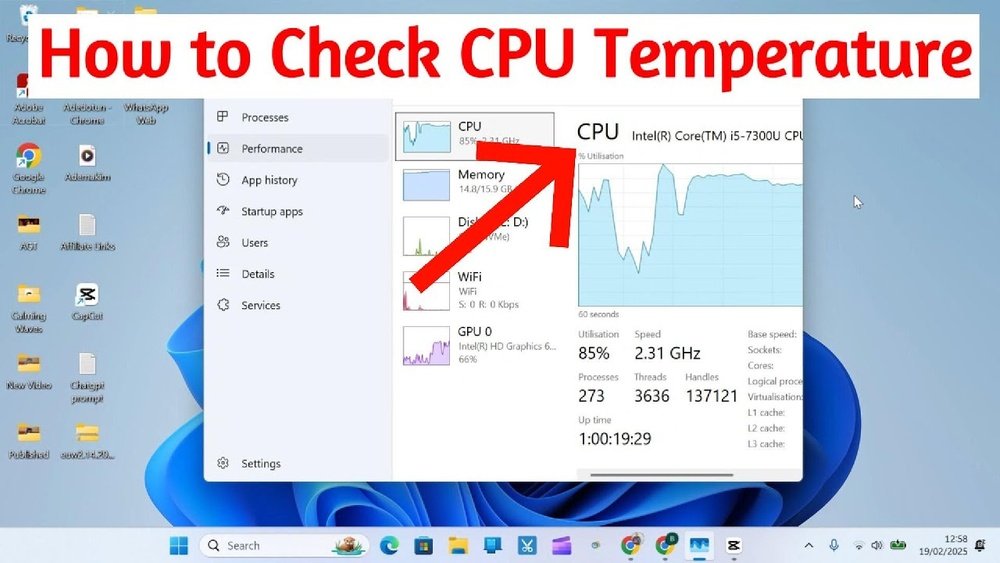
Are you worried that your computer might be running too hot? Knowing how to check your CPU temperature is one of the simplest ways to protect your device from overheating and potential damage.
If your CPU gets too hot, it can slow down your system or even cause crashes. But don’t worry—this guide will show you exactly how to check your CPU temp quickly and easily. By the end, you’ll be able to keep your computer running smoothly and avoid costly repairs.
Ready to take control of your PC’s health? Let’s dive in!

Credit: softwareg.com.au
Why Monitor Cpu Temperature
Monitoring your CPU temperature is important for your computer’s health. The CPU works hard to run programs and processes. If it gets too hot, problems can arise. Knowing your CPU temperature helps keep your system safe and running smoothly.
Impact On Performance
High CPU temperature can slow down your computer. The processor reduces speed to cool itself. This is called thermal throttling. It lowers your computer’s performance during heavy tasks. Watching the temperature helps avoid slowdowns.
Preventing Overheating Damage
Too much heat can damage the CPU permanently. Overheating causes hardware failure and shortens lifespan. It may also affect other components. Monitoring temperature helps catch issues early. This prevents costly repairs or replacements.

Credit: openhardwaremonitor.org
Signs Of High Cpu Temperature
High CPU temperature can cause many problems for your computer. It is important to notice the signs early. These signs help you act before serious damage occurs. Recognizing high CPU temperature issues saves time and money. Below are common signs to watch for.
System Slowdowns
Your computer may run slower than usual. Programs take more time to open or respond. This happens because the CPU reduces speed to cool down. The slowdown protects the computer from overheating. If your system lags often, high CPU temperature might be the cause.
Unexpected Shutdowns
The computer may turn off without warning. This is a safety feature to stop damage from heat. Sudden shutdowns mean the CPU temperature is too high. Frequent shutdowns show a cooling problem. Check your CPU temperature if your PC shuts down randomly.
Tools To Check Cpu Temperature
Checking your CPU temperature helps keep your computer safe. High temperatures can cause damage or slow down your system. Several tools let you monitor this temperature easily. These tools vary from built-in options to third-party software. Each tool has its own benefits and ease of use.
Built-in Bios/uefi Options
Every modern computer has BIOS or UEFI firmware. It shows basic system information, including CPU temperature. You can access it by restarting your computer and pressing a key like F2 or Delete. Inside BIOS/UEFI, look for a section called “Hardware Monitor” or “PC Health.” It displays real-time CPU temperature without installing extra software. This method is reliable and does not affect system performance.
Third-party Software Solutions
Many software programs can check CPU temperature in Windows or MacOS. These programs show temperature in real-time with graphs and alerts. Popular options include HWMonitor, Core Temp, and SpeedFan. They are easy to install and use. Third-party tools offer more detailed information than BIOS. You can track temperature while using your computer normally. Some software also shows fan speed and voltage for better monitoring.
Step-by-step Temperature Check
Checking your CPU temperature helps keep your computer safe. It shows if your CPU is too hot. High temperatures can cause slowdowns or damage. Follow this simple guide to check your CPU temperature step-by-step.
Accessing Bios/uefi
Restart your computer. Press the key to enter BIOS or UEFI. Common keys are Delete, F2, or F10. Look for a section named “Hardware Monitor” or “PC Health.” You will see the CPU temperature listed there. BIOS shows temperature before your system fully starts.
Using Monitoring Software
Download a trusted temperature monitoring app. Examples include HWMonitor, Core Temp, or SpeedFan. Open the software after installation. It shows real-time CPU temperature while Windows runs. Some apps also display fan speeds and voltages.
Interpreting Temperature Readings
Normal CPU temperature is between 30°C and 50°C when idle. Under heavy use, temperatures up to 80°C are okay. Above 90°C is too hot and risky. If temperatures are high, check cooling systems or clean your PC. Keeping CPU cool improves performance and lifespan.
Tips To Lower Cpu Temperature
Keeping your CPU temperature low helps your computer run smoothly. High CPU heat can slow down your system and shorten its life. Simple steps can reduce the temperature and improve performance. Follow these easy tips to keep your CPU cool.
Improving Airflow
Good airflow moves hot air out and brings cool air in. Make sure your computer case has enough fans. Position fans to create a clear path for air. Avoid blocking air vents with cables or objects. Proper airflow keeps the CPU cooler during use.
Cleaning Dust And Debris
Dust blocks airflow and traps heat inside your computer. Regularly clean dust from fans, vents, and heatsinks. Use a soft brush or compressed air for safe cleaning. Removing dust helps your CPU breathe and stay cool.
Applying Thermal Paste
Thermal paste helps transfer heat from the CPU to the cooler. Over time, thermal paste can dry out and lose effectiveness. Remove old paste carefully and apply a fresh, thin layer. Correct thermal paste use lowers CPU temperature significantly.

Credit: www.alcpu.com
When To Seek Professional Help
Knowing when to seek professional help for your CPU temperature issues is important. Some problems need expert care to avoid damage. Understanding the signs can save your computer from serious harm. Acting early can also save money on repairs.
Persistent Overheating
Persistent overheating means your CPU stays hot for a long time. Simple fixes like cleaning dust or reapplying thermal paste might not work. This issue can cause your computer to shut down suddenly. It can also reduce your CPU’s lifespan. A technician can check for deeper problems like failing fans or broken sensors. Ignoring persistent heat can cause permanent hardware damage.
Hardware Replacement Options
Sometimes parts need replacing to fix CPU temperature problems. Professionals can find if your cooling system is broken. They can suggest replacing fans, heat sinks, or thermal paste. In some cases, the CPU itself might be damaged. Experts can recommend the best replacement parts for your system. Proper installation by a technician ensures your computer runs cool and safe.
Frequently Asked Questions
How To Check Cpu Temperature On Windows?
You can check CPU temperature on Windows using software like HWMonitor, Core Temp, or SpeedFan. These tools provide real-time temperature readings and alerts.
What Is The Normal Cpu Temperature Range?
Normal CPU temperature typically ranges between 30°C to 60°C during regular use. Temperatures above 80°C may indicate overheating.
Can Bios Show Cpu Temperature Directly?
Yes, most BIOS setups display CPU temperature under hardware monitoring or PC health status. Access BIOS by pressing a key during startup.
Why Is Monitoring Cpu Temperature Important?
Monitoring CPU temperature prevents overheating, improves system stability, and extends hardware lifespan. It helps avoid performance throttling and unexpected shutdowns.
Conclusion
Checking your CPU temperature helps keep your computer safe. Knowing the steps makes it easy to do. Use simple tools to monitor your CPU’s heat. Watch for high numbers to avoid damage. Regular checks keep your system running well. Stay aware of your CPU’s temperature often.
This small action can prevent big problems later. Keep your computer cool and working smoothly.
