
Are you curious about how much storage your CPU has and how to check it quickly? Knowing your CPU’s storage details can help you understand your computer’s performance and make smarter decisions when upgrading or troubleshooting.
You’ll learn simple and effective ways to check your CPU storage without any technical hassle. Keep reading, and you’ll gain clear insights that make managing your device easier than ever.
Credit: softwareg.com.au
Cpu And Storage Basics
The CPU and storage are two key parts of a computer. They work together to run programs and save files. Understanding their roles helps you check your computer’s performance. This section explains the basics of CPU and storage.
Difference Between Cpu And Storage
The CPU, or Central Processing Unit, is the brain of the computer. It processes data and runs instructions. Storage holds data and files for long-term use. Examples of storage include hard drives and SSDs. The CPU works quickly with data in memory, while storage keeps data safe for later.
How Cpu Interacts With Storage
The CPU reads data from storage to use in tasks. It sends commands to storage to save or retrieve files. Storage sends data back to the CPU as needed. This process happens constantly while the computer runs. Fast storage helps the CPU work without delays.

Credit: www.youtube.com
Methods To Check Storage On Windows
Checking storage on a Windows PC helps manage space and improve performance. Different methods offer quick ways to see how much storage is free or used. Each approach suits different needs and skill levels. Below are simple methods to check your storage on Windows.
Using File Explorer
Open File Explorer by clicking the folder icon on the taskbar. In the left panel, select “This PC.” Under “Devices and drives,” you see your storage drives. Each drive shows a blue bar indicating used space. Hover over a drive to see exact free and total space. This method is fast and visual.
Checking Storage Via Settings
Click the Start menu and select “Settings.” Choose “System” and then click “Storage.” Here, Windows displays each drive’s storage details. It breaks down space used by apps, documents, and more. This view helps find large files or apps consuming space. It updates automatically for real-time info.
Using Command Prompt
Press Windows + R, type “cmd,” and press Enter. In the Command Prompt window, type “wmic logicaldisk get size,freespace,caption” and hit Enter. This command lists drives with free and total space in bytes. It suits users who prefer text-based info. Copy the output for further use if needed.
Methods To Check Storage On Mac
Checking your Mac’s storage helps you manage space better. It shows how much space apps, files, and other data use. Several easy methods are available for this task. Each method gives useful details about your Mac’s storage.
Using About This Mac
Click the Apple icon at the top-left corner of your screen. Select “About This Mac” from the menu. A window opens showing your Mac’s overview. Click the “Storage” tab to see a colored bar. The bar breaks down how much space each category uses. It shows apps, documents, photos, and more. This method is simple and visual.
Checking Storage In Finder
Open a Finder window by clicking the Finder icon in the dock. Select your hard drive or SSD under “Locations.” Right-click on the drive and choose “Get Info.” A window appears with storage details. It shows total capacity and available space. This method works fast and gives exact numbers.
Using Terminal Commands
Open Terminal from the Applications > Utilities folder. Type df -h and press Enter. Terminal lists all drives with their storage info. It shows used and available space in readable format. Another command, diskutil info /, gives detailed drive info. This method suits users who prefer text-based tools.
Tools To Monitor Cpu Usage
Monitoring your CPU usage helps keep your computer running smoothly. It shows which programs use the most power and when your CPU is busy. You can use built-in tools or third-party apps to check this. These tools give real-time data and help spot problems early.
Task Manager On Windows
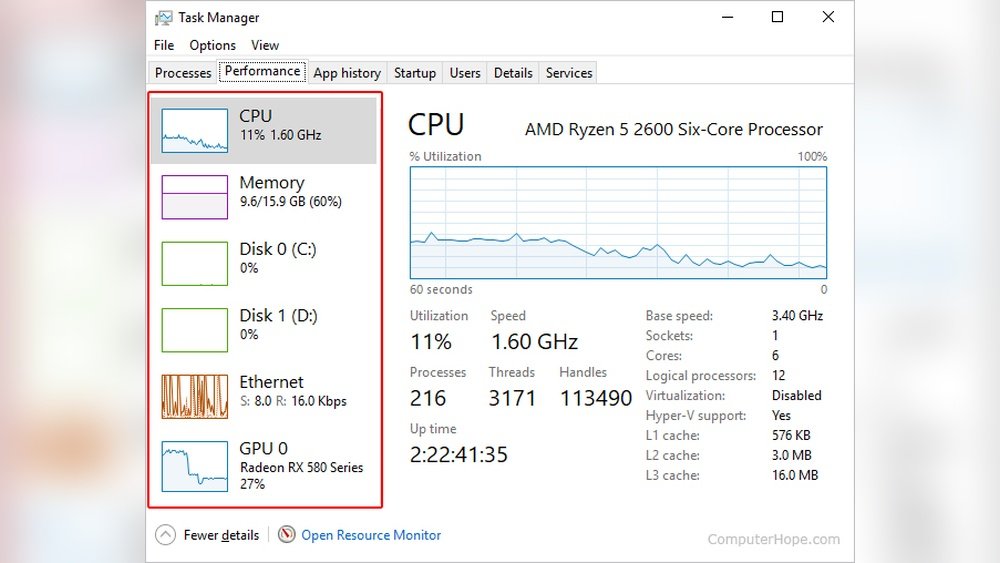
Task Manager is a simple tool on Windows. Press Ctrl + Shift + Esc to open it fast. Click the “Performance” tab to see CPU usage. You get live graphs and usage percentages. It also lists apps using CPU under the “Processes” tab. Task Manager helps find apps slowing your PC.
Activity Monitor On Mac
Mac users can check CPU with Activity Monitor. Open it from Applications > Utilities. The CPU tab shows usage by each process. You see total CPU load and app details. Activity Monitor helps find apps using too much CPU. It also shows CPU time and system activity.
Third-party Monitoring Apps
Third-party apps offer more features and details. Tools like HWMonitor, Open Hardware Monitor, and CPU-Z work well. They provide in-depth stats about CPU temperature and speed. Some apps show notifications if CPU is overloaded. Choose one based on your needs and ease of use.
Tips To Optimize Storage And Cpu
Optimizing your computer’s storage and CPU helps improve speed and performance. Regular care keeps your system running smoothly. Small changes can make a big difference.
Try simple steps to free up space and reduce CPU load. These tips help you avoid slowdowns and crashes.
Clearing Unnecessary Files
Delete old files you no longer need. Remove temporary files and empty the recycle bin. Use built-in tools like Disk Cleanup on Windows or Storage Management on Mac. This frees up storage and improves system speed.
Managing Startup Programs
Many apps start automatically and use CPU power. Disable programs you don’t need at startup. Open Task Manager or System Preferences to manage these apps. This reduces CPU load and speeds up boot time.
Upgrading Hardware
Old hardware can limit your computer’s performance. Adding more RAM or switching to a faster SSD helps. Upgrading the CPU is another option for heavy users. Better hardware supports faster processing and more storage.

Credit: pureinfotech.com
Frequently Asked Questions
What Is Cpu Storage And Why Check It?
CPU storage refers to the cache memory inside the processor. Checking it helps optimize system speed and performance. Knowing your CPU storage aids in troubleshooting and upgrading decisions.
How Can I Check Cpu Storage On Windows?
Open Task Manager by pressing Ctrl+Shift+Esc. Go to the Performance tab and select CPU. Here, you can see cache sizes under “L1 Cache,” “L2 Cache,” and “L3 Cache. “
Can I Check Cpu Storage On Mac?
Yes, click the Apple menu and select “About This Mac. ” Click on “System Report,” then “Hardware. ” Your CPU cache details appear under the “Cache” section.
Why Does Cpu Storage Affect Computer Speed?
CPU storage stores frequently used data for quick access. Larger caches reduce time to retrieve data, improving processing speed. Insufficient CPU storage may cause slower performance.
Conclusion
Checking your CPU storage helps keep your computer running smoothly. Knowing how to find this information saves time and frustration. It also helps you decide when to upgrade or clean your device. Use simple steps to check storage without stress.
Stay aware of your system’s space to avoid slowdowns. Regularly checking storage keeps your PC healthy and fast. Now, you can easily monitor your CPU storage anytime you want.
