

Want to know how well your CPU is handling the tasks you throw at it? Checking your CPU performance in Windows 11 is easier than you think, and it can help you spot slowdowns before they become a real problem.
Whether you’re gaming, working, or just browsing, understanding your CPU’s health can boost your PC’s speed and reliability. Keep reading to discover simple steps you can take right now to check your CPU performance and keep your computer running smoothly.
Accessing Task Manager
Accessing Task Manager is the first step to check CPU performance in Windows 11. Task Manager shows real-time data about your CPU usage. You can see which apps use the most power. It also helps to find problems slowing down your PC. There are easy ways to open Task Manager. Two common methods include keyboard shortcuts and the Start menu.
Using Keyboard Shortcuts
Press Ctrl + Shift + Esc together. This shortcut opens Task Manager directly. It is fast and works on most Windows 11 devices. Another option is Ctrl + Alt + Delete. This shows a screen with several options. Choose “Task Manager” from the list. These shortcuts save time and effort.
Navigating Through Start Menu
Click the Start button on the taskbar. Type Task Manager in the search box. Select the Task Manager app from the results. This way is simple for users who prefer clicking. You can also right-click the Start button. Then select “Task Manager” from the menu. This method is quick and easy.

Credit: www.youtube.com
Monitoring Cpu Usage
Monitoring CPU usage helps you understand your computer’s performance. It shows how much work your processor is doing at any moment. High CPU usage can slow down your system or cause overheating. Watching CPU activity helps spot problems early and keep your PC running smoothly.
Real-time Cpu Activity
Windows 11 shows real-time CPU activity in Task Manager. Press Ctrl + Shift + Esc to open it quickly. Click the Performance tab and select CPU. The graph displays how busy your processor is right now. Green spikes mean more work; flat lines mean less. This live view helps track sudden CPU changes during tasks.
Identifying High Usage Processes
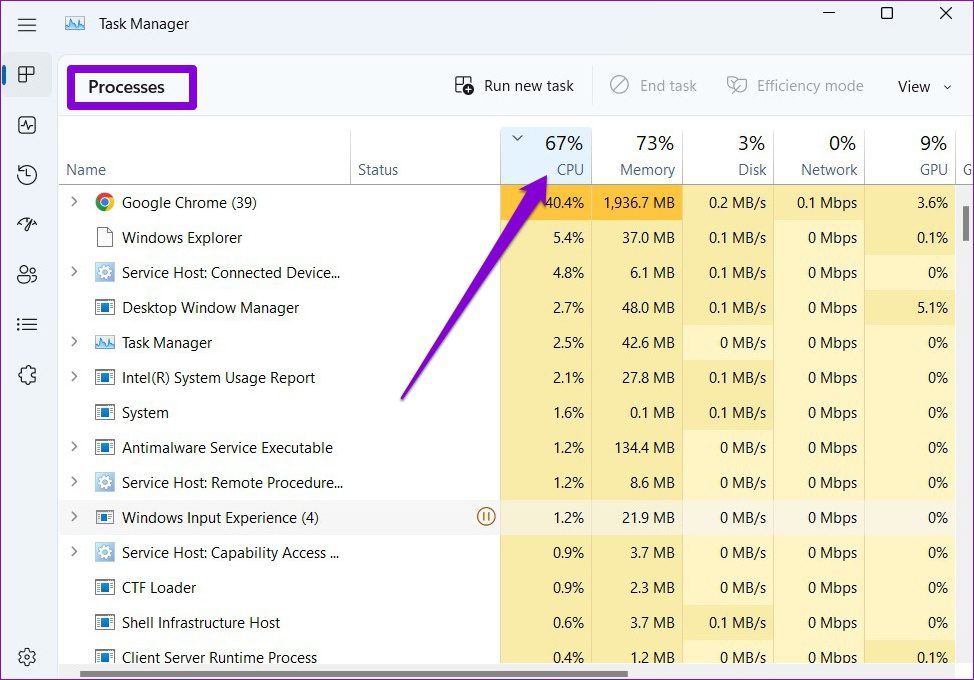
The Task Manager lists processes using CPU resources. Click the Processes tab to see each app’s CPU percentage. Sort by CPU column to find the most demanding tasks. Some programs may use too much power and slow your system. You can end these tasks by selecting them and clicking End Task. This frees up CPU for other jobs.
Using Resource Monitor
Resource Monitor is a useful tool in Windows 11. It shows detailed information about your CPU use. You can see how much work your CPU is doing in real time. This helps you find programs that slow down your computer.
Using Resource Monitor is simple and clear. It gives a deeper look than the basic Task Manager. You can check each process and service using the CPU. Let’s see how to open it and read the CPU data.
Launching Resource Monitor
Press Windows + S to open the search bar. Type Resource Monitor and press Enter. The tool opens with several tabs at the top.
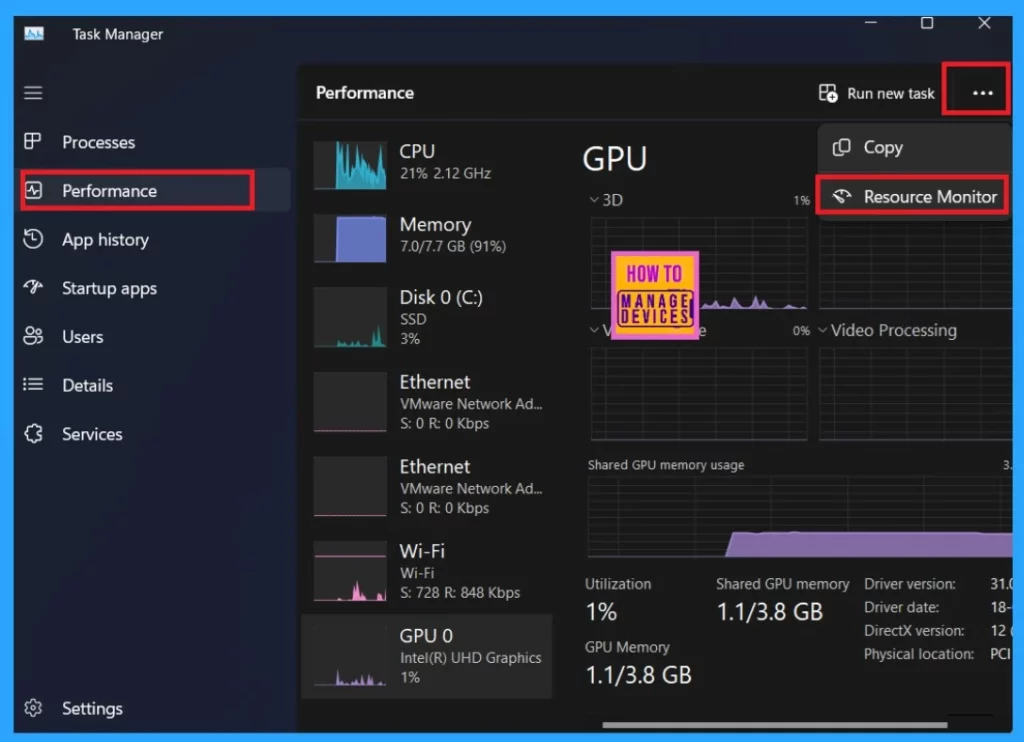
Click the CPU tab to view CPU-specific data. You can also open it through Task Manager. Press Ctrl + Shift + Esc, go to the Performance tab, then click Open Resource Monitor.
Analyzing Cpu Performance Details
In the CPU tab, find a list of processes using CPU power. The CPU Usage column shows the percentage each process uses. You can spot heavy users easily.
Look at the graphs for overall CPU activity. The CPU Usage History shows real-time changes. Check Services below to see background tasks.
Use this data to decide if you need to close some programs. It helps keep your PC fast and responsive.
Credit: www.guidingtech.com
Checking Performance With Performance Monitor
Performance Monitor is a powerful tool in Windows 11. It helps you check your CPU’s performance in detail. This tool shows real-time data and logs for later review. Using Performance Monitor gives a clear picture of how your CPU works. It helps find problems and improve speed. Below are steps to set it up and understand the key CPU metrics.
Setting Up Performance Counters
First, open Performance Monitor by typing “perfmon” in the Start menu. Click on “Performance Monitor” under Monitoring Tools. To add counters, click the green plus (+) button on the toolbar. Select “Processor” from the list of available counters. Choose metrics like “% Processor Time” and “Processor Queue Length.” These counters show CPU usage and waiting tasks. Click “Add” then “OK” to start monitoring.
You can create a custom data collector set for long-term tracking. Right-click “Data Collector Sets” and choose “User Defined.” Then select “New” and “Data Collector Set.” Name it and pick “Create manually.” Add the performance counters you want. Save and start the set to record CPU data over time.
Interpreting Cpu Metrics
“% Processor Time” shows the CPU’s active time. High values mean the CPU is busy. Values near 100% suggest heavy usage or overload. “Processor Queue Length” tells how many tasks wait for CPU time. If the queue is often above 2, the CPU may be a bottleneck. Watch “Interrupts/sec” to spot hardware issues. A sudden rise can indicate device problems.
Look for patterns, not just spikes. Consistent high usage means the CPU is stressed. Short spikes might be normal for some apps. Use the data to decide if you need upgrades or fixes. Performance Monitor helps make smart choices for your system’s health.
Third-party Tools For Cpu Monitoring
Third-party tools for CPU monitoring offer extra features beyond Windows 11’s built-in options. They help users track CPU speed, temperature, and usage in real time. These tools provide detailed data that can help diagnose issues or improve system performance.
Many third-party tools show CPU performance in easy-to-understand graphs and charts. They often include alerts for high temperatures or unusual activity. This makes them useful for both casual users and tech enthusiasts.
Popular Software Options
Some popular CPU monitoring tools include HWMonitor, Core Temp, and CPU-Z. HWMonitor tracks temperature, voltage, and fan speeds. Core Temp focuses on showing the exact temperature of each CPU core. CPU-Z provides detailed information about the processor and system.
Other tools like MSI Afterburner and Open Hardware Monitor offer extra features such as GPU monitoring. These programs often support customization and logging for advanced users. Most are free or offer free versions with essential functions.
Benefits Of Using External Tools
External tools provide more detailed information than Windows Task Manager. They show real-time temperature and power consumption data. This helps prevent overheating and hardware damage.
Many tools allow users to set alerts for critical CPU conditions. They also support logging data over time for better analysis. These features make it easier to track performance trends and fix problems early.
Using third-party software can improve system stability and longevity. They offer clear, easy-to-read interfaces that help users understand CPU health quickly. This makes managing your PC’s performance simpler and more effective.
Tips To Improve Cpu Performance
Improving CPU performance helps your computer run smoother and faster. Simple actions can reduce the CPU load and increase speed. These steps help your system work better without needing new hardware.
Focus on managing programs and keeping your software up to date. These tips ensure your CPU handles tasks efficiently and avoids unnecessary strain.
Closing Unnecessary Programs
Many programs run in the background without your knowledge. They consume CPU power and slow down your system. Close apps you do not use right now. Use Task Manager to see which programs use the most CPU. Ending these tasks frees up resources for important work.
Updating Drivers And Software
Outdated drivers and software can cause your CPU to work harder. Updates fix bugs and improve performance. Check for updates regularly in Windows Update and device manager. Keeping everything current helps your CPU run smoothly. It also protects your system from security risks.
Credit: www.anoopcnair.com
Frequently Asked Questions
How Can I Check Cpu Usage In Windows 11?
Open Task Manager by pressing Ctrl + Shift + Esc. Click the Performance tab. Select CPU to view real-time usage and speed details.
What Tool Shows Detailed Cpu Performance In Windows 11?
Task Manager offers basic CPU stats. For detailed info, use Performance Monitor or third-party apps like CPU-Z or HWMonitor.
How To Monitor Cpu Temperature On Windows 11?
Windows 11 lacks built-in CPU temperature monitoring. Use third-party software like HWMonitor or Core Temp for accurate readings.
Why Is My Cpu Performance Slow In Windows 11?
Slow CPU performance may result from high background processes, outdated drivers, or thermal throttling. Check Task Manager and update drivers.
Conclusion
Checking CPU performance in Windows 11 helps keep your computer running well. You can find out if your CPU is working too hard or running smoothly. Using built-in tools makes this task simple and quick. Regular checks prevent slowdowns and improve your PC’s speed.
Try these steps anytime you want to monitor your system. Stay aware of your CPU’s status to avoid problems later. This way, your computer stays fast and reliable every day.
