
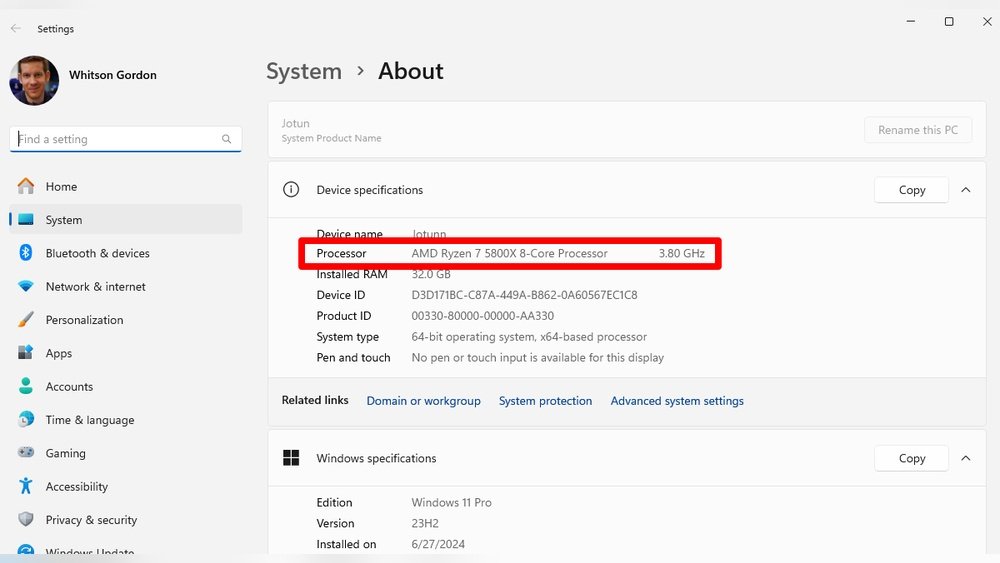
Are you curious about the exact model of the CPU inside your computer? Knowing your CPU model can help you make smarter decisions when upgrading, troubleshooting, or optimizing your system.
But how do you check it quickly and easily? You’ll discover simple steps that anyone can follow to identify their CPU model without any technical hassle. Keep reading, and you’ll gain the confidence to find this important detail in no time.

Credit: softwareg.com.au
Identify Cpu Model On Windows
Finding your CPU model on a Windows PC is simple. Knowing your CPU helps with software choices and upgrades. Windows offers multiple ways to check the CPU model quickly. Here are easy methods anyone can follow.
Using System Information Tool
Press the Windows key and type “System Information”. Open the app that appears. Look for the “Processor” entry in the system summary. The CPU model name will be listed there. This tool shows detailed info about your CPU and system.
Checking Through Task Manager
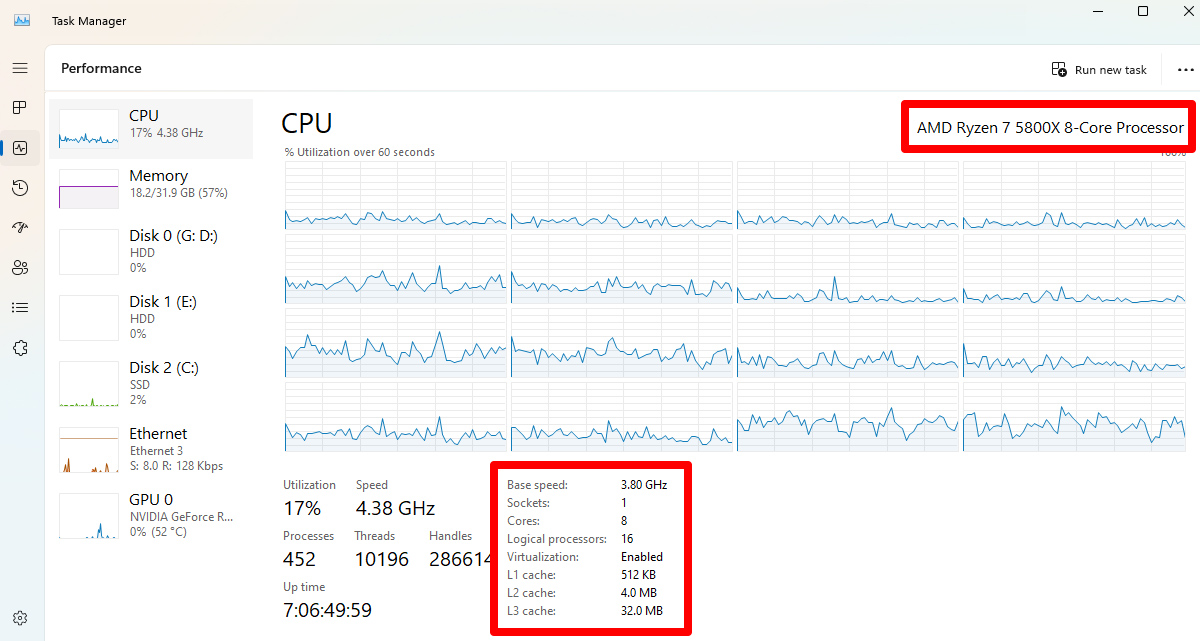
Right-click the taskbar and select “Task Manager”. Click the “Performance” tab. Choose “CPU” from the left menu. The top right corner displays the CPU model name. This method is fast and does not need extra steps.
Command Prompt Method
Press Windows + R keys, type “cmd”, then press Enter. In the Command Prompt, type “wmic cpu get name” and hit Enter. The CPU model will appear below the command. This method works well for users who like using commands.
Credit: www.intel.com
Find Cpu Model On Mac
Finding the CPU model on a Mac is simple. Knowing your CPU helps with software and hardware decisions.
This guide shows two easy ways to find your Mac’s CPU model quickly.
About This Mac Window
Click the Apple icon at the top-left corner of your screen. Select “About This Mac” from the menu. A window opens showing your Mac’s overview.
Look for the “Processor” or “Chip” line. This line tells your CPU model and speed.
This method works for all Mac models. It gives a quick summary of your CPU.
Using System Report
In the “About This Mac” window, click the “System Report” button. This opens a detailed system information tool.
Find “Hardware” in the sidebar, then click “Hardware Overview.” The CPU model is listed under “Processor Name.”
This report shows more details about your CPU and other hardware parts.
Check Cpu Model On Linux
Checking the CPU model on Linux is simple and quick. Knowing your CPU details helps you understand your system’s power and compatibility. Linux offers easy ways to find this information right from the command line or system files. This guide shows two clear methods to check your CPU model on Linux.
Using Terminal Commands
Open the terminal to start. The fastest command is lscpu. It shows detailed CPU info, including the model name. Just type lscpu and press Enter. Look for the line that says “Model name.” This line tells you the exact CPU model.
If lscpu is not available, use cat /proc/cpuinfo. This command displays a lot of CPU details. Search for “model name” in the output. It appears multiple times if your CPU has multiple cores. The first one is enough to know your CPU model.
Viewing Cpu Details In /proc Directory
The /proc directory contains system information files. The file /proc/cpuinfo holds detailed CPU data. You can read it with the command cat /proc/cpuinfo. This shows information for each CPU core.
Focus on the “model name” field. It shows the CPU model for your processor. This method works on almost all Linux distributions without extra software. It gives a simple way to check CPU details quickly.
Third-party Apps For Cpu Info
Third-party apps offer a simple way to check your CPU model. These tools provide detailed information about your processor. They often show data that built-in system tools may miss. Using these apps can help you understand your CPU better. They are easy to download and use. No technical skills needed.
Popular Cpu Identification Tools
CPU-Z is one of the most popular apps for CPU info. It shows model, speed, and cache size clearly. Speccy is another tool that displays detailed system data. It provides a clean and easy-to-read interface. HWiNFO offers real-time monitoring for CPU and other hardware. It is useful for users who want live data. These apps work on most Windows computers.
Benefits Of Using Third-party Software
Third-party apps give more detailed CPU info than basic system tools. They help identify exact CPU models and features. These tools also show temperature and voltage readings. Users can track CPU performance and health easily. Many apps are free and lightweight. They run quickly without slowing down your PC.
Interpreting Cpu Model Information
Understanding the CPU model helps you know your computer better. It shows the power and features of your processor. This information guides you in choosing software and games your PC can handle. It also helps in troubleshooting and upgrades. Learning to read CPU details makes you more confident with technology.
Understanding Cpu Generation And Speed
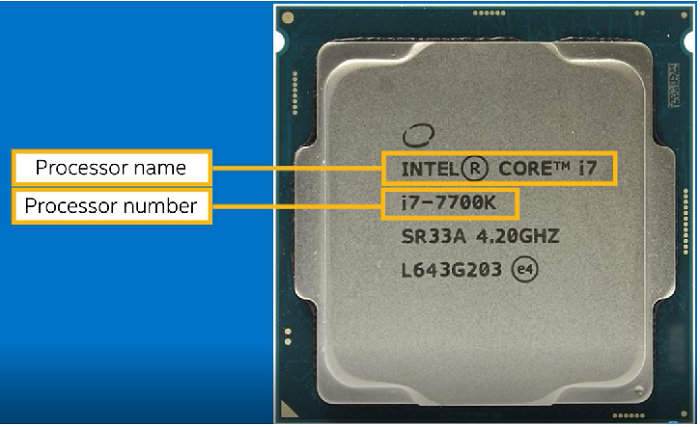
CPU generation tells you how new the processor is. Newer generations often bring better performance and efficiency. The model number usually includes the generation. For example, in Intel processors, the first digit after the brand name shows the generation.
Speed is measured in gigahertz (GHz). It indicates how fast the CPU runs tasks. Higher GHz means the processor can handle more instructions per second. But speed alone does not show the full power. Other factors also affect performance.
Recognizing Cpu Features And Cores
CPU features include technologies like Hyper-Threading or Turbo Boost. These features improve multitasking and speed during heavy use. Knowing these helps you understand the CPU’s abilities.
Cores are the separate processing units inside the CPU. More cores mean the CPU can do many tasks at once. Modern CPUs have between 2 to 16 cores or more. For daily use, 4 cores are usually enough. For heavy tasks, more cores give better results.
Tips For Accurate Cpu Identification
Knowing the exact CPU model helps in many ways. It guides you in upgrading, troubleshooting, or comparing performance. Checking the CPU model is simple but requires care. Small mistakes can lead to wrong information.
Following clear tips ensures accurate CPU identification. This section shares useful advice to avoid errors and confirm details from trusted sources.
Avoiding Common Mistakes
Do not rely only on system information tools. Some software may show generic or outdated data. Avoid guessing based on computer brand or age. These can mislead you about the CPU model.
Always double-check numbers and names shown. Typing errors can cause confusion. Use official system commands or settings for better accuracy.
Verifying Cpu Details With Manufacturer
Visit the CPU maker’s website for exact details. Enter the CPU’s serial or model number to find specs. This ensures you get official and updated information.
Manufacturer sites often list supported features and performance data. This helps confirm if the CPU matches your needs or expectations.
Credit: rog.asus.com
Frequently Asked Questions
How Can I Quickly Find My Cpu Model On Windows?
Open the System Information tool by typing “msinfo32” in the search bar. Look for “Processor” under the System Summary. It shows your exact CPU model and specs clearly.
What Is The Easiest Way To Check Cpu Model On Mac?
Click the Apple menu and select “About This Mac. ” The Overview tab displays your Mac’s CPU model and speed instantly.
Can I Check Cpu Model Without Opening My Computer?
Yes, use system tools or commands like “dxdiag” on Windows or “sysctl -n machdep. cpu. brand_string” on Mac to find CPU details without hardware access.
Why Should I Know My Cpu Model?
Knowing your CPU model helps in software compatibility, performance upgrades, and troubleshooting hardware issues effectively.
Conclusion
Knowing your CPU model helps you understand your computer better. It guides you when upgrading or fixing issues. Checking your CPU is quick and easy with simple steps. You don’t need special tools or skills to find this info. Keep your computer info handy for future use.
This small task can save you time and money. Try it today and stay informed about your device.
