
Are you worried your CPU fan isn’t working properly? Checking your CPU fan speed is one of the easiest ways to make sure your computer stays cool and runs smoothly.
If your fan is too slow, your processor could overheat and cause serious damage. On the other hand, if it’s running too fast, it might be noisy and waste energy. In this guide, you’ll learn simple, step-by-step methods to check your CPU fan speed quickly—no technical skills needed.
Keep reading, and you’ll be able to monitor your fan like a pro, protecting your computer and improving its performance.
Why Cpu Fan Speed Matters
CPU fan speed plays a key role in keeping your computer safe and running well. The fan helps cool the CPU by moving hot air away. Without proper fan speed, the CPU can get too hot. This can cause the computer to slow down or even stop working. Checking the fan speed helps you avoid these problems.
Impact On System Cooling
The CPU fan removes heat from the processor. Faster fan speed moves more air. This stops the CPU from overheating. If the fan is too slow, heat builds up quickly. High temperatures can damage the CPU and other parts. Good cooling keeps the system stable and extends its life.
Signs Of Fan Speed Issues
Noise can show fan problems. Loud or strange sounds mean the fan might be failing. Slow fan speed can cause the computer to get hot. The system might shut down suddenly to protect itself. Watch for these signs and check the fan speed often.

Credit: softwareg.com.au
Methods To Check Cpu Fan Speed
Checking your CPU fan speed helps keep your computer cool and working well. It shows if the fan runs too fast or too slow. Several methods exist to check the fan speed easily. Choose one that fits your skills and tools.
Using Bios Settings
Restart your computer and enter the BIOS setup. This usually requires pressing a key like F2, DEL, or ESC during startup. Inside BIOS, look for hardware monitor or fan speed options. Here, you can see the current CPU fan speed. BIOS shows speed in RPM (revolutions per minute). This method is simple and does not need extra software.
Third-party Software Tools
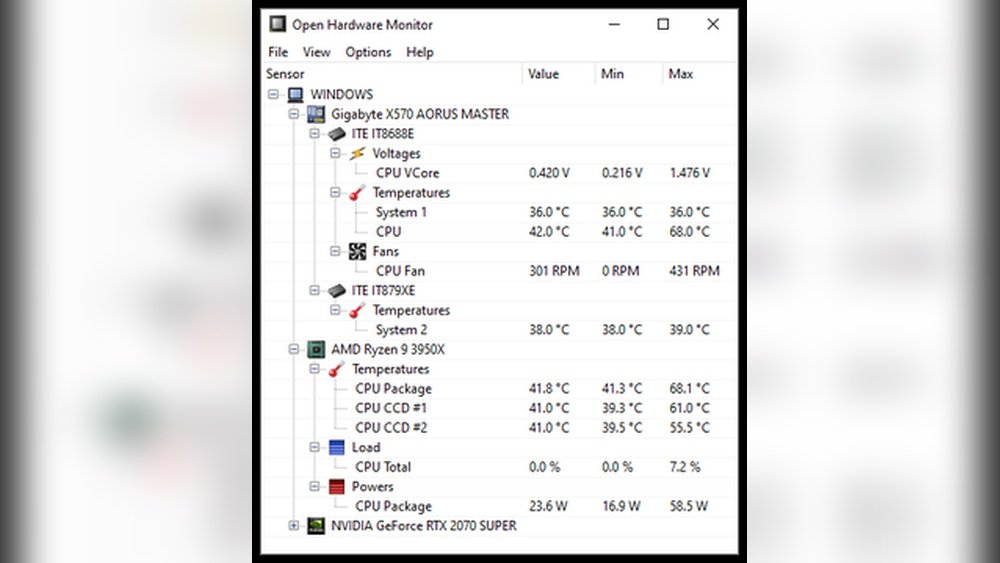
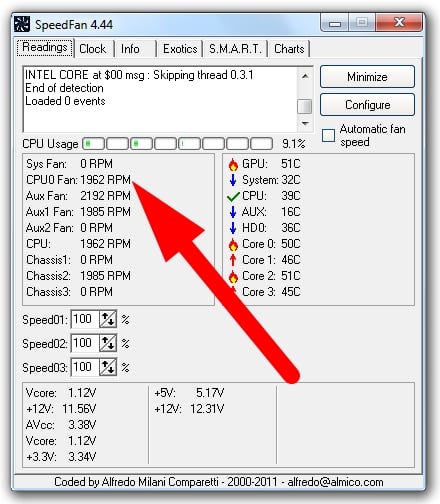
Many free programs show CPU fan speed in Windows. Examples include HWMonitor, SpeedFan, and Core Temp. Download and install one tool. Open it to check your fan speed in real time. These tools also display temperature and voltage. Use them to watch your computer’s cooling status easily.
Motherboard Utilities
Most motherboard brands offer their own software. These programs monitor fan speed and control settings. Examples are ASUS AI Suite, MSI Dragon Center, and Gigabyte EasyTune. Install the software from your motherboard’s website. It gives detailed fan speed data and lets you adjust fan curves. This method is user-friendly for system monitoring.
Step-by-step Guide To Check Fan Speed
Checking your CPU fan speed is important to keep your computer cool and running well. This guide shows simple steps to find the fan speed. You can do this using the BIOS or software tools. Both ways give clear information about your fan’s performance.
Accessing Bios
Turn off your computer. Turn it back on and press the BIOS key. This key is often F2, DEL, or ESC. Check your screen for the right key. Inside BIOS, find the hardware or monitoring section. Here you can see the CPU fan speed. It usually shows in RPM (revolutions per minute). Note the speed before you exit.
Installing Monitoring Software
Choose a fan speed tool like HWMonitor or SpeedFan. Download and install the program on your PC. Open the software after installation. It will scan your hardware automatically. Wait for the scan to complete to see the fan data. These tools often show temperature and voltage too.
Reading Fan Speed Data
Look for the CPU fan speed in the software. It is usually listed as “CPU Fan” or similar. Check the number next to it. This number is the fan speed in RPM. Compare it to your CPU’s recommended speed. If the speed is very low or zero, the fan might have issues.
Credit: www.breezeresidency.com
Troubleshooting Fan Speed Problems
Checking your CPU fan speed is important to keep your computer cool. Sometimes, the fan may not work correctly. Troubleshooting fan speed problems helps prevent damage to your CPU. You can fix many issues by following a few simple steps.
Common Fan Speed Errors
Fans may run too slow or not at all. Sensors might report wrong speeds. Noise or vibration can also be signs of fan issues. These errors can cause your computer to overheat. Identifying these problems early is important for your system’s health.
Fixing Fan Connection Issues
Loose cables can stop the fan from working. Check the fan’s connection to the motherboard. Make sure the plug is secure and clean. Dust or debris can block the connection. Gently clean and reconnect the fan cable to fix it.
Replacing Faulty Fans
If the fan is broken or very noisy, replacement may be needed. Choose a fan that matches your CPU socket and size. Turn off your computer before removing the old fan. Install the new fan carefully and connect it properly. Test the fan speed after replacement to ensure it works.
Tips For Maintaining Optimal Fan Performance
Maintaining optimal CPU fan performance helps keep your computer cool and stable. Fans work best when they are clean, well-placed, and properly managed. These tips will help your fan run smoothly and extend its life.
Regular Cleaning
Dust and dirt block airflow and slow down your CPU fan. Clean your fan regularly using a soft brush or compressed air. Avoid water or harsh cleaners that can damage parts. A clean fan moves air better and cools your CPU efficiently.
Proper Fan Placement
Place your fan where it can get enough fresh air. Avoid blocking vents with cables or other items. Make sure your computer case has good airflow with enough space around it. Proper placement helps the fan cool your system faster.
Using Fan Control Software
Fan control software lets you monitor and adjust fan speed. Set fan speeds based on CPU temperature to reduce noise and save energy. Many motherboards come with built-in software for easy control. Keep your fan running at the right speed for better performance.

Credit: softwareg.com.au
Frequently Asked Questions
How Can I Check My Cpu Fan Speed Easily?
You can check CPU fan speed using BIOS settings or third-party software like HWMonitor. These tools show real-time RPM data clearly.
Why Is Monitoring Cpu Fan Speed Important?
Monitoring fan speed helps prevent overheating, ensuring optimal CPU performance and longevity. It also helps detect cooling issues early.
Can Software Control Cpu Fan Speed Automatically?
Yes, many motherboards support software that adjusts fan speed based on temperature. This maintains efficient cooling and reduces noise.
What Is A Normal Cpu Fan Speed Range?
Typical CPU fan speeds range from 1000 to 3000 RPM. Exact speed depends on fan model and system cooling needs.
Conclusion
Checking your CPU fan speed helps keep your computer safe and cool. You can do this with simple tools or software. Watching fan speed lets you find problems early. A steady fan means your PC runs well. Take a few minutes to check it often.
This small step can stop bigger issues later. Keep your system healthy and working smoothly. Don’t ignore strange noises or sudden slowdowns. Regular checks protect your hardware and improve performance. Easy to do, worth the effort every time.
