

Want to know exactly what’s powering your Linux system? Checking your CPU details is easier than you think, and it can give you valuable insights about your computer’s performance.
Whether you’re troubleshooting, upgrading, or just curious, understanding your CPU specs helps you make smarter decisions. You’ll discover simple, step-by-step methods to find all the important CPU information on your Linux machine. Ready to unlock the secrets behind your processor?
Let’s dive in.
Credit: www.geeksforgeeks.org
Cpu Information Commands
Checking CPU details in Linux is simple with the right commands. These commands show useful information about your processor. You can see the CPU model, speed, cores, and more. Knowing these details helps you understand your system better.
Using Lscpu Command
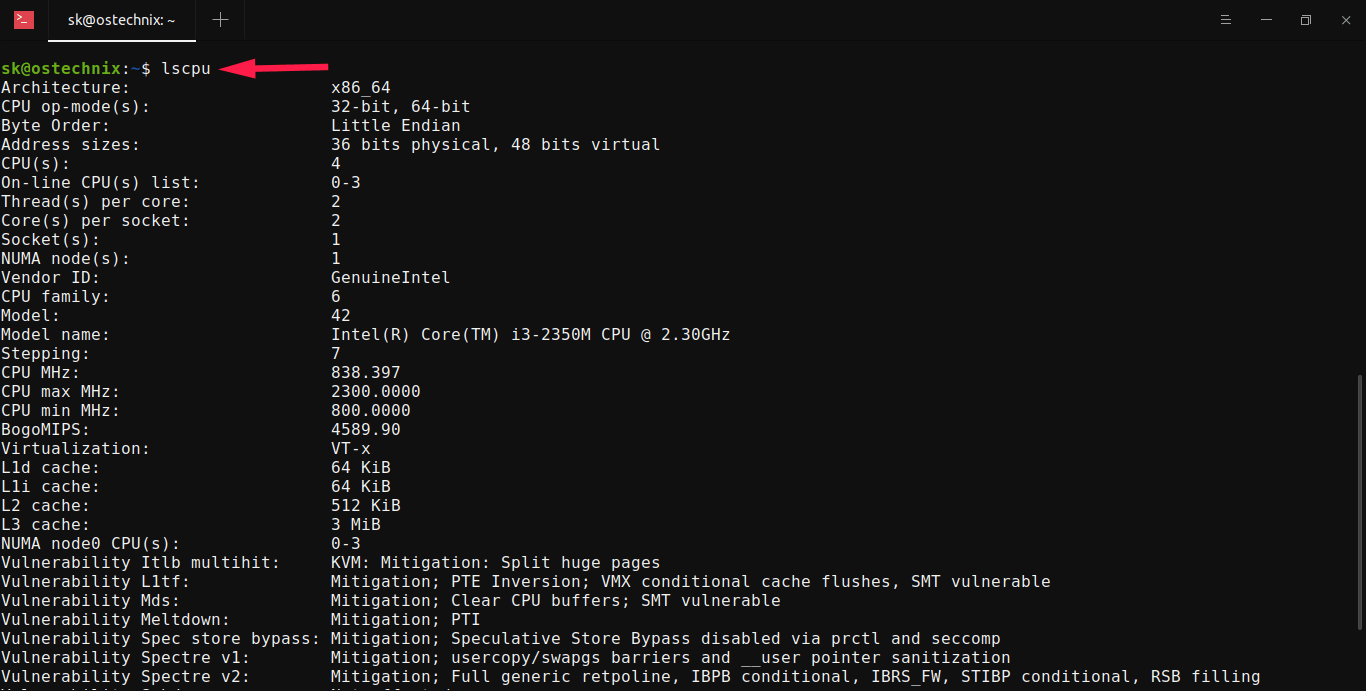
The lscpu command gives a quick summary of your CPU. Just type lscpu in the terminal and press Enter. It shows the CPU architecture, number of cores, threads, and cache size. This command is easy to use and works on most Linux systems.
Reading /proc/cpuinfo File
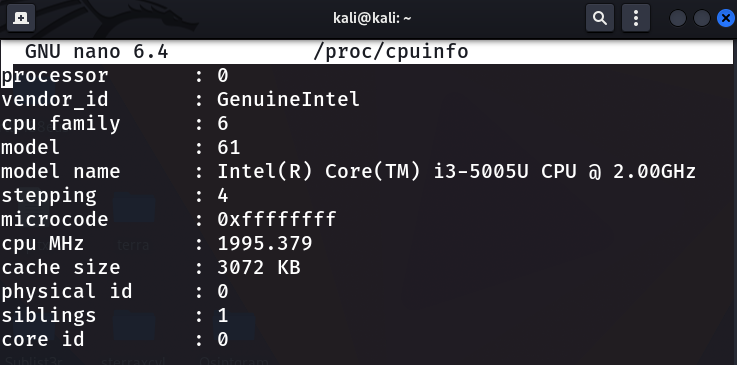
The file /proc/cpuinfo holds detailed CPU information. Use cat /proc/cpuinfo to read it. This file lists every processor core with details like model name and speed. It is very detailed and useful for deep inspection.
Employing Dmidecode For Cpu Details
The dmidecode command reads hardware info from the system BIOS. Run sudo dmidecode -t processor to see CPU details. It displays processor version, speed, and manufacturer. This command needs root permission but provides accurate data.
Credit: ostechnix.com
Graphical Tools For Cpu Info
Graphical tools make it easy to check CPU details on Linux. They show information in a clear, visual way. No need to type commands or remember options. These tools help users see CPU speed, cores, and usage quickly. They work well for beginners and everyday users.
Using Hardinfo Utility
Hardinfo is a simple program that shows system information. It displays CPU model, speed, and cache size. You can also find details about your motherboard and RAM. The interface is clean and easy to use. Install Hardinfo using your package manager, then open it from the applications menu. Navigate to the “CPU” section to see all details.
Checking Cpu With Gnome System Monitor
GNOME System Monitor is often pre-installed on many Linux systems. It shows CPU usage in real-time graphs. You can view the number of CPU cores and their activity. The “Resources” tab displays detailed CPU information. It also helps track memory and network usage. Open it from the system menu or search bar for quick access.
Real-time Cpu Monitoring
Real-time CPU monitoring helps you see how your processor works right now. It shows the CPU load and usage instantly. This is useful to spot slowdowns or heavy tasks. Linux offers simple tools to watch CPU activity live. These tools update data continuously. You get a clear view of your system’s performance. Below are two common commands for real-time CPU monitoring.
Using Top Command
The top command is built into most Linux systems. It shows active processes and CPU use. Open a terminal and type top. The screen refreshes every few seconds. You see CPU load, memory use, and running tasks. Press q to quit the command. top helps track down processes using too much CPU. It’s simple but powerful for quick checks.
Using Htop For Interactive Monitoring
htop is an improved version of top. It has colors and a better interface. Install it using your package manager if needed. Run htop in the terminal. You get a clear, scrollable list of processes. CPU and memory bars show real-time usage. Use arrow keys to navigate and manage tasks. Press F10 to exit. htop makes monitoring easier and more visual.
Checking Cpu Architecture
Checking CPU architecture helps understand the type of processor in your Linux system. It reveals the processor’s design and capabilities. This information is useful for software compatibility and system optimization.
Linux offers simple commands to check CPU details quickly. These commands show essential data about the CPU structure and features. Let’s explore how to check CPU architecture using common Linux tools.
Using Uname Command
The uname command shows basic system information. Use uname -m to display the CPU architecture.
This command outputs terms like x86_64, armv7l, or aarch64. These indicate the processor type and bit version.
For example, x86_64 means a 64-bit Intel or AMD processor. armv7l shows a 32-bit ARM CPU. This helps identify if your system is 32-bit or 64-bit.
Verifying Cpu Flags And Features
CPU flags list the features supported by your processor. Use the command lscpu or check /proc/cpuinfo file.
Look for the “flags” section. It shows supported instructions like sse, avx, or vmx. These affect performance and software compatibility.
Understanding CPU flags helps choose the right software and optimize your system. It also shows if virtualization or specific instruction sets are available.
Using Scripts To Automate Cpu Checks
Using scripts to automate CPU checks saves time and reduces errors. Scripts run commands automatically and collect CPU details. This method helps track CPU performance without manual effort. It is useful for system admins and users who want regular updates.
Simple Bash Script Example
A basic bash script can show CPU info quickly. It uses standard Linux commands like lscpu or /proc/cpuinfo. Here is a simple example:
!/bin/bash echo "CPU Information:" lscpu Save this as cpu_check.sh and make it executable using chmod +x cpu_check.sh. Run it anytime to see your CPU details instantly.
Scheduling Cpu Info Reports
Automate CPU checks by scheduling scripts with cron. Cron runs scripts at set times without manual work. To schedule, edit the cron file using crontab -e. Add a line like this to run the script every day at 8 AM:
0 8 /path/to/cpu_check.sh >> /path/to/cpu_report.txt This command saves the CPU report to a text file daily. Review the file to monitor your CPU health over time.

Credit: www.geeksforgeeks.org
Frequently Asked Questions
How To Find Cpu Model In Linux?
You can find the CPU model using the command cat /proc/cpuinfo. Look for the “model name” field. It shows your CPU’s exact make and model clearly.
Which Linux Command Shows Cpu Architecture?
Use the command lscpu to display CPU architecture details. It provides information like CPU family, model, cores, threads, and architecture type.
How To Check Cpu Speed In Linux?
Run cat /proc/cpuinfo and check the “cpu MHz” field. It shows the current clock speed of your CPU in megahertz.
Can I See Cpu Core Count On Linux?
Yes, use nproc or lscpu | grep “^CPU(s):” to find the total number of CPU cores available on your system.
Conclusion
Checking CPU details in Linux is simple and useful. Commands like lscpu and /proc/cpuinfo show key information. You learn about your processor speed, cores, and model easily. This helps in system troubleshooting and performance checks. Try these commands on your Linux system today.
Understanding your CPU keeps your computer running smoothly. Keep practicing to get comfortable with Linux commands. It’s a small step that makes a big difference.
