
Is your PC running hotter than usual? You might be wondering how to check if your CPU cooler is working properly.
A well-functioning CPU cooler is key to keeping your computer fast and safe from overheating. You’ll learn simple, step-by-step ways to check your CPU cooler. By the end, you’ll know exactly what to look for and how to fix any cooling issues before they cause serious damage.
Keep reading to protect your PC and boost its performance!
Signs Of Cpu Cooler Issues
Signs of CPU cooler issues can affect your computer’s health. Spotting these signs early helps prevent damage. The CPU cooler keeps the processor at a safe temperature. If it fails, your PC may slow down or shut off unexpectedly.
Overheating Symptoms
Your PC might get very hot during use. The fan may run loudly but not cool enough. Programs may close suddenly or freeze. Check your system temperature with software tools. High temperatures over long periods can harm the CPU.
Unusual Noises
Listen for strange sounds coming from your PC. Grinding, rattling, or buzzing noises may mean the fan is broken. Dust buildup can also cause loud fan noise. A failing fan can’t cool the CPU properly. Clean or replace the fan if you hear odd sounds.
System Instability
Your computer may restart or shut down without warning. Random crashes or blue screens can occur. These problems can be linked to poor cooling. The CPU may throttle its speed to avoid damage. This causes slow performance and system errors.
Tools Needed For Inspection
Checking your CPU cooler needs the right tools. These tools help you find problems fast. They show how well the cooler works and if it needs fixing.
Two main tool types are needed. One type uses software to check the cooler’s performance. The other involves physical tools to look inside the PC.
Software Monitoring Tools
Software tools measure CPU temperature and fan speed. They show how hot your CPU gets under use. Common tools include HWMonitor, SpeedFan, and Core Temp. These apps give real-time data on cooler health. Using software avoids opening the PC case first. It helps spot overheating or slow fan issues early.
Physical Inspection Tools
Physical tools help check the cooler’s condition inside the PC. You need a screwdriver to open the case. A flashlight helps see small parts clearly. Compressed air can clean dust from the cooler. Thermal paste may need reapplying with a small brush or cloth. These tools ensure the cooler is clean and well attached.
Checking Cpu Cooler Temperature
Checking your CPU cooler temperature helps keep your PC safe from overheating. It shows if your cooler works well or needs attention. Monitoring temperature avoids damage and improves PC performance. You can check the temperature using built-in tools or extra software.
Using Bios Settings
BIOS is the system software on your PC motherboard. It shows hardware details, including CPU temperature. To enter BIOS, restart your PC and press the correct key (often F2, Del, or Esc) during startup. Look for a menu called “Hardware Monitor” or “PC Health.” Here, you find the CPU temperature and fan speed. BIOS gives real-time, reliable temperature data without extra software.
Third-party Software Options
Third-party software offers a simple way to check CPU cooler temperature inside Windows. Popular tools include HWMonitor, SpeedFan, and Core Temp. These programs display temperature, fan speed, and voltage. They update in real time and show alerts if temperatures get too high. Many are free, easy to install, and user-friendly for beginners. Use these tools to keep track of your CPU cooler performance effortlessly.
Credit: www.overclockers.co.uk
Inspecting Cpu Cooler Physically
Inspecting the CPU cooler physically is a key step to keep your PC running cool. Dust, loose parts, or broken fans can reduce the cooler’s efficiency. A quick look inside your PC helps find these problems early. This section guides you through checking your CPU cooler safely and clearly.
Opening The Pc Case Safely
Turn off the PC and unplug all cables. Press the power button for a few seconds to discharge leftover electricity. Place the PC on a flat surface with good light. Use a screwdriver if needed to remove the side panel. Handle parts gently to avoid damage.
Cleaning Dust And Debris
Look inside for dust buildup on the cooler and fans. Use a soft brush or compressed air to remove dust. Blow air in short bursts to avoid fan damage. Clean the surrounding area to improve airflow. Regular dust removal keeps the cooler working well.
Checking Fan Operation
Spin the fan blades gently with your finger to check for stiffness. Plug the PC back in and turn it on. Watch if the fan starts spinning smoothly and quietly. Listen for unusual noises that may mean a problem. Replace the fan if it does not work properly.
Testing Fan Speed And Function
Testing the fan speed and function is key to checking your CPU cooler’s health. A properly working fan keeps your PC cool and prevents overheating. You can test the fan speed using software tools or by a simple manual method. Both ways help ensure your cooler runs smoothly and protects your CPU.
Using Software To Monitor Fan Speed
Many free programs show your CPU fan speed in real time. Tools like HWMonitor or SpeedFan display fan RPM (revolutions per minute). Open the software and look for the CPU fan section. The numbers tell you if the fan spins fast enough. A very low or zero RPM means the fan might be stopped or faulty.
Software also alerts you to unusual fan speed changes. Sudden drops or spikes may signal a problem. Monitoring fan speed regularly helps spot issues early. You can also check the temperature readings alongside fan speed. High temperature with low fan speed means your cooler is not working well.
Manual Spin Test
Turn off your PC and open the case gently. Find the CPU fan and try to spin the blades with your finger. The fan should spin freely without resistance or noise. If it feels stuck or rough, the bearings might be worn out. This can cause the fan to stop working during use.
After the manual spin, close the case and turn on your PC. Watch if the fan starts spinning quickly and steadily. If the fan does not start or moves slowly, it needs cleaning or replacement. This simple test helps find mechanical issues that software might miss.
Assessing Thermal Paste Condition
Thermal paste plays a key role in keeping your CPU cool. It helps transfer heat from the CPU to the cooler. Over time, thermal paste can dry out or lose its effectiveness. Checking its condition is important for good cooling performance.
Bad or old thermal paste can cause your CPU to run hotter. This may lead to slower performance or even damage. Knowing when to replace the paste and how to apply it properly helps maintain your PC’s health.
When To Replace Thermal Paste
Replace thermal paste every 2 to 3 years for most PCs. High temperatures or heavy use may require earlier replacement. Signs to watch for include rising CPU temperatures or loud fan noise. If you remove the cooler, it is a good time to refresh the paste. Dry, cracked, or crumbly paste must be replaced immediately.
How To Apply Thermal Paste Correctly
Clean the CPU and cooler surface with isopropyl alcohol first. Apply a small pea-sized amount of paste in the center. Avoid using too much paste; it can cause poor heat transfer. Place the cooler gently and press down evenly. This spreads the paste thin and smooth. Tighten the cooler screws slowly and diagonally. Check temperatures after reassembly to ensure good contact.
Upgrading Or Replacing Cpu Cooler
Upgrading or replacing your CPU cooler can improve your computer’s performance and lifespan. A better cooler keeps the CPU at a safe temperature. This helps avoid overheating and slows down wear and tear. Many users upgrade coolers to reduce noise or support overclocking. Replacing an old or faulty cooler also prevents hardware damage.
Choosing The Right Cooler
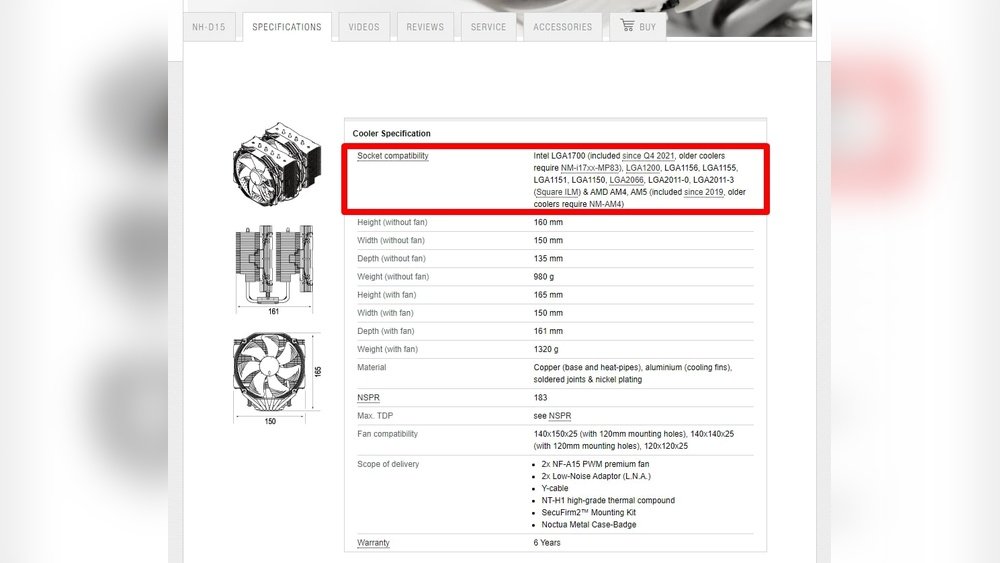
Pick a cooler that fits your CPU socket type. Check the cooler’s size to fit inside your PC case. Air coolers are common and easy to install. Liquid coolers offer better cooling but need more care. Consider your budget and noise preferences. Look for coolers with good reviews and warranty.
Installation Tips
Turn off and unplug your PC before starting. Remove the old cooler carefully without damaging the CPU. Clean the CPU surface using isopropyl alcohol. Apply a small amount of thermal paste evenly. Attach the new cooler firmly but not too tight. Connect the cooler’s fan to the motherboard header. Test the system to ensure the cooler runs quietly and effectively.
Credit: www.reddit.com
Credit: www.darkflash.com
Frequently Asked Questions
How Do I Visually Check My Pc’s Cpu Cooler?
Open your PC case carefully and locate the CPU cooler on the motherboard. Look for dust buildup or loose fittings. Ensure the fan is spinning when the PC is on. Visual inspection helps detect obvious issues affecting cooling performance.
Can Software Help Me Check Cpu Cooler Performance?
Yes, software like HWMonitor or SpeedFan can monitor CPU temperatures and fan speeds. These tools provide real-time data to ensure your cooler is working effectively. High temperatures or low fan speeds indicate potential cooler problems.
How Often Should I Clean My Cpu Cooler?
Clean your CPU cooler every 3 to 6 months to maintain airflow. Dust and debris reduce cooling efficiency and increase CPU temperature. Use compressed air or a soft brush to remove dust safely without damaging components.
What Signs Indicate A Faulty Cpu Cooler?
Overheating, unexpected shutdowns, or loud fan noise are common signs. High CPU temperatures during normal use also suggest cooler issues. Timely checking and maintenance prevent hardware damage and ensure system stability.
Conclusion
Checking your CPU cooler helps keep your PC safe and fast. You can spot problems early and avoid big repairs. Regular checks make sure your computer runs cool and quiet. Simple steps, like watching fan speed or feeling heat, work well.
Keep your PC healthy by checking the cooler often. Small actions lead to longer computer life. Stay aware and care for your PC’s cooling system. It’s easy and worth the effort.
