

Are you trying to find out your CPU architecture on a Linux system but don’t know where to start? Understanding your CPU architecture is key to optimizing your system, installing the right software, and boosting performance.
Luckily, Linux offers simple commands that reveal this important information quickly. You’ll learn exactly how to check your CPU architecture using easy-to-follow commands. By the end, you’ll have the confidence to get this info anytime you need it. Keep reading to discover the straightforward steps that can make a big difference in managing your Linux machine.
Check Cpu Architecture With Uname
Checking your CPU architecture is important for understanding your Linux system. The uname command is a simple way to find this information. It shows details about your system’s hardware and software.
This section explains how to use uname to check CPU architecture. It also helps you understand the output of the command.
Using Uname -m Command
Open your terminal to start. Type uname -m and press Enter. This command displays the machine hardware name. It tells you the CPU architecture directly. For example, you might see x86_64 or armv7l.
This command works on almost all Linux distributions. No special permissions are needed. It is fast and easy for quick checks.
Interpreting The Output
The output shows your CPU type in a short code. x86_64 means a 64-bit Intel or AMD processor. i686 or i386 means a 32-bit Intel processor. Codes like armv7l indicate ARM architecture used in many mobile devices.
Understanding this helps you choose the right software and updates. It also aids troubleshooting system issues linked to CPU type.
Credit: linuxopsys.com
Using Lscpu For Detailed Info
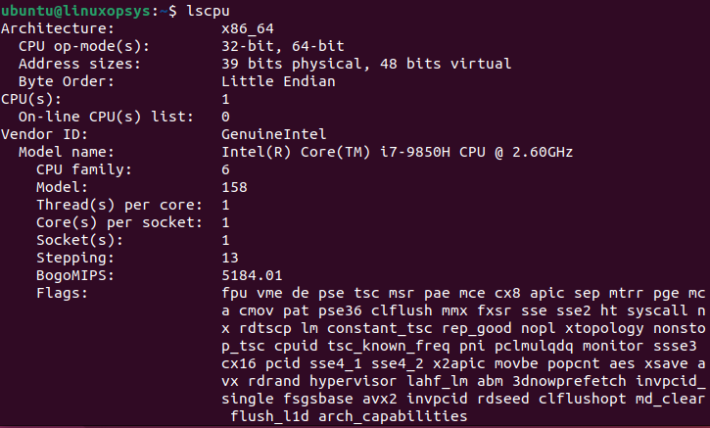
The lscpu command provides detailed information about your CPU architecture. It shows data like CPU family, model, and number of cores. This helps you understand your system better and check compatibility with software.
This command is easy to use and gives clear output. You get a quick overview of your processor without digging into complex files.
Running Lscpu Command
Open your terminal. Type lscpu and press Enter. The command runs instantly and shows a list of CPU details. No extra options are needed for basic info. For more detail, use lscpu -e to see CPU topology.
Key Fields To Note
Look for “Architecture” to know the CPU type, such as x86_64 or arm. The “CPU(s)” field shows the number of cores. “Thread(s) per core” tells if your CPU supports hyper-threading.
“Model name” gives the exact CPU model. “CPU MHz” shows the current speed. These details help in choosing software or troubleshooting hardware issues.
Checking Cpu Info From /proc/cpuinfo
The /proc/cpuinfo file holds detailed information about your CPU. It is a virtual file that the Linux kernel creates. You can use it to see CPU architecture and other specs quickly. This method works on almost all Linux systems without extra tools.
Reading this file helps understand your processor’s capabilities. It shows the model, speed, cores, and architecture type. Accessing /proc/cpuinfo is simple and fast. Let’s explore how to do it step-by-step.
Accessing Cpuinfo File
Open a terminal window on your Linux system. Type the command cat /proc/cpuinfo and press Enter. This command displays all CPU details stored in the file.
You can also use less /proc/cpuinfo to scroll through the data slowly. It helps if the output is very long. Use arrow keys to move up or down, then press q to exit.
The file contains info for each CPU core. Look at the repeated blocks for multiple cores. Each block gives the same set of details for one core.
Identifying Architecture Details
Inside /proc/cpuinfo, find the line starting with architecture or model name. This line usually shows the CPU type and generation.
Look for the flags section too. It lists supported CPU features like 64-bit or virtualization. The presence of lm means the CPU supports 64-bit architecture.
For ARM CPUs, check the Processor or CPU architecture line. It tells if the CPU is ARMv7, ARMv8, or another version.
Using Arch Command
The arch command is a simple way to check your CPU architecture on Linux. It shows the system’s hardware architecture in a short format. This command works on most Linux distributions and is easy to use.
Running the arch command gives a quick look at your CPU type. This helps to know if your system is 32-bit or 64-bit, among other details. The result can guide you in installing compatible software or troubleshooting.
arch CommandOpen your terminal. Type arch and press Enter. The command outputs a short string like x86_64 or i686. This tells your CPU architecture type.
Understanding The Output
x86_64 means a 64-bit CPU architecture. i686 or i386 indicates 32-bit. Other outputs like armv7l point to ARM CPUs. This helps identify your processor family.
arch CommandThe command is quick and requires no extra installation. It works on most Linux systems by default. No need for complex tools or root access. Perfect for beginners and advanced users alike.
Comparing Different Commands
Checking CPU architecture on Linux can be done using several commands. Each command shows details about the system in different ways. Knowing which command to use depends on your specific need. Some commands give quick info, others provide more technical details. Understanding these differences helps you choose the right tool for your task.
When To Use Each Command
The uname -m command is quick and simple. It shows the machine hardware name. Use it for a fast check of architecture type.
The lscpu command provides detailed CPU info. It shows architecture, CPU cores, threads, and more. Use it when you need complete hardware details.
arch is another simple command. It shows the architecture but with fewer details than uname -m. Use it for quick confirmation.
The cat /proc/cpuinfo command shows detailed processor information. It is useful for advanced users needing deep hardware data.
Advantages And Limitations
uname -m is fast and easy. It works on all Linux systems. Its limitation is it shows only basic info.
lscpu gives a full summary of the CPU. It is perfect for detailed hardware checks. However, it may not be installed by default.
arch is simple and widely available. It shows basic architecture info only. It cannot provide detailed CPU data.
cat /proc/cpuinfo offers the most details. It shows each CPU core’s specs. The output can be long and hard to read for beginners.

Credit: www.geeksforgeeks.org
Tips For Accurate Cpu Architecture Detection
Detecting the correct CPU architecture is important for installing the right software and optimizing system performance. Simple commands might not always give a full picture. Following specific tips helps ensure you get accurate results. This guide covers key points to check CPU architecture correctly on Linux systems.
Checking On Virtual Machines
Virtual machines often show a different CPU than the host. This can confuse detection commands. Use commands that read the virtual CPU info, like lscpu or cat /proc/cpuinfo. These show the CPU details assigned to the VM, not the physical machine.
Check the hypervisor settings too. Some VMs mask the real CPU features. Use virt-what to identify if you run inside a VM. This helps decide which commands give true architecture data.
Handling Multi-architecture Systems
Some Linux systems support multiple CPU architectures. This happens on ARM and x86_64 machines that can run software for both. Use commands like uname -m and dpkg --print-architecture (Debian-based) to see active and supported architectures.
Check installed libraries and binaries for architecture info. Multi-architecture setups need careful checks to avoid using wrong binaries. This keeps your system stable and software compatible.

Credit: cyberpanel.net
Frequently Asked Questions
How To Find Cpu Architecture In Linux Terminal?
Use the command lscpu in the Linux terminal. It displays detailed CPU architecture and hardware information clearly.
Which Linux Command Shows Cpu Bit Version?
Run uname -m to check if your CPU is 32-bit or 64-bit. It returns the machine hardware name.
Can I Check Cpu Architecture Using /proc File?
Yes, view /proc/cpuinfo with cat /proc/cpuinfo. It lists processor details including architecture type.
What Command Displays Cpu Architecture And Model?
The lscpu command shows both CPU architecture and model name. It’s concise and easy to interpret.
Conclusion
Checking your CPU architecture on Linux is simple and quick. Use the commands shared here to find your system details. Knowing your CPU type helps with software and system updates. Run these commands anytime you need to confirm your hardware.
Stay confident managing your Linux system with this easy knowledge. Keep practicing these steps to get comfortable using the terminal. Your Linux journey becomes smoother with such useful tips.
