
Do you ever wonder how fast your computer really is? Knowing your CPU’s clock speed can help you understand your device’s performance and make smarter decisions when upgrading or troubleshooting.
But checking it might seem confusing if you’re not a tech expert. Don’t worry—this guide will show you simple, clear steps to find out your CPU speed quickly. By the end, you’ll have the knowledge to unlock your computer’s true potential.
Ready to see how fast your CPU runs? Let’s dive in!

Credit: www.youtube.com
What Is Cpu Clock Speed
CPU clock speed is a key factor in how fast a computer works. It measures how many cycles a CPU can complete in one second. Each cycle allows the CPU to perform a basic task. Higher clock speed means more tasks done per second.
Understanding clock speed helps you know your CPU’s capability. It affects how quickly programs run and how smooth your system feels. Knowing this can guide you in choosing or upgrading your computer.
What Does Cpu Clock Speed Mean?
CPU clock speed is measured in hertz (Hz), usually gigahertz (GHz). One gigahertz equals one billion cycles per second. The higher the number, the faster the CPU processes data.
How Does Clock Speed Affect Performance?
A higher clock speed means the CPU can finish tasks faster. It improves the speed of software and games. But other factors like cores and cache also matter for performance.
Is Higher Clock Speed Always Better?
Not always. Some CPUs have lower clock speeds but more cores. These can handle more tasks at once. Balance between speed and cores depends on your needs.
Why Clock Speed Matters
Clock speed is a key factor in how well a CPU performs tasks. It measures how fast the CPU processes instructions. A higher clock speed means the CPU can handle more tasks per second. This affects the speed of running programs and overall computer responsiveness.
Understanding clock speed helps users pick the right CPU. It also explains why some computers feel faster than others. Knowing this can guide better choices for work, gaming, or simple browsing.
What Clock Speed Means For Performance
Clock speed shows how many cycles a CPU completes each second. It is measured in gigahertz (GHz). A CPU with 3 GHz runs three billion cycles per second. More cycles allow the CPU to process more data quickly. This boosts the performance of software and apps.
How Clock Speed Affects Daily Tasks
Higher clock speeds improve loading times and multitasking. Simple tasks like web browsing and document editing feel smoother. For complex tasks, like video editing, clock speed impacts how fast they finish. It reduces waiting time and improves efficiency.
Clock Speed And Energy Use
Faster clock speeds usually consume more power. This can lead to shorter battery life on laptops. Some CPUs adjust speed to save energy when full power is not needed. Balancing clock speed and energy use is important for device performance and battery life.
Check Clock Speed On Windows
Checking your CPU clock speed on Windows helps you understand how fast your processor runs. It shows the speed in gigahertz (GHz). Higher speeds mean the processor can handle tasks quicker. You can check this easily using built-in Windows tools. Each method gives you clear details about your CPU speed.
Using Task Manager
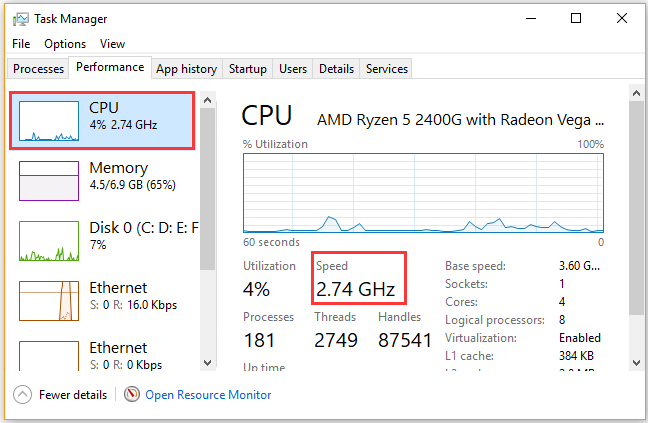
Task Manager offers a quick way to see CPU speed. Press Ctrl + Shift + Esc to open it. Click the Performance tab. Select CPU from the left menu. You will see the current speed at the top right. This shows the real-time clock speed of your processor.
Using System Information
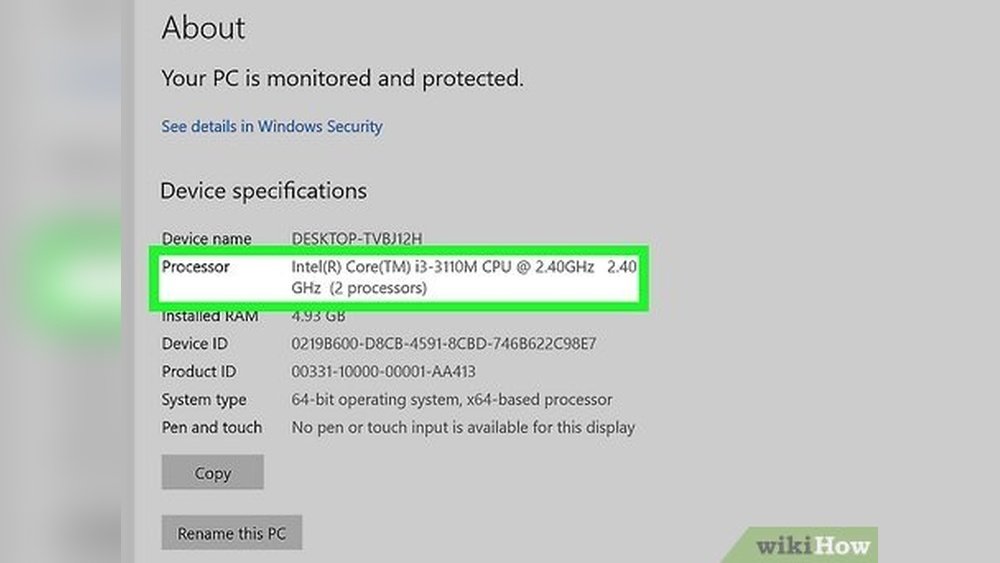
System Information gives detailed specs about your CPU. Press Windows + R to open the Run box. Type msinfo32 and press Enter. In the window, find Processor under System Summary. It displays the base clock speed of your CPU in GHz. This method provides a static clock speed value.
Using Command Prompt
Command Prompt can also reveal your CPU speed. Open it by typing cmd in the Start menu search. Enter this command:
wmic cpu get name, maxclockspeedPress Enter to run the command. It shows the processor name and maximum clock speed in MHz. This is a fast way to get CPU details without opening multiple windows.
Check Clock Speed On Mac
Checking the clock speed of your Mac’s CPU helps you understand its performance. It shows how fast your processor runs tasks. This information is useful for troubleshooting or deciding on upgrades.
You can find the CPU clock speed easily using built-in Mac tools. No extra software is needed. Below are two simple methods to check it.
Using About This Mac
Click the Apple icon on the top left of your screen. Select “About This Mac” from the menu. A window will open showing an overview of your Mac.
Look under the “Processor” or “Chip” section. Here, you will see the clock speed listed in GHz. This value tells you how fast your CPU runs.
This method is quick and works on all recent Mac models. It gives a clear, easy-to-read summary of your CPU speed.
Using System Report
Open “About This Mac” again. Click the “System Report” button in the window. This opens a detailed system information panel.
In the sidebar, select “Hardware” and then “Hardware Overview.” Scroll to find the “Processor Speed” entry. It shows the exact clock speed of your CPU.
This option provides more detailed info about your Mac’s hardware. It is useful if you want to check additional specs beyond clock speed.
Check Clock Speed On Linux
Checking the clock speed of your CPU on Linux is simple. It helps you know how fast your processor runs. This information can improve your computer use and help with troubleshooting. There are two easy ways to find this: using terminal commands and the system monitor.
Using Terminal Commands
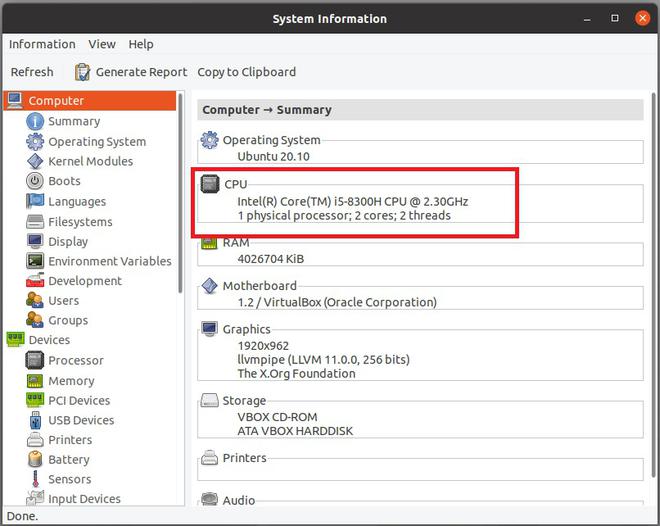
Open the terminal on your Linux system. Type lscpu and press Enter. This command shows detailed CPU information, including clock speed. Look for “CPU MHz” to see the current speed.
You can also use cat /proc/cpuinfo. It lists all CPU details. Find the line “cpu MHz” to check the speed.
These commands work on most Linux distributions. They give quick and accurate CPU speed info.
Using System Monitor
Open the System Monitor application from your menu. Go to the “Resources” or “Performance” tab. Here, you can see real-time CPU usage and speed.
Some Linux systems display CPU clock speed directly in the system monitor. Others may show CPU frequency graphs.
This method is visual and easy for beginners. It updates automatically as your CPU speed changes.
Credit: www.partitionwizard.com
Tools For Monitoring Cpu Speed
Checking the clock speed of your CPU helps you understand your computer’s performance. Various tools make this task simple and clear. These tools range from built-in utilities to third-party software. Each option offers unique features and ease of use. Choose the right tool based on your needs and skill level.
Third-party Software Options
Third-party software provides detailed CPU speed information. Programs like CPU-Z and HWMonitor show real-time clock speeds. They also display other useful data like temperature and voltage. These tools are free and easy to download. They work well for users who want more than just basic information. The interface is simple, making it easy for beginners to understand CPU speed.
Built-in Utilities
Most operating systems come with tools to check CPU speed. Windows users can open Task Manager and go to the Performance tab. This shows the current clock speed of the CPU. Mac users can use the System Information app for similar details. Linux users can use commands like “lscpu” in the terminal. Built-in tools are quick and require no extra installation. They provide enough information for everyday needs.
Factors Affecting Cpu Speed
Many things affect how fast your CPU runs. Knowing these helps you check and understand your CPU speed better. The CPU speed changes based on different factors inside your computer. Some parts make it faster, others slow it down.
Thermal Throttling
When the CPU gets too hot, it slows down to cool off. This is called thermal throttling. It protects the CPU from damage. If your computer is too hot, the CPU speed drops. Keeping your computer cool helps maintain good speed.
Power Settings
Your computer’s power plan affects CPU speed. Power saver mode lowers speed to save energy. High performance mode lets the CPU run faster. Adjusting power settings can change how fast your CPU works.
Background Processes
Many programs running in the background use CPU power. These processes reduce the CPU speed for other tasks. Closing unused programs can free up CPU resources. Fewer background tasks mean your CPU runs faster.
Credit: www.geeksforgeeks.org
Tips To Maintain Optimal Cpu Speed
Maintaining the optimal CPU speed keeps your computer fast and reliable. A well-running CPU prevents slowdowns and crashes. Simple steps can help your processor work at its best for a long time.
Regular care avoids overheating and performance drops. It also extends the life of your computer’s hardware. Follow these easy tips to keep your CPU speed steady and strong.
Keep Your Cpu Cool
Heat slows down your CPU and may cause damage. Use a good cooling system like fans or liquid coolers. Clean dust from vents and fans often. Place your computer in a well-ventilated area.
Update Your Software
Software updates improve how your CPU works with your programs. Install the latest updates for your operating system and drivers. These updates fix bugs and help your CPU run smoothly.
Limit Background Programs
Too many programs running at once slow down your CPU. Close apps you do not use. Use Task Manager to stop unnecessary programs. This frees CPU power for important tasks.
Use Power Settings Wisely
Choose power plans that balance speed and energy use. High-performance mode boosts CPU speed but uses more power. Balanced mode saves energy and keeps good speed. Adjust settings based on your needs.
Scan For Malware
Viruses and malware use CPU resources and slow it down. Run antivirus scans regularly to find threats. Remove any harmful software quickly. This helps keep your CPU running fast.
Frequently Asked Questions
How Do I Check My Cpu Clock Speed On Windows?
Open Task Manager by pressing Ctrl + Shift + Esc. Click the “Performance” tab and select “CPU. ” The current clock speed appears under “Speed” in GHz.
Can I Check Cpu Clock Speed Using Command Prompt?
Yes, type “wmic cpu get name, CurrentClockSpeed” in Command Prompt. Press Enter to see your CPU’s name and speed in MHz.
Does Cpu Clock Speed Affect Computer Performance?
Yes, higher clock speeds generally mean faster processing. However, other factors like cores and architecture also impact overall performance.
How Often Does Cpu Clock Speed Change?
CPU clock speed changes dynamically based on workload. It lowers during idle times and increases under heavy tasks for efficiency.
Conclusion
Checking your CPU clock speed helps you understand your computer’s performance. It shows how fast your processor works. You can find this information using simple tools on your device. Knowing the clock speed helps with troubleshooting and choosing software. It also guides you when upgrading your system.
This easy step gives you more control over your computer. Keep this guide handy for quick checks anytime. Stay informed and keep your device running smoothly.
