
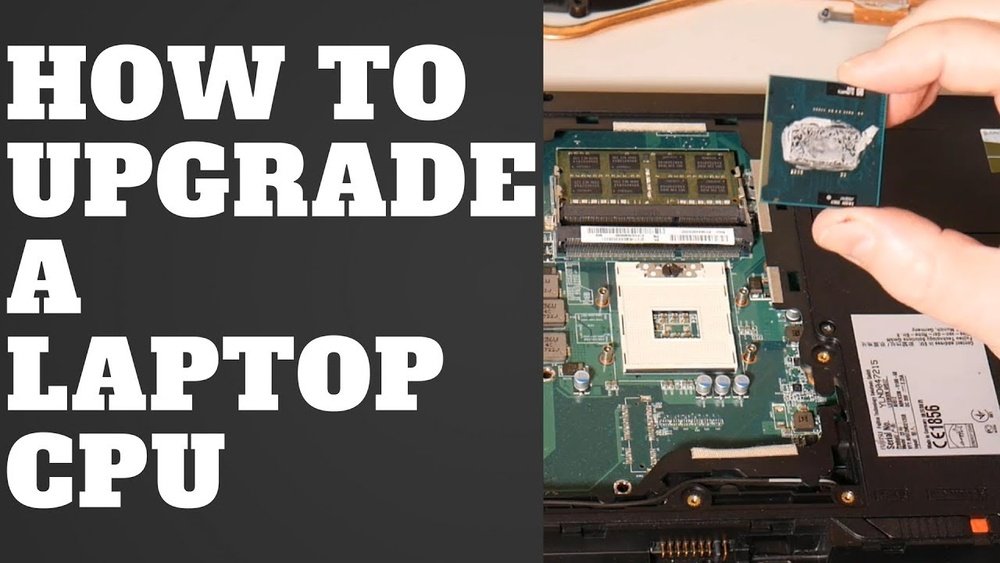
Are you feeling like your laptop is slowing down and not keeping up with your needs? Maybe it’s time to give it a fresh boost by changing the CPU.
You might think this is a complicated task meant only for experts, but what if you could do it yourself? You’ll discover simple, clear steps to change your laptop’s CPU safely and effectively. By the end, you’ll have the confidence to upgrade your laptop’s heart and bring new life to your device.
Keep reading to unlock the secrets that can save you money and improve your laptop’s performance!
Tools Needed
Changing the CPU on a laptop needs the right tools. Having the correct tools helps avoid damage. It also makes the process smoother and faster.
Essential Tools
Start with a small Phillips-head screwdriver. This helps remove screws on the laptop case. A flat-head screwdriver is good for prying open parts carefully. Use a plastic spudger to avoid scratching or breaking components.
A thermal paste tube is necessary. This paste helps the CPU stay cool. Clean the old paste with isopropyl alcohol and a lint-free cloth. Tweezers come in handy for handling small screws and connectors.
Safety Gear
Wear an anti-static wrist strap to prevent static damage. Static electricity can harm delicate laptop parts. Use it by attaching the strap to a grounded metal object. Work on a clean, flat surface with good lighting to avoid mistakes.
Keep a small container to hold screws safely. Avoid losing any parts during the process. Safety gear protects both you and the laptop during the CPU change.

Credit: www.youtube.com
Preparing Your Laptop
Preparing your laptop before changing the CPU is very important. It helps protect your data and your device. Taking time to prepare makes the process easier and safer.
Backing Up Data
Save all important files before starting. Use an external drive or cloud storage. This step prevents data loss during the CPU change. Even small mistakes can cause data to disappear.
Check that your backup is complete. Open a few files to confirm they work. Keep the backup until the CPU upgrade finishes successfully.
Powering Down And Disconnecting
Turn off your laptop completely. Do not just close the lid or put it to sleep. Shut it down from the power menu to avoid damage.
Unplug the charger and all connected devices. Remove any USB drives, headphones, or memory cards. This prevents electrical shorts and interference during the repair.
Accessing The Cpu
Accessing the CPU is the first step to replace it on your laptop. This part is often hidden under the back panel. You need to open this panel carefully. The CPU sits on the motherboard, and you must find it before removal.
Follow these steps to reach the CPU safely. Handle all parts gently to avoid damage. Keep track of screws and small pieces. A clean workspace helps during the process.
Removing The Back Panel
Turn off your laptop and unplug all cables. Flip it over to see the back panel. Use a screwdriver to remove all screws. Keep screws in a safe place for later use.
Some laptops have clips holding the panel. Use a plastic tool to pry open gently. Avoid using metal tools that may scratch parts. Once loose, lift the panel off carefully.
Locating The Cpu
With the panel removed, look for the largest chip on the motherboard. The CPU is usually under a heat sink or fan. It may have a metal cover or thermal paste on top.
Identify the CPU socket. It is a square or rectangular area with many pins. The CPU fits tightly into this socket. Take note of the surrounding cables and connectors.
Removing The Old Cpu
Removing the old CPU from a laptop is the first step in upgrading or fixing your device. It requires care and patience to avoid damage. This process begins by detaching parts connected to the CPU and ends with carefully lifting out the chip itself.
Follow each step closely to ensure a smooth and safe removal.
Detaching The Cooling System
The cooling system keeps your CPU from overheating. It usually includes a fan and heat sink. Unscrew the small screws that hold the cooling system in place. Gently lift it up and away from the CPU. Be careful not to pull too hard. Some thermal paste may stick the cooler to the CPU. Use a soft cloth to wipe off any paste from the cooling system and CPU.
Unlocking The Cpu Socket
The CPU sits in a socket with a locking mechanism. Look for a small lever or latch next to the CPU. Push or lift this lever to unlock the socket. Do this slowly to avoid breaking the socket. The CPU will become loose once the socket is unlocked. Do not force it; check the lever again if it feels stuck.
Lifting Out The Cpu
Hold the CPU by its edges. Avoid touching the pins or contacts underneath. Gently lift the CPU straight up from the socket. If it does not come out easily, the socket might still be locked. Place the old CPU on an anti-static surface to avoid damage. Now your laptop is ready for the new CPU installation.
Installing The New Cpu
Installing the new CPU is a careful process. It requires precision to avoid damage. Follow each step closely to ensure a proper fit. A well-installed CPU improves your laptop’s speed and performance.
Aligning The Cpu Correctly
Start by checking the CPU’s pins or contacts. Look for a small triangle or mark on one corner. Match this with the same mark on the socket. Gently place the CPU into the socket. Do not force it. The CPU should sit flat and even.
Securing The Cpu In Place
Once aligned, lock the CPU using the socket lever or latch. Press down carefully until it clicks or locks. This keeps the CPU stable and connected. Avoid pressing too hard to prevent damage. The CPU must stay firmly in place during use.
Reapplying Thermal Paste
Remove old thermal paste from the CPU and heatsink. Use a soft cloth and isopropyl alcohol for cleaning. Apply a small pea-sized amount of new thermal paste on the CPU. Spread it evenly to cover the surface. This helps heat transfer from the CPU to the heatsink. Proper paste prevents overheating and keeps the laptop safe.

Credit: www.reddit.com
Reassembling The Laptop
After replacing the CPU, reassembling your laptop is the next step. This process requires care to avoid damage. Take your time and follow each step carefully. Proper reassembly ensures your laptop works well and stays cool.
Reattaching The Cooling System
Start by placing the cooling system back on the CPU. Align it carefully to fit the mounting holes. Secure the screws evenly to avoid pressure on one side. Reconnect the fan cable to the motherboard. Make sure the fan can spin freely without obstruction.
Closing The Back Panel
Place the back panel gently over the laptop base. Check that all clips and edges line up correctly. Press down firmly but gently to snap the panel into place. Reinsert and tighten all screws in their original positions. Avoid over-tightening to prevent damage to the case.
Testing The New Cpu
Testing the new CPU is an important step after installation. It ensures the laptop works correctly and the new processor runs smoothly. This process helps catch any issues early before using the laptop for daily tasks.
Powering On The Laptop
First, press the power button to turn on the laptop. Watch for the startup screen or logo to appear. If the laptop does not start, check the CPU seating and connections. Listen for unusual sounds or beeps. These can indicate hardware problems.
Checking System Performance
Once the laptop boots, open the system information tool. Confirm the new CPU model is listed correctly. Run simple programs to test speed and responsiveness. Use a CPU monitoring app to check temperature and usage. Ensure the laptop stays cool and stable during use.

Credit: softwareg.com.au
Troubleshooting Tips
Changing the CPU on a laptop can improve performance but may cause some problems. Troubleshooting helps you fix these issues quickly. This section shares useful tips to solve common problems and know when to get expert help.
Common Issues
The laptop might not turn on after changing the CPU. Check if the CPU is seated correctly in its socket. Loose connections often cause power problems.
Overheating can happen if the thermal paste is missing or applied poorly. Always clean old paste and apply a new, thin layer before installing the cooler.
System crashes or freezes may occur due to incompatible CPU models. Verify that your laptop supports the new CPU before installation.
BIOS errors or failure to boot can result from outdated firmware. Update the BIOS to the latest version to ensure compatibility.
When To Seek Professional Help
Seek professional support if the laptop shows no signs of life after checking connections. A technician can test hardware more deeply.
If the CPU overheats despite correct installation, an expert can inspect cooling systems thoroughly. Avoid risking damage by continuing to use an overheating laptop.
Complex BIOS updates or motherboard issues require skilled hands. Professionals ensure safe updates and hardware fixes.
When unsure about CPU compatibility, consulting a technician prevents costly mistakes. Better safe than sorry.
Frequently Asked Questions
Can I Change The Cpu On Any Laptop Model?
Not all laptops allow CPU upgrades. Many have soldered CPUs. Check your laptop’s manual or manufacturer site first. Some models support socketed CPUs, enabling easy replacement or upgrade.
What Tools Are Needed To Change A Laptop Cpu?
You need a small screwdriver, thermal paste, and an anti-static wrist strap. These ensure safe removal and installation. Thermal paste helps with heat transfer between CPU and cooler.
How Do I Safely Remove The Old Cpu?
Power off the laptop and unplug it. Remove the battery and ground yourself to avoid static. Unscrew the heatsink, unlock the CPU socket, and gently lift out the CPU.
Is Thermal Paste Necessary When Installing A New Cpu?
Yes, thermal paste is crucial. It fills microscopic gaps between the CPU and heatsink. This improves heat dissipation, preventing overheating and ensuring stable CPU performance.
Conclusion
Changing a laptop CPU takes patience and care. Follow each step slowly and carefully. Use the right tools to avoid damage. Double-check connections before powering on. Upgrading can improve your laptop’s speed and performance. Remember, not all laptops allow CPU changes.
Always check your laptop model first. Taking your time helps avoid mistakes. Keep your workspace clean and organized. With practice, this task becomes easier.
