
Is your computer making more noise than usual? Or maybe it’s running hotter than you’d like.
Changing your CPU fan speed could be the simple fix you need. By adjusting the fan speed, you can keep your system cool, improve performance, and even extend the life of your computer. In this guide, you’ll learn easy steps to take control of your CPU fan speed—no tech jargon, just clear and practical advice.
Ready to make your PC quieter and cooler? Let’s dive in.

Credit: www.youtube.com
Why Adjust Cpu Fan Speed
Adjusting the CPU fan speed helps control your computer’s temperature. It affects how fast the fan spins to cool the CPU. Setting the right fan speed can improve your PC’s performance and noise level. It also helps protect your hardware from overheating. Understanding why to change fan speed is important for better PC care.
Benefits Of Custom Fan Speeds
Custom fan speeds let you balance cooling and noise. A faster fan cools the CPU better during heavy use. It stops the computer from getting too hot. A slower fan runs quietly when the PC is idle. This keeps the room peaceful and saves energy. Custom speeds can extend the life of your fan by reducing wear.
Risks Of Incorrect Fan Settings
Wrong fan speeds can cause serious problems. Too slow a fan may let the CPU overheat. Overheating can damage the processor or cause crashes. Too fast a fan creates loud noise and wastes power. It may also wear out the fan faster. Incorrect settings can make your PC less reliable and noisy.

Credit: softwareg.com.au
Methods To Change Cpu Fan Speed
Controlling your CPU fan speed helps manage your computer’s temperature and noise levels. You can adjust the fan speed using several methods. Each method offers different levels of control and ease of use. Choose the one that fits your needs and skills.
Using Bios Settings
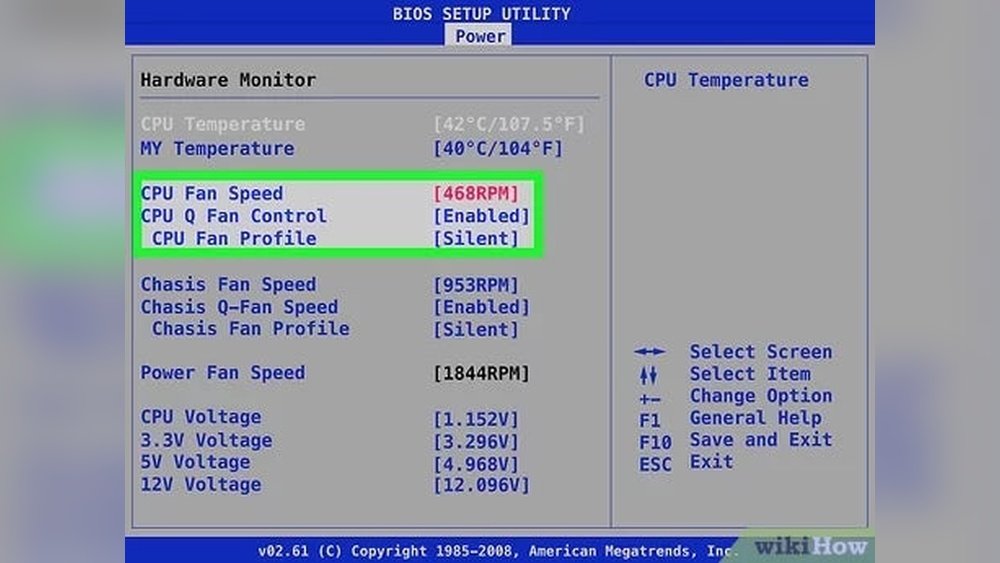
BIOS settings let you change fan speed directly from your computer’s firmware. Restart your PC and press the key to enter BIOS (usually F2, Del, or Esc). Look for “Hardware Monitor” or “Fan Control” options. Adjust the fan speed profiles, like Silent, Standard, or Turbo. Save changes and exit. This method works without extra software. Some BIOS versions offer advanced fan curve settings for custom control.
Fan Control Software Options
Software tools provide an easy way to adjust CPU fan speed within your operating system. Popular apps include SpeedFan, MSI Afterburner, and Argus Monitor. These programs show real-time temperatures and fan speeds. You can set fan speed curves based on temperature thresholds. Software is good for quick changes and testing different profiles. It requires installation and may not support all motherboard models.
Hardware Fan Controllers
Hardware fan controllers connect directly to your PC’s fans and let you adjust speed manually. They come as separate devices installed in your PC case or external controllers. These controllers have knobs or buttons for easy adjustments. This method provides physical control without software or BIOS access. It is useful for custom builds and users who prefer hands-on control. Installing a hardware controller may need extra cables and space.
Step-by-step Guide For Bios Adjustment
Changing your CPU fan speed through the BIOS helps control your computer’s temperature. It can reduce noise or improve cooling. This guide shows how to adjust fan speed step-by-step inside the BIOS. Follow each step carefully to avoid issues.
Accessing The Bios
Turn off your computer. Press the BIOS key while turning it on. Common keys are Delete, F2, or Esc. The screen will change to the BIOS menu. Use arrow keys to navigate. Do not use the mouse here.
Locating Fan Control Settings
Look for a menu named “Hardware Monitor,” “Power,” or “Advanced.” This section holds fan controls. Use arrow keys to find the CPU fan settings. It might be labeled “Fan Speed,” “Q-Fan Control,” or similar.
Setting Fan Speed Profiles
Choose a fan speed profile like Silent, Standard, or Performance. Silent runs the fan slower and quieter. Performance keeps your CPU cooler but louder. You can also set a custom speed by adjusting fan curve points. Save your changes before exiting the BIOS.

Credit: www.youtube.com
Popular Fan Control Software
Changing your CPU fan speed can help control your computer’s temperature. Many tools let you adjust fan speeds easily. Some are popular because they work well on many systems. Others are made by computer or motherboard makers. Below are a few popular fan control software options.
Speedfan
Speedfan is a free tool that many people use. It shows temperature readings and fan speeds. You can set custom fan speeds based on temperature. It works on most Windows computers. Speedfan is simple but powerful for basic fan control.
Argus Monitor
Argus Monitor is another fan control program. It offers detailed temperature and health reports. You can set fan speeds to keep your PC cool and quiet. It supports many hardware types and sensors. Argus Monitor is easy to use and reliable.
Manufacturer-specific Tools
Many computer makers have their own fan control apps. Examples include ASUS AI Suite, MSI Dragon Center, and Gigabyte EasyTune. These tools work best with their own hardware. They offer simple interfaces and extra settings. Using these apps ensures better compatibility and support.
Tips For Maintaining Optimal Cooling
Maintaining optimal cooling for your CPU fan is key to keeping your computer running smoothly. Proper cooling prevents overheating and extends the life of your hardware. It also helps your system perform better and stay stable during tasks.
Here are some simple tips to keep your CPU fan working at its best and maintain good cooling.
Regular Cleaning And Dust Removal
Dust buildup can block airflow and reduce fan efficiency. Clean your CPU fan regularly using a soft brush or compressed air. Avoid using a vacuum as it may cause static damage. Keep the inside of your case free from dust to improve cooling.
Monitoring Cpu Temperatures
Check your CPU temperature often with free software tools. This helps you know if the fan speed is enough. High temperatures mean you should increase fan speed or improve cooling. Watching temps keeps your CPU safe from heat damage.
Balancing Noise And Cooling
Faster fan speeds cool better but create more noise. Find a speed that cools your CPU without being too loud. Use software controls or BIOS settings to adjust fan speed. A good balance keeps your computer quiet and cool at the same time.
Troubleshooting Fan Speed Issues
Changing the CPU fan speed can sometimes cause issues. Troubleshooting these problems helps keep your computer cool and quiet. This section covers common fan speed issues and simple fixes.
Fan Not Responding
The fan may not change speed as expected. Check the fan connection to the motherboard first. Loose or damaged cables stop the fan from working. Restart your computer and enter the BIOS to see fan settings. Reset fan controls if needed. Try another fan header on the motherboard to rule out port problems.
Unusual Fan Noises
Strange sounds can mean dirt or damage. Dust blocks fan blades and causes noise. Clean the fan with compressed air or a soft brush. Worn-out bearings also make noise. Replace the fan if it keeps making odd sounds. Avoid running a noisy fan to prevent overheating.
Software Compatibility Problems
Fan control software may not work with all systems. Some programs conflict with motherboard drivers. Use software recommended by your motherboard maker. Keep your BIOS and drivers updated for better compatibility. Try different fan control software if problems persist. Always run software as an administrator for full access.
Frequently Asked Questions
How Can I Change My Cpu Fan Speed In Bios?
To change CPU fan speed in BIOS, restart your PC and enter BIOS setup. Find the “Hardware Monitor” or “Fan Control” section. Adjust the fan speed settings manually or enable automatic control. Save changes and exit BIOS to apply new fan speeds.
Can I Use Software To Control Cpu Fan Speed?
Yes, you can use software like SpeedFan, MSI Afterburner, or manufacturer utilities. These programs let you monitor and adjust fan speeds within Windows. They offer custom fan curves for better cooling and noise control without restarting the computer.
Why Is Adjusting Cpu Fan Speed Important?
Adjusting CPU fan speed helps balance cooling and noise levels. Higher speeds improve cooling under heavy loads, preventing overheating. Lower speeds reduce noise during light use. Proper fan speed control extends CPU lifespan and maintains optimal system performance.
Will Changing Cpu Fan Speed Affect System Stability?
If done correctly, adjusting CPU fan speed won’t affect system stability. Ensure the fan speed is sufficient to cool the CPU under load. Insufficient cooling can cause overheating and crashes, so monitor temperatures after changes.
Conclusion
Controlling your CPU fan speed helps keep your computer cool and quiet. Adjusting settings is simple with the right tools. Always check your fan’s performance after changes. Keep your system safe by avoiding extreme speeds. Regularly monitor temperatures to prevent overheating issues.
Small tweaks can improve your computer’s lifespan. Stay patient and follow the steps carefully. Your PC will run smoother and more quietly. This guide makes adjusting fan speed easy for everyone.
