
Are you struggling to get the best performance from OBS with your AMD GPU? Changing your OBS settings can make a huge difference in video quality and streaming smoothness.
But if you’re not sure where to start, it can feel confusing and overwhelming. Don’t worry—this guide will walk you through simple, step-by-step changes you can make right now. By the end, you’ll know exactly how to optimize OBS for your AMD graphics card and unlock a better streaming experience.
Keep reading to take control of your setup and stream like a pro.
Check Current Obs Settings
Before changing OBS settings for your AMD GPU, check the current setup. This helps you know what needs adjustment. OBS settings control how your video looks and streams.
Understanding your current settings makes the process easier. It ensures your changes improve performance and quality. Start by exploring the video and output settings.
Locate Video And Output Settings
Open OBS and go to the “Settings” menu. Find the “Video” tab to see resolution and frame rate. Note the base and output resolution values. This affects video clarity and smoothness.
Next, click the “Output” tab. Here, you see streaming and recording options. Check the bitrate, recording format, and audio settings. These control video size and quality.
Identify Encoder Type
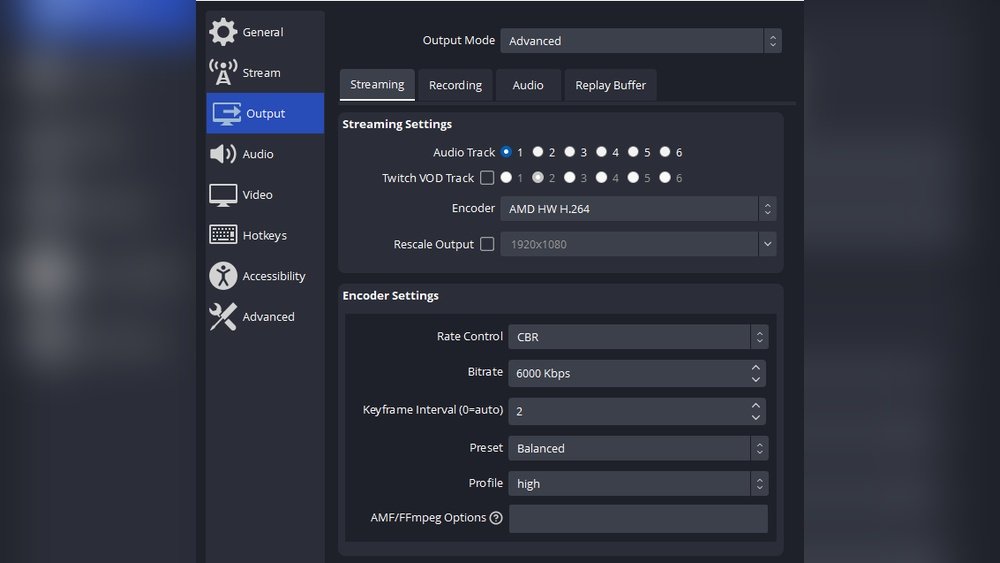
In the “Output” tab, look for the encoder option. OBS supports different encoders like AMD, x264, or NVENC. For AMD GPU, select the AMD encoder for better use of your hardware.
Make sure the selected encoder matches your AMD graphics card. Using the right encoder improves streaming speed and reduces lag. This step is key for smooth video performance.

Credit: www.youtube.com
Select Amd Gpu As Encoder
Selecting the AMD GPU as the encoder in OBS helps improve streaming and recording quality. It uses your AMD graphics card to handle video encoding. This reduces the load on your CPU and can make your streams smoother. The process is simple and takes only a few steps in OBS settings.
Access Output Tab
Open OBS and go to the Settings menu. Find the “Output” tab on the left side. This section controls how OBS handles video and audio data. It is where you set the encoder for your streams or recordings.
Switch To Amd Encoder
In the Output tab, look for the “Encoder” dropdown menu. Click it and select the AMD encoder option. This option might say “AMD VCE” or “H264/AVC Encoder (AMD)”. Choose it to use your AMD GPU for encoding. Save your settings and restart OBS if needed.
Adjust Video Settings
Adjusting video settings in OBS is important for AMD GPU users. It helps to get clear and smooth video streams. Proper settings improve video quality and reduce lag. You can change resolution and frame rate easily. These settings fit your device and internet speed. Let’s explore how to adjust these video settings.
Set Base And Output Resolution
Start by setting the base resolution. This is the size of your screen or window. It tells OBS how much area to capture. Choose a resolution that matches your display. Common sizes are 1920×1080 or 1280×720. Next, set the output resolution. This controls the size of your streamed video. Lower output resolution means less data to send. It helps if your internet is slow. Match output resolution to your viewers’ needs. Keep it simple and clear.
Choose Appropriate Frame Rate
Frame rate means how many frames show each second. A higher frame rate gives smoother video. Common frame rates are 30 and 60 FPS. Choose 30 FPS for regular streaming. Choose 60 FPS for fast action or gaming. Higher frame rates use more GPU power. Make sure your AMD GPU can handle it. Balance quality and performance for best results.

Credit: ebit.ge
Optimize Bitrate For Amd Gpu
Optimizing the bitrate for your AMD GPU in OBS is key to better video quality and smooth streaming. Bitrate controls how much data your stream uses per second. Setting it right helps reduce lag and keeps your video clear.
Understand Bitrate Impact
Bitrate affects video clarity and stream stability. Low bitrate causes blurry video and pixelation. High bitrate improves quality but uses more internet data. It also needs more power from your GPU. Balance is important to avoid lag and poor video.
Set Recommended Bitrate Values
For AMD GPUs, start with 4000 to 6000 kbps for 1080p at 30fps. For 60fps, try 6000 to 8000 kbps. Use lower bitrate for slower internet or weaker GPU. Test different settings to see what works best. Adjust bitrate in OBS under Output settings.
Configure Advanced Encoder Options
Configuring advanced encoder options in OBS for AMD GPUs improves your stream and recording quality. These settings control how your GPU handles video encoding. Proper setup reduces lag and keeps videos smooth.
Adjusting these options helps balance performance and quality. It also lowers CPU load by using your AMD GPU efficiently. Let’s explore key settings to change in OBS.
Enable Hardware Acceleration
Hardware acceleration uses your AMD GPU to process video encoding. This reduces stress on your CPU. To enable it, open OBS settings and go to the Output tab.
Choose Advanced under Output Mode. Set the Encoder to AMD AMF. This activates hardware acceleration. Your stream or recording will run smoother with less delay.
Adjust Keyframe Interval And Preset
Keyframe interval controls how often a full video frame appears. A common setting is 2 seconds. This helps video players sync and improves video quality.
Presets affect encoding speed and quality. Faster presets use less GPU but lower quality. Slower presets raise quality but need more power. Balance these based on your PC’s strength.
Test And Monitor Performance
Testing and monitoring performance is key after changing OBS settings for your AMD GPU. This step ensures your recordings are smooth and your system runs well. Without testing, you may face lag or poor video quality. Monitoring helps spot issues early and keeps your setup stable.
Run Test Recordings
Start by recording short videos with the new settings. Check the video for any glitches or lag. Watch the audio quality too. These tests show if your AMD GPU handles the settings well. Try different scenes or games to see real performance. Adjust settings based on what you observe.
Use Performance Metrics
Use tools like Task Manager or AMD Radeon Software to watch GPU use. Keep an eye on CPU load and memory use as well. High GPU use can cause overheating or slowdowns. Look for dropped frames in OBS to spot problems. This data helps balance quality and smooth recording.
Troubleshoot Common Issues
Troubleshooting common issues in OBS with an AMD GPU helps keep your streaming smooth. Many users face problems like encoder errors or frame drops. These issues can interrupt your recording or live stream. Fixing them quickly improves your experience and stream quality.
Fix Encoder Errors
Encoder errors often happen because of wrong settings or GPU overload. Start by lowering your output resolution or bitrate in OBS. Choose the AMD hardware encoder (AMF) to reduce CPU load. Update your GPU drivers to the latest version for better performance. Close other programs that use the GPU to free resources. Restart OBS after making changes to apply new settings.
Resolve Frame Drops
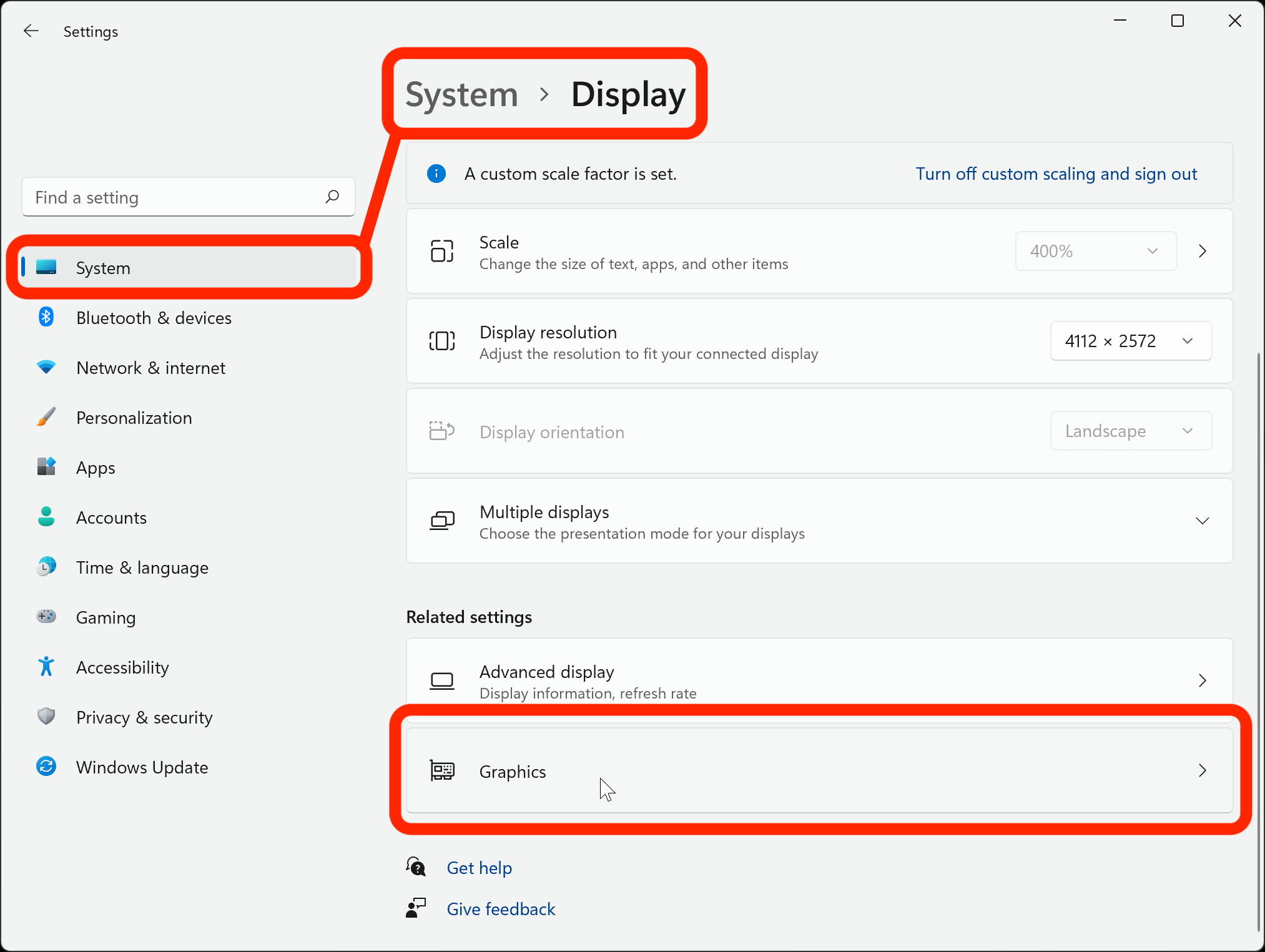
Frame drops make your stream look choppy and less smooth. Reduce the video resolution or frame rate to lower GPU demand. Enable hardware acceleration in OBS to use your AMD GPU effectively. Check for overheating issues by monitoring your GPU temperature. Clean your computer fans if temperatures are high. Lower graphics settings in other apps running simultaneously to avoid conflicts.
Credit: obsproject.com
Frequently Asked Questions
How Do I Optimize Obs Settings For Amd Gpu?
To optimize OBS for AMD GPUs, update your drivers first. Select the AMD encoder (AMF) in OBS settings. Adjust bitrate and resolution based on your system capability. Enable hardware acceleration for better performance and lower CPU usage.
Can Amd Gpu Improve Streaming Quality In Obs?
Yes, AMD GPUs with AMF encoder enhance streaming quality. They reduce CPU load by handling encoding tasks. This leads to smoother streams and higher video quality. Proper OBS settings are essential to maximize these benefits.
What Bitrate Is Ideal For Amd Gpu In Obs?
Ideal bitrate depends on your internet speed and resolution. For 1080p streaming, 4000-6000 kbps is recommended. Lower bitrates may reduce quality, while higher ones require faster internet. Always balance bitrate with your upload capacity.
How To Fix Obs Lag With Amd Gpu?
Fix OBS lag by updating AMD drivers and OBS software. Lower your stream resolution or bitrate. Enable hardware encoding (AMF) in OBS. Close unnecessary background apps to free up resources for smooth streaming.
Conclusion
Changing OBS settings for your AMD GPU is simple and quick. Adjusting these settings helps improve your video quality and performance. Follow the steps carefully and check your results. Keep your drivers updated for the best experience. Experiment with different options to find what works best.
With practice, you will get comfortable with these changes. Enjoy smoother streaming and recording with the right setup. Easy to do, worth the effort.
