
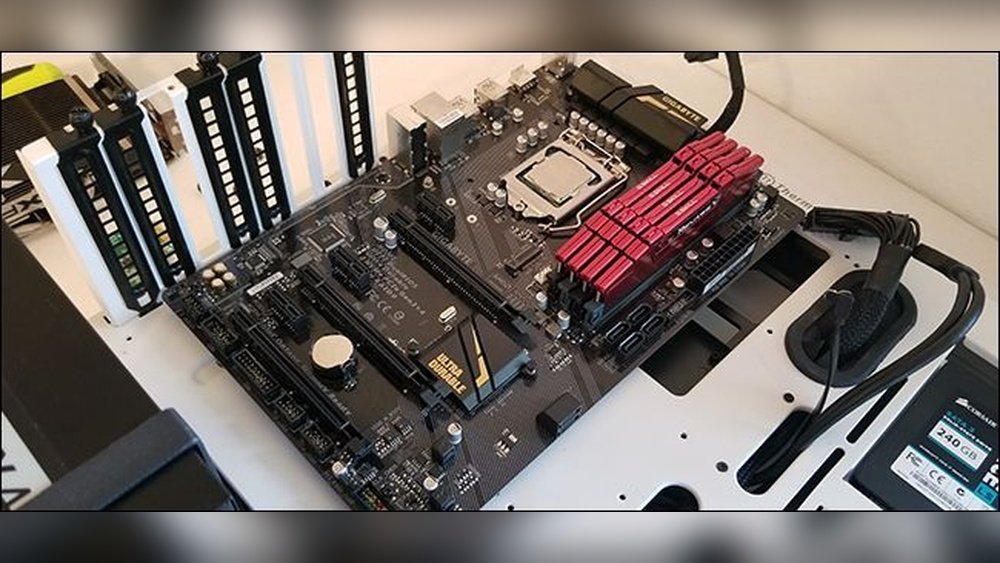
Are you ready to upgrade your computer but feel unsure about changing your motherboard and CPU? You’re not alone.
Many people hesitate because they think it’s too complicated or risky. But what if you could learn a simple, step-by-step way to do it yourself? Imagine boosting your computer’s speed and performance without spending a fortune on a new system.
In this guide, you’ll discover exactly how to swap out your motherboard and CPU with confidence and ease. Keep reading to unlock the secrets that will make your upgrade smooth and hassle-free.
Preparing For The Upgrade
Preparing for a motherboard and CPU upgrade is the first step to a smooth process. Careful preparation helps avoid mistakes and saves time. It also protects your data and hardware from damage. This section guides you through what to do before starting the upgrade.
Gathering Necessary Tools
Collect all tools needed before opening your computer. A Phillips-head screwdriver is a must. An anti-static wrist strap helps prevent static damage. Have a clean, flat workspace to keep parts safe. Keep small containers for screws to avoid losing them.
Backing Up Important Data
Backup all important files before you start. Use an external hard drive or cloud storage. This ensures your data stays safe in case of errors. Double-check that backups are complete and accessible. Do not skip this step.
Choosing Compatible Components
Check your new motherboard and CPU compatibility carefully. Match the CPU socket type with the motherboard. Verify RAM type and speed support. Confirm your power supply can handle the new parts. Look for BIOS updates for smooth installation.

Credit: totalplumbingfl.com
Removing The Old Motherboard And Cpu
Removing the old motherboard and CPU is a key step in upgrading your computer. It requires care and attention to avoid damage. Each part connects tightly, so take your time. Follow clear steps to make the process safe and smooth.
Powering Down And Disconnecting
Turn off your computer and unplug it from the power source. Press the power button once to drain leftover power. Disconnect all cables, including monitor, keyboard, and mouse. This prevents any electric shock or damage to parts.
Removing Peripheral Components
Open the computer case carefully. Remove any extra cards, like graphics or sound cards. Take out the RAM sticks by pushing the clips on both sides. Disconnect hard drives and SSDs from the motherboard and power supply.
Detaching The Old Motherboard
Locate the screws holding the motherboard to the case. Use a screwdriver to remove each screw gently. Keep screws safe for later use. Lift the motherboard slowly to avoid pulling any cables still attached.
Removing The Cpu And Cooler
First, remove the CPU cooler by loosening its screws or clips. Gently twist and lift the cooler off the CPU to avoid damage. Unlock the CPU socket by lifting the small lever or latch. Carefully lift out the CPU and place it on an anti-static surface.
Installing The New Motherboard And Cpu
Installing the new motherboard and CPU is a key step in upgrading your computer. It requires care and attention to detail. This part of the process sets the foundation for the whole system. Taking time here ensures everything fits and works correctly.
Placing The Motherboard In The Case
Start by aligning the motherboard with the case. The input/output ports must fit the back panel. Check the screw holes match the case standoffs. Gently lower the motherboard into place. Avoid forcing it to prevent damage.
Securing The Motherboard
Use screws to fix the motherboard to the case. Tighten them evenly but not too tight. Loose screws cause movement, while tight screws can break the board. Double-check all screws are in place. A stable motherboard supports all components well.
Installing The Cpu
Open the CPU socket carefully by lifting the lever. Align the CPU with the socket’s notches. Place the CPU gently without touching the pins. Lower the lever to lock the CPU in place. This step needs precision and a steady hand.
Applying Thermal Paste And Mounting The Cooler
Apply a small drop of thermal paste on the CPU center. It helps transfer heat to the cooler. Spread the paste evenly if needed. Attach the cooler firmly on top of the CPU. Connect the cooler fan to the motherboard header. Proper cooling keeps the CPU running smoothly.
Reconnecting Components And Cables
Reconnecting components and cables is a crucial step after installing a new motherboard and CPU. Proper connections ensure your system powers on and runs smoothly. Take your time to plug each cable carefully. This part is simple but needs attention to detail.
Connecting Power Cables
Start by attaching the main power cable from the power supply to the motherboard. This cable usually has 20 or 24 pins. Next, connect the CPU power cable, which is a smaller 4 or 8-pin connector near the CPU socket. Make sure both cables fit firmly without forcing them. Loose power connections can cause startup issues.
Attaching Storage And Peripheral Devices
Connect your hard drives and SSDs using SATA cables. Plug one end into the drive and the other into the motherboard’s SATA ports. For NVMe SSDs, install them directly into the M.2 slots and secure with screws. Attach any optical drives or other peripherals with their respective cables. Check each connection for a solid fit.
Setting Up Front Panel Connectors
Front panel connectors control power buttons, reset buttons, and LEDs. These tiny cables connect to specific pins on the motherboard. Refer to the motherboard manual to find the exact pin layout. Connect each cable carefully, matching positive and negative pins. Correct setup lets you use your case buttons and see system lights.
Testing And Configuring The System
After installing a new motherboard and CPU, testing and configuring the system is crucial. This step ensures your computer works smoothly and prevents future problems. It involves checking hardware settings, installing drivers, and confirming system stability.
Powering On And Bios Setup
Turn on your computer for the first time after installation. Enter the BIOS by pressing the key shown on the screen, often Delete or F2. Check that the CPU and memory are detected correctly. Adjust settings like boot order or enable XMP for RAM if needed. Save changes and exit BIOS to continue.
Installing Or Updating Drivers
Install motherboard drivers from the manufacturer’s website. These include chipset, audio, and network drivers. Updating drivers improves compatibility and performance. Use the Device Manager to check for missing or outdated drivers. Restart your computer after installations to apply changes.
Verifying System Stability
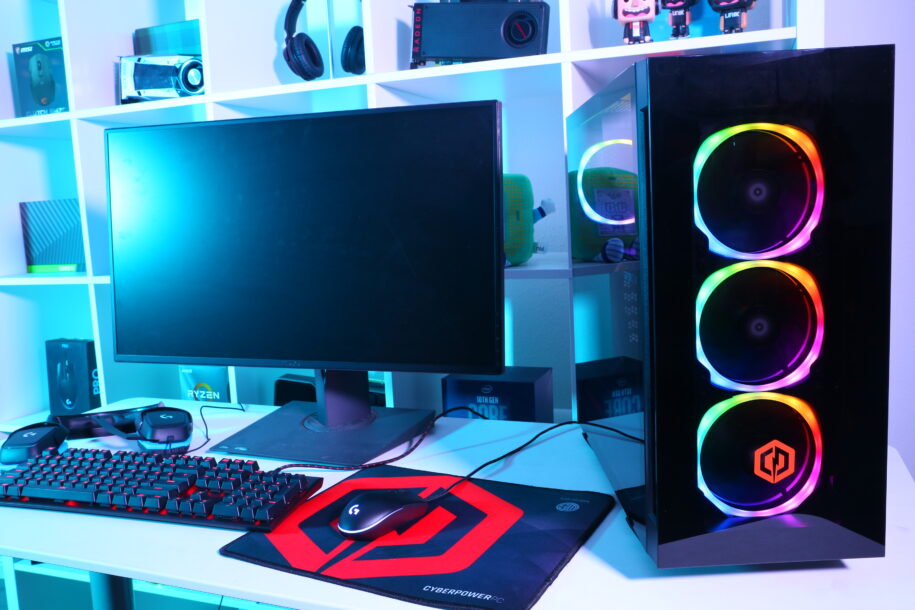
Run stress tests to check CPU and memory stability. Use tools like Prime95 or MemTest86 for thorough testing. Monitor temperatures to avoid overheating. Watch for crashes or errors during tests. Stable performance confirms a successful upgrade and reliable system operation.
Credit: www.cyberpowerpc.com
Troubleshooting Common Issues
Troubleshooting is a key step after changing your motherboard and CPU. Problems may arise that stop your computer from working properly. Identifying and fixing these common issues saves time and stress.
Some issues are easy to solve. Others need more careful checks. Understanding the symptoms helps you find the right fix fast.
No Power Or Boot Failures
Check all power cables are connected firmly. Loose cables cause the system not to start. Make sure the power supply switch is on.
Reset the BIOS by removing the CMOS battery for a few minutes. This clears settings that may block booting.
Verify the CPU is seated correctly. A misaligned CPU can prevent booting. Also, check the RAM sticks are properly inserted.
Overheating Problems
Apply thermal paste correctly between the CPU and cooler. Too little or too much paste causes heat buildup.
Ensure the CPU cooler is installed tightly and the fan spins freely. Clean dust from fans and vents.
Check that all case fans run to keep air flowing. Overheating can cause sudden shutdowns or slow performance.
Peripheral Recognition Errors
Reconnect USB devices and check their ports for damage. Faulty cables or ports stop devices from working.
Update motherboard drivers using the latest files from the manufacturer’s website. Outdated drivers cause recognition issues.
Enter BIOS to verify USB ports and other peripherals are enabled. Sometimes settings reset after hardware changes.

Credit: www.youtube.com
Frequently Asked Questions
How Do I Prepare Before Changing Motherboard And Cpu?
First, back up your data and unplug all devices. Ground yourself to avoid static damage. Gather necessary tools like screwdrivers and thermal paste. Read your motherboard and CPU manuals carefully for compatibility and installation instructions.
Can I Reuse My Old Cpu With A New Motherboard?
You can reuse your old CPU only if the new motherboard supports its socket and chipset. Check compatibility on the motherboard’s specifications. Otherwise, the CPU won’t fit or function correctly, causing system failure or damage.
What Is The Correct Way To Apply Thermal Paste?
Apply a small pea-sized amount of thermal paste on the CPU’s center. Spread it evenly by pressing the cooler down gently. Avoid using too much paste, as it can cause overheating or reduce cooling efficiency.
How Do I Safely Remove The Old Motherboard?
Disconnect all cables and components first. Unscrew the motherboard mounting screws carefully. Lift the motherboard gently from the case without forcing. Avoid touching the circuitry to prevent static or physical damage.
Conclusion
Changing your motherboard and CPU can improve your computer’s speed. Take your time to follow each step carefully. Check compatibility before buying new parts. Use the right tools and keep track of screws. Stay grounded to avoid damage from static electricity.
After installation, test your system to ensure it works well. With patience and care, upgrading hardware is possible for anyone. You can enjoy a faster, smoother computer experience soon.
