
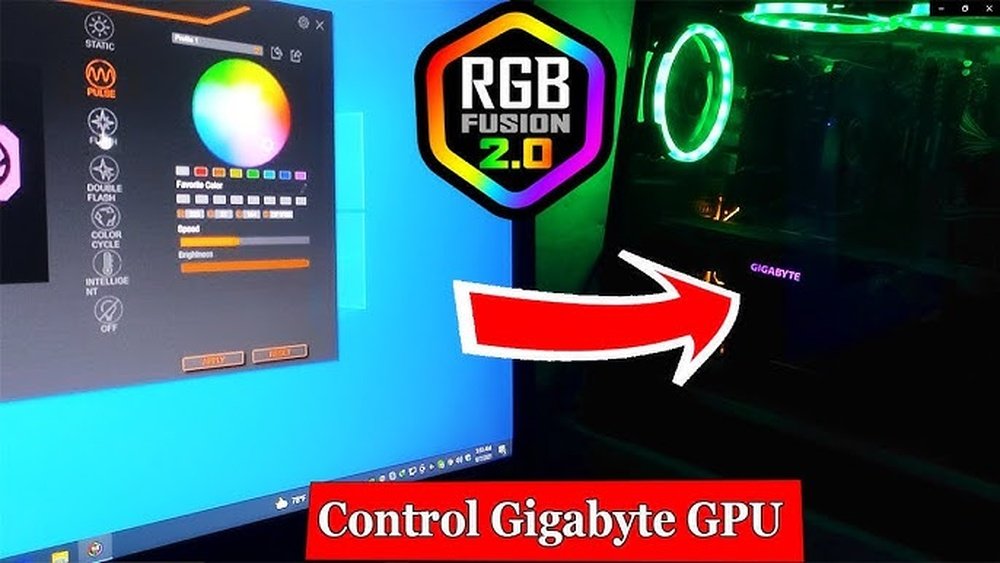
Are you looking to personalize your Gigabyte GPU’s RGB lighting but don’t know where to start? Changing your GPU’s colors can make your setup stand out and reflect your style.
In this guide, you’ll learn simple, step-by-step methods to customize your Gigabyte GPU RGB quickly and easily. Whether you want to match your entire rig or just add a splash of color, this article will help you get it done without any hassle.
Keep reading to unlock the full potential of your GPU’s lighting!

Credit: softwareg.com.au
Gigabyte Gpu Rgb Basics
Gigabyte GPUs often come with built-in RGB lighting. This lighting can make your PC look unique and stylish. Knowing the basics helps you customize your GPU’s look. Changing the colors and effects is simple with the right tools and steps.
Understanding RGB lighting and its features on Gigabyte GPUs is the first step. This knowledge helps you control the lights to fit your setup and mood.
What Is Rgb Lighting?
RGB lighting uses red, green, and blue lights to create many colors. By mixing these colors, you can get millions of different shades. RGB lights are common in gaming PCs and accessories. They add color and style to your computer.
Each LED can change colors independently. This allows for many lighting effects like breathing, flashing, or cycling colors. RGB lighting makes your PC stand out and look modern.
Features Of Gigabyte Gpu Rgb
Gigabyte GPUs have RGB lighting built into the card frame or fans. The lights are bright and clear. You can control them using Gigabyte’s software called RGB Fusion.
RGB Fusion lets you pick colors and effects easily. It supports syncing with other Gigabyte RGB products. You can create a uniform look across your PC parts.
Some Gigabyte GPUs support custom lighting zones. This means different parts of the card can shine in different colors. The software also allows you to turn off the lights if you prefer a simple look.
Required Tools And Software
Changing the RGB lighting on your Gigabyte GPU needs some tools and software. These tools help control and customize the colors and effects. Without them, adjusting the RGB lights is hard or impossible.
Understanding the required software and checking system compatibility are important first steps. This guide explains what you need to get started.
Gigabyte Rgb Fusion Software
RGB Fusion is the official software from Gigabyte for controlling GPU lights. It lets you change colors, brightness, and lighting patterns. The software is free to download from the Gigabyte website.
RGB Fusion supports multiple devices, not just GPUs. You can sync lighting with other Gigabyte products for a unified look. The interface is simple, making it easy for beginners to use.
System Compatibility
Before installing RGB Fusion, check if your system supports it. The software works best on Windows 10 and newer versions. Older systems may face issues or limited features.
Your Gigabyte GPU model must be compatible with RGB Fusion. Most recent models support it, but verify on the official site. Also, ensure your motherboard and other hardware do not conflict with the software.
Having updated drivers and the latest Windows updates improves performance. This helps the RGB software run smoothly without glitches.
Preparing Your System
Preparing your system is the first step to changing your Gigabyte GPU RGB. This process sets the foundation for smooth and easy customization. A well-prepared system helps avoid errors and saves time. Follow these simple steps to get ready.
Focus on installing the right software and connecting your GPU properly. These steps ensure your RGB lights respond correctly to your settings.
Installing Rgb Fusion
RGB Fusion is the software that controls your Gigabyte GPU lighting. Download it from the official Gigabyte website. Make sure you select the version that matches your operating system.
After downloading, open the installer and follow the instructions. The setup process is straightforward and quick. Once installed, launch RGB Fusion to check if it recognizes your GPU. This software allows you to change colors, effects, and brightness easily.
Connecting Your Gpu
Proper connection of your GPU is key for RGB control. Turn off your computer and unplug it before opening the case. Secure the GPU firmly in the PCIe slot on your motherboard.
Connect any RGB headers if your GPU has them. This connection allows the software to control lighting. Double-check all cables to avoid loose connections. Close the case and power on your computer to proceed with the RGB setup.
Credit: www.reddit.com
Changing Rgb Colors
Changing the RGB colors on your Gigabyte GPU can make your PC look more vibrant. It is a simple way to personalize your setup. The process allows you to choose different colors and effects for the lights on your graphics card.
Here is how you can change the RGB colors step-by-step. Follow these instructions to get the exact look you want.
Selecting Color Modes
Start by opening the Gigabyte RGB software. Look for the color mode settings. You will find several options such as static, breathing, or cycling colors. Each mode changes the light behavior in different ways. Pick the one that suits your style best. Experiment with modes to see what fits your setup.
Customizing Colors
After choosing a mode, you can customize the colors. Use the color wheel or sliders to select the exact shade. Some modes let you pick multiple colors for different effects. Adjust brightness and speed to match your preference. This step helps you create a unique look for your GPU.
Saving Your Settings
Once you are happy with the colors, save your settings. Click the save or apply button in the software. This action stores your choices so they stay after restarting your PC. Check the lights to confirm the changes took effect. Saving ensures your GPU lights stay just how you want them.
Advanced Lighting Effects
Advanced lighting effects let you customize your Gigabyte GPU’s RGB like a pro. These effects create cool visuals beyond simple color changes. They add style and mood to your PC setup. Explore different lighting modes to find what suits you best.
Breathing And Pulsing Effects
Breathing effect makes the lights slowly brighten and dim. It looks like your GPU is gently breathing. Pulsing effect quickly changes light intensity in a repeating pattern. Both effects create smooth, eye-catching animations. Use these to add subtle movement to your RGB lights.
Syncing With Other Devices
Syncing lets your GPU lights match other RGB devices. This creates a unified and impressive look. Use Gigabyte’s software to connect your GPU with keyboards and fans. All lights change together in real-time. Synchronization enhances your whole PC’s lighting style.
Using Custom Profiles
Custom profiles save your favorite lighting settings. You can switch profiles for different moods or games. Profiles include color, brightness, and effect choices. Create profiles easily in the RGB control software. Custom profiles give quick access to your best lighting setups.
Troubleshooting Rgb Issues
Troubleshooting RGB issues on your Gigabyte GPU can be simple with the right steps. Problems with lighting often come from software or hardware conflicts. Fixing these issues helps you enjoy the full RGB experience. Below are common problems and easy solutions.
Software Not Detecting Gpu
Sometimes, the RGB control software does not recognize your GPU. Start by restarting your computer. Make sure you have the latest version of the RGB software installed. Check if your GPU drivers are up to date. Running the software as an administrator can also help. Disable any conflicting programs that control lighting. This often solves detection problems quickly.
Lighting Not Changing
When your RGB lighting stays the same, try resetting the software settings. Turn off the GPU and unplug it for a minute to reset the hardware. Open the RGB software and select the correct GPU model. Make sure the lighting profiles are properly saved and applied. Sometimes, reinstalling the software fixes stuck lighting issues. Check the physical connections to ensure no cables are loose.
Fixing Sync Problems
Sync issues occur when RGB lights do not match other components. Open the RGB software and enable sync mode. Make sure all devices use compatible software versions. Update the motherboard and GPU RGB drivers. Try disabling and re-enabling sync options. Disconnect other RGB devices to isolate the problem. Sync problems often resolve with updates and correct settings.
Tips For Stunning Lighting
Creating stunning lighting on your Gigabyte GPU makes your setup look great. The right lighting adds style and mood to your space. Small changes can make a big difference. Here are some tips for beautiful RGB effects.
Combining Colors
Use colors that match your room or other devices. Try soft blends instead of bright clashing shades. Blue with white or red with orange works well. Mixing colors keeps your setup lively but not too busy.
Using Ambient Lighting
Set your room lights to match your GPU’s colors. This soft background glow helps the colors stand out. It makes your whole desk feel more connected and cozy. Use LED strips or smart bulbs for easy control.
Regular Updates For Software
Keep your Gigabyte RGB software updated. Updates fix bugs and add new lighting effects. Updated software ensures smooth color changes and better control. Check for updates every few weeks to stay current.

Credit: www.youtube.com
Frequently Asked Questions
How Do I Change Gigabyte Gpu Rgb Lighting?
To change Gigabyte GPU RGB lighting, download and install the RGB Fusion software from Gigabyte’s website. Open the app, select your GPU, and customize colors and effects. Save your settings to apply the changes instantly.
Can I Sync Gigabyte Gpu Rgb With Other Components?
Yes, Gigabyte RGB Fusion allows syncing GPU RGB with compatible motherboards, RAM, and peripherals. Ensure all devices support RGB Fusion and use the same software version for seamless synchronization.
What If Gigabyte Rgb Fusion Doesn’t Detect My Gpu?
If RGB Fusion doesn’t detect your GPU, update your graphics drivers and software. Restart your PC and try reinstalling the RGB Fusion app. Also, check GPU compatibility on Gigabyte’s website.
Is It Possible To Turn Off Gigabyte Gpu Rgb Lighting?
Yes, you can turn off the RGB lighting via RGB Fusion by selecting the “Off” or “Disable” option. This lets you save power or use a subtle setup without lighting effects.
Conclusion
Changing your Gigabyte GPU RGB is simple and quick. Just follow the steps carefully. Use the right software to customize colors and effects. This lets you make your PC look unique. Play with different settings until you find what suits you best.
Regular updates keep your software running smoothly. Enjoy your personalized lighting without stress or confusion. Brighten your setup the way you want it. Keep experimenting and have fun with your Gigabyte GPU RGB.
