
Want to make your computer run faster or get the most out of your hardware? Knowing how to adjust your CPU clock speed can unlock hidden power in your system.
Whether you’re a gamer seeking better performance or just want smoother multitasking, this simple tweak can make a big difference. You’ll learn easy, step-by-step ways to safely change your CPU clock speed without risking damage. Ready to boost your PC’s speed and take control?
Keep reading to find out how.
Basics Of Cpu Clock Speed
Understanding CPU clock speed is key to adjusting it safely. It affects how fast your computer works. Knowing the basics helps you make smart changes. This section explains what CPU clock speed means and its effects on performance and risks.
What Is Cpu Clock Speed?
CPU clock speed shows how many cycles a processor completes each second. It is measured in gigahertz (GHz). Higher clock speed means the CPU can do more tasks quickly. It controls how fast your computer processes information.
Impact On Performance
A higher clock speed usually improves computer speed. Programs run smoother and tasks finish faster. But speed depends on other parts too, like RAM and storage. Clock speed is one factor in overall performance.
Risks Of Overclocking
Raising clock speed beyond factory settings is called overclocking. It can cause overheating and damage the CPU. Overclocking may shorten your processor’s life. Cooling systems and careful settings are needed to avoid problems.
Preparing For Adjustment
Preparing to adjust your CPU clock speed is a key step. This process helps your computer run faster or cooler. Start with simple checks and safety steps. These ensure the change goes smoothly and keeps your data safe.
Check Current Clock Speed
Know your CPU’s current speed before making changes. Use system tools or third-party software to see this. It shows the base speed and any boost levels. This helps track improvements or spot problems later.
Update Bios And Drivers
Keep your BIOS and drivers up to date. Updates fix bugs and improve hardware support. Visit your motherboard or PC maker’s website for the latest versions. Installing these updates prevents crashes during clock speed changes.
Backup Important Data
Save your important files before adjusting settings. A backup protects your data if something goes wrong. Use an external drive or cloud storage. This step avoids data loss and gives peace of mind.
Accessing Bios/uefi Settings
Accessing BIOS or UEFI settings is the first step to change your CPU clock speed. These settings control the hardware of your computer at a low level. You can adjust many options here, including CPU speed, voltage, and power limits. Accessing these menus might seem tricky, but it is simple once you know the key to press.
BIOS and UEFI menus look different depending on your computer’s brand and model. Still, the process to enter and navigate them is similar. Take your time and read each option carefully to avoid mistakes. Changing CPU settings affects your system’s stability and performance.
Entering Bios On Boot
Turn on or restart your computer. Watch the first screen that appears. It often shows a message like “Press DEL to enter setup” or “Press F2 for BIOS.” Common keys include DEL, F2, F10, or ESC. Press the correct key quickly before the operating system starts loading. If you miss it, restart and try again.
Some newer computers use UEFI, which can be accessed through Windows settings. You can restart into UEFI directly from Windows without pressing keys during boot. This option is in the recovery or advanced startup menu.
Navigating To Cpu Settings
Once inside BIOS or UEFI, use your keyboard or mouse to move around. Look for sections named “Advanced,” “Overclocking,” or “CPU Configuration.” The exact name varies by system. Here you will find CPU clock speed and voltage settings.
Do not change other settings unless you know their purpose. Note down original values before making changes. This helps you return to default settings if needed. Save changes only after reviewing them carefully.

Credit: softwareg.com.au
Adjusting Clock Speed Safely
Adjusting your CPU clock speed can improve computer performance. It needs care to avoid damage. Small steps and watching key factors help keep your CPU safe. Follow safe practices for better results and longer CPU life.
Incremental Speed Increase
Raise the clock speed little by little. Start with small jumps, such as 50 or 100 MHz. Test your system after each increase. This prevents sudden stress on the CPU. Stop if your computer crashes or slows down.
Adjusting Voltage Settings
Higher clock speeds may need more voltage. Increase voltage carefully and slowly. Too much voltage can overheat or damage the CPU. Use the lowest voltage that keeps the system stable. Always check the CPU specifications before changing voltage.
Monitoring Temperature
Watch CPU temperature closely during changes. Use software tools to track heat in real time. Keep temperature below the safe limit, usually under 80°C. Good cooling systems like fans or liquid coolers help. Stop adjustments if the temperature rises too high.
Using Software Tools
Adjusting your CPU clock speed can improve computer performance. Software tools make this task easier and safer. These tools allow control over clock speed without opening the computer case. You can tweak settings, monitor changes, and test stability all from your desktop. This section covers popular software utilities and how to use them effectively.
Popular Overclocking Utilities
Several software tools help adjust CPU clock speed. MSI Afterburner is common and user-friendly. It supports many CPUs and GPUs. Intel Extreme Tuning Utility (XTU) works well with Intel processors. AMD Ryzen Master suits AMD CPUs. These tools offer sliders or input boxes to change clock speed. Some include presets for beginners. Choose a tool that matches your CPU brand and skill level.
Real-time Monitoring
Monitoring is key when adjusting clock speed. Software tools show real-time CPU frequency and voltage. They also track temperature to avoid overheating. Watching these values helps prevent damage. Some tools display graphs for easier understanding. Real-time data guides safe adjustments. Stop or reduce clock speed if temperatures rise too high.
Stress Testing Stability
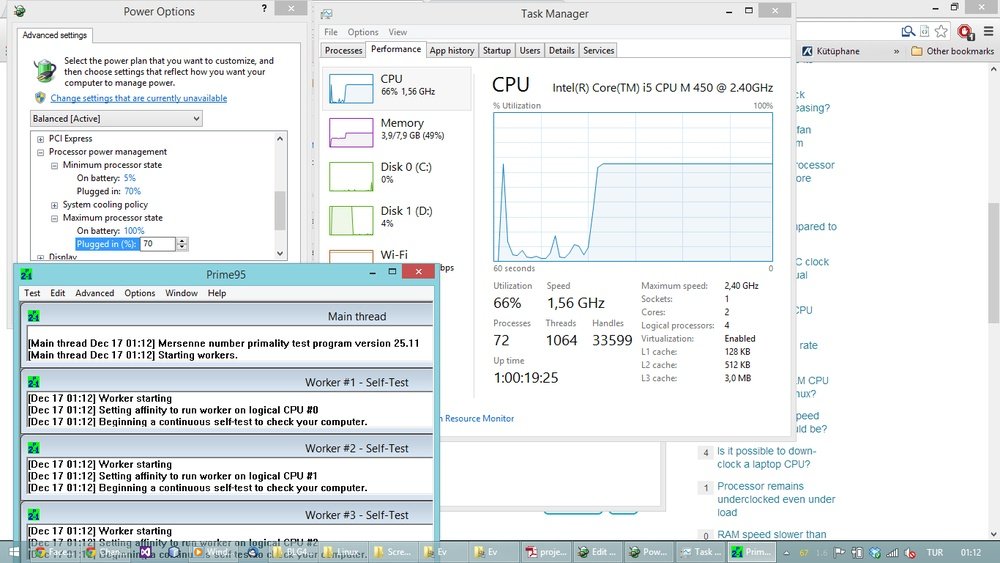
After changing clock speed, test system stability. Stress tests push your CPU to its limits. Tools like Prime95 or AIDA64 check for errors. Run tests for at least 30 minutes. Look for crashes or freezes during testing. Stable performance means your CPU can handle the new speed. If unstable, lower the clock speed or increase voltage carefully.

Credit: www.pcworld.com
Troubleshooting Common Issues
Tweaking your CPU clock speed can boost performance. Yet, it may cause problems. Knowing how to fix common issues saves time and stress. This section covers simple fixes for typical troubles when adjusting clock speeds.
Handling System Crashes
System crashes often happen after raising clock speed too high. Your computer might freeze or restart without warning. Lower the clock speed in small steps to avoid this.
Check your BIOS or software settings. Use stress-test tools to find a stable speed. If crashes persist, try a smaller increase or stop overclocking.
Reverting To Default Settings
Returning to default settings is simple and safe. It stops crashes and overheating issues. Enter your BIOS menu at startup. Look for an option like “Load Default” or “Reset to Default.”
Save changes and exit. The CPU will run at factory speed, ensuring stability. This step is useful if your system becomes unstable or too hot.
Cooling Solutions
Higher clock speeds create more heat. Poor cooling can damage your CPU. Check if your cooler is clean and working well.
Consider better cooling options like improved fans or liquid cooling. Keep your PC case ventilated. Good airflow helps keep temperatures low.
Monitoring CPU temperature with software is important. Stop overclocking if the CPU gets too hot to avoid damage.

Credit: www.youtube.com
Frequently Asked Questions
How Do I Safely Adjust My Cpu Clock Speed?
To safely adjust your CPU clock speed, enter the BIOS or UEFI settings during startup. Increase the clock speed gradually and test stability. Avoid pushing beyond recommended limits to prevent overheating or hardware damage. Always monitor temperatures and system performance during adjustments.
What Tools Are Best For Changing Cpu Clock Speed?
Popular tools for adjusting CPU clock speed include BIOS/UEFI firmware, Intel Extreme Tuning Utility, and AMD Ryzen Master. These tools allow precise control over CPU frequency and voltage. Use manufacturer-recommended software for better compatibility and safety during overclocking.
Can Adjusting Cpu Clock Speed Improve Gaming Performance?
Yes, increasing CPU clock speed can boost gaming performance by enhancing processing power. However, gains depend on game optimization and overall system balance. Ensure proper cooling and system stability to avoid crashes or overheating during higher clock speeds.
Does Overclocking Void My Cpu Warranty?
Overclocking often voids the CPU warranty because it stresses components beyond official specifications. Manufacturers may refuse repairs if damage is linked to overclocking. Check your CPU’s warranty terms before adjusting clock speeds to understand the risks involved.
Conclusion
Adjusting your CPU clock speed can improve your computer’s performance. Start with small changes and test your system’s stability. Keep an eye on temperature to avoid overheating. Remember, each CPU behaves differently, so patience is key. Regularly check your settings to maintain balance.
This simple skill helps you get more from your hardware. Stay safe, and enjoy a smoother computing experience.
