
Have you ever wondered why your GPU performance isn’t showing up in Task Manager? Knowing how your graphics card is working can help you spot problems and keep your PC running smoothly.
If you want to see your GPU usage right alongside your CPU and memory, this guide will show you exactly how to add GPU to Task Manager. By the end, you’ll have a clear view of your system’s performance and the power to optimize it better than ever.
Keep reading to unlock this simple but powerful trick!
Check Windows Version
Checking your Windows version is the first step to add GPU to Task Manager. Different Windows versions show GPU info in Task Manager differently. Knowing your version helps you follow the right method.
Some older versions do not support GPU monitoring in Task Manager. Newer versions, especially Windows 10 and 11, include this feature by default. This guide focuses on checking your version quickly and easily.
How To Find Your Windows Version
Press Windows key + R to open the Run box. Type winver and press Enter. A window will pop up showing your Windows version and build number. Note this information for the next steps.
Check Windows Version In Settings
Open Settings from the Start menu. Click on System, then select About. Scroll down to find Windows specifications. Here, you see the edition, version, and OS build.
Why Windows Version Matters For Gpu In Task Manager
GPU support in Task Manager depends on Windows updates. Older versions may lack GPU performance tabs. Upgrading to the latest version unlocks this feature. Always keep Windows updated for best results.

Credit: www.youtube.com
Enable Gpu In Task Manager
Enabling the GPU in Task Manager helps monitor your graphics card use. It shows real-time data on GPU activity and memory. This feature is useful for checking if your GPU is working properly or if any app uses too much power.
Windows 10 and later versions support GPU monitoring in Task Manager. It might not be visible by default. You need to enable this option to see GPU details clearly.
Open Task Manager
Press Ctrl + Shift + Esc to open Task Manager quickly. You can also right-click the taskbar and select Task Manager. This opens the main window where you manage running processes.
Go To The Performance Tab
Click the Performance tab at the top. This tab shows CPU, memory, disk, and network usage. If your GPU is enabled, it appears here as a separate section.
Enable Gpu Columns In Processes Tab
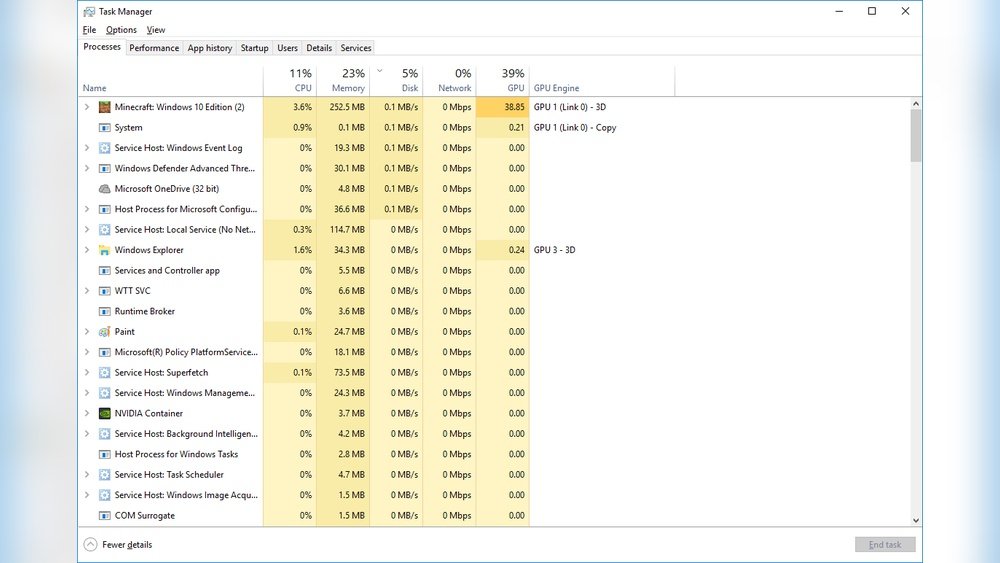
Switch to the Processes tab. Right-click any column header like CPU or Memory. Choose GPU and GPU Engine from the dropdown menu. This adds GPU use data for each process.
Check Gpu Usage
Now, you can see GPU usage for each app. This helps find programs that use a lot of graphics power. Monitoring this helps improve system performance and troubleshoot issues.
Update Graphics Drivers
Updating your graphics drivers is key to adding GPU details to Task Manager. Drivers help your system recognize and use the GPU properly. Without the latest drivers, Task Manager may not show GPU information.
Regular updates fix bugs and improve device performance. They ensure smooth communication between hardware and software. This step is simple but essential for showing GPU stats in Task Manager.
Check Current Graphics Driver Version
First, find out which driver version you have. Open Device Manager and expand Display Adapters. Right-click your GPU and select Properties. Go to the Driver tab to see the driver version and date.
Download Drivers From Official Websites
Visit the GPU maker’s official site to get drivers. NVIDIA, AMD, and Intel provide free updates. Choose the correct model and operating system for your PC. Download the latest driver package available.
Install The Graphics Driver Update
Run the downloaded driver file. Follow the on-screen steps to install. Restart your computer after installation. This ensures the new driver loads correctly.
Verify Gpu Appearance In Task Manager
Open Task Manager using Ctrl + Shift + Esc. Click the Performance tab. Look for the GPU section on the left side. Updated drivers help this section display properly.
Credit: learn.microsoft.com
Access Gpu Performance Tab
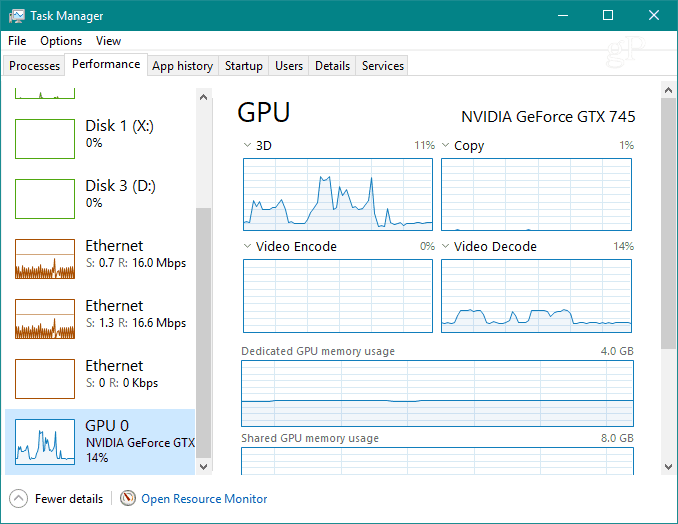
The GPU Performance tab in Task Manager shows how your graphics card works. It helps track GPU usage and temperature. You can see if your GPU is busy or idle. This information is helpful for gaming, video editing, or general use.
Accessing this tab is easy and quick. It gives you real-time data on your GPU’s performance. Here are simple steps to find the GPU Performance tab in Task Manager.
Open Task Manager
Press Ctrl + Shift + Esc to open Task Manager. You can also right-click the taskbar and select Task Manager. This opens the window where you monitor computer resources.
Switch To Performance Tab
Inside Task Manager, click on the Performance tab. This tab shows CPU, memory, disk, and GPU usage. If you do not see tabs, click More details at the bottom.
Select Gpu From The List
In the Performance tab, find and click your GPU on the left side. The GPU name and usage graphs will appear. This shows your graphics card’s current activity and speed.
Use Third-party Monitoring Tools
Task Manager shows basic GPU usage but lacks detailed information. Third-party monitoring tools provide deeper insights into your GPU’s performance. These apps track temperature, memory use, clock speed, and more. They help users understand how their GPU handles tasks and games. Using these tools gives better control and knowledge about your system.
Popular Gpu Monitoring Apps
Several apps are popular for GPU monitoring. MSI Afterburner offers real-time stats and overclocking options. GPU-Z provides detailed hardware info and sensor readings. HWMonitor tracks temperature, voltage, and fan speed. Each app works well on different Windows versions. These tools are free or have free versions. They run quietly in the background and show data clearly.
Comparison With Task Manager
Task Manager only shows GPU usage and basic performance. Third-party tools provide detailed data like temperature and clock speed. They offer graphs and logs for better tracking. Task Manager cannot track GPU memory usage accurately. Third-party apps give alerts for overheating or high usage. These apps give users more control and information about their GPU’s health.
Troubleshoot Gpu Detection Issues
Sometimes, your GPU does not show up in Task Manager. This can cause confusion and disrupt your work. Troubleshooting GPU detection issues helps fix this problem. It ensures your system recognizes the GPU properly. Follow these steps to solve the issue quickly.
Restarting Services
Restarting certain Windows services can help your GPU appear in Task Manager. Open the Services app by typing “services.msc” in the Run box. Look for the “Windows Management Instrumentation” service. Right-click it and choose “Restart.” This refreshes the system’s hardware monitoring. After restarting, check Task Manager again. This simple step often solves detection problems fast.
Checking Hardware Connections
Loose or faulty hardware connections can cause the GPU to disappear. Power off your computer and unplug it. Open the case carefully. Check the GPU’s connection to the motherboard slot. Make sure it is seated firmly and correctly. Also, check the power cables connected to the GPU. Reconnect them if needed. Close the case and power on your PC. This ensures the GPU is properly connected and ready to be detected.
Credit: www.liftingitalia.com
Frequently Asked Questions
How Do I Enable Gpu In Windows Task Manager?
Open Task Manager, go to the “Performance” tab, and select “GPU. ” If it doesn’t show, update your Windows and GPU drivers to the latest version.
Why Is Gpu Not Showing In Task Manager?
GPU might not show if your system or drivers are outdated. Update Windows and GPU drivers, then restart your PC.
Can Task Manager Monitor Gpu Usage In Real-time?
Yes, Task Manager shows real-time GPU usage in the “Performance” tab for supported GPUs, helping you track performance easily.
What Gpus Are Supported By Windows Task Manager?
Windows Task Manager supports most modern GPUs from NVIDIA, AMD, and Intel, provided drivers and Windows are up to date.
Conclusion
Adding your GPU to Task Manager helps track its performance easily. You can see how much your GPU uses during games or work. This information helps you keep your computer running smoothly. Remember to follow the steps carefully for best results.
Watching your GPU can prevent overheating or slowdowns. It also helps you understand your system better. Try checking Task Manager regularly to stay informed. Simple and quick, it improves your PC experience. Keep your system healthy by watching important details like GPU usage.
