
If you want to make your computer faster without buying new hardware, overclocking your CPU is the secret weapon you need. Imagine squeezing extra power from your processor to boost performance in games, editing, or everyday tasks.
Sounds exciting, right? But it can feel tricky if you don’t know where to start. Don’t worry—you’re in the right place. This guide will show you exactly how to overclock your CPU safely and effectively, so you get the best speed possible without risking damage.
Ready to unlock your computer’s hidden potential? Let’s dive in.
Benefits Of Cpu Overclocking
CPU overclocking offers several benefits for users who want more from their computers. It pushes the processor to run faster than its standard speed. This can make your system work better without buying new parts. Overclocking can improve the overall experience in daily tasks and gaming.
Improved Performance
Overclocking increases the CPU speed, which helps your computer finish tasks faster. Programs open quicker, and multitasking becomes smoother. This boost can be very noticeable in apps that need more power, like video editing or 3D rendering software. The extra speed helps reduce waiting times and improves productivity.
Cost-effective Upgrade
Instead of buying a new CPU or a whole new PC, overclocking gives your current processor more power. It saves money and extends the life of your system. This option works well for those on a budget who want better performance without big expenses. Just a small change can bring significant benefits.
Enhanced Gaming Experience
Games run more smoothly with a faster CPU. Overclocking reduces lag and improves frame rates, making gameplay feel more fluid. It also helps run newer games that need more processing power. Gamers can enjoy better visuals and faster response times without upgrading their hardware.
Risks To Consider
Overclocking your CPU can boost performance but carries risks. Knowing these risks helps you decide if overclocking is right for your system. It also guides you to take safety measures to protect your hardware.
Potential Hardware Damage
Overclocking pushes your CPU beyond its normal limits. This extra stress can cause permanent damage to the processor. Other parts like the motherboard and power supply can also fail. Long-term damage reduces your computer’s lifespan.
Increased Heat Output
Running your CPU faster generates more heat. Excess heat can harm your CPU and other components. Without proper cooling, the system may overheat and shut down. Overheating lowers performance and can cause crashes.
System Instability
Overclocked CPUs may cause your system to become unstable. Crashes, freezes, and random restarts are common problems. Instability can lead to data loss or corruption. Testing and adjusting settings carefully can reduce instability risks.
Preparing For Overclocking
Preparing for overclocking is a crucial step to ensure a smooth and safe process. It helps avoid damage to your CPU and other parts. Taking time to prepare can improve performance and system stability. Follow these steps before you start overclocking.
Checking Cpu Compatibility
Not all CPUs support overclocking. Some models have locked multipliers that prevent speed changes. Check your CPU model and motherboard to confirm compatibility. Use official manufacturer websites or trusted sources. Knowing this saves time and avoids frustration.
Upgrading Cooling Solutions
Overclocking increases heat output. Stock coolers often cannot handle the extra heat. Invest in better cooling like air coolers or liquid cooling systems. Good cooling keeps your CPU safe and running fast. Monitor temperatures regularly to avoid overheating.
Updating Bios And Drivers
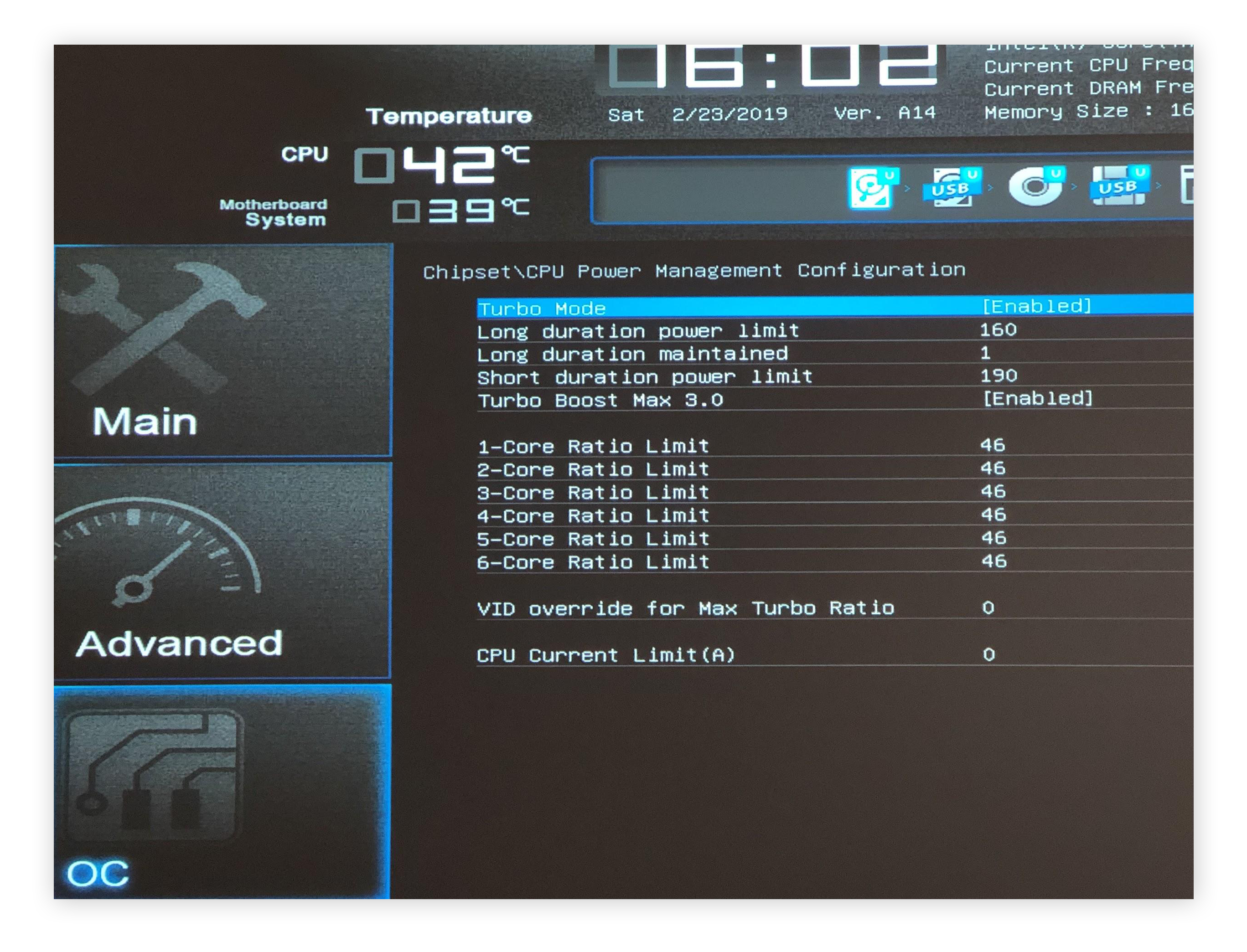
BIOS controls hardware settings including CPU speeds. An outdated BIOS might limit overclocking options. Update BIOS to the latest version from your motherboard’s site. Also, update chipset and CPU drivers for better stability. These updates improve system performance and support new features.
Credit: www.avast.com
Tools And Software Needed
Overclocking a CPU requires the right tools and software to do it safely and effectively. These tools help you change settings, test stability, and check temperatures. Using the proper software can prevent hardware damage and improve performance.
Bios/uefi Interface
The BIOS or UEFI is the main place to start overclocking. It lets you adjust CPU speed, voltage, and other settings. Accessing BIOS usually requires pressing a key during boot-up. The interface may look simple but has powerful options for overclocking. Take time to learn the layout and functions.
Overclocking Utilities
Many CPU brands provide software tools for overclocking. These utilities allow changes directly from the operating system. They offer easy controls for clock speed and voltage. Some popular tools include Intel Extreme Tuning Utility and AMD Ryzen Master. These programs help users tweak settings without rebooting.
Monitoring Programs
Monitoring software tracks CPU temperature, speed, and voltage in real-time. It is crucial to avoid overheating and crashes. Tools like HWMonitor, Core Temp, and MSI Afterburner provide clear data. Keeping an eye on these stats helps maintain system health during overclocking.
Step-by-step Overclocking Guide
Overclocking a CPU lets you get extra speed from your computer. It takes careful steps to do it safely. This guide breaks down the process into easy parts.
Follow each step closely. Small changes can make a big difference. Watch your system’s reaction at every stage. Ready? Let’s dive in.
Accessing Bios Settings
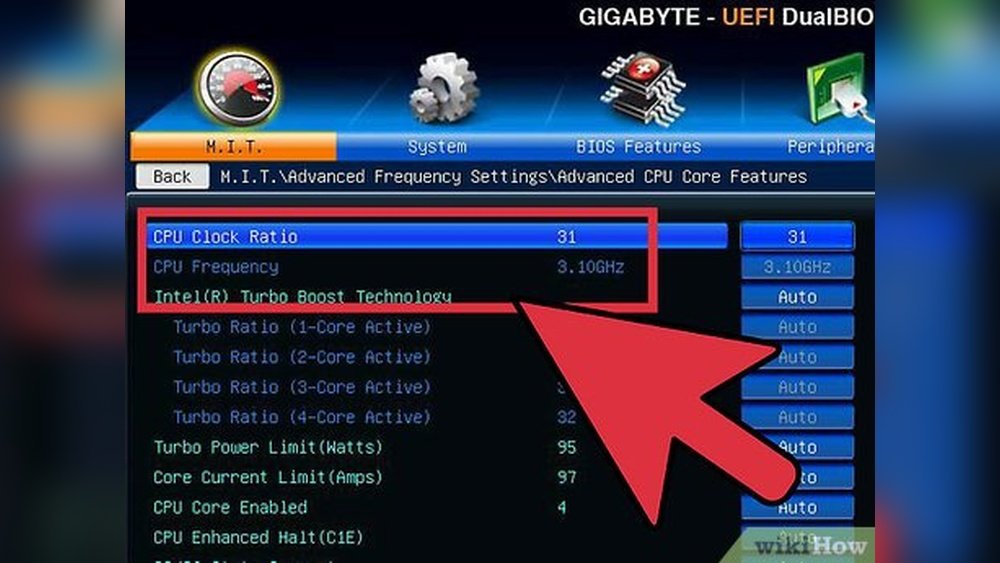
Restart your computer and enter the BIOS menu. Usually, press Delete or F2 key during startup. BIOS controls the core hardware settings.
Find the CPU or overclocking section. Every BIOS looks different but the CPU settings are easy to spot. Take your time navigating.
Adjusting Cpu Multiplier
The CPU multiplier controls how fast your processor runs. Increase it slowly by one step at a time. Each step raises the CPU speed a little.
Save the changes and restart your PC. Check if the system boots normally. If it crashes, lower the multiplier.
Increasing Core Voltage Safely
More speed needs more power. Increase the CPU core voltage carefully. Raise it by small amounts only, like 0.01 or 0.02 volts.
Too much voltage can damage your CPU or cause overheating. Monitor your CPU temperature after each change. Keep it below safe limits.
Testing Stability And Performance
Use stress test software to check your CPU stability. Run tests for at least 30 minutes. Watch for crashes or errors.
Also, run normal programs to see real-world performance. If your system is stable, you can try to increase the multiplier more. If not, reduce settings for safety.

Credit: www.geeksforgeeks.org
Monitoring Temperature And Stability
Monitoring temperature and stability is key when overclocking your CPU. Overclocking pushes your processor beyond its default speed. This causes it to produce more heat and become less stable. Watching these factors helps prevent damage and crashes. It also ensures your system runs smoothly.
Using Temperature Monitoring Tools
Temperature tools show how hot your CPU gets. Popular programs include HWMonitor, Core Temp, and SpeedFan. These apps give real-time temperature readings. Check temperatures often during overclocking. Keep CPU temperature under 85°C to stay safe.
Running Stress Tests
Stress tests check if your CPU is stable at higher speeds. Tools like Prime95 or AIDA64 push your CPU to full load. Run tests for 30 minutes or more. Stop if your system crashes or shows errors. Stability means your overclock is reliable.
Recognizing Warning Signs
Watch for sudden shutdowns, freezes, or blue screens. These often mean your CPU is too hot or unstable. Loud fan noise can show high temperatures. Slow performance or errors during tasks are bad signs. Lower your overclock if you see these issues.
Troubleshooting Common Issues
Troubleshooting is a key step in overclocking your CPU. Problems can happen often. Knowing how to fix them saves time and stress. This section helps you solve common issues during overclocking.
System Crashes And Freezes
System crashes happen when the CPU runs beyond its limits. The computer may freeze or restart suddenly. Lower the clock speed or raise the CPU voltage slightly. Test small changes to find a stable setting. Use stress tests to check stability. Stop if crashes continue.
Overheating Problems
Overheating is a common issue in overclocking. High temperatures cause slowdowns or shutdowns. Clean your computer fans and heatsinks regularly. Apply good thermal paste on the CPU. Consider better cooling solutions like extra fans or liquid cooling. Monitor temperatures with software tools. Keep CPU temperature below 85°C for safety.
Resetting To Default Settings
Resetting helps when problems persist. Enter the BIOS or UEFI settings on startup. Find the option to load default or optimized settings. This clears any unstable overclock changes. Save and exit BIOS to restart your PC. Resetting ensures the CPU runs safely at base speed.
Advanced Overclocking Tips
Advanced overclocking goes beyond basic settings. It requires careful adjustments and testing. This section covers key tips to improve your CPU’s performance safely and efficiently. Follow these steps to get the best results without risking damage.
Fine-tuning Voltages
Adjusting CPU voltage is crucial for stable overclocking. Too low voltage causes crashes. Too high voltage creates heat and shortens CPU life. Increase voltage in small steps. Test stability after each change. Use monitoring tools to track temperatures. Keep voltage as low as possible for your target speed.
Optimizing Memory Settings
Memory speed and timings affect overall system performance. Set your RAM to its rated speed in BIOS. Tighten memory timings carefully for better responsiveness. Run memory tests to check stability. Avoid pushing memory too far to prevent errors. Balanced memory settings improve both speed and reliability.
Exploring Bios Features
Your motherboard’s BIOS has many options for overclocking. Explore CPU multiplier and base clock adjustments. Enable XMP profiles for easy memory tuning. Use power and thermal limits to protect hardware. Some BIOS versions offer advanced features like load-line calibration. Experiment with settings in small steps and test thoroughly.

Credit: www.wikihow.com
Frequently Asked Questions
What Does It Mean To Overclock A Cpu?
Overclocking a CPU means increasing its clock speed beyond factory settings. This boosts performance but may cause more heat and power use. Proper cooling and stable settings are vital for safe overclocking.
Is Overclocking A Cpu Safe For My Computer?
Overclocking can be safe if done carefully with good cooling. Incorrect settings may cause crashes or hardware damage. Always monitor temperature and stability when overclocking your CPU.
How Do I Start Overclocking My Cpu?
Begin by accessing your BIOS or UEFI settings. Increase CPU multiplier or clock speed gradually. Test stability after each change using stress tests. Adjust voltage if needed to maintain stability and avoid overheating.
What Tools Help In Cpu Overclocking And Monitoring?
Popular tools include CPU-Z for monitoring, Prime95 for stress testing, and HWMonitor for temperature tracking. These help ensure your overclock is stable and safe for your hardware.
Conclusion
Overclocking your CPU can boost your computer’s speed. It needs care and patience to do right. Always watch the temperature to avoid damage. Testing your system helps keep it stable. Start slow, then increase the speed step by step. Remember, not all CPUs handle overclocking well.
Knowing your hardware limits is very important. With practice, you can improve your PC’s performance safely. Stay cautious and enjoy the faster experience.
