
You rely on your CPU to keep your computer running smoothly, but have you ever thought about the thermal paste between your processor and its cooler? This often-overlooked material plays a crucial role in keeping your CPU cool and preventing overheating.
But how often should you change thermal paste on your CPU to maintain peak performance? If you don’t get this right, your computer could slow down or even get damaged. Keep reading to find out exactly when and why you need to replace your thermal paste, so you can protect your device and keep it running like new.
Role Of Thermal Paste
Thermal paste plays a key role in keeping your CPU cool. It helps transfer heat from the CPU to the cooler. Without it, your computer could overheat and slow down or stop working.
The paste fills tiny gaps between the CPU and the cooler. These gaps trap air, which blocks heat transfer. Thermal paste makes sure heat moves smoothly and fast.
Function In Cpu Cooling
Thermal paste works like a bridge for heat. It fills small spaces between the CPU and the heat sink. This stops air pockets from forming. Air does not carry heat well, so paste helps heat move to the cooler better. This keeps the CPU temperature low and helps the system run well.
Types Of Thermal Paste
There are different kinds of thermal paste. Some are made of metal, some use ceramic, and others are silicone-based. Metal paste conducts heat very well but can cause problems if it touches other parts. Ceramic paste is safer and still works well. Silicone paste is easy to use but not the best at heat transfer. Choosing the right type can affect your CPU’s cooling efficiency.
Signs To Replace Thermal Paste
Thermal paste helps keep your CPU cool by filling gaps between the processor and the cooler. Over time, this paste can dry out or lose its effectiveness. Recognizing the signs to replace thermal paste is key to protecting your computer from overheating and damage.
Watch for clear indicators that your thermal paste needs changing. These signs help you avoid serious problems and keep your CPU running smoothly.
Rising Cpu Temperatures
One of the first signs is an increase in CPU temperature. Check your system’s temperature regularly. If the CPU runs hotter than usual during normal tasks, the thermal paste may be failing. Higher temperatures mean less efficient heat transfer.
System Instability
System crashes or unexpected shutdowns can signal poor thermal paste performance. Overheating causes the CPU to throttle or shut down to protect itself. Frequent freezes or blue screens might mean the paste no longer cools properly.
Visual Inspection
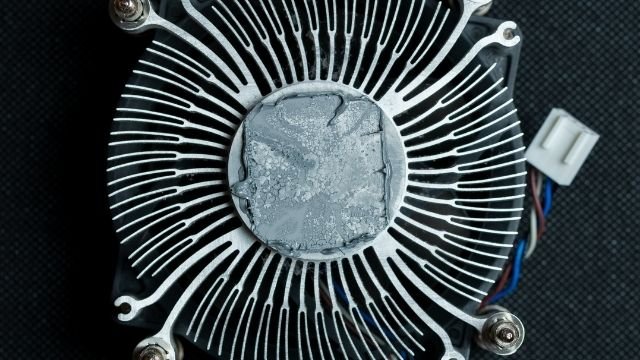
Open your PC case and look at the thermal paste on the CPU. Old paste often looks dry, cracked, or crumbly. Fresh thermal paste appears smooth and moist. If the paste looks worn out, it’s time to replace it for better cooling.
Recommended Replacement Intervals
Thermal paste plays a key role in keeping your CPU cool. Over time, it can dry out or lose its effectiveness. Knowing when to replace thermal paste helps maintain good CPU performance and prevents overheating issues. Below are some guidelines on how often you should change it.
General Timeframes
Most experts suggest replacing thermal paste every 2 to 3 years. This timeframe suits average users with normal computer use. For gaming or heavy workloads, consider checking it every 1 to 2 years. If you notice rising CPU temperatures, it might be time to reapply the paste sooner.
Factors Affecting Longevity
Several factors can shorten or extend thermal paste life. High CPU temperatures speed up paste drying. Using high-quality thermal paste can last longer than cheaper types. Frequent CPU use and overclocking also wear the paste faster. Environmental conditions like dust and humidity affect its durability too.
Credit: www.wepc.com
How To Change Thermal Paste
Changing thermal paste on your CPU is a key step in keeping your computer cool. Fresh paste helps heat move from the CPU to the cooler better. This keeps your system running smoothly and stops overheating. Follow simple steps to do this safely and effectively.
Tools Needed
- Thermal paste tube
- Isopropyl alcohol (70% or higher)
- Lint-free cloth or coffee filter
- Plastic or rubber gloves
- Screwdriver (usually Phillips)
- Plastic card or spatula (optional)
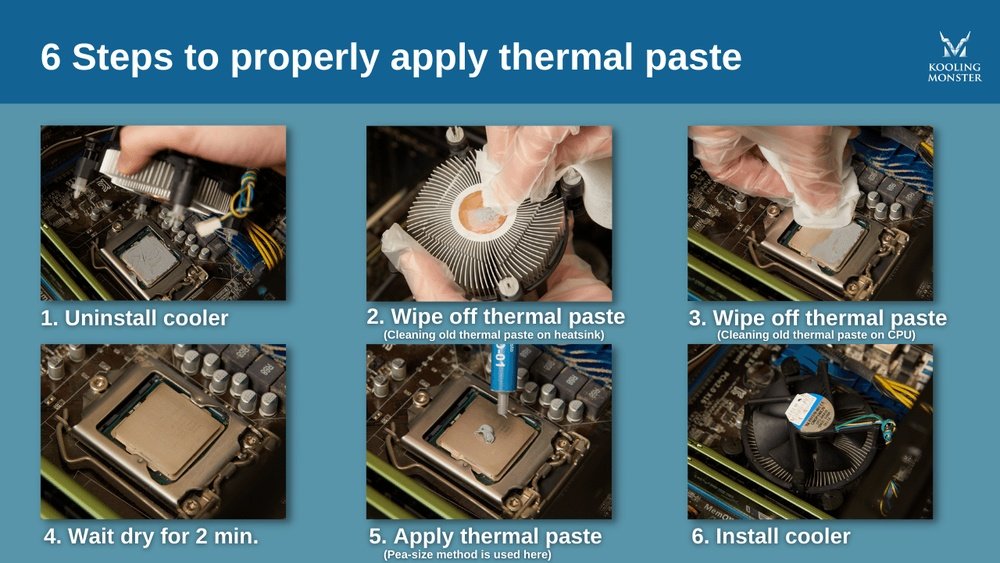
Step-by-step Application
- Turn off the PC and unplug all cables.
- Remove the side panel to access the CPU cooler.
- Unscrew and gently remove the CPU cooler.
- Use alcohol and cloth to clean old thermal paste from CPU and cooler base.
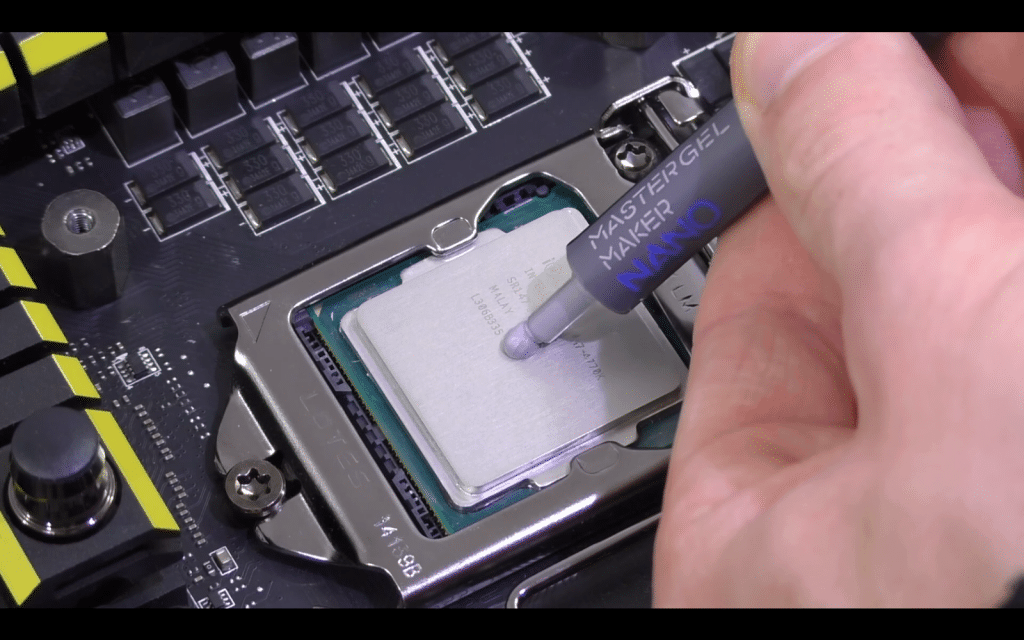
- Apply a small pea-sized drop of new thermal paste on the CPU center.
- Reattach the CPU cooler carefully and tighten screws evenly.
- Close the case, reconnect cables, and power on the PC.
Common Mistakes To Avoid
- Applying too much thermal paste can cause poor heat transfer.
- Using too little paste leads to air gaps and overheating.
- Not cleaning old paste properly reduces cooling efficiency.
- Touching the CPU or paste with bare hands can cause damage.
- Failing to secure the cooler tightly can cause poor contact.
Impact Of Quality On Performance
The quality of thermal paste greatly affects your CPU’s cooling performance. Poor quality paste may dry out faster and lose its ability to transfer heat. Good thermal paste keeps your CPU cooler for longer periods. This helps maintain stable performance and prevents overheating. Choosing the right thermal paste is important for your computer’s health and speed.
Premium Vs Standard Pastes
Premium pastes usually have better materials and last longer. They spread evenly and fill gaps between the CPU and cooler. Standard pastes can be cheaper but might dry out quickly. This causes your CPU to run hotter over time. Investing in premium paste can save you from frequent changes and overheating issues.
Thermal Conductivity Differences
Thermal conductivity measures how well the paste transfers heat. Higher conductivity means better heat transfer. Premium pastes often have conductivity above 8 W/mK. Standard pastes usually range between 1 and 4 W/mK. Using paste with low conductivity reduces cooling efficiency. This may cause your CPU to throttle or slow down.
Credit: koolingmonster.com
Special Considerations
Special considerations affect how often you should change thermal paste on a CPU. Different uses and hardware types need different care. Knowing these details helps keep your CPU cool and working well.
Overclocking Scenarios
Overclocking makes the CPU run faster than normal. This creates more heat inside the processor. The thermal paste must work harder to move heat away. Over time, the paste can dry out faster. This means you should replace it more often than usual.
For overclocked CPUs, check the thermal paste every year. If temperatures rise, change the paste immediately. Good paste and fresh application keep the CPU safe from damage.
Different Cpu And Cooler Types
Not all CPUs and coolers use the same type of thermal paste. Some CPUs have integrated heat spreaders that affect heat flow. Others may require specific paste types for best results.
Coolers vary too. Air coolers and liquid coolers have different cooling methods. This changes how the thermal paste performs over time. Always use the paste recommended for your CPU and cooler.
Changing intervals depend on these factors. Some setups can keep paste for 3-5 years. Others need changes every 1-2 years. Check your hardware guide for exact advice.

Credit: www.corsair.com
Frequently Asked Questions
How Often Should Thermal Paste Be Replaced On A Cpu?
Thermal paste should be replaced every 2 to 3 years. This ensures optimal heat transfer and prevents CPU overheating. If you notice higher temperatures, consider reapplying sooner for better performance.
Can Old Thermal Paste Cause Cpu Overheating?
Yes, old thermal paste can dry out and lose effectiveness. This results in poor heat transfer and CPU overheating. Regular replacement helps maintain safe operating temperatures and prolongs CPU lifespan.
Is It Necessary To Replace Thermal Paste After Removing The Cpu Cooler?
Yes, always replace thermal paste after removing the CPU cooler. Removing the cooler breaks the paste’s seal, reducing its effectiveness. Fresh paste ensures proper heat conduction and prevents overheating.
What Are Signs That Thermal Paste Needs Changing?
Signs include increased CPU temperatures and fan noise. You might also experience system instability or crashes. Regular monitoring helps detect when thermal paste replacement is needed to maintain performance.
Conclusion
Changing thermal paste on your CPU keeps it cool and working well. Usually, change it every 2 to 3 years. If your computer gets very hot or slows down, check the paste sooner. Old paste dries out and loses its power to cool.
Applying fresh thermal paste helps your CPU stay safe and last longer. Keep an eye on your PC’s temperature to know when to act. Simple care like this can prevent big problems later. Small steps make a big difference for your computer’s health.
