
Your CPU works hard every day, and keeping it cool is key to its performance and lifespan. One simple but often overlooked way to do this is by changing the thermal paste.
But how often should you actually replace it? If you’re wondering whether it’s time to refresh your CPU’s thermal paste or if you can leave it alone, this article is for you. Read on to discover the signs, timing, and tips that will help you keep your computer running smoothly and avoid costly overheating problems.
Don’t let a small detail slow down your machine—find out what you need to know now.

Credit: www.corsair.com
Signs Of Old Thermal Paste
Thermal paste plays a key role in keeping your CPU cool. Over time, it dries out and loses its ability to transfer heat. Recognizing old thermal paste helps prevent overheating and damage. Here are clear signs to watch for.
Rising Cpu Temperatures
One of the first signs of old thermal paste is rising CPU temperatures. Your computer may run hotter than usual during normal tasks. High temperatures can cause the fan to run louder and more often. If your CPU temperature climbs quickly, the thermal paste might be failing.
System Instability
Old thermal paste can cause your system to become unstable. Random shutdowns or restarts may occur without warning. You might see error messages or your computer might freeze. This happens because the CPU overheats and cannot work properly.
Visual Inspection
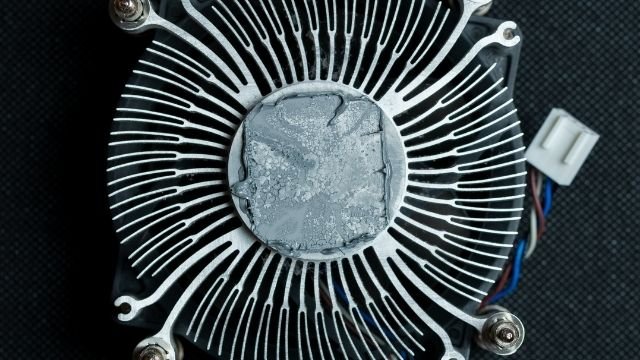
Sometimes, you can see the state of the thermal paste by checking inside your PC. Dried or cracked paste looks flaky and dry. Fresh paste appears smooth and slightly shiny. If the paste looks old, it is time to replace it to keep your CPU cool.
Factors Affecting Thermal Paste Lifespan
Thermal paste plays a key role in keeping your CPU cool. Its lifespan depends on many factors. Understanding these helps decide when to change it. Some factors affect performance more than others. Knowing them can save your CPU from overheating.
Type Of Thermal Paste
Different thermal pastes last for different times. Some are made of metal, others of ceramic or silicone. Metal-based pastes usually conduct heat better. They can dry out faster, needing more frequent changes. Silicone pastes may last longer but conduct heat less. Choose a paste based on your needs and budget.
Usage Intensity
The more you use your computer, the faster the paste wears out. Heavy tasks like gaming or video editing create more heat. This heat breaks down the paste quicker. Light use, like browsing or office work, puts less stress on the paste. Regular heavy use means changing thermal paste more often.
Environmental Conditions
Heat and dust affect thermal paste lifespan. High room temperatures cause the paste to dry faster. Dust can block airflow, raising CPU temperature. Humidity levels also matter. Too much moisture can cause paste to degrade or separate. Keep your computer clean and cool to extend paste life.
Recommended Replacement Intervals
Changing CPU thermal paste is key to keeping your processor cool. Over time, the paste dries out or loses its ability to transfer heat. This can cause higher temperatures and lower performance. Knowing how often to replace thermal paste helps protect your CPU and keeps your computer running smoothly.
General Guidelines
For most users, changing thermal paste every 3 to 5 years works well. This time frame covers regular use and average temperatures. If you notice higher CPU temps or unusual fan noise, check the paste sooner. Good airflow and clean fans also help maintain paste effectiveness.
For Gaming Pcs
Gaming PCs run hotter and harder than normal systems. Replace thermal paste every 1 to 3 years for best cooling. Regular cleaning of the cooling system is important too. This prevents dust buildup, which reduces paste performance and raises temperatures.
For Workstations And Servers
Workstations and servers work long hours under heavy loads. Change thermal paste every 2 to 4 years to avoid overheating. These machines need stable cooling to keep running without errors. Monitoring CPU temperature closely helps decide if paste needs earlier replacement.
Credit: www.wepc.com
How To Replace Thermal Paste
Replacing CPU thermal paste is important for keeping your computer cool. Old thermal paste can dry out and stop working well. This makes your CPU hotter and can slow down your computer. Changing the paste helps keep the CPU running smoothly and safely.
Tools Needed
Gather the right tools before starting. You will need:
- Isopropyl alcohol (at least 70%)
- Lint-free cloth or coffee filters
- Thermal paste tube
- Small screwdriver
- Plastic card or old credit card (optional)
Cleaning Old Paste
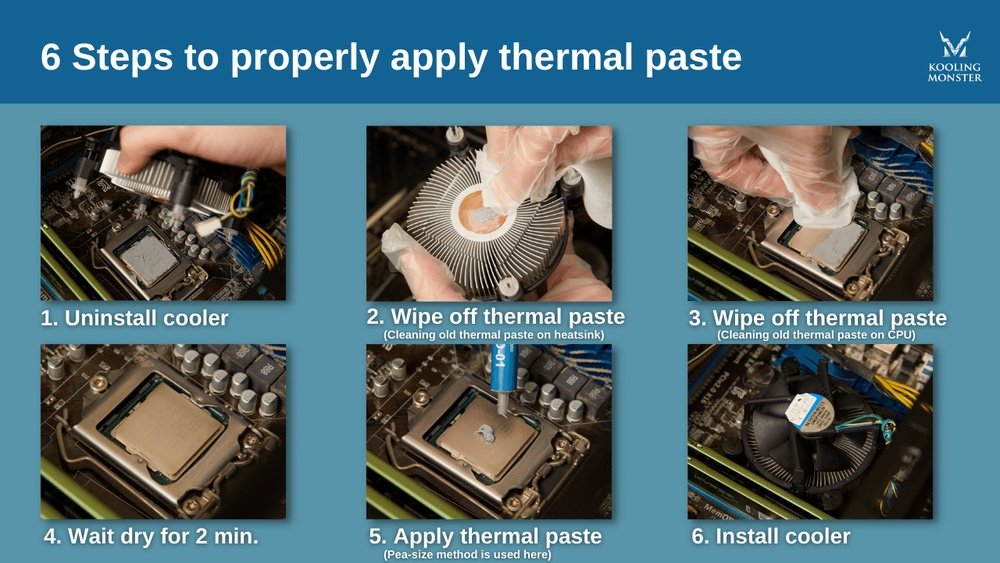
First, remove the CPU cooler carefully. Use the screwdriver for screws or clips. Next, gently wipe off old thermal paste from the CPU and cooler base. Apply isopropyl alcohol on the cloth. Clean until no paste remains and the surface is dry.
Applying New Paste
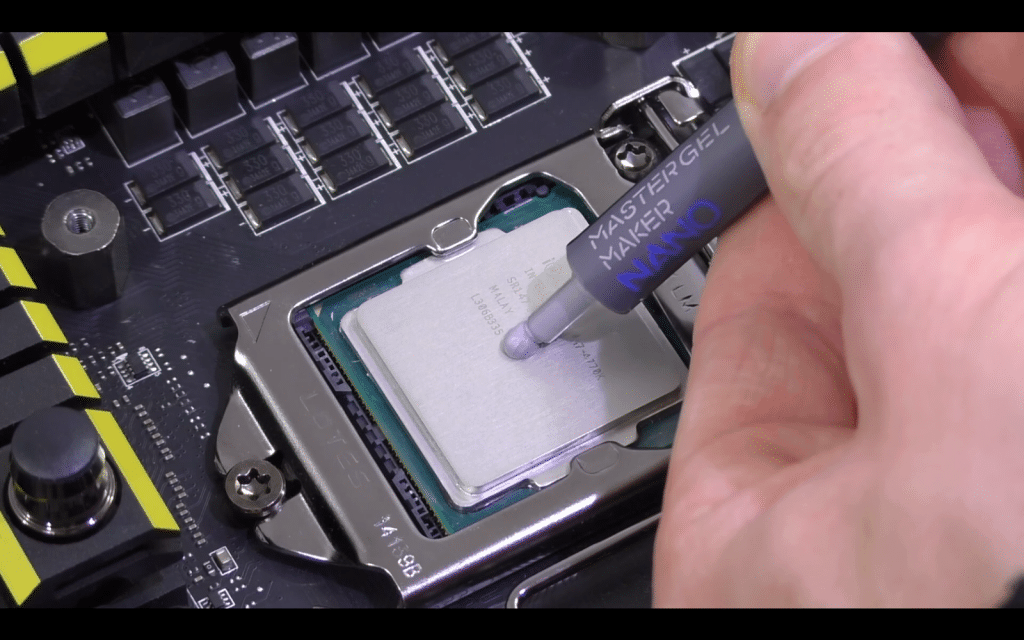
Put a small pea-sized dot of thermal paste in the center of the CPU. Avoid using too much paste. The pressure from the cooler will spread it evenly. Do not spread the paste manually to avoid air bubbles.
Reassembling The Cooler
Place the cooler back on the CPU gently. Align it carefully with the mounting holes. Tighten screws or clips evenly in a cross pattern. This ensures good contact and even pressure on the CPU.
Tips For Maintaining Optimal Cpu Cooling
Maintaining optimal CPU cooling is key to keeping your computer fast and safe. Good cooling helps your CPU work well without overheating. It also stops damage and extends your PC’s life. Simple steps can help you keep the CPU cool and running smoothly.
Regular Cleaning
Dust and dirt block airflow and trap heat. Clean your PC case and fans often. Use a soft brush or compressed air to remove dust. Clean the CPU cooler carefully. This helps air move freely and cool the CPU better.
Monitoring Temperatures
Check your CPU temperature regularly using software tools. Normal temperatures vary by CPU model. Watch for sudden spikes or high temps above 80°C. High heat means your cooling needs checking. Early detection prevents damage and slows down.
Choosing Quality Thermal Paste
Thermal paste helps heat move from the CPU to the cooler. Pick a high-quality paste for better heat transfer. Cheap paste may dry out fast or not spread well. Good paste keeps your CPU cooler and lasts longer. Replace it every 2 to 3 years or when needed.
Credit: koolingmonster.com
Frequently Asked Questions
How Often Should You Replace Cpu Thermal Paste?
CPU thermal paste should be replaced every 2 to 3 years. This ensures optimal heat transfer and prevents overheating. If you notice higher temperatures or remove the cooler, replace the paste immediately. Regular maintenance helps maintain CPU performance and longevity.
Can Old Thermal Paste Cause Cpu Overheating?
Yes, old thermal paste can dry out and lose effectiveness. This reduces heat transfer between the CPU and cooler. Over time, it may cause higher CPU temperatures and potential thermal throttling. Reapplying fresh paste improves cooling efficiency and prevents overheating.
Does Reapplying Thermal Paste Improve Cpu Cooling?
Reapplying thermal paste often improves CPU cooling if the old paste is dried or uneven. Fresh paste fills microscopic gaps between the CPU and cooler, enhancing heat conduction. Proper application can lower temperatures and boost system stability.
Is Thermal Paste Replacement Needed After Cpu Cooler Removal?
Yes, you should replace thermal paste after removing the CPU cooler. Removing the cooler breaks the paste’s seal, reducing thermal conductivity. Always clean off old paste and apply a new layer for best cooling results.
Conclusion
Changing your CPU thermal paste helps keep your computer cool. Over time, the paste dries out and loses its power. Usually, changing it every 1 to 3 years works well. If you notice your CPU getting hotter, it might be time.
Proper maintenance can extend your computer’s life and improve performance. Don’t wait for problems to start. Check the paste regularly to avoid overheating issues. Simple care goes a long way in keeping your PC safe and running smoothly.
