
Wondering how much VRAM your GPU has? Knowing this can make a big difference in how well your computer handles games, videos, and creative projects.
If you’ve ever felt your system lag or struggled with graphics quality, the amount of VRAM might be the hidden key. You’ll discover exactly what VRAM is, why it matters, and the simple ways to check how much your GPU offers.
By the end, you’ll be confident in understanding your GPU’s power and ready to make the most of it. Keep reading to unlock the full potential of your graphics card!
What Is Vram
VRAM stands for Video Random Access Memory. It is a special type of memory used by your graphics card. VRAM stores the images and videos your GPU needs to display on the screen. It helps your computer show graphics quickly and clearly.
Without enough VRAM, your computer may struggle to load high-quality images or run games smoothly. VRAM holds textures, frame buffers, and other visual data. This memory works differently from your regular RAM because it focuses only on graphics.
How Vram Works
VRAM acts as a buffer between the GPU and the display. It stores image data temporarily while the GPU processes it. This process helps reduce delays and keeps graphics smooth. The more VRAM your GPU has, the more data it can store at once.
When you play a game or watch a video, VRAM loads the necessary textures and frames. It quickly sends this data to the GPU for rendering. This speed is important for good graphics performance.
VRAM size affects your computer’s ability to handle graphics. More VRAM allows for better image quality and higher resolutions. It also helps run demanding games and 3D applications without lag.
Low VRAM can cause stuttering or blurry textures. It limits how detailed the visuals can be. VRAM is key for gamers, video editors, and designers who need clear and fast graphics.
How To Check Vram On Your Gpu
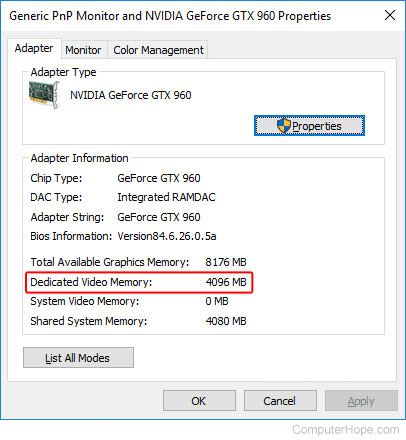
Finding your GPU’s VRAM is simple. On Windows, open the Display Settings and check Adapter Properties. Your VRAM size will be listed under Dedicated Video Memory. Mac users can find VRAM info in the About This Mac section.
You can also use software tools like GPU-Z or Speccy. These programs show detailed specs about your graphics card and VRAM.
Credit: www.computerhope.com
Why Vram Matters
VRAM helps your computer store images and videos for smooth display. Knowing your GPU’s VRAM shows how well it handles games and apps. More VRAM means better performance with high-quality graphics.
What Is Vram And Its Role?
VRAM stands for Video Random Access Memory. It stores images and videos your GPU uses. VRAM helps your computer show graphics smoothly. More VRAM means your GPU can handle bigger images and more details. It acts as a short-term memory for your graphics card.
Impact Of Vram On Gaming
Games with high-quality graphics need more VRAM. It stores textures, shadows, and effects during gameplay. If VRAM runs out, games may lag or lower their quality. Enough VRAM keeps games running fast and looking good. It helps avoid stuttering and slow loading times.
Vram Importance In Video Editing And Design
Video editing software uses VRAM to preview videos. Large videos and effects require more VRAM to work well. Designers use VRAM to handle big images and 3D models. More VRAM means smoother editing and faster rendering. It reduces waiting time and improves work flow.
How Vram Affects Multi-monitor Setups
Using several monitors needs more VRAM. Each screen shows different content and takes memory. Low VRAM may cause slow performance or glitches. More VRAM helps keep all screens sharp and smooth. It supports better multitasking and productivity.
Check Vram On Windows
Checking your GPU’s VRAM on Windows helps you understand your computer’s graphics power. VRAM, or Video RAM, stores images and videos your GPU uses. Knowing your VRAM size helps decide which games or software your PC can handle smoothly.
Windows offers simple ways to find VRAM information. You do not need extra software. Just follow easy steps using built-in tools.
Using Display Settings
Right-click on the desktop and select “Display settings”. Scroll down and click “Advanced display settings”. Choose your display if you have more than one. Click “Display adapter properties”. A window shows your VRAM next to “Dedicated Video Memory”. This number tells how much VRAM your GPU has.
Through Directx Diagnostic Tool
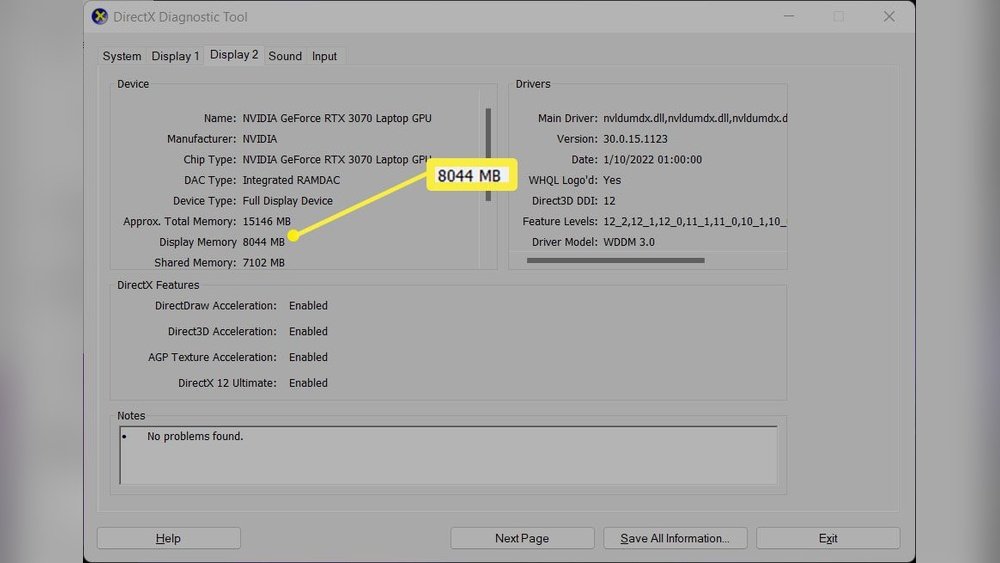
Press Windows key + R to open the Run dialog. Type “dxdiag” and press Enter. The DirectX Diagnostic Tool appears. Click the “Display” tab. Look under “Device” for your GPU details. VRAM is listed as “Display Memory”. This method quickly reveals your video memory size.
Via Device Manager
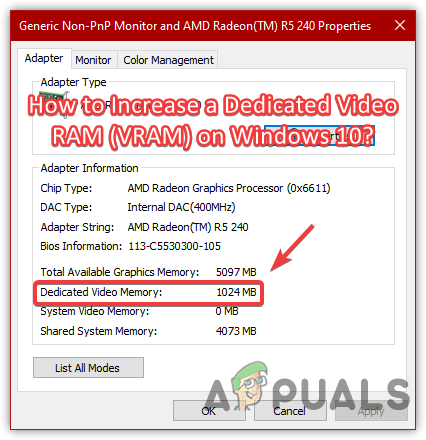
Open the Start menu and type “Device Manager”. Click to open it. Expand the “Display adapters” section. Right-click your GPU and choose “Properties”. Select the “Adapter” tab. Here, you see the total available graphics memory. This number includes VRAM and shared system memory.
Check Vram On Mac
Checking the VRAM on your Mac helps you understand your graphics card’s memory. VRAM is important for tasks like gaming, video editing, and design work. Knowing how much VRAM you have can guide your software choices and improve performance.
Using About This Mac
Click the Apple icon at the top-left corner of your screen. Select “About This Mac” from the menu. A window will open showing your Mac’s basic information.
Look for the “Graphics” section in this window. It shows your GPU model and the VRAM size. This method is quick and works on all Mac models.
System Report Details
For more detailed info, open “About This Mac” again. Click the “System Report” button.
In the System Information window, find and select “Graphics/Displays” on the left panel. Here, you will see detailed specs about your GPU.
Look for “VRAM” or “VRAM (Total)” to find the exact memory size. This method gives a deeper look at your Mac’s graphics hardware.
Check Vram On Linux
Checking the VRAM on your Linux system helps you understand your GPU’s memory capacity. VRAM is vital for graphics performance in tasks like gaming, video editing, and 3D modeling. Linux offers simple ways to find this information using either command-line tools or graphical interfaces. Below are two easy methods to check your GPU’s VRAM on Linux.
Using Terminal Commands
Open the terminal to start. Type lspci | grep VGA to identify your graphics card. Next, use lshw -C display to get detailed GPU info. Look for the line labeled size or memory. This shows the VRAM amount in bytes or megabytes. Another command is glxinfo | grep "Video memory" but it needs mesa-utils installed. These commands give quick and accurate VRAM details.
Checking System Information Gui
Most Linux desktop environments have system info tools. For example, in Ubuntu, open Settings, then go to About. Under the graphics section, you will see the GPU model and VRAM size. Another option is to use the Hardinfo tool, which provides a user-friendly interface to check hardware details. This method is easy for users who prefer not to use the terminal.
Credit: www.blizanovy.cz
Third-party Tools For Vram
Third-party tools help you find your GPU’s VRAM quickly. They provide detailed information beyond basic system settings. These tools work well for Windows users and offer easy ways to check VRAM size. Some programs even show extra GPU details like clock speed and memory type.
Gpu-z For Windows
GPU-Z is a popular tool for checking VRAM on Windows. It is free and simple to use. After installation, GPU-Z displays VRAM size clearly on the main screen. It shows other GPU specs like temperature and bus interface. This tool is lightweight and does not affect system performance. Many users trust GPU-Z for accurate VRAM readings.
Other Popular Software
Several other programs also show VRAM information. Speccy is one example that offers a full system overview. It lists GPU details including VRAM size and type. Another tool, HWMonitor, tracks GPU stats and VRAM usage. MSI Afterburner provides VRAM info and allows GPU tuning. These tools give useful data for gamers and PC builders.
Interpreting Vram Amounts
Understanding how much VRAM your GPU has is important. VRAM, or video RAM, stores image data for your screen. It helps your computer show graphics smoothly. But the right amount of VRAM depends on what you do with your PC.
Different tasks need different VRAM sizes. Too little VRAM can cause slow graphics and lag. Too much VRAM might not improve performance if your tasks don’t need it. Let’s explore how to interpret VRAM amounts for various uses.
Vram For Gaming
Games use VRAM to store textures and 3D models. Modern games need more VRAM for high detail and resolution. For example, 4GB VRAM suits most games at 1080p settings. For 1440p or 4K gaming, 6GB or 8GB VRAM works better. Low VRAM causes stuttering and poor image quality.
Vram For Creative Work
Creative apps like video editing or 3D rendering require more VRAM. Large files and complex projects need space for fast processing. Programs such as Photoshop or Premiere Pro run smoother with 8GB or more VRAM. Insufficient VRAM can slow down rendering and cause crashes. Professionals often prefer GPUs with 12GB VRAM or higher.
Vram For Everyday Use
Everyday tasks like browsing, streaming, or office work need less VRAM. Most integrated GPUs have 1GB to 2GB VRAM, which is enough. Even light gaming and video playback run fine on low VRAM. Extra VRAM does not improve simple tasks. Focus on other parts of your PC for better everyday performance.
Credit: superuser.com
Upgrading Vram Options
Upgrading your GPU’s VRAM can improve performance in games and creative tasks. More VRAM allows your GPU to handle bigger textures and higher resolutions. Different devices offer different upgrade options. Laptops and desktops have distinct paths for upgrading VRAM. Understanding these options helps you choose the right way to boost your GPU memory.
Adding More Vram To Laptop
Laptops usually have VRAM built into the graphics chip. This means you cannot add more VRAM like you can with desktop GPUs. Some laptops use shared memory, which takes space from your system RAM. Upgrading your laptop’s VRAM often means upgrading the entire GPU or buying a new laptop. External GPU (eGPU) solutions exist but require extra hardware and compatibility.
Upgrading Desktop Gpus
Desktop GPUs usually have dedicated VRAM chips soldered on the card. You cannot add VRAM directly to these cards. Upgrading VRAM means upgrading to a new graphics card with more memory. Desktop PCs offer flexibility to swap your GPU for a better model. Choosing a GPU with higher VRAM suits gaming, video editing, and 3D work.
Frequently Asked Questions
How Do I Check My Gpu Vram Size?
You can check your GPU VRAM size via system settings or GPU software. On Windows, use Display Settings > Advanced Display Settings. Alternatively, use GPU control panels like NVIDIA Control Panel or AMD Radeon Settings to find exact VRAM details.
Why Is Vram Important For My Gpu?
VRAM stores textures and graphics data for fast access by the GPU. More VRAM improves performance in high-resolution gaming and graphic-intensive applications. Insufficient VRAM can cause lag and lower image quality during heavy workloads.
Can I Increase My Gpu Vram?
You cannot physically increase dedicated GPU VRAM. However, some integrated GPUs allow shared system memory allocation. For better VRAM, upgrading to a GPU with higher dedicated VRAM is the best solution.
Does Vram Affect Gaming Performance?
Yes, VRAM affects gaming performance by storing game textures and assets. Higher VRAM supports better graphics settings and resolutions. Low VRAM may cause stuttering, texture pop-ins, and reduced frame rates in demanding games.
Conclusion
Knowing your GPU’s VRAM helps you choose the right graphics card. VRAM affects how well games and programs run on your computer. More VRAM means better handling of high-resolution images and textures. Check your GPU specs to see how much VRAM it has.
This helps avoid slow performance or crashes. Keep in mind, VRAM is just one part of a good GPU. Balance VRAM with other features for the best experience. Understanding VRAM makes it easier to pick a GPU that fits your needs.
Simple and clear.
