
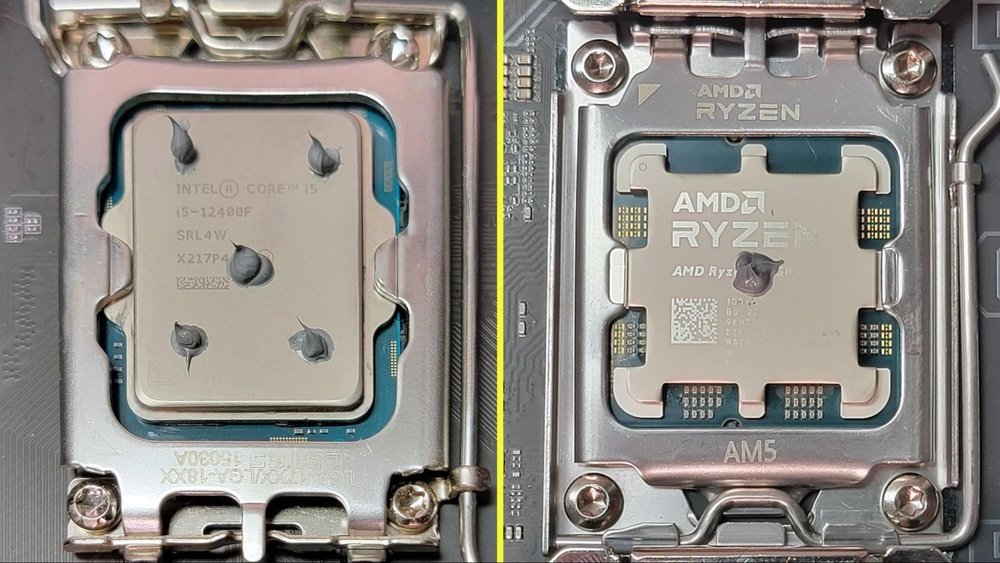
When it comes to building or upgrading your computer, applying the right amount of thermal paste on your CPU is crucial. Too little, and your processor might overheat.
Too much, and you could face messy spills or poor heat transfer. So, how much thermal paste should you actually use? Getting this just right can improve your PC’s performance and keep it running smoothly. Keep reading, and you’ll learn the simple steps to apply thermal paste perfectly every time.

Credit: www.youtube.com
Why Thermal Paste Matters
Thermal paste plays a small but vital role in your computer’s health. It fills tiny gaps between the CPU and the cooler. Without it, heat cannot move efficiently. This can cause the CPU to get very hot.
Understanding why thermal paste matters helps you keep your CPU safe and fast. The right amount of paste improves heat transfer and overall performance.
Role In Heat Transfer
The CPU and cooler surfaces are not perfectly smooth. Tiny air pockets form between them. Air does not carry heat well. Thermal paste fills these gaps and helps heat move from the CPU to the cooler quickly.
This process keeps the CPU temperature down. Lower temperatures prevent damage and make the CPU work better for longer.
Impact On Cpu Performance
Heat affects how fast and well a CPU runs. Too much heat slows it down. It may even shut off to avoid damage. Good thermal paste keeps the CPU cooler. This allows it to run at full speed without problems.
Proper heat management also extends the CPU’s life. It reduces the risk of crashes and errors caused by overheating.
Types Of Thermal Paste
Thermal paste helps move heat from the CPU to the cooler. Not all thermal pastes are the same. Each type has unique features and uses. Choosing the right kind can improve cooling and protect your CPU. Here are the main types of thermal paste.
Metal-based Pastes
Metal-based pastes use tiny metal particles. These metals conduct heat very well. They offer excellent thermal transfer. These pastes often have silver or aluminum. They cool the CPU better than other types. Be careful when applying. Metal-based pastes can cause short circuits if they touch other parts.
Ceramic-based Pastes
Ceramic-based pastes contain non-metal particles like ceramic or zinc oxide. They do not conduct electricity. This makes them safer to use. Ceramic pastes provide good heat transfer but not as high as metal-based. They are easy to apply and clean. Many people prefer ceramic pastes for everyday use.
Silicone-based Pastes
Silicone-based pastes are simple and cheap. They use silicone as the main ingredient. These pastes offer basic heat transfer. They work well for low to moderate CPU temperatures. Silicone pastes dry out faster than other types. They are good for users who change or upgrade parts often.
Factors Influencing Amount
Applying the right amount of thermal paste is crucial for CPU cooling. Several factors affect how much paste you need. These factors help ensure good heat transfer and prevent damage. Understanding them helps you apply the correct amount with confidence.
Cpu Size And Shape
CPU sizes vary by model and brand. Larger CPUs may need more paste for full coverage. Smaller CPUs require less to avoid overflow. The shape also matters. Some CPUs have uneven surfaces that need careful paste application. Matching the paste amount to size and shape ensures efficient cooling.
Cooler Type
Different coolers use different mounting pressures. High-pressure coolers spread paste more thinly. This means less paste is better to avoid spills. Low-pressure coolers need a bit more paste for good contact. The cooler base design also affects paste spread. Consider your cooler type when applying thermal paste.
Manufacturer Recommendations
CPU and cooler makers often give paste guidelines. These instructions help avoid guesswork. Follow their advice on paste amount and application method. Using recommended amounts ensures warranty protection and optimal performance. Always check manuals or official websites before applying paste.
Methods For Applying Thermal Paste
Applying thermal paste correctly is key to good CPU cooling. Different methods exist to spread the paste evenly. Each method aims to cover the CPU surface without wasting paste or causing air bubbles. Choosing the right technique helps keep your processor cool and safe.
Pea-sized Dot
Place a small dot of thermal paste in the center of the CPU. About the size of a pea works well. When the cooler presses down, the paste spreads evenly. This method is simple and reduces mess. It avoids applying too much paste, which can harm performance.
Line Method
Apply a thin line of paste across the center of the CPU. This works best for rectangular or elongated CPUs. The pressure from the cooler spreads the paste evenly. Use a small, steady line to avoid excess paste. This method helps cover the surface without gaps.
Spread Method
Use a small spatula or a plastic card to spread paste evenly. Cover the entire CPU surface with a thin layer. This method ensures no air pockets form under the cooler. It requires care to avoid applying too thick a layer. Spreading gives control over paste coverage.
X Pattern
Apply the paste in a thin X shape across the CPU. This helps spread the paste to all corners. The cooler pressure then flattens and spreads it further. This method works well for square CPUs. It prevents paste from spilling over the edges.
Common Application Mistakes
Applying thermal paste on a CPU may seem simple. Many users make common mistakes that reduce cooling performance. These errors affect heat transfer from the CPU to the cooler. Knowing what to avoid helps keep your system cool and safe.
Using Too Much Paste
Applying too much thermal paste is a frequent mistake. Excess paste can spill over the CPU edges. This causes poor heat transfer and might damage other parts. It also traps air bubbles, lowering thermal conductivity. Use a small pea-sized amount for the best results.
Using Too Little Paste
Using too little thermal paste leaves gaps between the CPU and cooler. These gaps trap air and reduce heat transfer. The CPU may run hotter and throttle speed. Make sure to cover the CPU surface evenly but not too thick.
Uneven Application
Spreading thermal paste unevenly creates hot spots on the CPU surface. Some areas have too much paste, others too little. This causes inconsistent cooling and higher temperatures. Apply the paste in a small dot or line and let the cooler spread it evenly.

Credit: www.youtube.com
Step-by-step Application Guide
Applying thermal paste correctly is key to good CPU cooling. This guide shows simple steps to do it right. Follow each part carefully to get the best result.
Cleaning The Cpu Surface
Start by turning off your computer and unplugging it. Remove the old cooler from the CPU carefully. Use a soft cloth or paper towel with isopropyl alcohol. Gently wipe the CPU surface to remove old paste and dirt. Wait a few minutes for it to dry completely.
Applying The Paste
Apply a small amount of thermal paste in the center of the CPU. A pea-sized dot is enough for most CPUs. Avoid using too much paste; it can cause poor heat transfer. The paste will spread evenly when the cooler is mounted.
Mounting The Cooler
Place the cooler straight down onto the CPU. Press it gently but firmly to spread the paste. Screw or clip the cooler in place according to the manual. Do not lift the cooler once it touches the paste. This keeps the paste layer even and thin.
Signs Of Incorrect Paste Amount
Applying the right amount of thermal paste on your CPU is important. Too much or too little paste can cause problems. These problems show up as clear signs that your paste amount is wrong. Watch for these signs to keep your CPU safe and working well.
High Cpu Temperatures
Thermal paste helps transfer heat from the CPU to the cooler. If you use too little paste, heat won’t move properly. The CPU heats up fast. Too much paste creates a thick layer that blocks heat flow. This also causes high temperatures. Check your CPU temperature often. High numbers mean a paste problem.
System Instability
Wrong paste amount can cause your system to act strange. Your computer may freeze or restart by itself. Programs might crash without warning. This happens because the CPU gets too hot. Heat makes the processor unstable. Keep your system steady by using the right paste amount.
Visible Paste Leakage
Too much thermal paste can spill out from the CPU surface. You may see paste on the edges of the CPU or motherboard. This leakage can cause short circuits or damage components. It looks messy and is a clear warning sign. Use a small, pea-sized amount to avoid paste leaks.
Reapplying Thermal Paste
Reapplying thermal paste is essential to keep your CPU cool and running well. Over time, thermal paste dries out or gets dirty. This reduces its ability to transfer heat. Knowing how and when to reapply thermal paste helps maintain your computer’s performance.
When To Replace
Replace thermal paste every 2 to 3 years. Check sooner if your CPU temperature rises. Also replace it if you remove the CPU cooler. Poor cooling or overheating signals a need for fresh paste.
Cleaning Old Paste
Remove old thermal paste gently. Use isopropyl alcohol and a soft cloth or paper towel. Avoid harsh scrubbing to prevent damage. Clean both the CPU and cooler base thoroughly. Let surfaces dry before applying new paste.
Best Practices
Apply a small pea-sized amount of thermal paste. Spread evenly or let the pressure of the cooler spread it. Too much paste can cause overheating. Use a lint-free cloth to avoid dust. Secure the cooler firmly for best contact.

Credit: www.corsair.com
Frequently Asked Questions
How Much Thermal Paste Should I Apply On My Cpu?
Apply a pea-sized amount of thermal paste in the center of the CPU. This amount ensures proper heat transfer without overflow.
Can Too Much Thermal Paste Harm Cpu Performance?
Yes, excess thermal paste can cause overheating and poor heat conduction. Use a moderate amount for optimal cooling.
What Happens If I Use Too Little Thermal Paste?
Too little paste leads to air gaps, reducing heat transfer efficiency. This can cause higher CPU temperatures and instability.
Should I Spread Thermal Paste Before Placing The Cooler?
No, spreading is unnecessary. The pressure from the cooler evenly spreads the paste, ensuring proper coverage and heat transfer.
Conclusion
Applying the right amount of thermal paste matters a lot. Too little paste can cause your CPU to heat up fast. Too much paste can block airflow and reduce cooling. A small pea-sized drop usually works well. Spread it evenly for the best contact.
Taking your time helps avoid mistakes. Good thermal paste use keeps your CPU cool and running smoothly. Remember, simple steps lead to better PC health. Keep it clean, steady, and just enough.
