
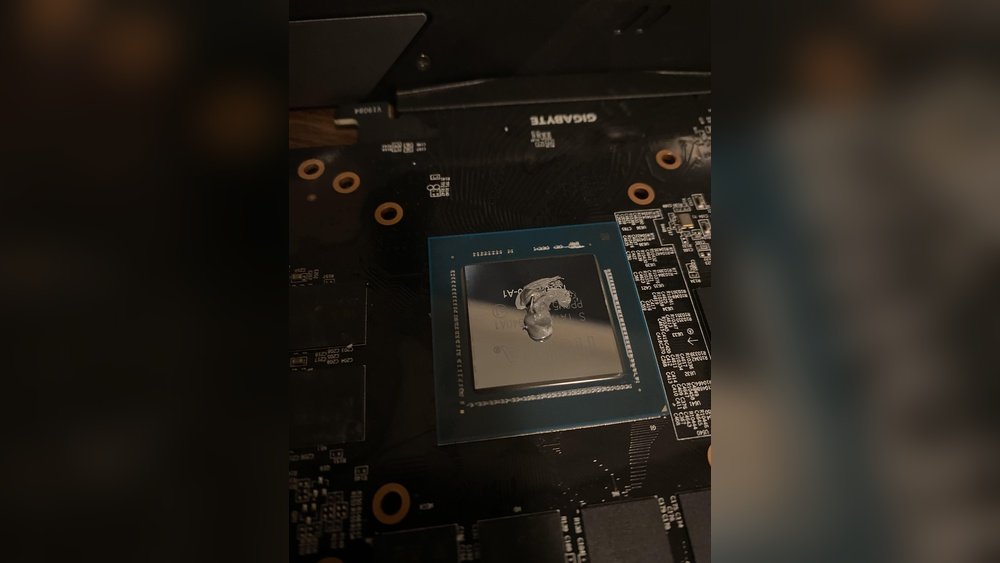
When it comes to keeping your GPU cool and running smoothly, applying the right amount of thermal paste is crucial. Too much or too little can lead to overheating, poor performance, or even damage.
You might wonder, how much thermal paste on your GPU is just right? This simple step can make a big difference, but many people get it wrong. You’ll learn exactly how to apply thermal paste correctly, so your GPU stays cool and performs at its best.
Ready to unlock your GPU’s full potential? Let’s dive in.
Choosing The Right Thermal Paste
Selecting the right thermal paste is key for your GPU’s performance. It helps the GPU stay cool by improving heat transfer. Not all thermal pastes work the same. Choosing the best one depends on several factors.
Good thermal paste keeps temperatures low and protects your GPU from damage. Using the wrong type can cause overheating and reduce your GPU’s life. Let’s explore the types and what to consider.
Types Of Thermal Paste
There are several types of thermal paste, each with different properties. The most common types are silicone-based, metal-based, ceramic-based, and carbon-based.
Silicone-based paste is cheap and easy to use. It works fine for everyday use but has lower thermal conductivity.
Metal-based paste contains tiny metal particles. It offers excellent heat transfer but can cause short circuits if applied incorrectly.
Ceramic-based paste is safe and offers good heat transfer. It is non-conductive and less risky than metal-based paste.
Carbon-based paste is newer and provides high performance. It is non-conductive and lasts longer without drying out.
Factors To Consider
Check thermal conductivity ratings. Higher numbers mean better heat transfer.
Consider ease of application. Some pastes are thicker and harder to spread evenly.
Look at drying time. Some pastes cure quickly, while others take hours.
Think about electrical conductivity. Non-conductive paste is safer for beginners.
Price is important. High-quality paste costs more but lasts longer and performs better.
Credit: koolingmonster.com
Preparing The Gpu Surface
Preparing the GPU surface is a key step before applying thermal paste. A clean and smooth surface helps the paste spread evenly. This improves heat transfer from the GPU to the cooler. Taking time to prepare the surface prevents overheating and performance issues.
Cleaning Old Thermal Paste
Start by removing the old thermal paste carefully. Use a soft cloth or paper towel. Apply isopropyl alcohol for better cleaning. Gently wipe the GPU chip and cooler base. Avoid scratching or damaging the surface. Make sure all residue is gone. A clean surface helps new paste stick properly.
Ensuring A Smooth Surface
Check the GPU surface for bumps or rough spots. The surface must be flat and smooth. Use a magnifying glass if needed. If you see dust or dirt, clean it off. A smooth surface allows the thermal paste to fill tiny gaps. This creates better contact and improves cooling.
Determining The Right Amount
Knowing the right amount of thermal paste for your GPU is key. Too much paste can cause leaks and reduce cooling. Too little paste may not cover the chip well, leading to overheating. Applying the correct amount ensures the best heat transfer between the GPU and cooler. Below are common methods to help you find the right balance.
Small Dot Method
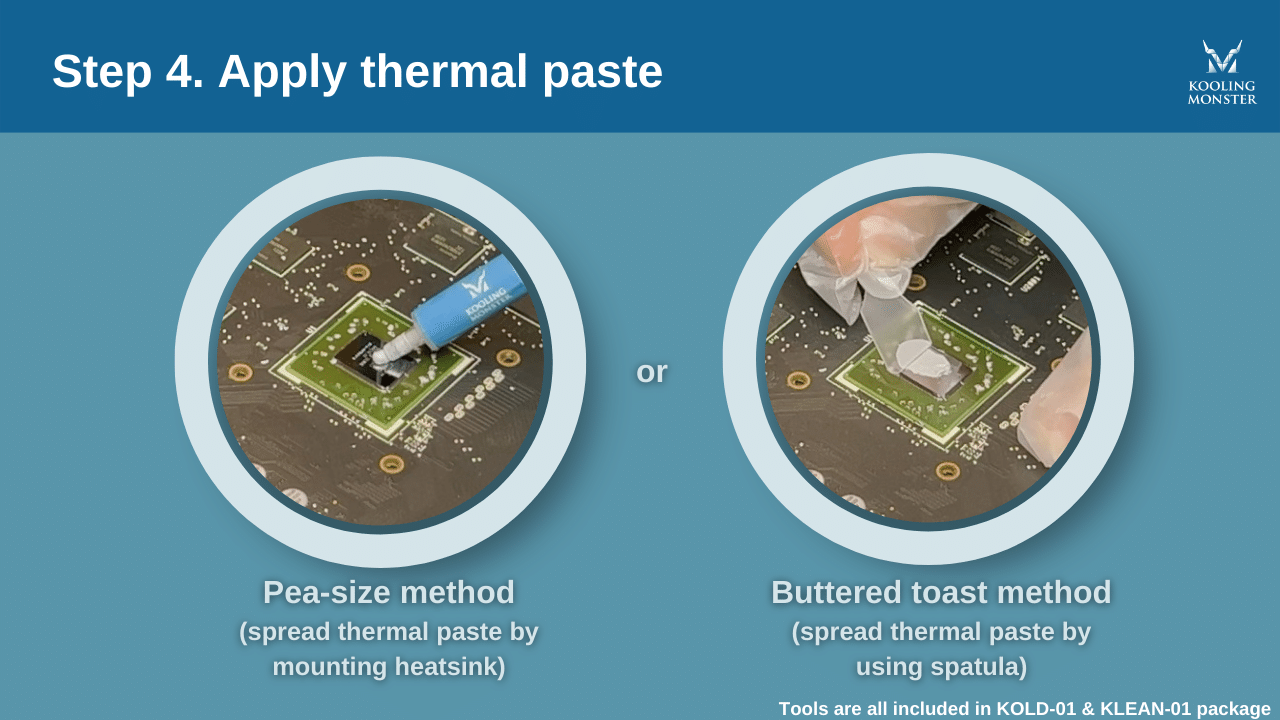
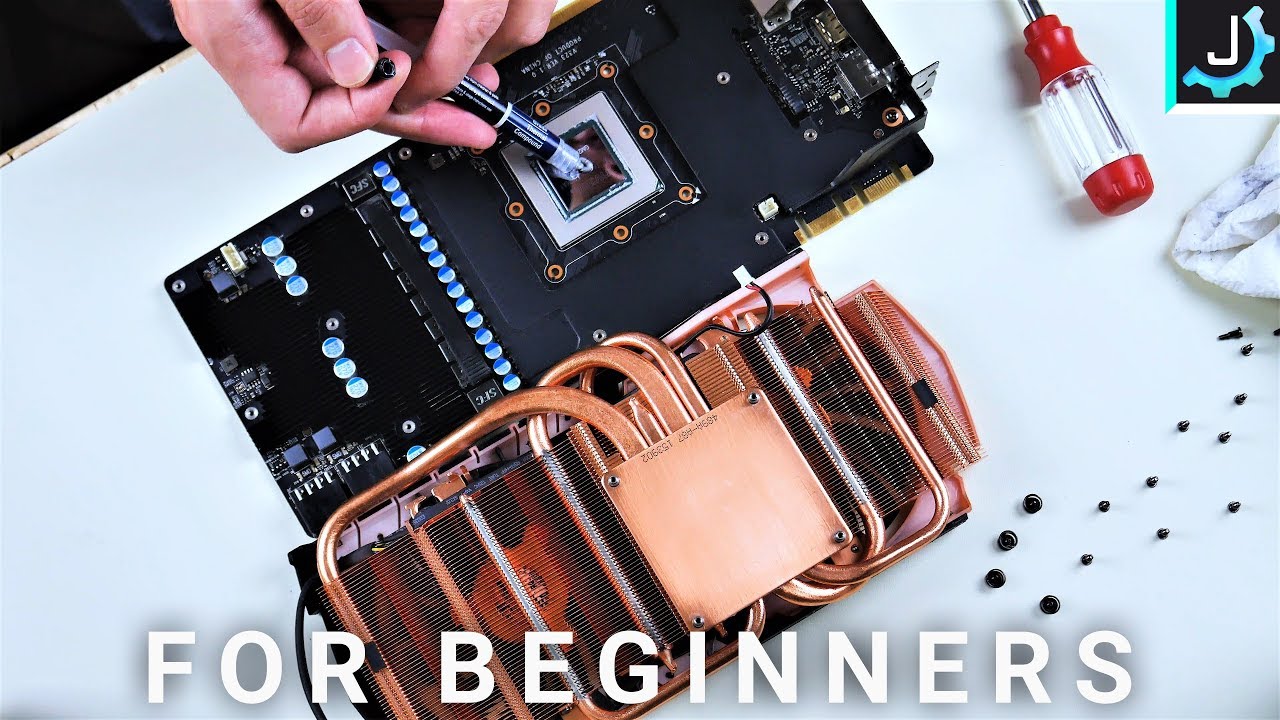
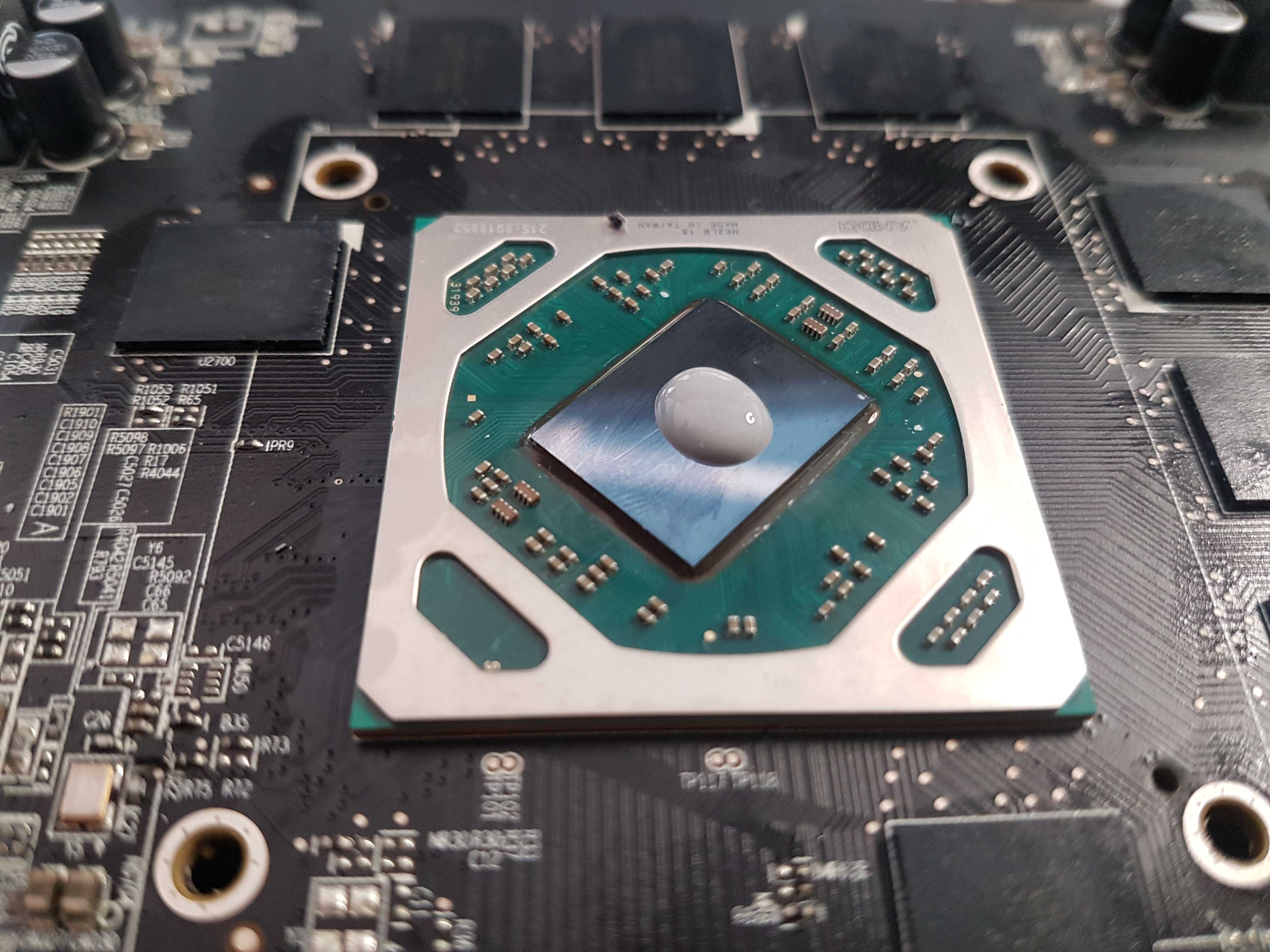
Place a small pea-sized dot of thermal paste in the center of the GPU chip. This amount spreads evenly when you attach the cooler. The pressure from the cooler will push the paste outward. This method prevents excess paste from spilling over the edges. It works well for most GPU sizes and shapes.
Line And Spread Techniques
Some users prefer to apply a thin line of paste across the GPU chip. Then, use a plastic spreader or card to evenly spread the paste. This method ensures full coverage without thick layers. It can be useful for larger or irregularly shaped chips. The key is to keep the layer thin to avoid air pockets.
Credit: www.youtube.com
Applying Thermal Paste Step-by-step
Applying thermal paste on your GPU is a simple process. It helps your GPU stay cool and work better. Follow these steps carefully to get the best results.
Using the right amount of thermal paste is important. Too much or too little can cause problems. Below, you will find the tools needed and tips for a smooth application.
Tools Needed
You need a few basic tools before starting. First, get a tube of high-quality thermal paste. Next, use isopropyl alcohol and a lint-free cloth for cleaning. A plastic card or a small spatula helps spread the paste evenly. Gloves keep your hands clean and avoid dirt on the paste.
Application Tips
Start by cleaning the GPU surface carefully. Remove old thermal paste using alcohol and cloth. Let the surface dry completely before applying new paste. Squeeze a small pea-sized drop in the center of the GPU chip. Avoid spreading it with your finger. The pressure from the heatsink will spread the paste evenly. Do not use too much paste. A thin layer is enough for good heat transfer. Finally, gently place the heatsink on the GPU and tighten screws evenly.
Common Mistakes To Avoid
Applying thermal paste on a GPU is simple but easy to mess up. Many make common mistakes that reduce cooling efficiency. Avoiding these errors helps keep your GPU running cool and safe.
Here are key mistakes to watch out for and how to avoid them.
Using Too Much Paste
More paste does not mean better cooling. Too much paste can block heat transfer. It may spill over the GPU and cause short circuits. Use a small pea-sized amount for best results.
Uneven Application
Spreading paste unevenly leaves air pockets that trap heat. These pockets reduce thermal conductivity. Apply the paste evenly in a thin, consistent layer. This ensures full contact between GPU and cooler.
Skipping Surface Prep
Dirty surfaces stop paste from sticking properly. Old paste, dust, and oils block heat flow. Clean both GPU and cooler surfaces with alcohol before applying new paste. Proper prep improves cooling efficiency.
Credit: www.nicehash.com
Testing And Maintenance
Testing and maintenance of thermal paste on your GPU is key to keep it running cool. Proper care helps avoid overheating and extends the GPU’s life. Regular checks and timely paste reapplication ensure steady performance.
Thermal paste wears down over time. Dust and heat can reduce its effectiveness. Testing and maintenance help detect issues early before they cause damage.
Monitoring Gpu Temperatures
Use software tools to check your GPU temperature. Watch for spikes during heavy use. Normal temperatures vary by model but usually stay below 85°C.
Consistent high temperatures signal a problem. Dust buildup or dried thermal paste may be the cause. Regular temperature monitoring helps spot these issues quickly.
When To Reapply Thermal Paste
Reapply thermal paste every 1-2 years for most GPUs. Also, consider reapplying if temperatures rise suddenly. Removing the old paste and applying a new layer improves heat transfer.
Signs to reapply include overheating, loud fan noise, or system crashes. Proper paste amount and placement are essential during reapplication for best results.
Frequently Asked Questions
How Much Thermal Paste Should I Apply On My Gpu?
Apply a small pea-sized amount of thermal paste in the center of the GPU chip. Too much paste can reduce cooling efficiency. A thin, even layer ensures optimal heat transfer between the GPU and heatsink, preventing overheating and maintaining performance.
Can Too Much Thermal Paste Harm My Gpu?
Yes, excessive thermal paste can cause overheating and damage. It may spill over and short-circuit components. Using the right amount ensures effective heat dissipation and avoids mess or damage to the GPU’s delicate parts.
How Often Should I Replace Thermal Paste On My Gpu?
Replace thermal paste every 1-2 years or when temperatures rise significantly. Over time, paste dries out and loses effectiveness. Regular replacement helps maintain optimal cooling and prolongs GPU lifespan.
What Type Of Thermal Paste Is Best For Gpus?
Use high-quality, non-conductive thermal paste for GPUs. Silicone-based or ceramic pastes are common and safe. Avoid metal-based pastes unless you have experience, as they can cause shorts if misapplied.
Conclusion
Applying the right amount of thermal paste on your GPU matters a lot. Too much paste can cause overheating. Too little paste won’t cool the GPU well. A small pea-sized amount usually works best. Spread it evenly for good contact with the cooler.
Clean old paste off before adding new. This simple step helps your GPU run cooler and last longer. Proper thermal paste use keeps your graphics card safe and efficient. Take your time and do it right. Your GPU will thank you.
