

When it comes to keeping your GPU cool and running smoothly, the amount of thermal paste you use can make all the difference. Too little, and your graphics card might overheat; too much, and you risk making a mess that actually harms performance.
You might be wondering, “How much thermal paste should I apply to my GPU? ” This article will clear up the confusion and guide you step-by-step. By the end, you’ll know exactly how to get the perfect thermal paste application that protects your investment and boosts your gaming or work experience.
Keep reading to learn the simple tricks that can save your GPU from overheating headaches.
Why Thermal Paste Matters
Thermal paste plays a key role in keeping your GPU cool and running well. It fills tiny gaps between the GPU chip and its cooler. This helps heat move away from the GPU faster. Without thermal paste, the GPU can get too hot and slow down or stop working.
Role In Gpu Cooling
Thermal paste acts like a bridge for heat. It fills small spaces that air cannot fill between the GPU and its cooler. This improves heat flow from the GPU to the cooler. Better heat flow means the cooler can work well. It keeps the GPU temperature lower during use.
Impact On Performance And Longevity
When the GPU stays cool, it performs better. High temperatures can cause the GPU to slow down. This is called thermal throttling. Using the right amount of thermal paste helps avoid this. It also helps the GPU last longer by stopping heat damage. Good cooling protects the GPU parts from wearing out fast.
Types Of Thermal Paste
Thermal paste helps move heat from your GPU to the cooler. Choosing the right type matters. Different pastes offer different levels of performance and ease of use. Knowing the types will help you pick the best one for your needs.
Each type has unique features. Some conduct heat better. Others last longer or are easier to apply. Here are the main types of thermal paste used for GPUs.
Metal-based Pastes
Metal-based pastes contain tiny metal particles like silver or aluminum. They conduct heat very well. This type can lower GPU temperatures effectively. They are usually more expensive than others. Use carefully, as metal pastes can cause short circuits if applied too much.
Ceramic-based Pastes
Ceramic-based pastes use ceramic powders. They do not conduct electricity, making them safer for beginners. These pastes offer good heat transfer but not as high as metal types. They are affordable and easy to apply. Ceramic pastes work well for everyday use and moderate gaming.
Silicone-based Pastes
Silicone-based pastes are simple and cheap. They have lower thermal conductivity compared to metal or ceramic pastes. This type is common in stock cooling solutions. Silicone pastes dry out faster and may need frequent replacement. They are suitable for light tasks and basic GPU cooling.
Signs You Need To Reapply
Thermal paste plays a key role in keeping your GPU cool. Over time, the paste can lose its effectiveness. Knowing the signs of worn-out thermal paste helps keep your GPU safe. Watch for these clear signals to decide when to reapply thermal paste.
Rising Gpu Temperatures
One common sign is rising GPU temperatures. Your graphics card may run hotter than usual during normal tasks. The cooling system struggles to keep the GPU cool. This means the thermal paste is not transferring heat well. Check temperature readings often to catch this early.
Visible Paste Drying Or Cracking
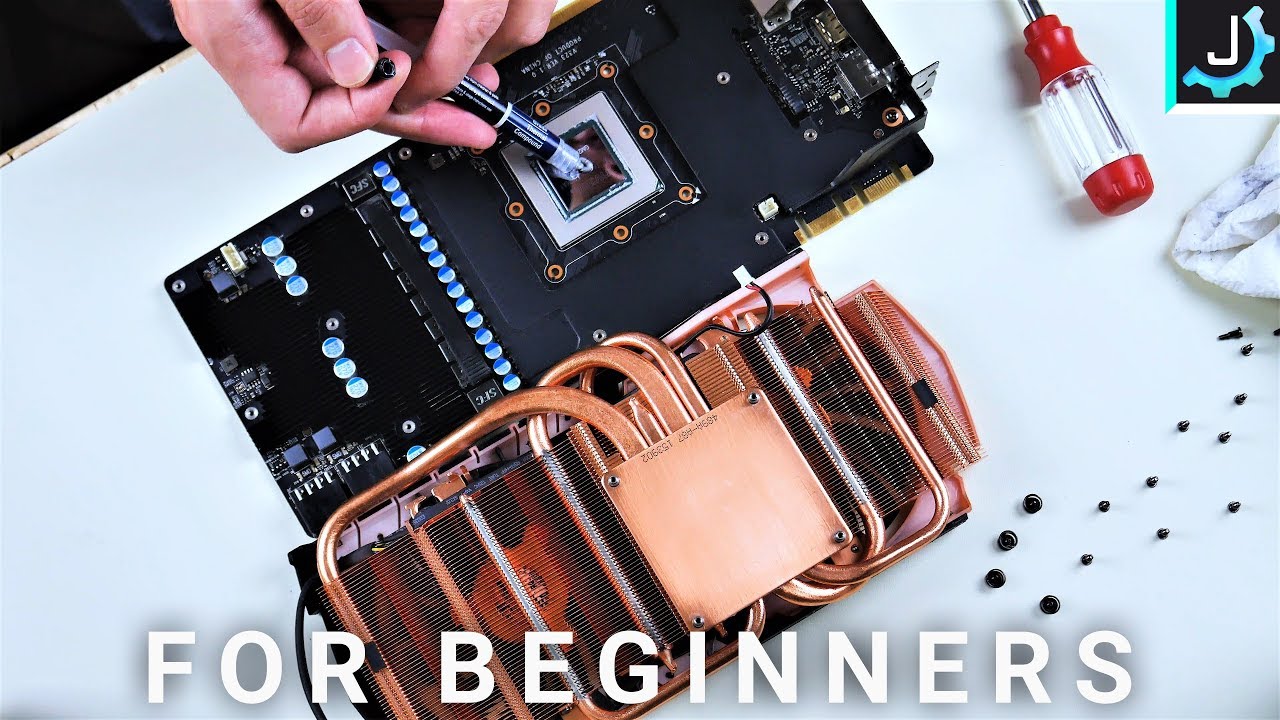
Look closely at the thermal paste between the GPU and cooler. Over time, the paste can dry out or crack. This reduces its ability to fill gaps and conduct heat. Dried or cracked paste appears flaky or crumbly. Reapplying fresh paste restores proper cooling contact.
Credit: www.youtube.com
Preparing Your Gpu For Application
Preparing your GPU before applying thermal paste is important. Proper preparation ensures better heat transfer and cooler performance. It also helps prevent damage and extends the GPU’s lifespan.
Cleaning Old Thermal Paste
Remove old thermal paste carefully. Use a soft cloth or paper towel. Gently wipe off the dried paste from the GPU chip and heatsink.
Use isopropyl alcohol with 70% or higher purity. It cleans the surface without leaving residue. Avoid using water or household cleaners.
Clean until the surface looks shiny and free of paste. This step helps the new paste spread evenly and work well.
Gathering Necessary Tools
Gather tools before starting the application. You will need thermal paste, isopropyl alcohol, lint-free cloth, and a small screwdriver.
Having all tools ready saves time and prevents mistakes. It also makes the process smooth and safe.
How Much Thermal Paste To Use
Applying the right amount of thermal paste on your GPU is crucial. Too little paste can cause poor heat transfer. Too much can spill over and cause problems. The goal is a thin, even layer that fills gaps between the GPU and cooler. This ensures the best cooling performance and protects your hardware.
Recommended Amounts By Gpu Size
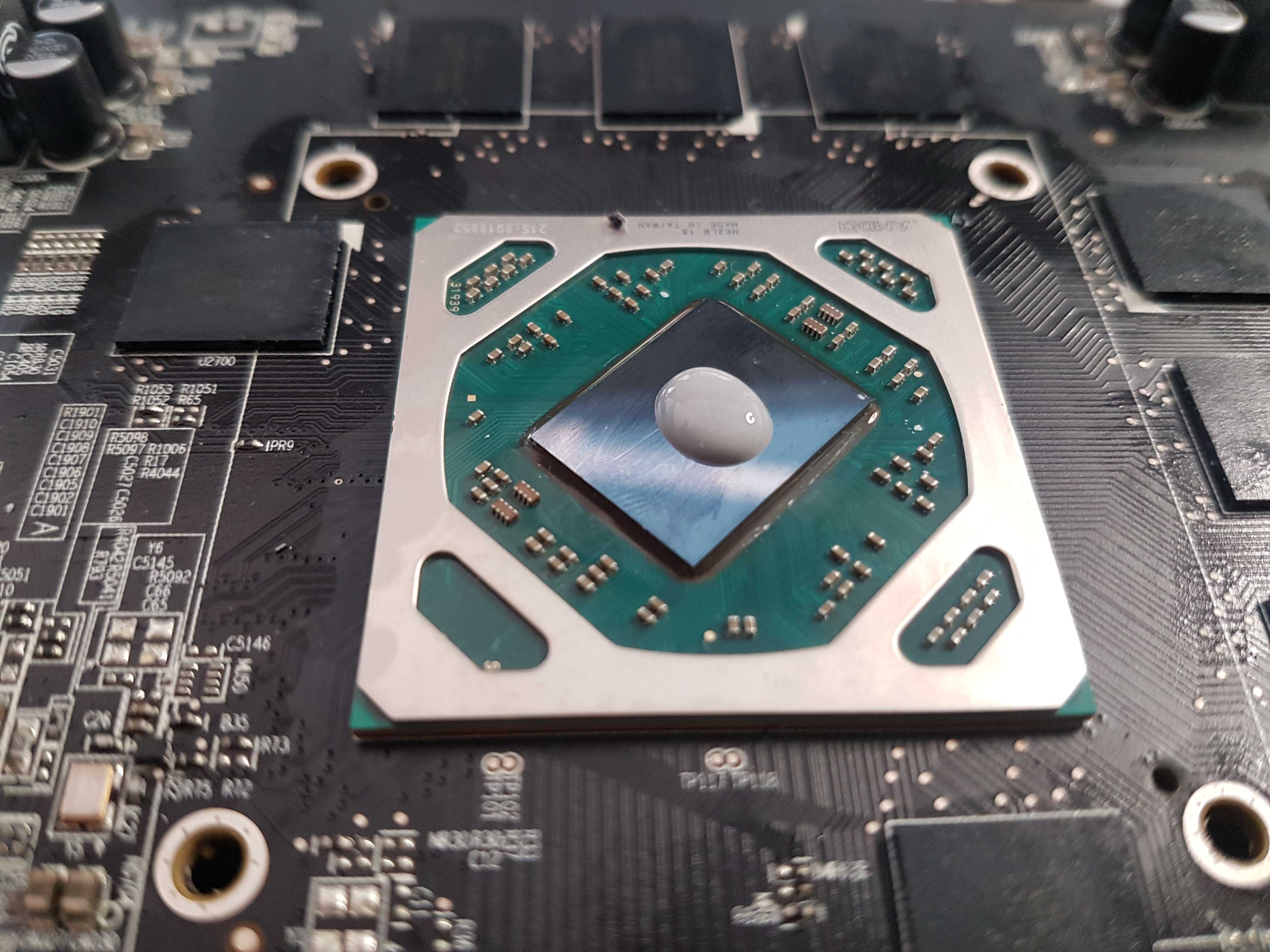
Small GPUs need a pea-sized drop of thermal paste. Medium GPUs require a drop about the size of a grain of rice. Large GPUs need a slightly bigger dot, about the size of a small pea. Avoid spreading the paste too far beyond the chip’s edges. The paste should cover the core evenly without excess.
Common Application Methods
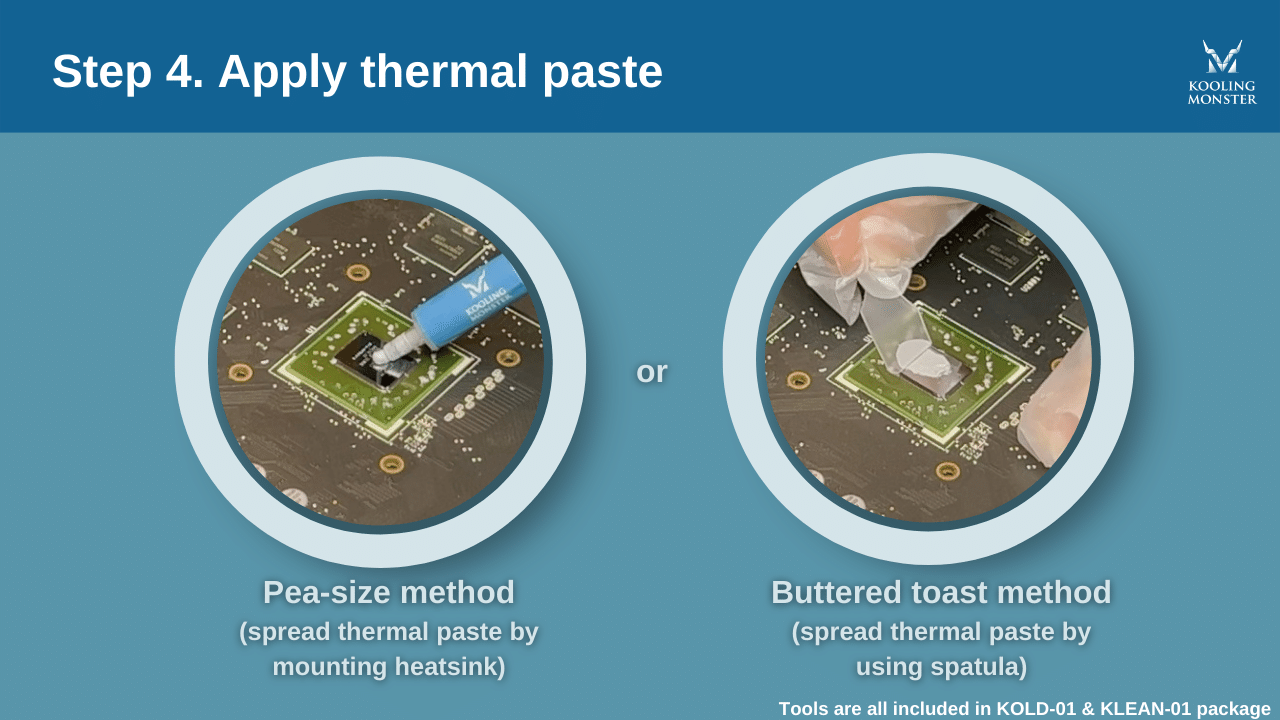
The dot method places a small dot in the center of the GPU chip. When the cooler presses down, it spreads the paste evenly. The line method applies a thin line across the chip, best for rectangular chips. The spread method uses a plastic card to spread paste evenly before mounting the cooler. Choose the method that fits your comfort and GPU shape.
Credit: www.nicehash.com
Step-by-step Application Process
Applying thermal paste to your GPU is a simple process. It helps improve heat transfer from the chip to the cooler. Doing it right ensures your GPU runs cooler and lasts longer. Follow these clear steps to apply the paste correctly.
Applying The Paste Evenly
Start with a clean GPU surface. Remove old paste using isopropyl alcohol and a soft cloth. Apply a small pea-sized amount of thermal paste in the center of the GPU chip. Spread it gently with a plastic card or your finger wrapped in plastic. The layer should be thin and cover the entire chip surface. Avoid using too much paste, which can cause overheating.
Reassembling And Testing
Carefully place the cooler back onto the GPU. Secure all screws evenly to avoid pressure points. Connect the fan and power cables properly. Turn on your computer and check the GPU temperature. Use monitoring software to ensure the paste works well. A good paste job will lower temperatures by several degrees.
Common Mistakes To Avoid
Applying thermal paste to your GPU seems simple, but many users make common mistakes. These errors can reduce cooling efficiency and harm your hardware. Avoiding these mistakes ensures your GPU stays cool and works well.
Using Too Much Or Too Little
Applying too much thermal paste can cause it to spill over the sides. This may lead to short circuits or poor heat transfer. Too little paste leaves gaps, reducing contact between the GPU and the cooler. Use a small, pea-sized amount for the best coverage.
Skipping Cleaning Steps
Old thermal paste must be cleaned off before applying new paste. Skipping this step causes uneven heat transfer and higher temperatures. Use isopropyl alcohol and a soft cloth to remove all residue. Let the surface dry completely before adding new paste.
Credit: koolingmonster.com
Maintenance Tips For Optimal Cooling
Keeping your GPU cool is key to good performance and a long lifespan. Proper maintenance helps avoid overheating and damage. Small steps make a big difference in cooling efficiency.
Here are some simple tips to keep your GPU running at the right temperature.
Regular Temperature Monitoring
Check your GPU temperature often. Use free tools like MSI Afterburner or HWMonitor. Watch for spikes or constant high temps. Normal GPU temps range between 30°C and 80°C. If it gets hotter, it needs attention. Monitoring helps catch issues early before damage happens.
When To Reapply Thermal Paste
Thermal paste wears out over time. It dries and loses its ability to transfer heat. Reapply thermal paste every 1 to 2 years. Also, reapply if you remove the GPU cooler for cleaning or upgrades. Use a pea-sized amount for best coverage. Too much or too little paste can reduce cooling.
Frequently Asked Questions
How Much Thermal Paste Should I Apply On A Gpu?
Apply a small pea-sized amount of thermal paste on the GPU core. Too much paste can cause overheating. This amount ensures proper heat transfer without excess spread.
Can Too Much Thermal Paste Damage My Gpu?
Yes, excess thermal paste can reduce cooling efficiency. It may cause overheating or short circuits if it spreads onto other components. Always apply a thin, even layer for safety.
How Often Should I Replace Thermal Paste On My Gpu?
Replace thermal paste every 1 to 3 years or if temperatures rise. Over time, paste dries out and loses effectiveness. Regular replacement maintains optimal cooling performance.
What Type Of Thermal Paste Is Best For Gpus?
Use high-quality, non-conductive thermal paste with good thermal conductivity. Silicone-based or ceramic-based pastes are common choices. Avoid metal-based pastes unless you know proper application techniques.
Conclusion
Applying the right amount of thermal paste keeps your GPU cool. Too much paste can cause problems. Too little paste won’t cool well. Spread a small, pea-sized dot in the center. This helps heat transfer from your GPU to the cooler.
Clean old paste before adding new. Check your GPU temperature after applying paste. Good thermal paste application improves performance and lifespan. Take your time and be gentle. Your GPU will thank you with better cooling.
