
Choosing the right amount of storage for your PC can be confusing. You might wonder, “How much storage do I really need?” Too little space can slow you down, while too much might mean you’re paying for something you don’t use.
You’ll discover exactly how to find the perfect balance for your needs. By the end, you’ll feel confident about your choice and avoid common mistakes that waste money or cause frustration. Keep reading to unlock the secrets to smart PC storage decisions tailored just for you.

Credit: www.reddit.com
Types Of Pc Storage
Choosing the right storage for your PC matters a lot. Storage affects speed, space, and how your computer runs. Different types of storage offer different benefits. Understanding these types helps pick the best one for your needs.
Hard Disk Drives
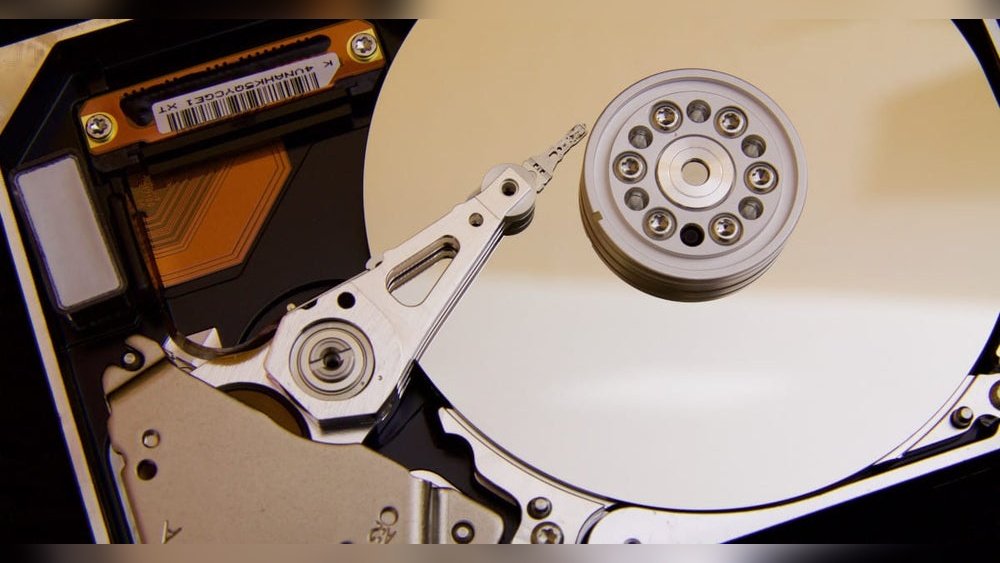
Hard disk drives (HDDs) are common and affordable. They store data on spinning disks inside the drive. HDDs offer large storage space at a low price. They are slower than other types but work well for general storage. Great for saving photos, videos, and documents.
Solid State Drives
Solid state drives (SSDs) use flash memory to store data. They have no moving parts, so they work faster and quieter. SSDs speed up your PC’s startup and loading times. They cost more per gigabyte than HDDs but provide better performance. Ideal for operating systems and software.
Hybrid Drives
Hybrid drives combine HDD and SSD features. They use an SSD portion for quick access and an HDD for large storage. This mix gives faster speed than HDD alone and more space than SSD alone. Hybrid drives suit users who want a balance of speed and capacity.
Credit: www.gamesradar.com
Factors Affecting Storage Needs
Choosing the right storage size for your PC depends on several key factors. Understanding these can help you avoid running out of space or overspending on storage you do not need. Storage needs vary widely based on what you do with your computer every day.
Some users need just enough space for basic tasks. Others require large amounts for files, games, or professional software. Let’s explore the main factors that affect how much storage you need.
Usage Patterns
Your daily computer use shapes your storage needs. Simple tasks like browsing, emailing, and streaming need less space. Users who install many apps or save many files need more storage. Frequent downloads and keeping many files offline increase space requirements.
Types Of Files
The kind of files you save impacts storage size. Documents and spreadsheets take little space. Photos and videos need much more room, especially high-quality ones. Audio files vary, but music collections can add up quickly. Large files demand larger storage to avoid slowdowns.
Gaming Requirements
Games can take a lot of storage, especially modern titles. Some games require 50 to 100 GB or more. Storing multiple games means you need hundreds of gigabytes. Game updates and downloadable content also use extra space. Gamers should consider bigger drives for smooth performance.
Professional Workloads
Work involving video editing, 3D modeling, or programming needs more storage. These tasks generate large project files and backups. Professionals often use external drives or fast SSDs for better access. Storage must match software demands to keep work efficient and smooth.
Storage Capacity Recommendations
Choosing the right storage capacity is key for your PC’s performance. Different users need different amounts of space. This guide helps you find the storage size that fits your needs. It covers basic users, casual gamers, content creators, and heavy gamers or professionals.
Understanding your usage helps avoid buying too little or too much storage. Save money and keep your PC running smoothly by picking the correct storage size.
Basic Users
Basic users mainly browse the internet and use simple apps. They need enough space for the operating system and a few programs. A 256GB to 512GB SSD is usually enough. This size stores documents, photos, and some videos comfortably.
Casual Gamers
Casual gamers play several games but not very large ones. They require more storage for games and software. A 512GB to 1TB drive works well for this group. It offers space for multiple games and media files without worry.
Content Creators
Content creators work with photos, videos, and audio files. These files take up a lot of space quickly. A minimum of 1TB is recommended, with 2TB or more preferred. Fast SSDs also help to edit and save files faster.
Heavy Gamers And Professionals
Heavy gamers and professionals use large programs and high-resolution games. They need plenty of space for games, projects, and backups. A 2TB or larger SSD is ideal. Combining SSD with extra HDD storage can be useful for archives.
Balancing Speed And Space
Choosing the right storage for your PC means balancing speed and space. Fast storage helps your computer run smoothly. Large storage keeps all your files and programs. Finding the right mix improves your PC’s performance and usability.
Choosing Between Ssd And Hdd
Solid State Drives (SSD) are much faster than Hard Disk Drives (HDD). They load programs and files quickly. SSDs use no moving parts, so they are quieter and more durable. HDDs offer more space at a lower price. They work well for storing large files. SSDs are best for your operating system and apps. HDDs are good for backups and big data.
Using Both For Optimal Performance
Combining SSD and HDD gives the best of both worlds. Use an SSD for your system and programs. This speeds up boot and load times. Store photos, videos, and documents on an HDD. This saves money while providing plenty of space. Many PCs allow easy setup of both drives. This approach balances speed and storage efficiently.
External Storage Options
External storage options help expand your PC’s capacity without opening the case. These devices store files safely and free up space on your main drive. They also make it easier to share or back up important data. Choosing the right external storage depends on your needs, budget, and how you plan to use it.
External Hard Drives
External hard drives connect to your PC via USB or Thunderbolt. They offer large storage space at a low cost. Portable models are small and easy to carry. Desktop external drives usually have more space but need external power. These drives work well for storing photos, videos, and backups.
Network Attached Storage
Network Attached Storage (NAS) is a device connected to your home or office network. It allows multiple devices to access files over Wi-Fi or Ethernet. NAS is good for sharing data among family or coworkers. It often has multiple drives for extra storage and data protection. You can stream media or back up files automatically with NAS.
Cloud Storage
Cloud storage stores your files online on remote servers. It frees your PC from holding all data. You can access files from any device with internet access. Many services offer free storage with options to buy more space. Cloud storage is useful for backups, collaboration, and accessing files on the go.
Credit: www.airband.co.uk
Upgrading And Future Proofing
Upgrading your PC storage is key to keeping it useful for years. Storage needs grow as you save more files, install new programs, and update software. Planning ahead helps avoid running out of space too soon. Future proofing means choosing storage that fits both current and future needs.
Signs You Need More Storage
Your PC runs slow during file saves or installs. You see warning messages about low disk space. Programs take longer to open or save files. You cannot install new updates or apps. Your hard drive light stays on for a long time. These signs show it’s time to upgrade storage.
Planning For Growth
Think about how much space you use now. Add extra room for future files and apps. Choose storage that offers at least 20% more than current needs. Consider your habits: do you store many photos or videos? Plan for larger files and software updates. This keeps your PC running smoothly for years.
Compatibility Considerations
Check your PC’s motherboard for supported storage types. SSDs work faster but may cost more per gigabyte. HDDs offer more space but are slower. Ensure your PC has the right slots and connectors. Confirm your operating system supports the new drive. Compatibility prevents problems and wasted money.
Frequently Asked Questions
How Much Storage Do I Need For Gaming Pc?
For a gaming PC, 500GB to 1TB SSD is ideal. It offers fast load times and enough space for multiple games. Add an HDD if you need more space for media or backups.
What Storage Size Suits Everyday Pc Use?
For everyday tasks, 256GB to 512GB SSD is sufficient. It provides quick system responsiveness and enough room for apps and files. Upgrade if you store large media collections.
Should I Choose Ssd Or Hdd For Pc Storage?
SSDs are faster and more reliable but cost more per GB. HDDs offer larger storage at lower prices but are slower. A combination of both is ideal for performance and capacity.
How Much Storage Do Video Editors Require?
Video editors need at least 1TB SSD for smooth editing and fast file access. Additional HDD storage helps archive large video files cost-effectively. Storage needs grow with project size.
Conclusion
Choosing the right PC storage depends on your needs. Think about what files you use daily. Photos, videos, and games all take space. A small storage fits basic tasks well. Bigger storage helps if you keep many files. You can also add external drives later.
This keeps your PC fast and organized. Balance your budget with storage size. Make sure to leave some free space for updates. Storage size matters for smooth computer use. Plan carefully and pick what suits you best.
