
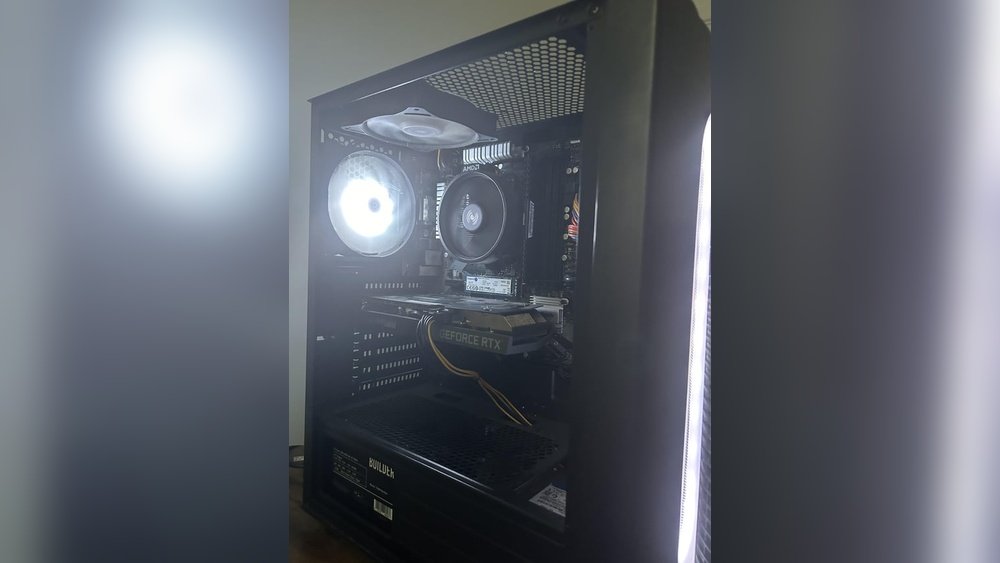
Is your GPU running hotter than usual? You might be wondering, “How many degrees is overheating for a GPU?”
Knowing the right temperature limits can save your graphics card from serious damage. If you want to keep your gaming or work setup safe and smooth, understanding these numbers is crucial. You’ll discover the exact temperature ranges you should watch out for, how to spot signs of overheating, and simple tips to keep your GPU cool.
Keep reading to protect your hardware and boost your PC’s performance!

Credit: forums.developer.nvidia.com
What Is Gpu Overheating
GPU overheating happens when the graphics card gets too hot during use. Temperatures above 85°C usually mean the GPU is overheating and may cause problems. Keeping the GPU under 80°C helps it run safely and last longer.
What Is Gpu Overheating?
GPU overheating happens when the graphics card gets too hot. This heat goes beyond the safe level set by the manufacturer. Overheating can cause the GPU to slow down or shut off. It may even damage the hardware over time.
High temperatures usually come from heavy use, poor ventilation, or dust buildup. A GPU works hard to process images and videos. This work creates heat as a natural byproduct. If the heat is not controlled, it builds up inside the computer case.
Why Does Gpu Overheat?
The GPU produces heat during normal use. Intense gaming or video editing pushes the GPU harder. More power means more heat. Cooling systems like fans and heatsinks help manage this heat. Dust or blocked airflow can stop cooling from working well. That causes the GPU temperature to rise quickly.
Signs Of Gpu Overheating
The computer may freeze or crash without warning. You might see screen glitches or artifacts. Loud fan noise is another sign. The GPU fan runs faster to cool down the chip. If these happen often, the GPU is likely too hot.
Safe Temperature Range For Gpu
Most GPUs work safely between 30°C and 85°C. Temperatures above 85°C are risky and can cause damage. Some modern GPUs can handle temperatures up to 95°C. Still, keeping the GPU cooler improves performance and lifespan.
Safe Temperature Range For Gpus
Understanding the safe temperature range for GPUs helps keep your computer running well. GPUs work best within certain temperature limits. Staying inside these limits avoids damage and slows down wear. Knowing these ranges helps you watch your GPU’s health.
Idle Temperatures
Idle temperature means the GPU temperature when the computer is not busy. Most GPUs stay between 30°C and 45°C at idle. This range shows the GPU is cool and resting. If the temperature is higher, check the cooling system or airflow.
Load Temperatures
Load temperature is the heat level when the GPU works hard. This happens during gaming or heavy tasks. Safe load temperatures usually range from 60°C to 85°C. Temperatures above this can cause slowdowns or damage. Good cooling helps keep temperatures in this range.
Maximum Operating Temperatures
Maximum operating temperature is the highest heat a GPU can handle safely. Most GPUs have a max around 90°C to 105°C. Going beyond this risks permanent damage. If your GPU hits these levels often, improve cooling or reduce workload.
Signs Of An Overheating Gpu
Knowing the signs of an overheating GPU helps protect your computer. Overheating can damage parts and slow down your system. Watch for clear signs to catch the problem early. Here are some common signals that your GPU is too hot.
Performance Drops
Your computer may run slower than usual. Games and apps might lag or stutter. The GPU reduces speed to cool down. This leads to lower frame rates and poor visuals. Noticeable slowdowns often point to overheating issues.
System Crashes
The computer might shut down suddenly. It can restart without warning too. These crashes happen to prevent damage from heat. Frequent crashes are a strong sign your GPU is too hot. Avoid using the system until it cools down.
Visual Artifacts
Strange lines or colors may appear on the screen. You could see flickering or distorted images. These visual glitches happen when the GPU overheats. Artifacts are a warning that your graphics card is stressed. Stop using the computer and check the temperature.

Credit: www.reddit.com
Common Causes Of Gpu Overheating
GPU overheating is a common problem that can harm your computer’s performance. Many factors cause a graphics card to get too hot. Knowing these causes helps to keep your GPU cool and working well.
Poor Airflow
Poor airflow inside the computer case stops hot air from leaving. This makes the GPU hotter than it should be. Small cases or many cables can block airflow. Good airflow moves cool air in and hot air out.
Dust Build-up
Dust gathers on the GPU fans and heatsinks over time. This dust blocks air from passing through. It also makes the fans slower or stop working. Cleaning dust often helps keep the GPU temperature low.
Overclocking
Overclocking means running the GPU faster than its normal speed. It can make the GPU work harder and get hotter. Without better cooling, overclocking often causes overheating. Use overclocking carefully and watch the temperature.
Faulty Cooling Systems
The cooling system includes fans and sometimes liquid coolers. If these parts break or fail, the GPU cannot cool itself. A broken fan or pump causes the GPU to overheat quickly. Check cooling parts regularly for damage.
How To Monitor Gpu Temperature
Monitoring your GPU temperature helps prevent overheating and damage. It shows how hot your graphics card runs during use. Keeping an eye on this helps maintain good performance and longer hardware life.
Using Software Tools
Many free programs show GPU temperature in real time. Apps like MSI Afterburner and HWMonitor are popular choices. They display current, minimum, and maximum temps clearly. You can also see fan speeds and clock rates. These tools run alongside games or other programs. They alert you if temperatures get too high.
Bios And Hardware Monitoring
Some motherboards show GPU temperature in the BIOS setup. You can check it before starting your operating system. BIOS monitoring is useful for early detection of overheating. Certain GPUs include built-in sensors. These sensors communicate directly with hardware monitoring tools. This method offers accurate and reliable temperature readings.
Methods To Lower Gpu Temperature
Lowering GPU temperature helps keep your computer safe and fast. High heat can cause crashes and slow performance. Use easy methods to cool your GPU and avoid damage. Here are some simple steps to reduce GPU heat and improve your system’s health.
Improving Case Airflow
Good airflow moves hot air out and brings cool air in. Arrange cables neatly to avoid blocking air paths. Add extra case fans to increase air movement. Place fans at the front and rear for better air flow. Keep your PC in a well-ventilated space to help air circulate.
Cleaning Dust And Debris
Dust blocks fans and heatsinks, trapping heat inside. Use compressed air to blow dust off GPU fans and vents. Clean your case regularly to stop dust buildup. Turn off your PC and unplug it before cleaning. Keep your workspace dust-free to reduce dirt entering your PC.
Adjusting Fan Speeds
Faster fan speeds lower temperature but increase noise. Use software tools to control GPU fan speed manually. Set fans to run faster when GPU gets hot. Check fan curves to balance cooling and noise levels. Regular monitoring helps keep GPU temperature in check.
Reapplying Thermal Paste
Thermal paste helps transfer heat from GPU to cooler. Old paste can dry out and lose effectiveness. Remove the old paste carefully with isopropyl alcohol. Apply a new, thin layer of thermal paste evenly. This improves heat transfer and lowers GPU temperature.
Undervolting And Underclocking
Reducing voltage and clock speed lowers GPU heat output. Use software tools to safely adjust settings. This reduces power consumption and temperature. It may slightly reduce performance but keeps the GPU cooler. Monitor temperatures closely after changes to ensure stability.
When To Replace Or Upgrade Your Gpu
Knowing when to replace or upgrade your GPU is important. A GPU that runs too hot can cause problems. Overheating may slow down your computer or cause crashes. Sometimes, fixing the problem is not enough. Upgrading to a better GPU might be the best choice.
Signs Your Gpu Is Overheating
Watch for frequent crashes or freezes during use. Loud fan noise can mean the GPU is working too hard. If your screen shows strange colors or lines, overheating might be the cause. High temperatures over 85°C are a warning sign. These issues suggest your GPU is struggling.
Performance Drops And Overheating
When a GPU overheats, it reduces its speed to cool down. This is called throttling. You may notice slower game performance or lag. If performance drops happen often, your GPU is under stress. This can mean it is time to upgrade.
Age And Compatibility With New Software
Older GPUs may not handle new software well. New games and applications need more power. If your GPU cannot keep up, overheating can happen. Upgrading helps you run the latest software smoothly. It also prevents overheating from extra workload.
Costs Of Repair Vs. Upgrade
Repairing a GPU can be expensive and not always reliable. Sometimes, replacing the GPU is more cost-effective. A new GPU offers better cooling and performance. Consider upgrade costs against repair costs. Choose the option that saves money and time.

Credit: www.reddit.com
Frequently Asked Questions
What Temperature Is Too Hot For A Gpu?
A GPU temperature above 85°C is generally considered too hot. Prolonged heat beyond this can damage the GPU and reduce its lifespan. Proper cooling and ventilation help maintain safe temperatures below this threshold.
How Do I Know If My Gpu Is Overheating?
Signs of overheating include screen glitches, crashes, and loud fan noise. Monitoring software can track GPU temperatures in real-time. If temperatures exceed 85°C during use, your GPU is likely overheating.
Can A Gpu Run Safely At 90 Degrees Celsius?
Running a GPU at 90°C occasionally is risky and not recommended. Continuous operation at this temperature can cause permanent damage. Aim to keep GPU temperatures below 85°C for safe performance.
What Causes A Gpu To Overheat Quickly?
Poor ventilation, dust buildup, and high ambient temperatures cause GPU overheating. Overclocking and faulty cooling systems also increase heat. Regular cleaning and adequate cooling prevent rapid temperature spikes.
Conclusion
A GPU running too hot can cause serious problems. Most GPUs start to overheat above 85°C. Keeping temperatures below this helps your computer work well. Use good cooling and clean dust often. Watch your GPU’s temperature to avoid damage. A cooler GPU lasts longer and runs faster.
Simple steps can stop overheating and protect your device. Stay aware and take action when your GPU gets too hot. Your computer will thank you.
