
Wondering how hot your GPU should get before you need to worry? Your graphics card works hard to deliver smooth gaming, fast video editing, and sharp visuals, but too much heat can cause serious problems.
If your GPU gets too hot, it can slow down, crash, or even get damaged. Knowing the right temperature range can save you from costly repairs and keep your system running smoothly. Keep reading to discover what temperatures are safe, how to check your GPU’s heat, and simple tips to keep it cool and performing at its best.
Credit: www.cgdirector.com
Safe Gpu Temperature Range
Knowing the safe GPU temperature range helps keep your graphics card healthy. The right temperature stops damage and boosts performance. Different states like idle or load have different ideal temperatures. Understanding these will let you watch your GPU’s heat better.
Idle Temperatures
Idle temperature means the GPU temperature when your computer is not busy. It should stay low to save energy and reduce wear. Good idle temperatures range from 30°C to 45°C. If it gets hotter, your fans or cooling system might need checking.
Load Temperatures
Load temperature happens when the GPU is working hard, like gaming or video editing. Most GPUs run safely between 60°C and 85°C under load. Some models can handle a bit higher, but staying below 85°C is better. Too much heat here can shorten your GPU’s life.
Maximum Thresholds
The maximum threshold is the highest temperature your GPU can handle before damage. Usually, this is around 90°C to 100°C. Going above this limit risks permanent harm or shutdowns. Always try to keep your GPU below this to avoid problems.
Credit: www.cherryservers.com
Factors Affecting Gpu Temperature
GPU temperature depends on many things. Knowing these factors helps keep your GPU safe and fast. This section explains what affects GPU heat.
Ambient Room Temperature
The room temperature plays a big role in GPU heat. Hot rooms make GPUs run hotter. Cool rooms help GPUs stay cooler. Air conditioning or fans can lower room temperature. Cooler air helps the GPU release heat faster.
Case Airflow
Good airflow inside your computer case lowers GPU temperature. Air moves heat away from the GPU. If the case is closed or dusty, heat builds up. Fans inside the case push hot air out. More fans mean better airflow and cooler GPUs.
Gpu Workload
The GPU temperature rises with heavy use. Playing games or running programs uses more GPU power. More power means more heat. Light tasks keep the GPU cool. High workload tasks make the GPU work hard and get hot.
Signs Of Overheating
Knowing the signs of GPU overheating helps protect your computer. Overheating can harm your GPU and stop your work or gaming. Watch for clear signals that your GPU is too hot. Acting fast can save your device from damage.
Performance Drops
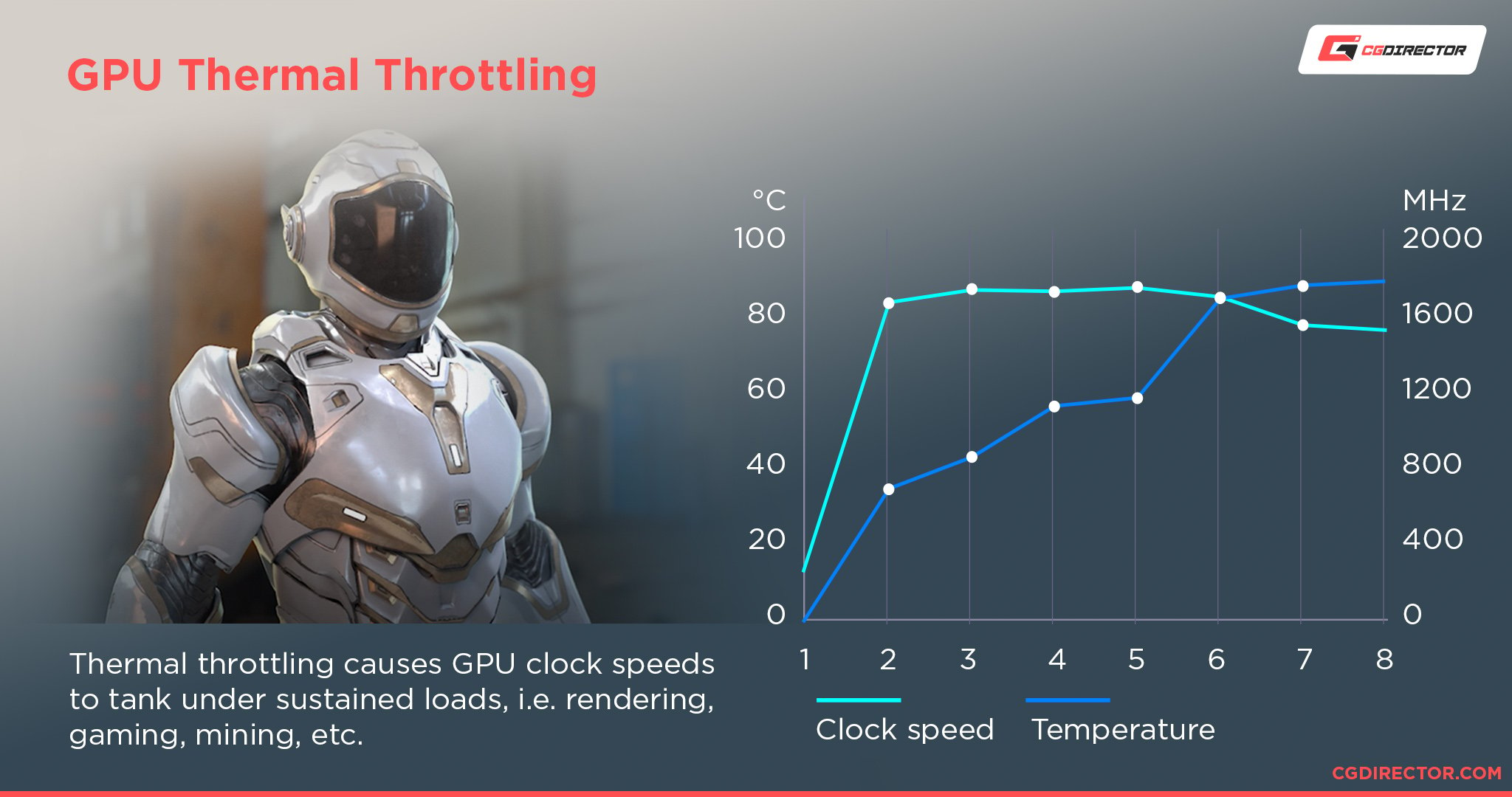
Your GPU may slow down as it gets too hot. Games and apps run less smoothly. Frame rates drop, causing lag. Slow performance means the GPU struggles to work well. It tries to cool down by reducing power.
Unexpected Shutdowns
The computer may turn off without warning. This protects the GPU from heat damage. Sudden shutdowns show the temperature is too high. The system forces a stop to avoid harm. Frequent shutdowns need immediate attention.
Visual Artifacts
Look for strange lines or shapes on the screen. These visual errors happen when the GPU overheats. Colors may flicker or look wrong. Artifacts indicate the GPU is failing to process graphics. They show the hardware is stressed and hot.
Cooling Solutions
Keeping your GPU cool is key for good performance and a long life. GPUs can get very hot during heavy use. Cooling solutions help lower their temperature and stop damage. There are several ways to cool your GPU. Each method has its own benefits and fits different needs.
Air Cooling Options
Air cooling is the most common way to cool a GPU. It uses fans to push air over the heatsink. This moves heat away from the GPU chip. Most graphics cards come with built-in air coolers. Adding extra case fans can also help improve airflow. Air cooling is simple and affordable. It works well for most users who do everyday gaming or work.
Liquid Cooling Systems
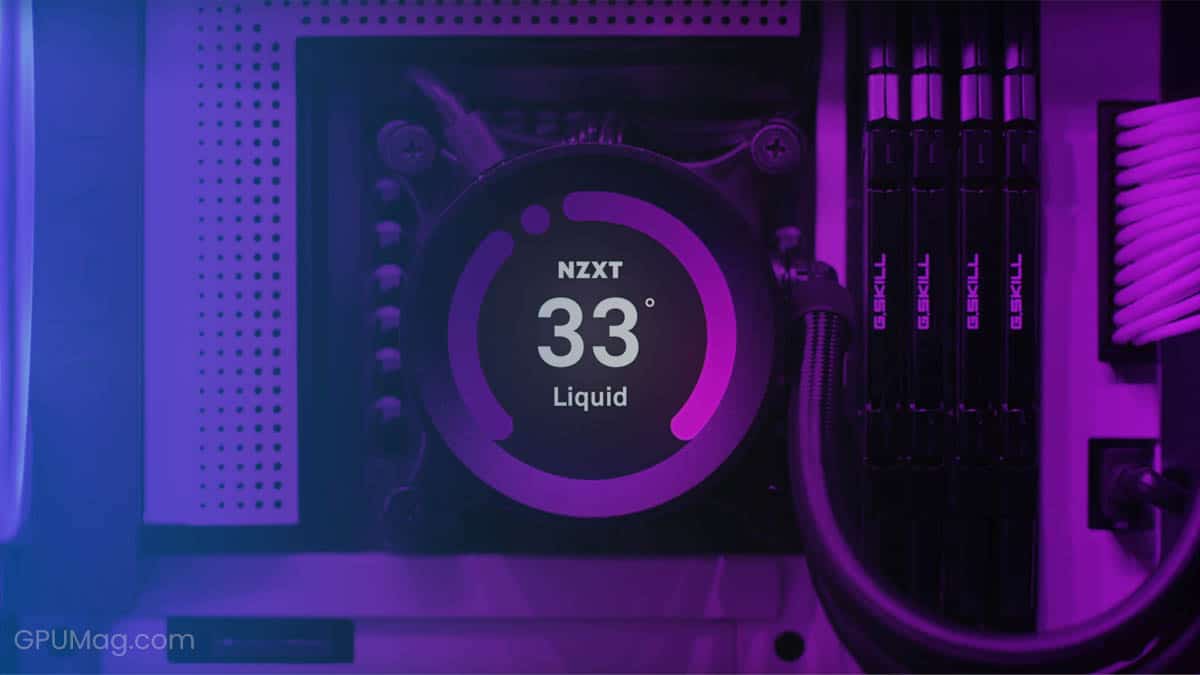
Liquid cooling uses water or coolant to take heat from the GPU. A pump moves the liquid through tubes and a radiator. The radiator cools the liquid by blowing air over it. Liquid cooling is more effective than air for very hot GPUs. It keeps temperatures lower and reduces noise. This is good for high-end gaming or overclocking. Liquid cooling needs more care and costs more than air cooling.
Thermal Paste And Pads
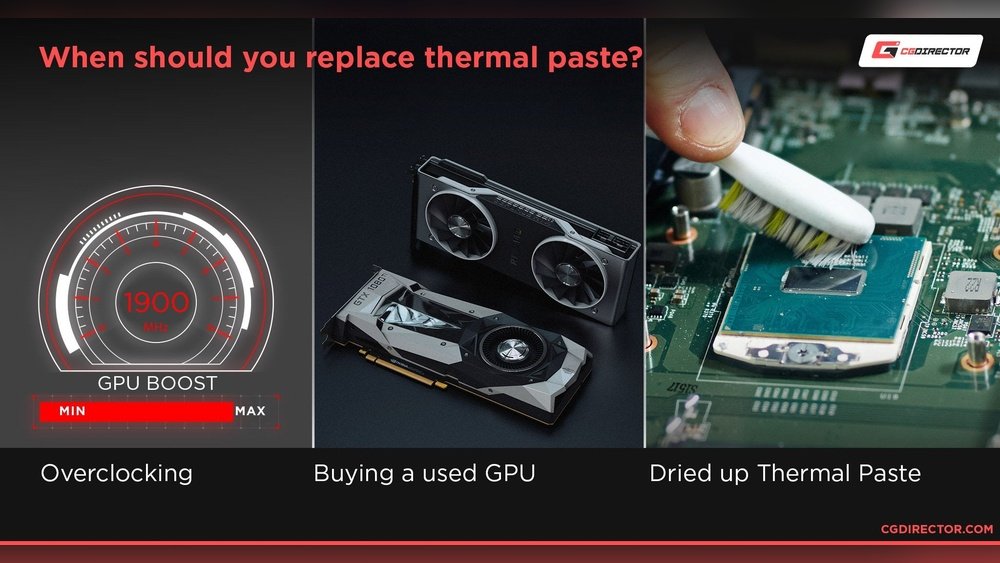
Thermal paste and pads help transfer heat from the GPU chip to the cooler. Paste fills tiny gaps between surfaces. It improves heat flow and lowers temperature. Pads are thicker and used for other parts like memory chips. Over time, thermal paste can dry out and lose effectiveness. Reapplying fresh paste can improve cooling performance. Using good quality paste and pads helps your cooling system work better.
Monitoring Gpu Temperatures
Monitoring GPU temperatures helps keep your computer safe and fast. High temperatures can slow down your system or cause damage. Watching your GPU heat lets you fix problems early. It also helps your GPU last longer and work better.
Software Tools
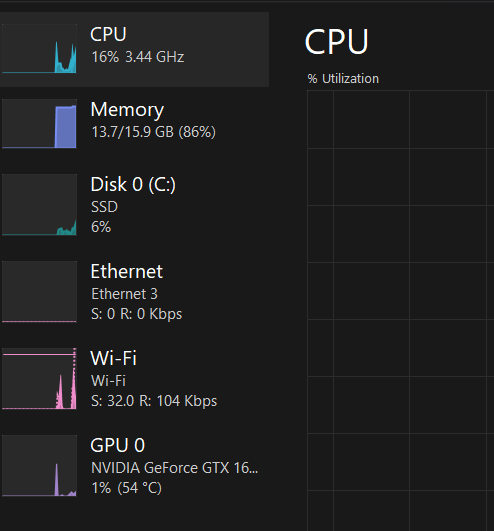
Many software tools show your GPU temperature in real-time. Programs like MSI Afterburner and HWMonitor are popular choices. These tools display temperature, fan speed, and usage stats. They run quietly in the background while you work or play. You can check your GPU heat anytime with just a few clicks.
Bios And Firmware
Your computer’s BIOS or firmware can also monitor GPU temperatures. Some motherboards show GPU heat in their BIOS menu. Firmware updates may improve temperature readings and fan control. Check your motherboard or GPU maker’s website for updates. These updates help keep your system stable and cool.
Setting Temperature Alerts
Temperature alerts warn you if your GPU gets too hot. Many monitoring tools let you set these alerts. You can choose a safe temperature limit to avoid damage. When the GPU passes this limit, the alert notifies you immediately. This helps you act quickly to cool your system down.
Credit: www.gpumag.com
Tips To Lower Gpu Temperature
Keeping your GPU cool helps it run better and last longer. High temperatures can cause slowdowns and damage. Lowering GPU temperature is simple with the right steps. Small changes make a big difference in heat control.
Improving Case Ventilation
Good airflow inside your PC case moves hot air out. Add extra fans to bring fresh air in. Place fans at the front to pull air in. Put fans at the back or top to push hot air out. Clean dust filters and vents often. Dust blocks airflow and raises temperature.
Adjusting Fan Curves
Fan curves control how fast your GPU fans spin. Set fans to spin faster at lower temperatures. This keeps your GPU cool before it gets too hot. Use software like MSI Afterburner to change fan speed. A balanced fan curve reduces noise and heat.
Undervolting And Underclocking
Undervolting lowers the power your GPU uses. Underclocking reduces the speed of the GPU chip. Both steps reduce heat output. They help keep temperatures down without big performance loss. Use tools like MSI Afterburner for safe adjustments. Monitor stability after changes to avoid crashes.
Impact Of High Temperatures On Gpu Lifespan
High temperatures can harm your GPU’s lifespan. Heat stresses the parts inside your graphics card. Over time, this stress causes damage and reduces how long the GPU works well.
Keeping your GPU cool helps it run better and last longer. Ignoring heat issues may lead to costly repairs or replacements.
Component Degradation
Heat causes the GPU’s parts to wear out faster. The silicon chips inside can break down under high heat. This breakdown lowers the card’s performance and stability.
Other parts like capacitors and solder joints also weaken with heat. These failures can cause crashes or permanent damage to the GPU. Cooler temperatures help prevent this damage.
Warranty Considerations
High GPU temperatures may void your warranty. Many manufacturers check if heat caused the problem. Running the GPU too hot can count as misuse.
Keeping your GPU within safe temperature limits helps keep your warranty valid. Follow the maker’s guidelines to avoid losing coverage. This protects your investment from unexpected costs.
Future Gpu Temperature Trends
GPU temperature is a key factor for performance and lifespan. Future trends show changes in how GPUs handle heat. These changes aim to keep GPUs cooler and safer. They focus on new cooling methods and better energy use.
These trends help users enjoy powerful GPUs without overheating worries. Understanding them helps you choose and care for your GPU.
Advancements In Cooling Tech
Cooling systems are becoming smarter and more efficient. Liquid cooling and vapor chambers are more common now. These systems move heat away faster than old fans. New materials like graphene help spread heat better.
Manufacturers also use AI to control fan speed. This keeps the GPU cool without making too much noise. Small, quiet, and effective cooling is the future.
Energy Efficiency Improvements
GPUs will use less power while doing more work. Lower power use means less heat production. Engineers focus on better chip designs and smarter software. These improvements reduce energy waste and heat output.
Better energy use means GPUs run cooler even under heavy tasks. This helps protect your hardware and lowers electricity bills.
Frequently Asked Questions
What Is The Ideal Temperature For A Gpu?
The ideal GPU temperature ranges between 65°C and 85°C under load. Temperatures above 85°C can reduce performance and lifespan. Keeping your GPU cool ensures stable performance and prevents overheating issues.
Can A Gpu Safely Reach 90 Degrees Celsius?
While some GPUs can handle up to 90°C, consistently running at this temperature is risky. Prolonged heat above 85°C may cause thermal throttling and hardware damage. It’s best to maintain lower temperatures for longevity.
How To Monitor Gpu Temperature Effectively?
Use software like MSI Afterburner or HWMonitor to track GPU temperatures. Regular monitoring helps prevent overheating and ensures optimal performance. Check temperatures during gaming or heavy tasks for safety.
What Causes Gpus To Overheat Quickly?
Poor airflow, dust buildup, and high ambient temperatures often cause GPU overheating. Overclocking without adequate cooling also raises temperatures. Regular cleaning and proper case ventilation reduce overheating risks.
Conclusion
Keeping your GPU temperature in a safe range is very important. Too much heat can cause damage and slow down your computer. Most GPUs work best under 85°C. Watch your GPU’s temperature during use. Use good cooling and clean fans often.
A cooler GPU lasts longer and runs better. Remember, stable temperatures help your games and programs run smoothly. Stay aware, keep your system cool, and enjoy better performance every time.
