

Are you worried about how hot your GPU should be while gaming or working? Knowing the right temperature for your graphics card is crucial to keep your computer running smoothly and avoid costly damage.
If your GPU gets too hot, it can slow down your system or even cause crashes. But what exactly is a safe temperature? You’ll discover simple tips to monitor and manage your GPU’s heat, so you can protect your investment and enjoy peak performance.
Keep reading to learn how to keep your GPU cool and your system happy.
Ideal Gpu Temperature Range
Understanding the ideal temperature range for your GPU is important. It helps keep your graphics card safe and working well. GPUs generate heat during use. Too much heat can cause problems. Staying within the right temperature range improves performance and lifespan.
Idle Vs Load Temperatures
Idle temperature means how hot the GPU gets when not doing much. Usually, it should be between 30°C and 45°C. Load temperature is how hot it gets during work, like gaming or editing. This range is often between 65°C and 85°C. Some GPUs can handle higher heat, but staying below 85°C is safer.
Temperature Thresholds For Different Gpus
Different GPUs have different safe temperature limits. Older models may run hotter and need more cooling. Newer GPUs often stay cooler with better designs. For example, Nvidia cards can usually handle up to 90°C. AMD cards often have limits around 85°C. Check your GPU’s specs to know its exact safe range.
Credit: www.servermania.com
Factors Affecting Gpu Temperature
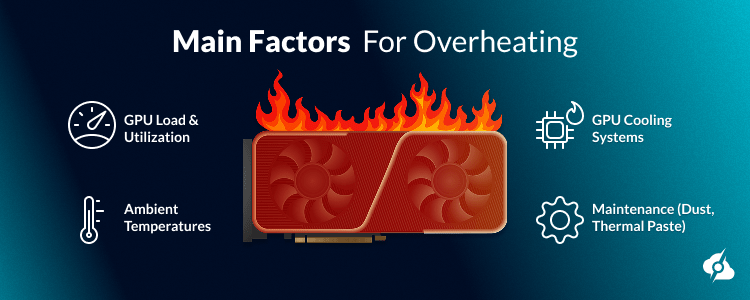
The temperature of your GPU depends on several key factors. These factors influence how hot your graphics card gets during use. Understanding them helps keep your GPU safe and performing well.
Each component around the GPU plays a role in managing heat. Knowing these details can help you control your GPU temperature better.
Ambient Room Temperature
The room temperature affects the GPU’s cooling ability directly. If the room is hot, the GPU will run hotter. Cooler rooms help the GPU stay at safer temperatures. Keeping your PC in a well-ventilated, cool space is important.
Gpu Workload Intensity
GPU temperature rises with the workload it handles. Heavy tasks like gaming or video editing push the GPU harder. This creates more heat inside the graphics card. Light tasks keep the GPU cooler and use less power.
Case Airflow And Cooling Solutions
Good airflow inside the computer case helps remove heat quickly. Fans and vents move hot air out and bring cool air in. Proper cooling solutions like heatsinks or liquid cooling lower GPU temperature. Poor airflow causes heat to build up and can damage the GPU.
Signs Of Overheating
Knowing the signs of GPU overheating helps protect your computer. Overheating can cause serious damage to your graphics card. Detecting problems early keeps your system running smoothly. Watch for clear symptoms that signal heat issues.
Performance Throttling
When a GPU gets too hot, it slows down. This protects the card from damage but lowers speed. Games and apps run with less smoothness. Frame rates drop, and loading times increase. Lag or stuttering shows your GPU is struggling.
Visual Artifacts And Crashes
Overheating can cause strange lines or spots on the screen. These visual errors are called artifacts. They happen because the GPU cannot process graphics correctly. Sudden crashes or freezes also point to overheating. Your computer may restart without warning.
Unusual Fan Noise
Fans inside your GPU spin faster when it gets hot. Loud or strange noises mean the card is working hard to cool down. If the noise is constant or very loud, the GPU may be overheating. Regular fan sounds should be quiet and steady.
Cooling Methods To Maintain Optimal Temps
Keeping your GPU cool is key to good performance. High temperatures can lower speed and cause damage. Using the right cooling methods helps keep your GPU safe and fast. Here are some effective ways to manage GPU heat and keep it running well.
Air Cooling Techniques
Air cooling is the most common way to cool a GPU. Fans push air over the GPU to carry heat away. Case fans also help by moving hot air out of the computer. Good airflow inside the case lowers the GPU temperature. Keeping dust out of fans and vents improves air cooling. It is cheap and easy to set up.
Liquid Cooling Options
Liquid cooling uses water or coolant to absorb heat from the GPU. It moves heat faster than air cooling. This method uses tubes, a pump, and a radiator. Liquid cooling keeps GPUs much cooler, especially under heavy use. It is quieter but costs more and needs careful installation. It suits those who need better cooling and less noise.
Thermal Paste And Maintenance
Thermal paste helps transfer heat from the GPU chip to the cooler. Over time, it can dry out and lose its power. Replacing the thermal paste can lower GPU temperatures by many degrees. Cleaning dust from the GPU and fans also helps. Regular maintenance keeps cooling systems working well and prevents overheating.
Monitoring Gpu Temperature
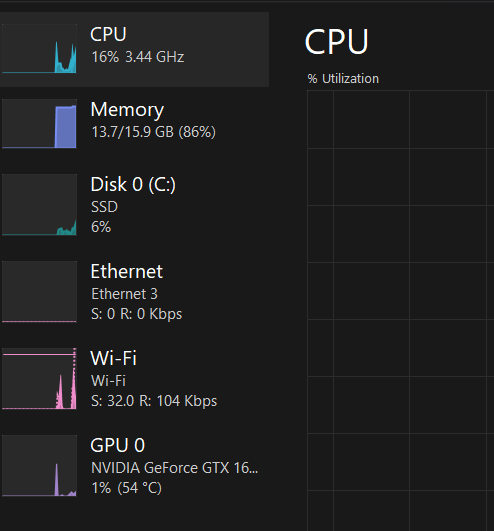
Monitoring GPU temperature is important to keep your computer safe. High temperatures can damage your GPU and reduce performance. Watching the temperature helps you avoid overheating. It also lets you know when to improve cooling or reduce workload.
Many tools make it easy to check GPU temperature. These tools show real-time data and history. They help you understand how your GPU behaves under different tasks. Staying informed prevents unexpected shutdowns and hardware issues.
Popular Software Tools
Several software programs track GPU temperature well. MSI Afterburner is a favorite for many users. It shows temperature, fan speed, and clock rates. HWMonitor offers detailed info on many computer parts. GPU-Z focuses on GPU specifics, including temperature and load. These tools are free and simple to use.
Setting Temperature Alerts
Temperature alerts warn you before damage occurs. You can set alerts in most monitoring tools. Choose a safe temperature limit, usually around 85°C. The software will notify you if the GPU gets too hot. This lets you act fast, like closing apps or turning on fans.

Credit: www.overclockers.co.uk
Impact Of Temperature On Gpu Lifespan
The temperature of a GPU plays a big role in how long it lasts. High heat can wear down parts inside the GPU. This reduces its overall lifespan. Understanding the impact of temperature helps protect your investment.
Heat And Component Wear
Heat causes metal parts to expand and contract. This constant change can make parts break over time. The GPU’s circuits and chips suffer from this stress. High temperatures speed up the wearing process. This means the GPU may fail sooner than expected.
Heat also affects the tiny wires inside the GPU. These wires can become weak or snap. This stops the GPU from working properly. Excess heat can cause solder joints to melt or crack. These are the connections that hold parts together.
Preventing Long-term Damage
Keeping your GPU cool helps it last longer. Use good cooling systems like fans or liquid coolers. Clean dust from vents to improve airflow. Avoid blocking air vents around your computer. Running the GPU at a lower temperature reduces wear.
Monitor your GPU temperature using software tools. This helps catch high heat early. Lower clock speeds can reduce heat output. Proper maintenance protects the GPU’s parts. Cooler GPUs maintain performance and last for years.
Overclocking And Temperature Management
Overclocking a GPU means running it faster than the factory settings. This can boost performance in games and other tasks. But, it also creates more heat. Managing this heat is key. Without good temperature control, the GPU can get damaged or slow down to protect itself.
Understanding how to balance speed and heat will help you get the best from your GPU safely. Let’s explore how to do this right.
Balancing Performance And Heat
Overclocking raises the GPU speed and power use. This makes the chip hotter. If temperatures rise too much, the GPU may reduce speed or shut down. This protects the hardware but lowers performance. Finding the right balance is important. You want higher speed but with safe temperatures. Watching the GPU’s temperature while testing helps. Aim to keep it below 85°C for most GPUs. Some can handle a bit more, but cooler is safer.
Safe Overclocking Practices
Start with small speed increases and test stability. Use software tools to monitor temperature and performance. Avoid pushing the GPU to its limit right away. Make sure your PC case has good airflow. Clean dust from fans and vents regularly. Adjust fan speeds if possible to keep the GPU cool. Stop overclocking if temperatures exceed 90°C. Long exposure to high heat can shorten your GPU’s life. Patience and careful steps protect your investment and keep your system running well.
Credit: www.cherryservers.com
Frequently Asked Questions
What Is The Ideal Temperature For A Gpu?
The ideal GPU temperature ranges between 65°C and 85°C during heavy use. Staying within this range ensures optimal performance and longevity.
Can High Gpu Temperatures Damage My Graphics Card?
Yes, consistently high GPU temperatures above 90°C can cause hardware damage and reduce lifespan. Proper cooling prevents overheating risks.
How Can I Monitor My Gpu Temperature Effectively?
Use software like MSI Afterburner or HWMonitor to track GPU temperatures in real-time. Regular monitoring helps maintain safe operating levels.
What Causes A Gpu To Overheat Quickly?
Poor ventilation, dust buildup, and high workload can cause a GPU to overheat. Regular cleaning and good airflow help prevent this.
Conclusion
Keeping your GPU temperature in a safe range protects your computer. Too much heat can cause slowdowns and damage parts. Good airflow and clean fans help lower GPU heat. Monitor your GPU temperature often to avoid problems. Staying aware keeps your system running smooth and long.
A cool GPU means better performance and less risk. Simple steps can save you from costly repairs later. Remember, your GPU works best when it stays cool.
