
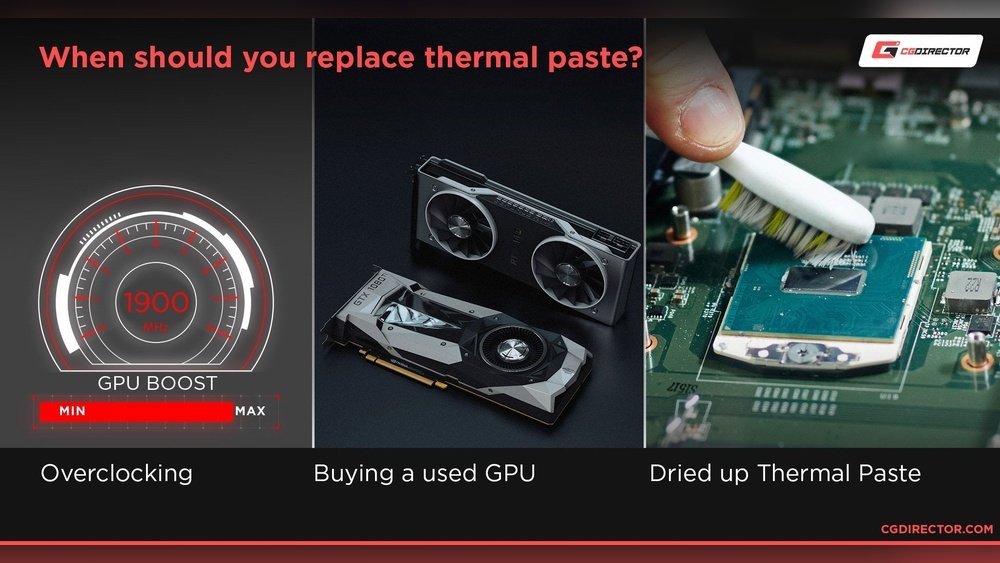
Wondering how hot your GPU should get? You’re not alone.
Keeping your graphics card at the right temperature is crucial for smooth gaming, fast rendering, and long-lasting performance. If your GPU runs too hot, it can slow down or even get damaged. Too cool, and you might be missing out on its full power.
You’ll discover the ideal temperature ranges for your GPU, signs it’s overheating, and simple tips to keep it running just right. Keep reading to protect your investment and get the best from your computer.
Ideal Gpu Temperature Range
Every GPU works best within a certain temperature range. Staying in this range helps your GPU last longer. It also keeps your computer running smoothly. Too hot or too cold can cause problems. Knowing the ideal temperature helps you avoid these issues.
Different GPUs have different safe temperature limits. Most modern GPUs can handle higher heat than older models. Still, keeping your GPU cool is important for good performance. Let’s look at typical temperature ranges for idle and load states.
Idle Temperature Benchmarks
Idle temperature means the GPU is not working hard. It runs basic tasks or waits for commands. Usually, idle temperatures stay between 30°C and 45°C. This range is safe and normal for most graphics cards.
If your GPU stays hotter than 50°C while idle, check your cooling system. Dust or poor airflow might cause the heat. Cooling fans should spin quietly at this time. If fans run loudly, it may mean a problem.
Load Temperature Expectations
Load temperature occurs when the GPU works hard. This happens during gaming, video editing, or mining. Most GPUs reach 60°C to 85°C under load. This range is still safe and common for modern cards.
Temperatures above 90°C can shorten your GPU’s life. It may also cause crashes or slowdowns. Proper cooling and good airflow help keep load temperatures down. Always monitor your GPU when running heavy tasks.

Credit: www.overclockers.co.uk
Factors Affecting Gpu Temperature
GPU temperature depends on several key factors. These factors affect how hot your graphics card gets during use. Understanding these can help keep your GPU safe and efficient.
Ambient Room Temperature
The room temperature plays a big role in GPU heat. A warmer room makes it harder for the GPU to cool down. Cooler rooms help lower the GPU temperature naturally. Keep your PC in a cool, well-ventilated space.
Case Airflow And Ventilation
Good airflow inside the computer case is crucial. Fans must move air freely to remove heat. Blocked vents or poor fan placement raise GPU temperature. Use extra case fans if needed. Clean dust from vents regularly for better airflow.
Gpu Model And Design
Different GPUs have different cooling designs. Some have bigger heatsinks or more fans. Others use liquid cooling for better heat control. Higher-end models often run cooler than budget ones. Check your GPU’s design to understand its temperature limits.
Signs Of Overheating
Knowing the signs of GPU overheating helps protect your computer. Overheating can damage parts and lower performance. Watch out for early warnings to fix problems fast.
Performance Throttling
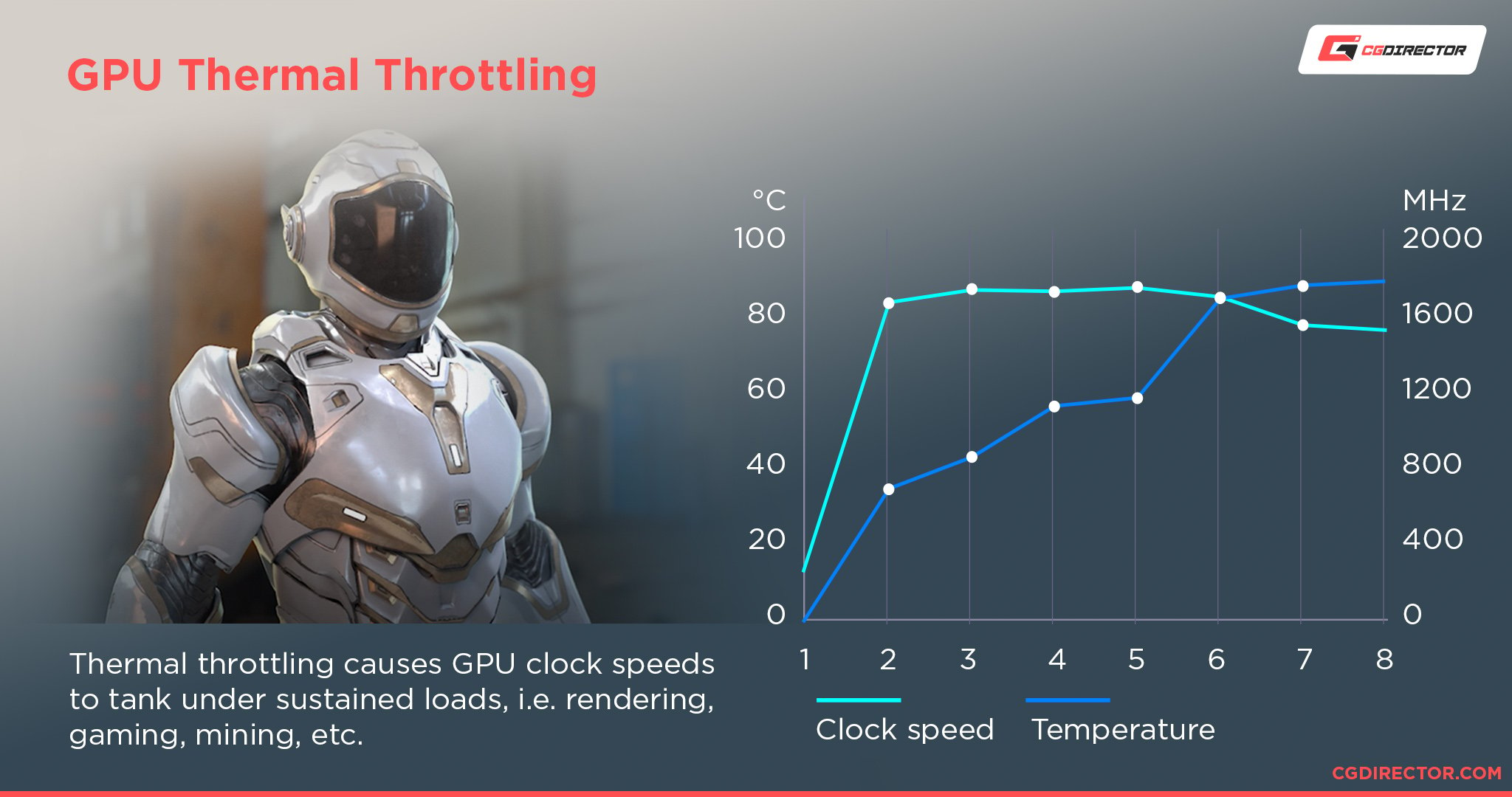
When a GPU gets too hot, it slows down to cool itself. This drop in speed is called performance throttling. Games and apps may lag or freeze. The GPU reduces power to avoid damage.
Unexpected Shutdowns
A very hot GPU can cause sudden shutdowns. Your computer might turn off without warning. This protects the hardware from heat damage. Frequent shutdowns mean your GPU needs better cooling.
Visual Artifacts And Glitches
Overheating can cause strange images on your screen. You may see flickering, lines, or colors that look wrong. These are called visual artifacts. They show the GPU is struggling with heat.
Credit: www.cherryservers.com
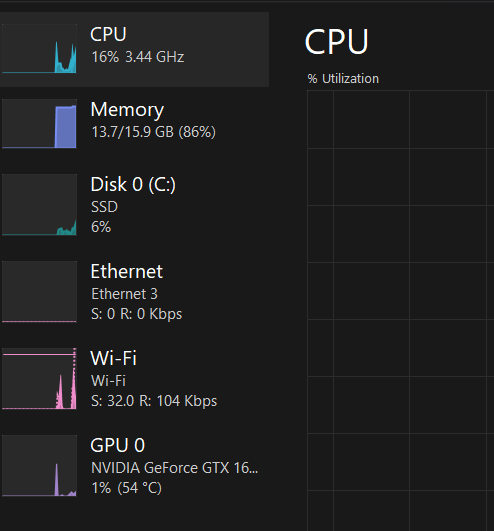
Tools To Monitor Gpu Temperature
Knowing your GPU temperature helps keep your computer safe and fast. Monitoring tools show the heat levels your graphics card reaches. These tools provide real-time data, so you can act before damage occurs. Many options exist, both built-in and third-party, to fit your needs.
Built-in Software Options
Most GPUs come with built-in software to check temperature. Nvidia’s GeForce Experience and AMD’s Radeon Software include easy-to-use monitoring features. These apps display current GPU temps and let you adjust fan speeds. They run quietly in the background while you play games or work.
These tools also offer alerts if the GPU gets too hot. They are free and made specifically for your hardware. No extra downloads or installations needed. You get accurate readings and basic controls.
Third-party Monitoring Apps
Third-party apps give more detail and options than built-in tools. Programs like MSI Afterburner and HWMonitor show temperature, voltage, and fan speed. They often support many brands and models of GPUs.
These apps allow custom alerts and advanced settings. You can log temperature data over time. Some include overclocking tools to boost GPU performance safely. Most of them are free or have free versions.
Cooling Solutions For Gpus
Keeping your GPU cool is key to good performance and long life. GPUs work hard and produce a lot of heat. Without proper cooling, they can slow down or even get damaged. Many cooling solutions are available. Each has its own way to keep your GPU at a safe temperature.
Air Cooling Techniques
Air cooling is the most common method for GPUs. It uses fans to move air over the heatsink. The heatsink absorbs heat from the GPU chip. Fans then blow the heat away. Most GPUs come with built-in air coolers. They are easy to install and maintain. Air coolers work well for everyday use and gaming. They keep temperatures in a safe range. But in very hot rooms or heavy use, air cooling might struggle.
Liquid Cooling Systems
Liquid cooling uses water or coolant to remove heat. It moves the heat from the GPU to a radiator. The radiator cools the liquid with fans. This system is more efficient than air cooling. It can keep GPUs much cooler, especially under heavy load. Liquid cooling is quieter than air cooling. It is popular among gamers and professionals. Installing liquid cooling can be more complex. It also costs more than air cooling solutions.
Aftermarket Cooling Options
Aftermarket coolers replace the original cooling system. They often provide better performance and lower noise. Options include larger fans, better heatsinks, or liquid cooling kits. Some aftermarket coolers use hybrid designs combining air and liquid cooling. Users choose these to improve cooling for overclocking. They help keep the GPU temperature low. Installing aftermarket coolers requires care and some technical skills. They offer a good balance between cooling power and noise.
Tips To Lower Gpu Temperature
Keeping your GPU cool is important for better performance and longer life. High temperatures can cause your graphics card to slow down or even get damaged. Here are some simple tips to help lower your GPU temperature and keep your system running smoothly.
Improving Case Airflow
Good airflow inside your computer case helps remove hot air. Make sure your case has enough fans to bring in cool air and push out warm air. Position fans so air flows from the front to the back or top of the case. Avoid blocking vents with cables or other parts. A well-ventilated case keeps your GPU cooler.
Cleaning Dust And Debris
Dust can block vents and coat your GPU’s heatsink. This stops heat from escaping and raises temperature. Clean your computer regularly using a soft brush or compressed air. Focus on fans, vents, and the GPU itself. Removing dust improves cooling and helps keep your GPU at safe temperatures.
Adjusting Fan Curves
Fan curves control how fast your GPU fans spin based on temperature. You can adjust them using software from your GPU maker. Set fans to spin faster at lower temperatures for better cooling. This helps keep the GPU cool without making too much noise. Custom fan curves balance temperature and sound.
When To Worry About Gpu Heat
Knowing when to worry about GPU heat is important for your computer’s health. A GPU runs hot during games or heavy tasks. But too much heat can cause problems. Watch your GPU temperatures closely. Acting early helps avoid damage.
Some heat is normal. But high temperatures need attention. Let’s explore which temperatures are safe and which are risky. Understanding this helps protect your GPU and keeps your computer running well.
Temperature Thresholds To Avoid
Most GPUs work well below 85°C. Temperatures above 90°C can harm the GPU. When the GPU hits 95°C or more, it is in danger. At this level, your GPU may slow down or shut off to protect itself.
Try to keep your GPU under 85°C for safety. If it often goes above 90°C, check your cooling system. Dusty fans or poor airflow can raise temperatures. Fix these issues fast to avoid overheating.
Long-term Effects Of High Heat
Constant high heat can shorten your GPU’s life. It can cause parts to wear out faster. Over time, this may lead to crashes and poor performance.
High heat can also damage other computer parts. The CPU and motherboard can suffer from excess heat. Keeping your GPU cool helps your whole system stay healthy longer.
Overclocking And Gpu Temperature
Overclocking a GPU pushes its performance beyond the factory settings. This process makes the graphics card run faster but also causes it to produce more heat. Understanding how overclocking affects GPU temperature helps keep your system safe and stable.
Impact Of Overclocking On Heat
Increasing the clock speed makes the GPU work harder. This extra work generates more heat inside the card. The GPU temperature can rise significantly during overclocking. Higher temperatures may reduce the lifespan of the GPU. Overheating can cause crashes or lower performance. Proper cooling is essential to manage this extra heat. Watching the temperature closely helps prevent damage.
Safe Overclocking Practices
Start with small speed increases to test stability. Monitor GPU temperatures using reliable software tools. Keep the GPU temperature below 85°C for safety. Use good quality cooling solutions like fans or liquid cooling. Avoid pushing the voltage too high to reduce heat risks. Stop overclocking if the GPU gets too hot or unstable. Regularly clean dust from your computer to maintain airflow.
Credit: www.cgdirector.com
Frequently Asked Questions
What Is The Ideal Gpu Temperature Range?
The ideal GPU temperature is between 65°C and 85°C under load. Staying in this range ensures optimal performance and longevity. Temperatures above 85°C may cause thermal throttling and reduce your GPU’s lifespan. Keeping your GPU cool helps maintain stable gaming or rendering sessions.
How Hot Can A Gpu Safely Get?
Most GPUs can safely operate up to 90°C. However, consistently running near this limit can shorten the GPU’s life. It’s best to keep temperatures below 85°C for long-term health. Proper cooling and airflow prevent overheating and potential hardware damage.
What Causes A Gpu To Overheat?
Overheating happens due to poor ventilation, dust buildup, or faulty cooling systems. High ambient temperatures and overclocking also increase GPU heat. Regular cleaning and proper case airflow help prevent overheating. Monitoring software can alert you before temperatures get dangerous.
How To Lower Gpu Temperature Effectively?
Improve case airflow with extra fans or better cable management. Clean dust from GPU fans and heatsinks regularly. Use high-quality thermal paste for better heat transfer. Avoid overclocking or reduce clock speeds to decrease heat output. Good cooling extends GPU performance and lifespan.
Conclusion
A GPU should stay cool to work well and last long. Too much heat can cause damage and slow it down. Aim for temperatures below 85 degrees Celsius during heavy use. Good airflow and regular cleaning help keep the GPU cool.
Watching the temperature often prevents unexpected problems. Keep your system balanced and enjoy smooth performance. Simple care protects your investment and improves your gaming or work experience. Remember, cool means better and safer for your GPU.
