

You rely on your GPU to deliver smooth gaming, fast rendering, and seamless performance. But have you ever wondered how hot is too hot for your GPU?
Ignoring its temperature can lead to serious damage or slowdowns. You’ll discover the safe temperature range for your graphics card and learn how to keep it cool. Understanding this can save you from costly repairs and keep your system running like new.
Keep reading to protect your GPU and get the best from your machine.
Credit: www.cgdirector.com
Gpu Temperature Limits
Understanding GPU temperature limits helps keep your graphics card safe. Every GPU has a range of temperatures where it works best. Running it too hot can cause damage or reduce performance. Knowing these limits helps you protect your device.
Safe Operating Range
Most GPUs work well between 30°C and 85°C. This range keeps the hardware stable during normal use. Staying inside this range prevents overheating and maintains good speed. Cooling systems like fans help keep temperatures low.
Maximum Thresholds
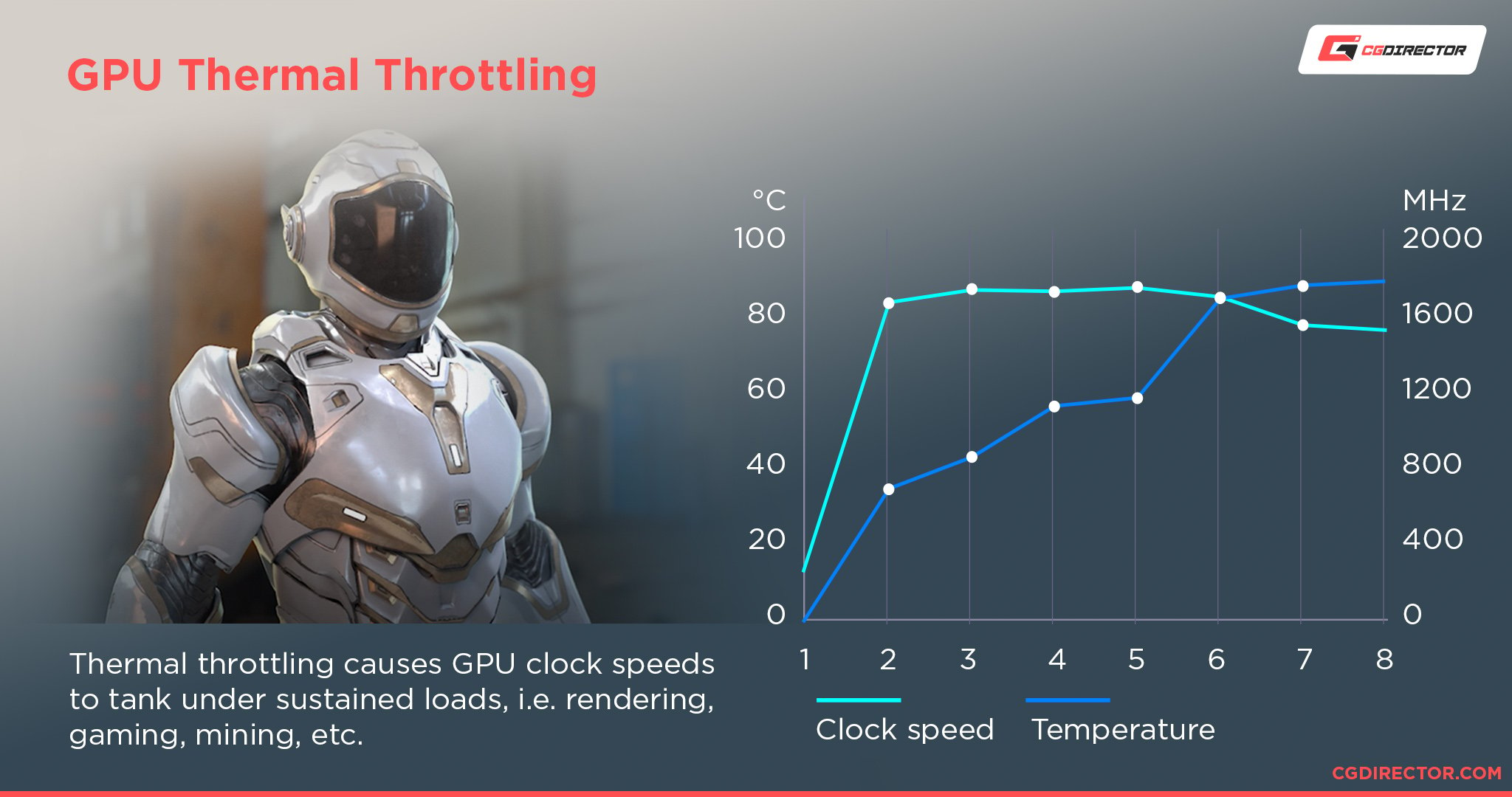
The highest safe temperature for many GPUs is around 95°C. Above this, the GPU may start to throttle, reducing speed. Some models can handle up to 100°C but running close to this is risky. Avoid pushing your GPU to these extremes for long.
Impact Of Overheating
Overheating can cause crashes and graphical glitches. It also shortens the GPU’s lifespan over time. The card may shut down to protect itself from damage. Keeping temperatures low ensures reliable and smooth performance.
Credit: koolingmonster.com
Common Causes Of Overheating
Overheating is a common problem for many GPUs. Knowing the causes helps prevent damage. Several factors can raise your GPU’s temperature beyond safe limits. Understanding these issues can keep your graphics card running smoothly.
Poor Airflow
Airflow moves heat away from the GPU. Poor airflow traps hot air inside your computer case. This causes the GPU temperature to rise quickly. Blocked vents or cramped cases reduce airflow. Proper case ventilation is essential for cooler GPU operation.
Dust Buildup
Dust gathers on fans and heatsinks over time. This stops fans from spinning freely. Dust also blocks air passages, reducing cooling. A dusty GPU runs hotter and louder. Regular cleaning prevents dust buildup and improves cooling.
Overclocking Risks
Overclocking pushes the GPU beyond its default speed. This increases power use and heat output. Without better cooling, overclocking causes overheating. Overclocking needs careful monitoring of temperatures. Avoid extreme overclocking to protect your GPU.
High Ambient Temperatures
Room temperature affects your GPU’s heat. Hot rooms make it harder for the GPU to cool down. Even good fans struggle in high ambient heat. Keep your PC in a cool, shaded place. Lower room temperature helps maintain safe GPU temps.
Cooling Solutions For Gpus
Keeping a GPU cool is key to its performance and lifespan. High temperatures can cause slowdowns or damage. Various cooling solutions help manage heat effectively. Each method suits different needs and setups. Understanding these options helps maintain your GPU’s health.
Air Cooling Options
Air cooling uses fans to move heat away from the GPU. Most graphics cards come with built-in fans. These fans push air over heat sinks attached to the GPU. Air cooling is simple, affordable, and easy to install. It works well for average gaming or daily use. Larger cases with good airflow improve air cooling results.
Liquid Cooling Systems
Liquid cooling uses water or coolant to absorb heat faster than air. It circulates liquid through tubes connected to the GPU block. The heated liquid moves to a radiator where fans cool it down. This system keeps GPUs much cooler than air cooling. It suits high-performance PCs or overclocked GPUs. Installation is more complex and costs more than air cooling.
Hybrid Cooling Methods
Hybrid cooling combines air and liquid cooling benefits. A liquid loop cools the GPU core while fans cool other parts. This method offers excellent temperature control and noise reduction. It works well for extreme gaming or heavy workloads. Hybrid systems balance cost, performance, and ease of use. Many advanced GPUs come with hybrid cooling setups.
Optimizing Pc Case Airflow
Optimizing PC case airflow is key to keeping your GPU cool. Good airflow moves hot air out and brings cool air in. This balance helps lower GPU temperatures and prevents overheating. Small changes inside your case can improve airflow a lot. Focus on fan placement, cable management, and ventilation to create a smooth airflow path.
Fan Placement Strategies
Place intake fans at the front or bottom of the case. They pull cool air inside. Exhaust fans should be at the top or back. They push hot air out. Avoid blocking fans with large components. Use the right fan size for your case. More fans do not always mean better airflow. Balanced intake and exhaust fans work best.
Cable Management Tips
Keep cables tidy and out of airflow paths. Use zip ties or Velcro straps to bundle cables. Route cables behind the motherboard tray if possible. Avoid cables hanging near fans or vents. Clean cable management reduces air resistance. This helps air flow freely and cools your GPU better.
Ventilation Enhancements
Check case vents for dust buildup and clean regularly. Add dust filters to stop dirt from entering. Use mesh panels or ventilated side panels if available. Consider upgrading to cases with better airflow design. Proper ventilation lets hot air escape quickly. This reduces GPU temperature and improves performance.
Monitoring Gpu Temperatures
Monitoring GPU temperatures helps keep your graphics card safe. It prevents damage caused by overheating. Watching the temperature also improves your PC’s performance and lifespan. You can catch problems early by tracking these numbers.
Software Tools
Many free and paid tools show GPU temperatures in real time. Popular ones include MSI Afterburner, HWMonitor, and GPU-Z. These programs display current, minimum, and maximum temperatures. Some also show fan speed and GPU load. Choose a tool that is easy to use and reliable.
Setting Temperature Alerts
Temperature alerts notify you if the GPU gets too hot. You can set these alerts inside monitoring software. Pick a safe temperature limit, usually around 85°C. The software will warn you with sound or pop-up messages. Alerts help prevent damage by prompting quick action.
Interpreting Temperature Data
Normal GPU temperature varies by model and usage. Idle temps often range between 30°C and 45°C. Under load, temps can rise to 70°C or 80°C. Consistently higher temps may signal cooling problems. Watch for sudden spikes or steady increases over time. Keep your GPU running cool for best results.
Maintenance Practices
Maintaining your GPU helps keep its temperature in a safe range. High temperatures can reduce the life of the GPU. Proper care stops overheating and keeps performance steady. Simple steps can make a big difference in cooling your graphics card.
Regular Cleaning
Dust and dirt block airflow in your GPU. This causes it to run hotter than normal. Clean your GPU every few months with compressed air. Focus on vents, fans, and heatsinks. Avoid using a vacuum to prevent damage. Regular cleaning keeps air moving and temperatures low.
Thermal Paste Replacement
Thermal paste helps transfer heat from the GPU chip to the cooler. Over time, it dries out and loses effectiveness. Replace thermal paste every one to two years. Use a high-quality thermal paste for best results. This simple step lowers temperatures and improves cooling.
Fan And Radiator Checks
Fans and radiators move heat away from the GPU. Check fans for dust buildup and spinning problems. Radiators must stay clean and free from blockages. Replace any faulty fans quickly to avoid overheating. Good airflow is key to keeping your GPU cool.
Adjusting Gpu Settings
Adjusting GPU settings helps control its temperature and performance. Keeping your GPU cool extends its life and prevents crashes. Simple tweaks can reduce heat without losing much power. Below are key ways to adjust your GPU for better cooling and stable use.
Fan Curve Customization
Fan curves change how fast your GPU fans spin at different temperatures. Setting fans to spin faster at lower temps cools your GPU early. This stops heat from building up too much. Use software like MSI Afterburner to set custom fan speeds. A smooth curve balances noise and cooling well.
Underclocking And Undervolting
Underclocking lowers the GPU’s core speed to reduce heat output. This can make your GPU run cooler and use less power. Undervolting cuts the voltage your GPU needs without lowering speed. It saves energy and drops temperatures. Both methods may lower performance slightly but improve stability.
Power Limit Adjustments
Reducing the power limit caps the maximum power your GPU uses. This stops the GPU from drawing too much energy and heating up. Lower power limits keep temperatures in check during heavy tasks. Use GPU tuning tools to safely adjust power limits step-by-step. Watch temperatures and performance as you change settings.
Credit: www.techspot.com
Frequently Asked Questions
What Is The Safe Temperature Range For A Gpu?
A safe GPU temperature typically ranges between 65°C and 85°C. Staying within this range ensures optimal performance and prevents hardware damage. Temperatures above 85°C may cause thermal throttling or reduce GPU lifespan.
How To Know If My Gpu Is Overheating?
Signs of GPU overheating include frequent crashes, screen artifacts, and loud fan noise. Monitoring software can track temperature spikes. If your GPU exceeds 90°C regularly, it is likely overheating.
Can High Gpu Temperatures Damage My Graphics Card?
Yes, sustained high temperatures can damage your GPU. Overheating may degrade components and shorten lifespan. Proper cooling and ventilation help prevent hardware failure.
What Causes A Gpu To Run Too Hot?
Common causes include poor airflow, dust buildup, high ambient temperatures, and overclocking. Insufficient cooling solutions also lead to excessive heat. Regular maintenance and good case ventilation are crucial.
Conclusion
A GPU running too hot can cause serious damage. Keeping temperatures under control helps your computer last longer. Most GPUs work well below 85°C, but going higher risks problems. Regular cleaning and good airflow keep things cool. Watch your GPU’s temperature during heavy use.
Acting early prevents costly repairs or slowdowns. Stay alert and protect your hardware. Safe temps mean better performance and peace of mind.
