
Have you ever wondered how hot is too hot for your GPU? Your graphics card works hard to deliver smooth gaming, crisp visuals, and fast processing.
But when it gets too hot, it can slow down, crash, or even get damaged. Knowing the safe temperature range for your GPU is key to keeping your computer running strong. You’ll discover exactly what temperatures to watch out for, why heat matters, and simple steps you can take to protect your powerful hardware.
Keep reading to make sure your GPU stays cool and your system stays healthy.
Credit: www.cgdirector.com
Gpu Temperature Basics
Understanding GPU temperature is key for keeping your computer safe. The graphics processing unit, or GPU, works hard to display images and videos. It generates heat as it runs. Too much heat can cause problems. Knowing normal ranges helps you spot trouble early. You can then take steps to cool your GPU.
Let’s explore the basics of GPU temperature. Learn what numbers are safe and what affects the heat levels. This knowledge helps you protect your device and keep it running smoothly.
Normal Temperature Ranges
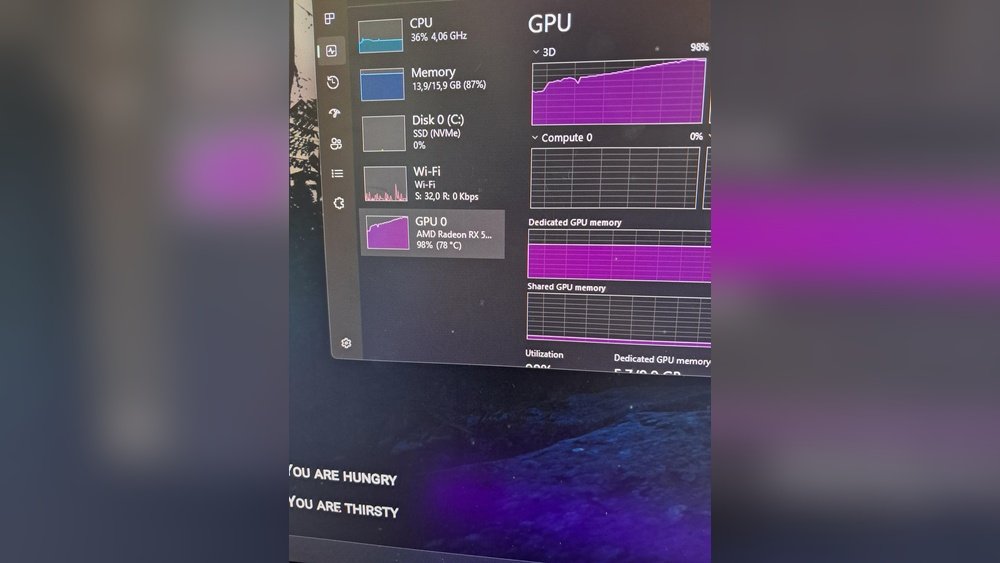
Most GPUs run safely between 30°C and 40°C when idle. During heavy use, like gaming or video editing, temperatures can rise. A typical safe range under load is 65°C to 85°C. Some GPUs can handle up to 90°C without damage. Above 90°C, the risk of overheating grows. Always check your GPU model’s specs for exact limits.
Factors Affecting Gpu Heat
Several things impact how hot your GPU gets. The workload is the main factor. More graphics power means more heat. Case ventilation matters too. Poor airflow traps heat inside the computer. Dust buildup blocks fans and vents. This causes higher temperatures. The quality of the cooling system also plays a role. Stock coolers may not be enough for heavy tasks. Overclocking increases power use and heat. Ambient room temperature affects GPU heat as well. A hot room means a hotter GPU.
Credit: koolingmonster.com
Signs Of Overheating
Overheating can seriously harm your GPU. It reduces its lifespan and causes many problems. Knowing the signs of overheating helps you act fast. This way, you protect your GPU and keep it running well.
Performance Drops
One clear sign of overheating is slow performance. Your GPU may lag or stutter during tasks. Frame rates drop in games or heavy apps. This happens because the GPU lowers speed to cool down. If you notice sudden slowdowns, check your GPU temperature.
Visual Artifacts
Strange colors or shapes on your screen can indicate overheating. Lines, flickering, or blocks may appear while using the GPU. These visual glitches show the GPU is stressed. They often happen when the GPU gets too hot. Seeing artifacts means your GPU needs attention.
Unexpected Shutdowns
Your computer may turn off without warning. Overheating causes the GPU to force shutdown. This protects the hardware from damage. Sudden shutdowns during gaming or work are a red flag. If this happens often, check your GPU’s cooling system.
Safe Temperature Limits
Knowing the safe temperature limits for your GPU helps keep it running well. Overheating can cause slowdowns and damage. Every GPU has a temperature range that is safe for daily use. Staying within this range protects your investment and keeps your computer stable.
Manufacturer Recommendations
GPU makers set temperature limits to prevent harm. Most recommend keeping the GPU under 85°C during use. Some models allow higher temps, up to 90°C or 95°C, but this is often the max safe point. Exceeding these limits may reduce lifespan or cause crashes. Always check your GPU’s official guide for exact numbers.
Differences By Gpu Models
Not all GPUs handle heat the same way. Older models may run cooler but fail at lower temperatures. Newer, high-performance GPUs might safely run hotter. Gaming GPUs often have better cooling and higher thresholds. Entry-level GPUs usually stay cooler and need less heat tolerance. Know your specific GPU model’s limits to avoid problems.

Credit: softwareg.com.au
Cooling Solutions
Keeping your GPU cool is important for its performance and life. High temperatures can cause slowdowns and damage. Cooling solutions help stop this by lowering heat. Different methods fit different needs and budgets.
Choosing the right cooling helps your GPU run smoothly. It also keeps your computer quieter and safer. Let’s explore popular cooling options and how to improve your case airflow.
Air Cooling Options
Air cooling uses fans to move heat away from the GPU. Most graphics cards come with built-in fans and heatsinks. These parts pull heat from the chip and push cool air over it. Extra case fans can improve this effect.
Air coolers are easy to install and cost less than liquid cooling. They work well for most users and moderate GPU loads. But they can be noisy under heavy use. Regular cleaning of fans and dust helps keep air cool and parts healthy.
Liquid Cooling Benefits
Liquid cooling uses water or coolant to take heat from the GPU. It moves heat faster than air and keeps temperatures lower. This is good for high-performance GPUs and overclocking. Liquid coolers often run quieter than air fans.
This method needs more care and cost. It requires pumps, tubes, and radiators. But the cooling is more efficient and stable. It helps GPUs stay cool even under heavy stress.
Improving Case Airflow
Good airflow inside the computer case helps all components stay cool. Place fans to pull cool air in and push hot air out. Avoid blocking air paths with cables or parts.
Keep the inside of the case clean from dust. Dust blocks airflow and traps heat. Use filters on fan intakes to reduce dust entry. Balanced airflow makes air or liquid cooling more effective.
Monitoring Gpu Temperatures
Monitoring GPU temperatures helps keep your computer safe and fast. GPUs can get very hot during heavy use. Watching the heat lets you avoid damage and slowdowns. It also helps you know when to cool your system.
Popular Software Tools
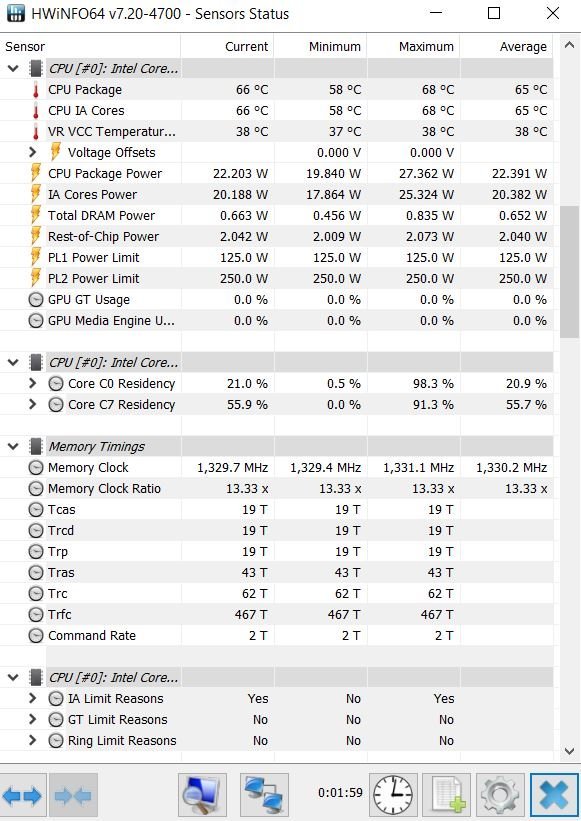
Many tools show GPU temperature in real time. MSI Afterburner is a favorite for gamers. It displays temperature, fan speed, and usage. HWMonitor is simple and shows all hardware temps. GPU-Z focuses on graphics card details, including heat. These tools work on most Windows computers. They help you check if your GPU is too hot.
Setting Temperature Alerts
Alerts warn you before the GPU gets too hot. Some software lets you set a maximum temperature. When the GPU reaches this point, the alert sounds or shows a message. This helps prevent damage from overheating. You can set alerts in MSI Afterburner and HWMonitor. It’s smart to keep alerts around 80-85°C. This gives time to cool the GPU down.
Preventing Gpu Overheating
Preventing GPU overheating is key to keeping your computer safe and fast. High temperatures can damage parts and slow down performance. Simple steps help keep your GPU cool and stable. Regular care extends its life and avoids costly repairs.
Regular Cleaning Tips
Dust buildup blocks airflow and raises temperature. Clean your GPU and case often. Use a soft brush or canned air to remove dust. Pay attention to fans and vents. Cleaning keeps air moving and cools the GPU.
Optimizing Fan Curves
Fan curves control how fast fans spin based on temperature. Set a curve that starts fans early and speeds them up as it gets hotter. This prevents heat from building up. Many tools let you customize fan speeds easily.
Thermal Paste Maintenance
Thermal paste helps transfer heat from the GPU chip to the cooler. Over time, paste dries out and loses effectiveness. Replace it every 1-2 years for best cooling. Carefully remove old paste and apply a new thin layer.
When To Worry About Gpu Heat
Knowing when GPU heat is a problem helps protect your computer. GPUs run hot during heavy use. Some heat is normal, but too much can cause issues. Watch your GPU temperature to avoid damage and poor performance.
Long-term Damage Risks
High temperatures can harm your GPU over time. Constant heat can wear out parts inside the card. This may cause crashes or slower speeds. Extreme heat can shorten the GPU’s lifespan. Cooling your GPU keeps it working longer.
Warranty And Repairs
Excessive heat may void your GPU warranty. Manufacturers expect users to keep the card cool. Overheating damage might not be covered by warranty. Repair costs can be high for heat damage. Proper cooling helps avoid costly repairs.
Frequently Asked Questions
What Temperature Is Too Hot For A Gpu?
A GPU temperature above 85°C is generally considered too hot. Prolonged heat can cause damage and reduce lifespan. Optimal GPU temperatures range between 60°C to 80°C during heavy use.
How To Check Gpu Temperature Safely?
Use software like MSI Afterburner or HWMonitor to check GPU temperature. These tools provide real-time, accurate readings without risking hardware damage.
Can High Gpu Temperatures Cause Performance Issues?
Yes, high GPU temperatures can cause thermal throttling. This reduces clock speeds to cool down the GPU, leading to decreased performance during gaming or heavy tasks.
What Are Common Causes Of Gpu Overheating?
Common causes include poor airflow, dust buildup, and inadequate cooling solutions. Overclocking and high ambient temperatures also contribute to GPU overheating.
Conclusion
A GPU running too hot can cause serious problems. Temperatures above 85°C often lead to reduced performance or damage. Keeping your GPU cool helps it last longer and work better. Use good cooling systems and check temperatures regularly. Remember, your GPU needs care to avoid overheating.
Stay aware and protect your hardware for a smooth experience.
