
Have you ever wondered how hot your GPU can actually get? Whether you’re a gamer pushing your graphics card to the limit or someone who uses heavy software, knowing your GPU’s temperature is crucial.
Too much heat can slow your system down or even cause damage. You’ll discover what temperatures are normal, when to worry, and how to keep your GPU running cool. Keep reading—you’ll learn simple tips that could save your hardware and boost your computer’s performance.
Max Gpu Temperatures
GPUs generate heat when they work hard. Knowing the maximum temperature helps protect your hardware. Too much heat can cause damage or slow down your computer.
Understanding safe temperature limits keeps your GPU running well. It also helps you avoid crashes or system failures.
Typical Operating Ranges
Most GPUs run safely between 65°C and 85°C. This range lets the GPU perform well without overheating. During light use, temperatures often stay below 60°C. Under heavy use, temperatures can rise but should not exceed 85°C. Some high-end GPUs can handle up to 90°C, but this is usually the upper limit.
Danger Zones For Gpus
Temperatures above 90°C are risky for your GPU. Prolonged heat at this level may shorten its life. Some GPUs may throttle speed to cool down. At 100°C or more, damage can happen quickly. Your system might shut down to protect the GPU. Keeping temperatures under 85°C is best for safety and performance.
Factors Affecting Gpu Heat
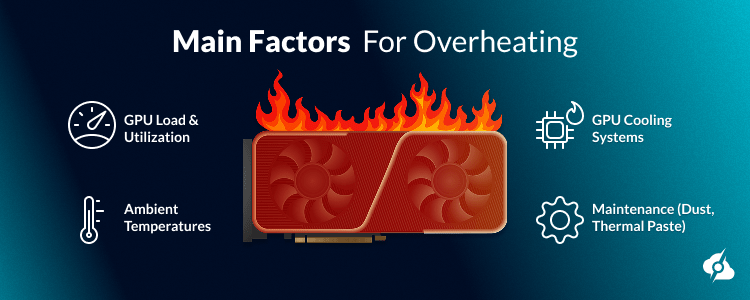
GPU heat depends on many factors. Understanding these helps keep your graphics card cool. Heat affects performance and hardware life. Knowing what raises GPU temperature can prevent problems.
Workload Intensity
The more work a GPU does, the hotter it gets. Heavy tasks like gaming or video editing use more power. This creates more heat inside the GPU. Light tasks produce less heat and keep the GPU cooler.
Ambient Room Temperature
Room temperature impacts how well a GPU cools. Hot rooms make it harder for heat to escape. Cooler rooms help the GPU stay at a safe temperature. Keep your PC in a well-ventilated, cool place.
Case Airflow Quality
Good airflow removes hot air from inside the PC. Poor airflow traps heat around the GPU. Fans and vents help move air through the case. Clean dust filters and open vents improve cooling.
Risks Of Overheating
High GPU temperatures bring serious risks. Overheating can harm your computer’s performance and its hardware. Understanding these risks helps you protect your device and keep it running smoothly.
Performance Throttling
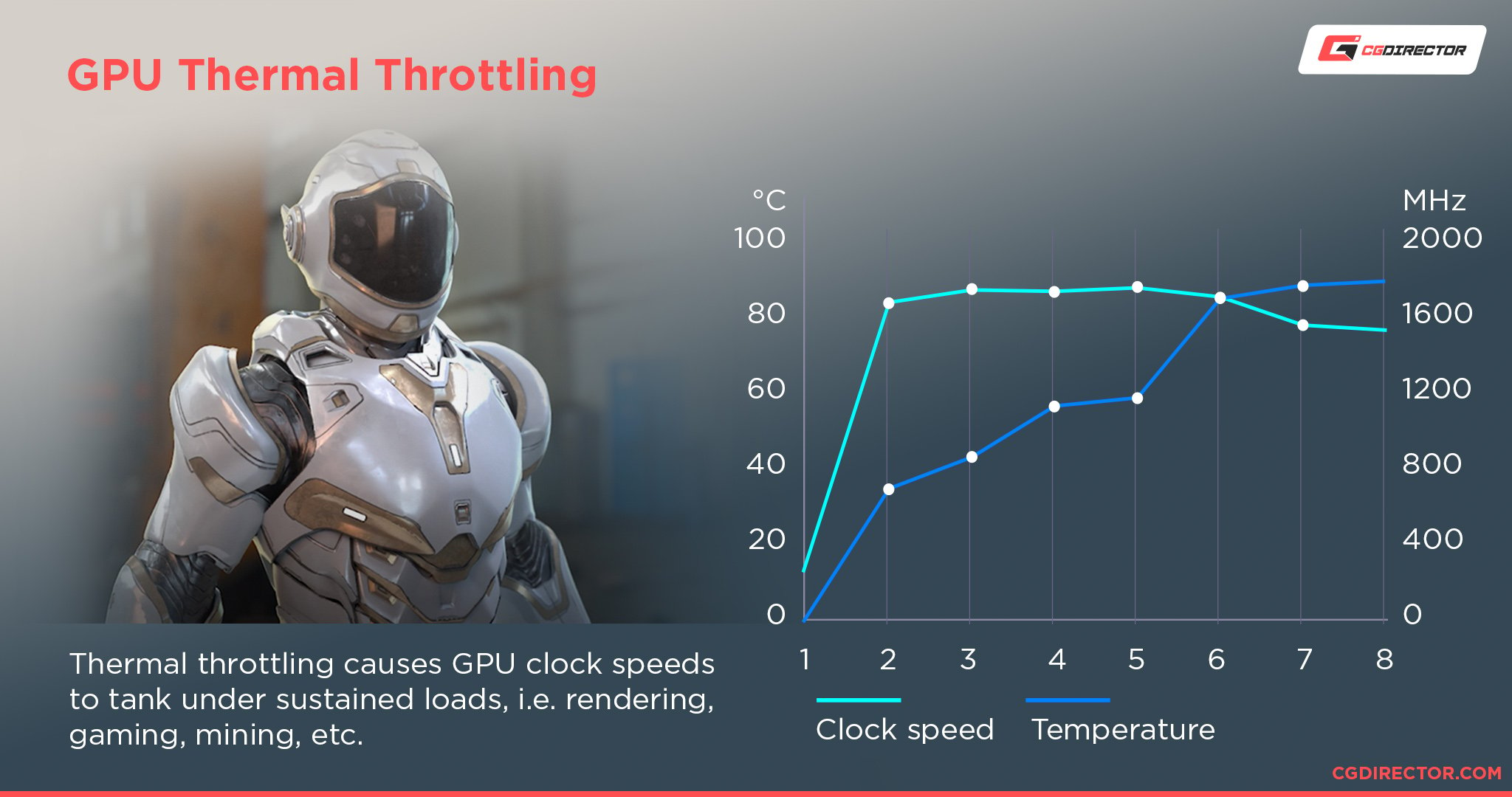
GPUs slow down automatically when they get too hot. This process, called throttling, prevents permanent damage. It reduces the GPU’s speed to lower heat output. This means games and programs run slower. The experience becomes less smooth and responsive. Long sessions of heavy use increase the chance of throttling. Keeping the GPU cool helps avoid this problem.
Hardware Damage Potential
Extreme heat can damage the GPU’s internal parts. Components like transistors and circuits suffer from constant high temperatures. This damage shortens the GPU’s lifespan. In some cases, it can cause sudden failures. Repairs or replacements become necessary. Proper cooling and regular maintenance reduce these risks. Safe temperatures protect your investment and ensure long-term use.
Credit: www.cgdirector.com
Signs Of Excessive Heat
Excessive heat can harm your GPU and affect its performance. Knowing the signs helps protect your device. Watch for changes in how your GPU behaves. These signs often show before serious damage occurs.
Act quickly if you notice any unusual symptoms. Cooling the GPU or reducing its workload can help. Let’s explore some common signs of excessive heat.
Visual Artifacts
Visual artifacts are strange shapes or colors on your screen. They appear during gaming or video playback. These glitches happen because the GPU struggles with high temperatures. The graphics may flicker or distort. Seeing artifacts means the GPU is under stress.
Unexpected Shutdowns
Sudden shutdowns or restarts can happen without warning. The GPU overheats and forces the system to turn off. This protects the hardware from damage. Frequent shutdowns point to cooling problems. Check your fans and airflow to fix this issue.
Essential Cooling Methods
Keeping your GPU cool is very important. High temperatures can reduce its performance and life. Many cooling methods exist to keep GPUs safe and fast. Choosing the right one depends on your needs and budget.
Here are two common and effective cooling methods that help control GPU heat.
Air Cooling Solutions
Air cooling is the most common way to cool GPUs. It uses fans to push hot air away from the GPU. Most graphics cards come with built-in fans and heat sinks. These parts work together to lower the temperature.
Air coolers are easy to install and maintain. They do not cost much and fit most computer cases. They work well for regular gaming and everyday use. But air cooling can struggle with very high temperatures.
Liquid Cooling Benefits
Liquid cooling uses water or other liquids to move heat away from the GPU. It is more efficient than air cooling. This method keeps the GPU at a lower temperature for longer periods.
Liquid cooling systems are quiet and good for heavy workloads. They help keep your GPU stable during intense gaming or video editing. These systems need more care and cost more than air cooling.
Improving Case Airflow
Improving case airflow helps keep your GPU cool. A well-ventilated case moves hot air out and brings cool air in. This stops your GPU from getting too hot. Good airflow extends your GPU’s life and boosts its performance. Simple changes inside the case can make a big difference.
Fan Placement Tips
Place intake fans at the front of the case. They pull cool air inside. Exhaust fans go at the back or top. They push hot air out. Make sure fans do not block each other. Keep air moving in one clear direction. Use the right fan size for your case. More fans can help, but balance intake and exhaust.
Cable Management Strategies
Keep cables tidy and out of airflow paths. Use zip ties or Velcro straps to bundle cables. Route cables behind the motherboard tray if possible. Avoid cables hanging in front of fans. This frees space for air to flow freely. Less clutter means cooler air reaches your GPU. Neat cables also make cleaning easier.
Thermal Paste And Maintenance
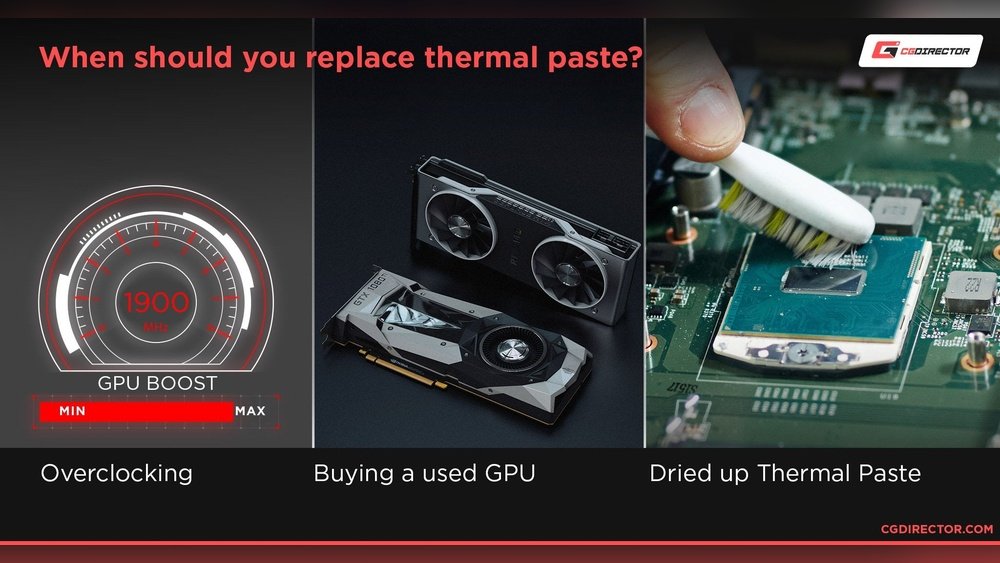
Thermal paste plays a key role in keeping your GPU cool. It sits between the GPU chip and the heat sink. This paste helps move heat away from the chip. Over time, thermal paste can dry out. This makes it less effective. Good maintenance keeps your GPU running at safe temperatures.
Cleaning dust build-up is also important. Dust blocks airflow and traps heat. Regular cleaning helps your GPU cool better. Both thermal paste and dust affect GPU temperature. Taking care of these parts lowers the risk of overheating.
When To Replace Thermal Paste
Thermal paste should be replaced every 2 to 3 years. It dries and loses its ability to transfer heat. Signs of old thermal paste include high temperatures and loud fan noise. If your GPU runs hotter than usual, check the paste. Replacing it can improve cooling and extend GPU life.
Cleaning Dust Build-up
Dust can gather inside your GPU and case. It blocks air vents and fans. Use compressed air to blow out dust every few months. Avoid using a vacuum, as it can damage components. Cleaning helps the GPU stay cool and run smoothly. Regular dust removal prevents overheating issues.
Monitoring Gpu Temperatures
Keeping an eye on GPU temperature helps protect your computer. High temperatures can cause slowdowns or damage. Monitoring lets you act before problems start. It keeps your system safe and running well.
Best Software Tools
Many tools show GPU temperature clearly. MSI Afterburner is popular and easy to use. GPU-Z gives detailed info about your graphics card. HWMonitor tracks temperatures and other system stats. These apps help you watch your GPU’s heat in real time.
Setting Temperature Alerts
Temperature alerts warn you if your GPU gets too hot. You can set alerts in some software tools. This stops damage by telling you to cool down the GPU. Alerts keep your computer safe without watching it all the time.
Overclocking And Heat
Overclocking a GPU means running it faster than its factory settings. This boosts performance but also raises the heat it produces. Heat is a big concern because it can damage parts and reduce lifespan. Managing heat is key for safe and effective overclocking.
Balancing Performance And Temps
Overclocking increases speed and heat output. Higher temperatures can cause the GPU to slow down or shut off. Fans and cooling systems help control heat. Finding the right balance keeps the GPU fast and cool. Watch temperatures closely while testing new speeds. Stop if heat gets too high.
Safe Overclocking Practices
Start with small speed increases. Check temperature after each change. Use reliable software to monitor GPU health. Keep the GPU clean and dust-free. Improve case airflow to lower temps. Avoid pushing the GPU beyond safe limits. Staying cautious protects your hardware and ensures steady performance.

Credit: craigndave.org
Credit: www.servermania.com
Frequently Asked Questions
How Hot Can A Gpu Safely Get?
A GPU can safely reach temperatures between 70°C and 85°C. Beyond 85°C, performance may throttle to prevent damage. Modern GPUs have built-in thermal limits around 90°C to 100°C to avoid overheating and hardware failure.
What Happens If My Gpu Gets Too Hot?
Excessive GPU heat causes thermal throttling, reducing performance to cool down. Prolonged overheating can damage GPU components and shorten its lifespan. It may also cause system crashes or shutdowns to protect hardware.
How Can I Monitor My Gpu Temperature?
You can monitor GPU temperature using software like MSI Afterburner, HWMonitor, or GPU-Z. These tools provide real-time temperature readings and help track GPU performance and cooling efficiency during gaming or heavy workloads.
What Temperature Is Too High For Gaming Gpus?
For gaming GPUs, temperatures above 85°C are generally considered high. Sustained temps over 90°C can trigger throttling and reduce performance. Good cooling solutions help maintain optimal temperatures below 80°C during gaming sessions.
Conclusion
GPUs can get very hot during heavy use. Keeping them cool helps them work better and last longer. Watch your GPU temperature regularly. Use good cooling systems like fans or liquid coolers. Avoid blocking air vents and keep your PC clean.
High temperatures can cause slowdowns or damage. Knowing how hot your GPU gets helps you protect it. Stay aware and take simple steps to keep your GPU safe. Your computer will thank you with better performance and reliability.
