
Is your computer acting slow or your games not running smoothly? You might be wondering, “How do I know if my GPU is working?”
Your GPU, or graphics processing unit, plays a key role in how well your computer handles images, videos, and games. If it’s not working properly, you could face frustrating glitches, crashes, or poor performance. You’ll discover simple and clear ways to check if your GPU is doing its job.
By the end, you’ll know exactly how to spot problems and keep your system running at its best. Keep reading—you don’t want to miss these easy tips that can save you time and money!

Credit: superuser.com
Signs Of A Working Gpu
Knowing if your GPU works is important for smooth computer use. The GPU handles all images and videos on your screen. Signs of a working GPU help you spot problems early. Check for clear visuals, smooth game play, and proper driver updates. These signs show your GPU is doing its job well.
Visual Display Check
Look at your screen for clear and sharp images. Flickering, lines, or black screens may show GPU problems. A working GPU displays colors correctly and without distortion. Test with different programs to see if visuals stay consistent. A stable display means your GPU processes images properly.
Performance In Games
Games need strong GPU power to run smoothly. Watch for lag, stuttering, or low frame rates. Good GPU performance means games run without freezing or crashes. Play a game at medium settings to test your GPU. If gameplay feels smooth, your GPU is working well.
Driver Status
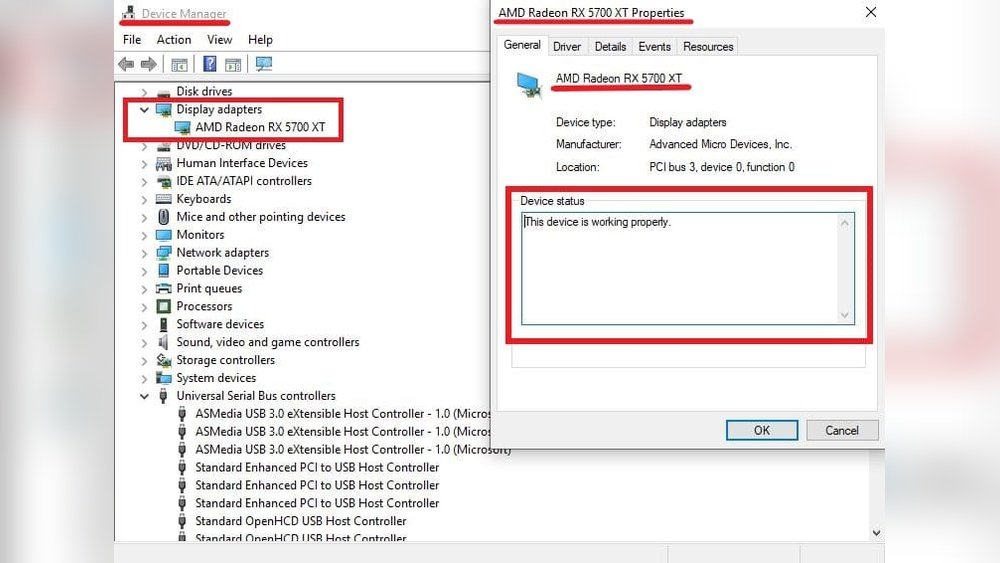
Drivers connect your GPU to your computer system. Check if the GPU drivers are up to date and installed correctly. Outdated or missing drivers cause crashes and poor performance. Use device manager or software tools to verify driver status. Proper drivers keep your GPU functioning properly.
Quick Software Tests
Quick software tests help you check if your GPU works properly. These tests show how your GPU handles tasks in real time. You do not need special tools or skills. Just use built-in software or free apps. This way, you can spot problems early and keep your system safe.
Using Task Manager
Task Manager shows if your GPU is active. Open it by pressing Ctrl + Shift + Esc. Go to the Performance tab and select GPU. You will see GPU usage and memory use. High usage means your GPU is working. If it stays at zero, something might be wrong.
Running Benchmark Tools
Benchmark tools test GPU speed and power. Download free apps like 3DMark or Unigine Heaven. Run the test to see scores and graphics quality. Scores lower than usual could signal a problem. These tests help compare your GPU’s health over time.
Checking Gpu Temperature
GPU temperature tells if it runs too hot. Use software like HWMonitor or MSI Afterburner. Normal temperatures range from 30°C to 70°C. High temperatures above 85°C can cause damage. Watch the temperature during heavy use to avoid overheating.
Hardware Inspection
Hardware inspection helps to check if the GPU works properly. It is the first step to find any physical issues. This check can save time before testing software or drivers. Simple observations can reveal many common problems.
Physical Connection Check
Look at the GPU inside the computer case. Make sure it fits tightly in its slot. A loose connection can cause the GPU to stop working. Check the cable connections from the GPU to the monitor. These cables must be plugged in firmly. Any dust or dirt can block the connection. Clean the ports gently if needed.
Power Supply Verification
The GPU needs power to run. Check if the power cables from the power supply unit (PSU) reach the GPU. These cables usually have a 6 or 8-pin connector. Make sure they are plugged in securely. Without power, the GPU cannot start. Check the PSU wattage matches the GPU needs. Low power can cause the GPU to fail.
Fan Operation
The GPU has fans to keep it cool. Check if the fans spin when the computer is on. Fans not spinning means the GPU may overheat. Overheating can cause the GPU to stop working. Listen for any strange noises from the fans. Dust build-up can block fans. Clean fans carefully to improve airflow.
Troubleshooting Common Issues
Troubleshooting common GPU issues helps you understand if your graphics card works right. Problems with your GPU can cause display errors and slow performance. Knowing how to spot these issues saves time and frustration. Below are some common problems and how to check them.
No Display Output
No display means your monitor stays blank after you turn on the PC. First, check if the monitor cable is plugged in correctly. Try a different cable or port to rule out connection issues. If the screen stays black, the GPU might not be seated properly in its slot. Remove and reinstall the card carefully. Also, test the GPU in another computer if possible. This confirms if the GPU is the problem.
Artifacting And Glitches
Artifacting shows as strange lines, colors, or shapes on your screen. These glitches often mean the GPU is overheating or has driver problems. Clean dust from the GPU fans and heatsink to improve cooling. Update your graphics drivers from the official website for best results. Lower your GPU’s clock speed if overheating continues. Persistent artifacting may mean the GPU is damaged and needs repair.
System Crashes And Freezes
Crashes or freezes during games or heavy tasks can point to GPU problems. Check your system’s temperature using monitoring software. High temperatures cause instability. Make sure your power supply provides enough wattage for your GPU. Faulty or outdated drivers also cause crashes. Install the latest drivers and run stress tests to identify faults. If issues persist, consider testing your GPU on another PC.
Tips For Maintaining Gpu Health
Maintaining your GPU’s health helps it run smoothly and last longer. Simple care steps prevent problems and keep performance steady. Follow these tips to protect your graphics card from damage and slowdowns.
Regular Driver Updates
Keep your GPU drivers up to date. New drivers fix bugs and improve speed. Check the manufacturer’s website or use update software. Updated drivers help games and apps run better.
Proper Cooling Solutions
Good cooling stops your GPU from overheating. Use case fans and a quality GPU cooler. Avoid blocking vents or airflow inside your computer. Cooler GPUs work more efficiently and last longer.
Cleaning And Dust Removal
Dust buildup can harm your GPU’s performance. Clean fans and heatsinks often using compressed air. Turn off and unplug your PC before cleaning. Regular dust removal keeps your GPU cool and stable.

Credit: softwareg.com.au

Credit: www.youtube.com
Frequently Asked Questions
How Can I Check If My Gpu Is Functioning Correctly?
You can check GPU functionality by monitoring performance in games or benchmarks. Use tools like GPU-Z or MSI Afterburner to track temperature and usage. If visuals display correctly and no crashes occur, your GPU is likely working fine.
What Are Signs My Gpu Might Be Failing?
Common signs include screen artifacts, crashes, driver errors, or system freezes during graphics tasks. Overheating and noisy fans can also indicate problems. If you notice these issues, further GPU diagnostics or repairs may be necessary.
How Do I Test My Gpu Performance Effectively?
Run benchmarking software like 3DMark or Unigine Heaven to evaluate GPU performance. These tests stress your GPU and provide scores to compare against similar models. Consistent performance with stable temperatures means your GPU is working well.
Can Device Manager Tell If My Gpu Works?
Device Manager shows if your GPU is recognized and drivers are installed. A yellow warning icon indicates issues. However, it does not fully assess GPU performance or health, so additional tests are recommended.
Conclusion
Knowing if your GPU works saves time and frustration. Watch for screen glitches, slow performance, or crashes. Use simple tests and software to check it. Listen for unusual fan noise or overheating signs. Keep your drivers updated for smooth operation.
Regular checks keep your system running well. Trust your observations and run easy diagnostics. This helps catch problems early and keeps games or work smooth. Your GPU’s health matters for good computer use.
