
Are you curious about your computer’s GPU but don’t know where to start? Finding your GPU might seem tricky, but it’s easier than you think.
Knowing your GPU helps you understand your computer’s power and what games or programs it can handle. Whether you want to upgrade, troubleshoot, or just learn more about your system, this guide will show you simple steps to find your GPU quickly.
Keep reading, and by the end, you’ll know exactly how to check your GPU without any hassle.
Check System Settings
Checking your system settings is a simple way to find your GPU. Your computer stores detailed information about its hardware. This includes the graphics card or GPU. You can access this data without extra software. Just use built-in tools on your device. These tools show the exact model and specifications of your GPU.
Using Windows Device Manager
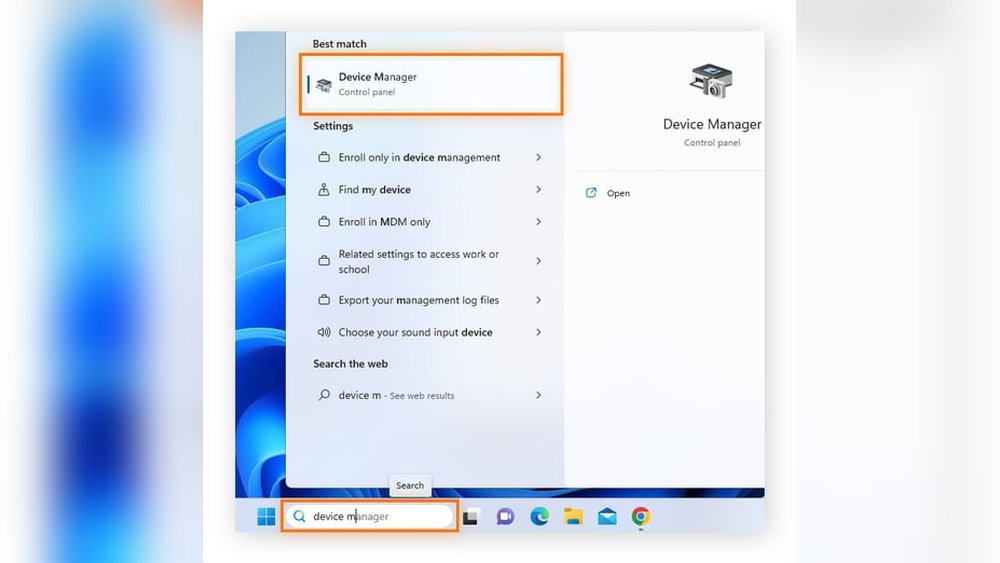
Open the Start menu and type “Device Manager.” Click the Device Manager app to open it. Find the section called “Display adapters.” Click the arrow next to it. You will see the name of your GPU listed there. This shows the graphics card installed on your Windows PC. You can right-click the name and select “Properties” for more details.
Accessing Mac System Report
Click the Apple logo in the top-left corner of your screen. Select “About This Mac” from the dropdown menu. A window will open showing your Mac’s overview. Click the “System Report” button. In the new window, find and click “Graphics/Displays” on the left panel. Your Mac’s GPU information will appear on the right side. This includes the GPU model and VRAM size.

Credit: www.canellimare.com
Use Command Line Tools
Finding your GPU using command line tools is fast and clear. These tools work without extra software. You just type a command and get the info. This method suits people who like using the keyboard.
Command line tools give detailed info about your system. They help identify the exact model of your GPU. This can be useful for troubleshooting or upgrading your system.
Windows Command Prompt
Open the Command Prompt by typing “cmd” in the search bar. Then, enter the command wmic path win32_VideoController get name. Press Enter. You will see the name of your GPU displayed. This command reads the system info directly.
Another option is to use dxdiag. Type it and press Enter. In the window that opens, go to the Display tab. It shows the GPU name and manufacturer clearly.
Mac Terminal Commands
Open Terminal from Applications > Utilities. Type system_profiler SPDisplaysDataType. Press Enter. This command lists detailed GPU information. You will see the model and VRAM size.
Alternatively, use ioreg -l | grep -i display. It filters GPU details from system info. This method is quick and effective for Mac users.
Third-party Software Options
Third-party software offers a simple way to find your GPU. These tools scan your system and show detailed information. They work on most Windows PCs and give more data than built-in options. Using these programs helps you learn about your graphics card quickly and easily.
Popular Gpu Detection Tools
Several well-known programs help identify your GPU. GPU-Z is a favorite for its clear details and easy use. Speccy shows full system info, including the graphics card. HWMonitor tracks hardware status and includes GPU data. These tools are free and safe to download.
How To Interpret Results
After running a tool, you will see GPU name and model. Look for terms like “GPU Clock,” “Memory Size,” and “Driver Version.” These explain your card’s speed and capability. Some tools also show temperature and power use. Understanding these helps you know your GPU’s condition and performance.

Credit: au.pcmag.com
Identify Gpu Physically
Identifying your GPU physically helps you know its exact model. This is useful for upgrades or troubleshooting. You can see the GPU inside your computer. It may look complex, but the steps are simple. Follow the guide below to find your GPU safely.
Opening Your Computer Case
Turn off your computer and unplug all cables. Place it on a clean, flat surface. Remove the screws or latches on the side panel. Slide or lift the panel gently to open the case. Be careful not to touch any parts inside. Ground yourself to avoid static damage. Now, you can see the inside of your computer.
Locating Gpu Model Number
Look for a large card attached to the motherboard. It is usually near the back of the case. The GPU has one or more fans on it. Check for a sticker or label on the card. The model number is printed there. It may start with letters like “GTX,” “RTX,” or “RX.” Write down the model number for reference. This helps you find details about your GPU later.
Check Laptop Specifications
Checking your laptop specifications is a simple way to find out which GPU it has. This method shows clear and reliable details about your hardware. It helps you know the exact model of your graphics card without extra tools.
Manufacturer’s Website
Visit the laptop brand’s official website. Find the support or product page. Enter your laptop’s model number. The site will display full specifications. Look for the graphics or GPU section. This shows the exact GPU model inside your laptop. It is a trusted source for accurate information.
Using System Information Apps
Use built-in system tools or free apps to check your GPU. On Windows, open “System Information” or “DirectX Diagnostic Tool”. These apps list detailed hardware data. Look under the display or graphics section. On Mac, use “About This Mac” and click “System Report”. Third-party apps like GPU-Z also provide clear GPU details. These tools offer quick and easy access to your laptop’s GPU info.

Credit: nvidia.custhelp.com
Frequently Asked Questions
How Do I Check My Gpu On Windows 10?
Open Task Manager by pressing Ctrl + Shift + Esc. Go to the Performance tab and select GPU. Here, you can see your GPU model and usage details instantly.
Where Can I Find My Gpu Info On Mac?
Click the Apple menu, then About This Mac. Under the Overview tab, you will find your GPU listed next to Graphics.
How To Identify Gpu Using Command Prompt?
Open Command Prompt and type “wmic path win32_videocontroller get name”. Press Enter, and your GPU name will be displayed clearly.
Can I Check My Gpu Through Device Manager?
Yes, open Device Manager, expand Display adapters, and your GPU model will be listed beneath this section.
Conclusion
Finding your GPU is easier than you think. Use simple tools on your computer. Check system settings or use free software. Knowing your GPU helps with games and apps. It guides you to choose the right updates. Take a few minutes to find it today.
Understanding your device makes tech less confusing. Keep this guide handy whenever you need it.
