
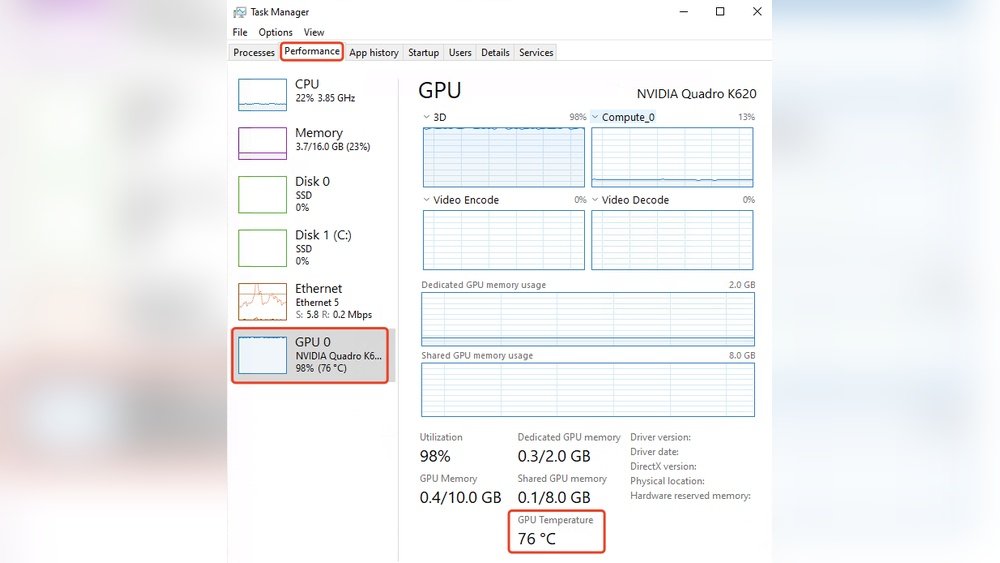
Wondering how to check your GPU temperature quickly and easily? Keeping an eye on your GPU temp is crucial for making sure your computer runs smoothly and avoids overheating.
If you don’t know how to do this yet, don’t worry—you’re about to learn simple steps that anyone can follow. By the end of this article, you’ll have the confidence to monitor your GPU’s health like a pro, preventing crashes and boosting performance.
Ready to protect your hardware and get the most out of your system? Let’s dive in.
Credit: www.sietesetenta.com.ar
Why Monitor Gpu Temperature
Checking your GPU temperature is very important. It helps protect your computer from damage. Your graphics card works hard, and heat builds up fast. Watching the temperature keeps your system safe and stable.
Ignoring GPU heat can cause serious problems. You might lose performance or even break your hardware. Staying aware of temperature helps you avoid these risks and keep your PC running smoothly.
Risks Of Overheating
Too much heat can cause your GPU to fail. Overheating may lead to crashes and sudden shutdowns. It can also damage the GPU chip and other parts. Heat can make your computer unsafe to use.
Impact On Performance
High temperatures slow down your GPU. It lowers the speed to cool itself, hurting your games or apps. Overheated GPUs cause lag and poor graphics quality. Keeping the temperature low keeps your PC fast.
Longevity Of Hardware
Heat wears out your GPU faster over time. Constant high temperatures reduce the life of your card. Monitoring the heat helps your GPU last longer. Protect your investment by keeping it cool and safe.
Signs Of Gpu Overheating
Knowing the signs of GPU overheating helps protect your computer. Overheating can cause serious damage to your graphics card. It also affects your computer’s performance and stability. Watch for these signs to keep your GPU safe and running well.
System Crashes And Freezes
One common sign of GPU overheating is system crashes. Your computer may suddenly shut down or restart. It can also freeze during games or heavy tasks. These crashes happen because the GPU gets too hot to work properly. Overheating forces the system to protect itself by stopping.
Unusual Fan Noise
Fans try to cool down your GPU by spinning faster. When the GPU temperature rises, fans get louder than usual. You might hear a constant loud buzzing or whirring sound. This noise means the GPU is working hard to stay cool. Ignoring this can lead to more heat and damage.
Visual Artifacts
Visual artifacts show as strange lines, dots, or colors on your screen. These glitches appear during games or video playback. Overheated GPUs struggle to process graphics correctly. Artifacts are a clear warning your GPU is too hot. Acting fast can prevent permanent damage to your card.
Tools To Check Gpu Temperature
Checking your GPU temperature helps keep your computer safe and fast. Overheating can cause slowdowns or damage. Various tools show your GPU temperature in real time. These tools include built-in software, third-party apps, and utilities from GPU makers. Each tool offers unique features for easy monitoring.
Built-in Software Options
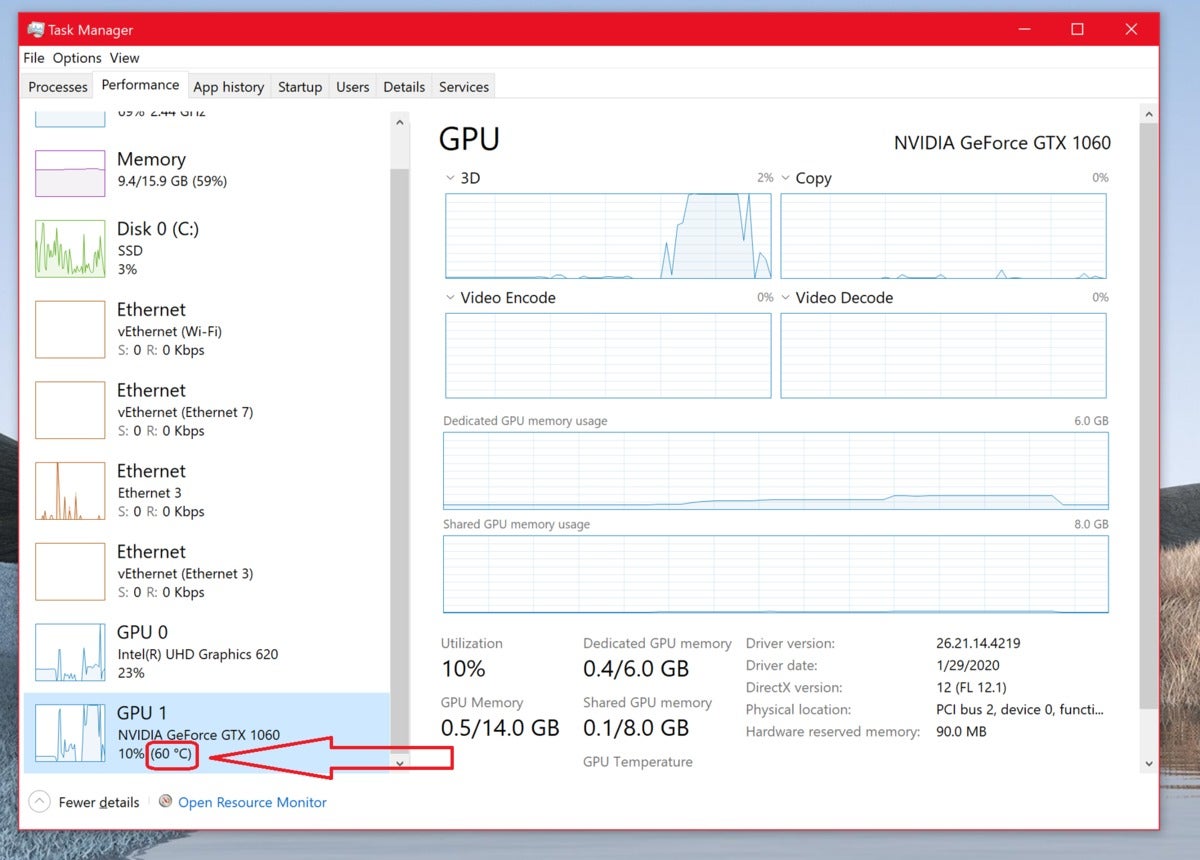
Many computers come with built-in tools to check GPU temperature. Windows users can use Task Manager or DirectX Diagnostic Tool. These tools show basic GPU info and sometimes temperature. Built-in software is easy to use and requires no downloads. It works well for simple temperature checks.
Third-party Applications
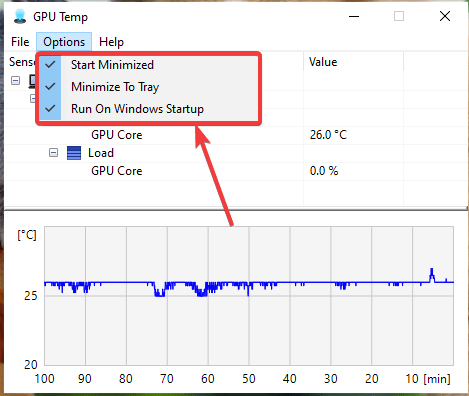
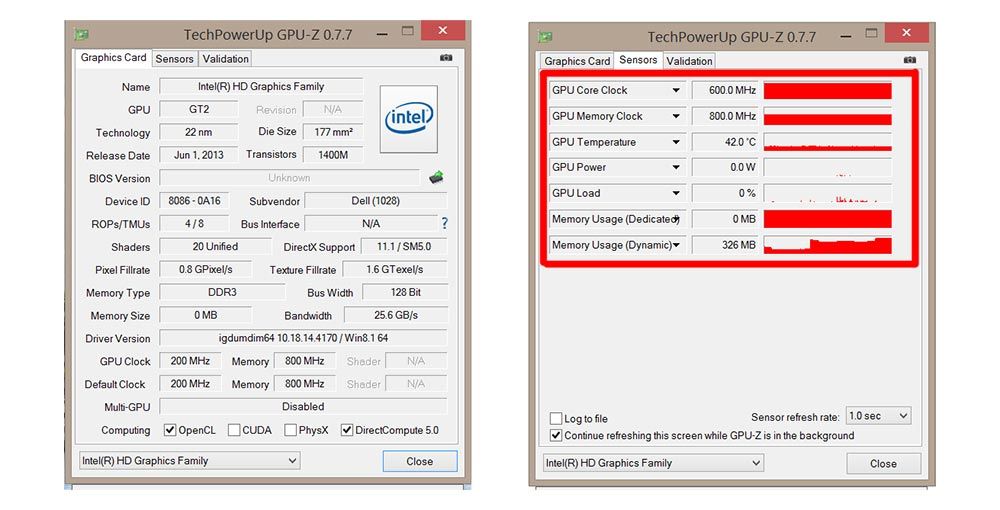
Third-party apps offer detailed GPU temperature tracking. Popular apps include HWMonitor, MSI Afterburner, and GPU-Z. These programs display real-time temperatures and fan speeds. They also log data for later review. Third-party tools are free or low-cost and support many GPU models.
Using Gpu Manufacturer Utilities
GPU makers like NVIDIA and AMD provide their own software. NVIDIA users can try GeForce Experience or NVIDIA Control Panel. AMD offers Radeon Software for temperature monitoring. These utilities optimize performance and monitor GPU health. They show temperature alongside other GPU stats.
Credit: www.readwritesolutions.com
Step-by-step Gpu Temp Checking
Checking your GPU temperature is important to keep your computer running smoothly. High temperatures can cause slowdowns or damage. This step-by-step guide helps you check your GPU temp easily.
Follow these simple steps to find and understand your GPU temperature. You will also learn how to set alerts for high temps. Let’s start.
Accessing Temperature Data
First, you need a tool to see your GPU temperature. Many free apps like MSI Afterburner or HWMonitor work well. Download and install one of these tools.
Open the app and find the GPU section. The temperature is usually shown in Celsius or Fahrenheit. You can check it while gaming or using heavy software.
Interpreting Temperature Readings
Normal GPU temperature ranges from 30°C to 60°C at idle. Under load, it can reach 70°C to 85°C safely. Temperatures above 90°C may cause damage or crashes.
Look for sudden spikes or constant high temps. These signs may need better cooling or cleaning inside your PC.
Setting Temperature Alerts
Many monitoring tools allow you to set alerts for high temperatures. Set a limit around 85°C to be safe. The app will notify you if the GPU gets too hot.
This helps prevent damage by warning you to stop heavy use or check cooling. Alerts keep your GPU safe and your computer stable.
Tips To Prevent Gpu Overheating
Keeping your GPU cool is key to its performance and lifespan. Overheating can cause crashes, slowdowns, and permanent damage. Simple steps can help your GPU stay at a safe temperature.
Improving Airflow
Good airflow moves hot air away from your GPU. Arrange cables neatly to avoid blocking vents. Use cases with multiple fans to push fresh air inside. Position your computer in a place with open space around it.
Regular Cleaning
Dust buildup blocks air and traps heat. Clean your GPU and fans every few months. Use compressed air to blow dust out gently. Keep filters and vents clear to maintain airflow.
Updating Drivers
Updated drivers help your GPU run efficiently. Manufacturers improve fan control and power use in updates. Check for driver updates often and install the latest versions. This can reduce heat during heavy use.
Using Cooling Pads Or Fans
Extra cooling tools lower GPU temperature quickly. Cooling pads work well for laptops. External fans can add airflow for desktops. Place these devices where they can blow air directly onto the GPU.
Credit: hognerdobrasil.com.br
When To Seek Professional Help
Knowing how to check your GPU temperature is useful. Sometimes, the problem goes beyond a simple fix. It is important to know when to seek professional help. This can save your device from serious damage. It also ensures your computer runs smoothly and safely.
Persistent High Temperatures
Some GPUs run hot during heavy use. But if the temperature stays high all the time, it is a concern. Persistent heat can reduce the life of your GPU. It may cause your computer to crash or slow down. A professional can check if the cooling system works well. They can fix or replace parts to stop overheating.
Hardware Malfunctions
Strange noises or sudden shutdowns point to hardware issues. These problems can affect your GPU temperature. Faulty fans or damaged heat sinks are common causes. Professionals have the tools to find these problems fast. They can repair or replace broken parts safely. Trying to fix hardware yourself can cause more damage.
Warranty And Support
Check if your GPU is still under warranty. Many manufacturers offer support for hardware problems. Contacting them can save repair costs. Professionals authorized by the brand provide safe service. They use original parts and keep your warranty valid. Avoid unauthorized repairs to protect your investment.
Frequently Asked Questions
How Can I Check My Gpu Temperature On Windows?
You can check GPU temperature using built-in tools like Task Manager or third-party software such as MSI Afterburner. These tools provide real-time temperature monitoring and detailed GPU stats for better performance tracking.
What Is A Safe Gpu Temperature Range While Gaming?
A safe GPU temperature usually ranges between 65°C to 85°C during gaming. Temperatures above 90°C may cause overheating and potential hardware damage. Always monitor and ensure proper cooling.
Can I Check Gpu Temperature Without Installing Software?
Yes, some GPUs offer temperature monitoring through their dedicated control panels like NVIDIA GeForce Experience or AMD Radeon Software. These tools display temperature without needing third-party apps.
Why Is My Gpu Temperature Suddenly High?
High GPU temperature can be caused by poor airflow, dust buildup, or outdated drivers. Check your cooling system and clean your PC regularly to maintain optimal temperatures.
Conclusion
Checking your GPU temperature helps keep your computer safe. Use simple tools to see how hot your GPU runs. Watch for high numbers that can cause problems. Keep your system cool by cleaning fans and improving airflow. Regular checks stop damage and keep your PC fast.
Stay aware of your GPU’s heat to enjoy smooth performance. It’s easy and important to check often. Your computer will thank you.
