
Are you worried that your GPU might be overheating? Knowing how to check your GPU temperature is crucial to keep your computer running smoothly and avoid damage.
Your graphics card works hard, especially during gaming or heavy tasks, and if it gets too hot, performance can drop or parts can fail. But don’t worry—checking your GPU temp is easier than you think. You’ll learn simple, quick ways to monitor your GPU temperature and keep your system safe.
Keep reading to protect your hardware and boost your computer’s performance!
Why Monitor Gpu Temperature
Monitoring your GPU temperature is important for smooth and safe computer use. The GPU works hard, especially during games or video editing. High temperatures can cause problems. Knowing your GPU temperature helps keep your system in good shape.
Impact On Performance
A hot GPU can slow down your computer. It reduces the speed to cool itself. This drop in speed can make games and programs run poorly. Watching the temperature helps keep your computer fast. It avoids sudden slowdowns and lag.
Preventing Hardware Damage
Too much heat can damage the GPU over time. It may cause parts to wear out or stop working. Checking the temperature helps you avoid this damage. You can fix cooling issues before they hurt your hardware. This keeps your GPU safe and lasts longer.
Credit: www.sietesetenta.com.ar
Signs Of Overheating
Knowing the signs of GPU overheating helps protect your computer. Overheating can cause many problems. Spotting symptoms early can save your hardware and data.
Common Symptoms
Your computer may slow down without reason. The screen might flicker or show strange colors. Unexpected shutdowns or restarts can happen. Fans running loudly and constantly is another sign. Programs may freeze or crash often. These symptoms often point to GPU heat issues.
Potential Risks
Overheating can damage your graphics card permanently. It shortens the GPU’s lifespan significantly. You may lose important files due to crashes. Performance drops make gaming or work frustrating. The whole system can become unstable. Early action can prevent costly repairs.
Tools To Check Gpu Temperature
Checking your GPU temperature helps keep your computer safe and fast. Monitoring temperature prevents overheating and hardware damage. Many tools show GPU temperature clearly and quickly. These tools range from built-in software to third-party apps.
Understanding the options helps pick the right tool. Some are easy to use with no installation. Others provide more details and extra features. Both types help you watch your GPU’s health.
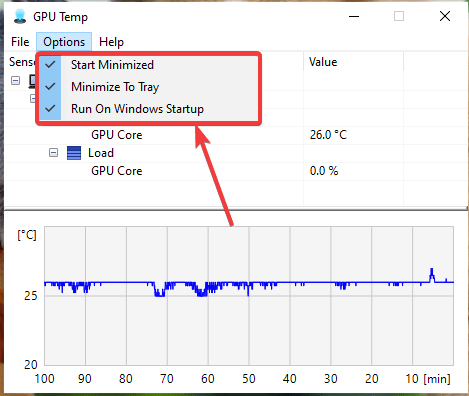
Built-in Software Options
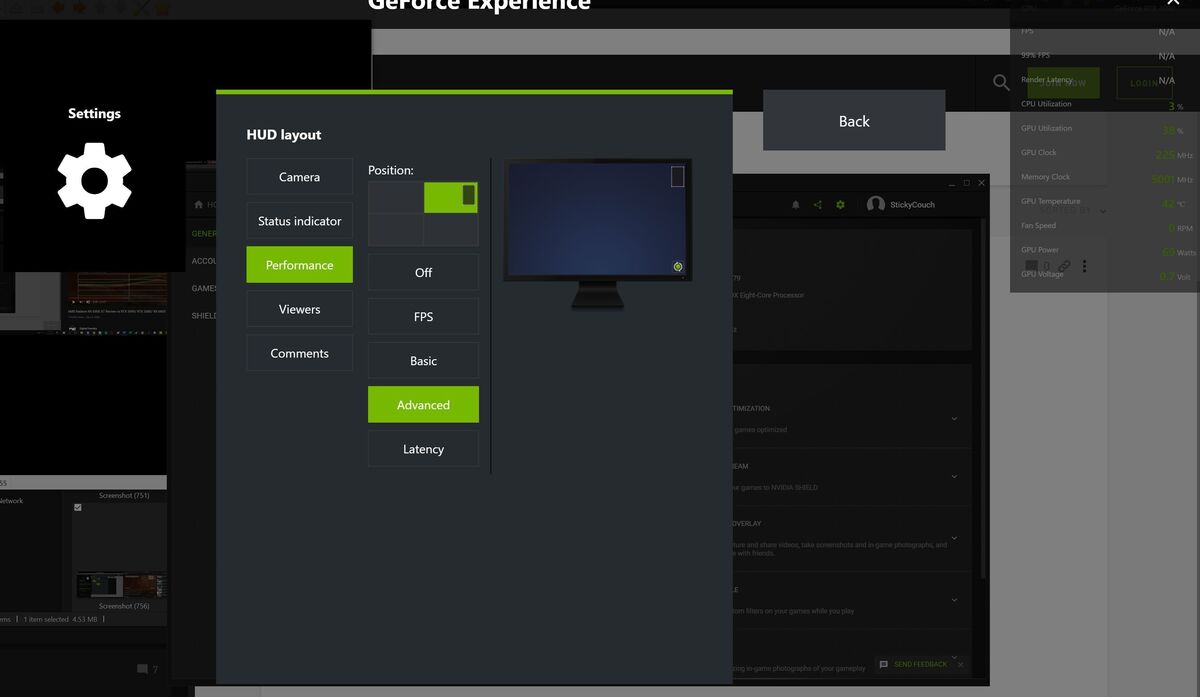
Many graphics cards come with built-in software to check temperature. NVIDIA users can use GeForce Experience. It shows GPU temperature and other key stats. AMD offers Radeon Software with similar features. Both apps run on Windows and are free. These options need no extra downloads or tools. They provide basic temperature monitoring for daily use.
Third-party Applications
Third-party apps give more detailed temperature info. MSI Afterburner is popular for its easy interface. It shows real-time GPU temperature and fan speeds. HWMonitor tracks many hardware sensors including GPU temps. GPU-Z focuses on graphics card details and temperature. These apps work with most GPUs and Windows versions. Many offer free versions with essential features. They help users who want deeper insights into GPU health.
Step-by-step Temperature Check
Checking your GPU temperature is important to keep your computer running smoothly. High temperatures can cause slowdowns or damage. This guide shows you three simple ways to check your GPU temperature step-by-step. Each method uses tools that you may already have or can easily download.
Using Task Manager
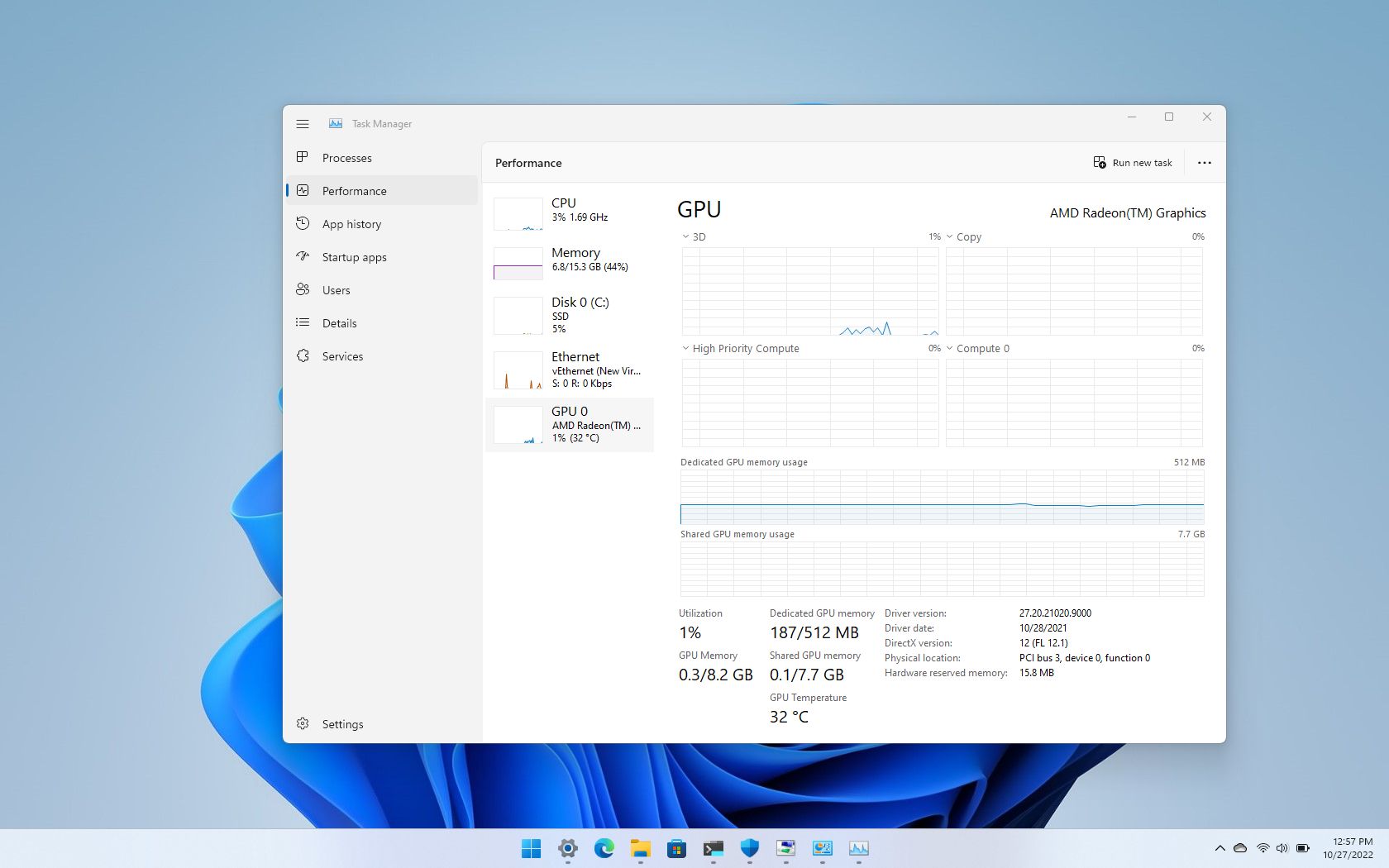
Open Task Manager by pressing Ctrl + Shift + Esc. Click on the “Performance” tab. Select “GPU” from the list on the left side. You will see the GPU temperature displayed here. This method works on Windows 10 and later versions. It is quick and requires no extra software.
Using Gpu Manufacturer Software
Most GPU makers offer free software to monitor your hardware. For NVIDIA cards, download GeForce Experience. For AMD cards, use Radeon Software. Install the program and open it. Look for a section called “Performance” or “Monitoring.” Here, the GPU temperature will be shown in real-time. These tools also offer other useful features like driver updates.
Using Third-party Tools
Many third-party programs show GPU temperature clearly. Popular options include HWMonitor, MSI Afterburner, and GPU-Z. Download and install one of these tools. Open the program and find the GPU section. You will see the temperature alongside other stats. These tools are free and offer detailed information about your GPU.
Safe Temperature Ranges
Knowing the safe temperature ranges for your GPU helps keep it working well. Too hot or too cold can cause problems. Checking these limits protects your hardware and improves performance. Below are the common temperature ranges for idle and load states.
Idle Temperature Limits
Idle temperature means your GPU is not working hard. Most GPUs stay between 30°C and 45°C when idle. Temperatures below 30°C are very good. If your GPU is above 50°C while idle, it may have cooling issues.
Load Temperature Limits
Load temperature occurs when your GPU runs games or heavy software. Safe load temperatures usually range from 65°C to 85°C. Some GPUs can handle up to 90°C safely. Going above 90°C often causes overheating and slows down the GPU.
Credit: www.sietesetenta.com.ar
Tips To Keep Gpu Cool
Keeping your GPU cool helps it work better and last longer. High temperatures can slow down your computer and cause problems. Simple steps can reduce heat and protect your GPU. Here are some easy tips to keep your GPU running at a safe temperature.
Improving Airflow
Good airflow in your computer case moves hot air out and brings cool air in. Keep cables tidy to avoid blocking air paths. Use cases with fans or vents to help air flow. Place your PC in a spot with open space around it. Avoid putting it in a closed cabinet or near heat sources.
Cleaning And Maintenance
Dust builds up on fans and heatsinks, trapping heat. Turn off your PC and unplug it before cleaning. Use a soft brush or compressed air to remove dust gently. Clean your GPU fans and vents regularly. This keeps air moving and lowers temperatures.
Adjusting Fan Speeds
GPU fans control the heat by spinning faster or slower. Use software to check and change fan speeds. Set fans to spin faster when temperatures rise. This helps cool your GPU quickly. Avoid very loud fan settings by finding a balance between noise and cooling.
When To Seek Professional Help
Knowing how to check your GPU temperature is useful. Sometimes, the problem goes beyond simple fixes. At certain points, professional help becomes necessary. Ignoring signs can lead to bigger issues and costly repairs.
Persistent Overheating Issues
Overheating that happens again and again needs attention. If your GPU runs hot despite cleaning and good airflow, it is a warning. The cooling system might be failing or the thermal paste may have dried out. Professionals can properly diagnose and fix these problems. Trying to fix persistent overheating on your own can cause more damage.
Hardware Replacement Signs
Unusual noises, frequent crashes, or graphic glitches signal hardware trouble. These are signs that your GPU may need replacement parts. A professional can check if parts like fans or the whole GPU need changing. Replacing hardware without the right tools or knowledge can void warranties or damage the device.
Credit: www.blizanovy.cz
Frequently Asked Questions
How Do I Check My Gpu Temperature On Windows?
You can check GPU temperature on Windows using built-in tools like Task Manager or third-party apps like MSI Afterburner. These tools display real-time GPU temperature and performance data. Monitoring helps prevent overheating and ensures optimal GPU performance during gaming or heavy tasks.
What Is A Safe Gpu Temperature Range?
A safe GPU temperature typically ranges between 30°C and 85°C. Temperatures above 85°C may cause overheating and damage. Ideal temps vary by GPU model, but keeping it under 80°C during heavy use is generally recommended to maintain hardware longevity and performance.
Can I Check Gpu Temperature Without Software?
You cannot check GPU temperature without software on most systems. The GPU temperature sensor requires software to read and display data. Using tools like GPU-Z or HWMonitor is necessary to access accurate temperature readings and monitor your GPU health effectively.
Why Is Monitoring Gpu Temperature Important?
Monitoring GPU temperature prevents overheating, which can cause crashes or hardware damage. It helps optimize performance by adjusting fan speeds or workload. Regular checks ensure your GPU runs efficiently, extending its lifespan and preventing costly repairs or replacements due to thermal issues.
Conclusion
Checking your GPU temperature helps keep your computer safe. It shows if your GPU runs too hot. You can use simple tools to check the temp anytime. Watching the temperature stops damage and keeps your GPU fast. Remember to check often, especially during heavy use.
Stay aware, and your GPU will last longer. It’s a small step for better computer health. Keep your system cool and running smooth.
