
Is your GPU heating up too much every time you dive into a gaming session? Overheating can slow down your performance, cause crashes, or even damage your graphics card over time.
But don’t worry—there are simple steps you can take right now to cool things down and keep your games running smoothly. You’ll discover easy and effective ways to fix GPU overheating during gaming. Keep reading to protect your gear and enjoy uninterrupted gameplay like a pro.
Credit: lepaystchad.com
Causes Of Gpu Overheating
GPU overheating is a common problem during gaming sessions. Understanding the main causes helps prevent damage and improve performance. Several factors can raise the temperature of your graphics card quickly. Knowing these causes allows you to take the right steps to fix the issue.
High Graphics Settings
Setting graphics too high puts extra strain on the GPU. It forces the card to work harder to render detailed images. This increases heat output, which can cause the GPU to overheat if cooling is insufficient.
Poor Airflow
Good airflow inside the PC case is vital. Without it, hot air stays trapped around the GPU. This traps heat and raises the card’s temperature quickly during gaming.
Dust Buildup
Dust collects on fans and heatsinks over time. This blocks airflow and reduces cooling efficiency. Dust buildup makes it harder for the GPU to stay cool under load.
Faulty Cooling System
Broken or inefficient fans and thermal paste cause poor heat transfer. A faulty cooling system cannot remove heat fast enough. This leads to rising GPU temperatures and possible overheating.
Overclocking Risks
Overclocking increases GPU speed beyond normal limits. This creates more heat than the cooling system can handle. Overclocking without proper cooling often results in overheating problems.
Signs Of Overheating
Overheating is a common problem for GPUs during gaming sessions. It can cause damage if not noticed early. Recognizing the signs of overheating helps protect your hardware and keeps your games running smoothly.
These signs show your GPU is too hot and needs attention. Watch out for changes in performance, strange noises, or screen problems. Acting fast can prevent serious damage.
Performance Drops
Your game may slow down or lag suddenly. Frame rates drop without reason. This happens because the GPU reduces speed to cool down. It tries to protect itself from heat damage.
Unexpected Shutdowns
The computer or game may close by itself. This is a safety feature to stop damage. Overheating causes the system to shut down quickly. It’s a clear sign that your GPU is too hot.
Visual Artifacts
Strange lines, dots, or colors may appear on the screen. Graphics look broken or distorted. These visual glitches show the GPU is struggling. Overheating can cause these problems during gameplay.
Loud Fan Noise
The GPU fan may spin loudly and fast. This means it is working hard to cool down. Constant loud noise can indicate high temperatures. Your GPU is trying to fight the heat.
Immediate Cooling Steps
GPU overheating during gaming can cause serious problems. Acting fast helps prevent damage. Immediate cooling steps lower the temperature. These steps keep your game running smoothly and your GPU safe.
Lower Graphics Settings
Reducing graphics settings decreases GPU workload. Lower resolution and turn off effects like shadows or reflections. This reduces heat generation and helps the GPU cool faster.
Pause And Let Gpu Cool
Stop gaming for a few minutes. Let the GPU rest and cool down naturally. Avoid closing the game abruptly; just pause and wait. This simple step prevents further heat buildup.
Improve Room Ventilation
Good airflow helps cool your GPU. Open windows or use a fan to circulate air. Avoid gaming in small, closed rooms. Cooler air around your PC lowers GPU temperature quickly.
Cleaning And Maintenance
Cleaning and maintaining your GPU is key to prevent overheating. Dust and dirt block airflow and raise temperatures. Regular care helps your GPU run cooler and last longer.
Remove Dust From Fans
Fans collect dust over time. Use a soft brush or compressed air to clean them. Hold the fan still while cleaning to avoid damage. Clean fans spin better and cool more effectively.
Clean Air Vents
Air vents allow heat to escape. Dust buildup blocks these vents and traps heat inside. Use a can of compressed air to blow dust out of vents. Keep vents clear to improve airflow and lower GPU temperature.
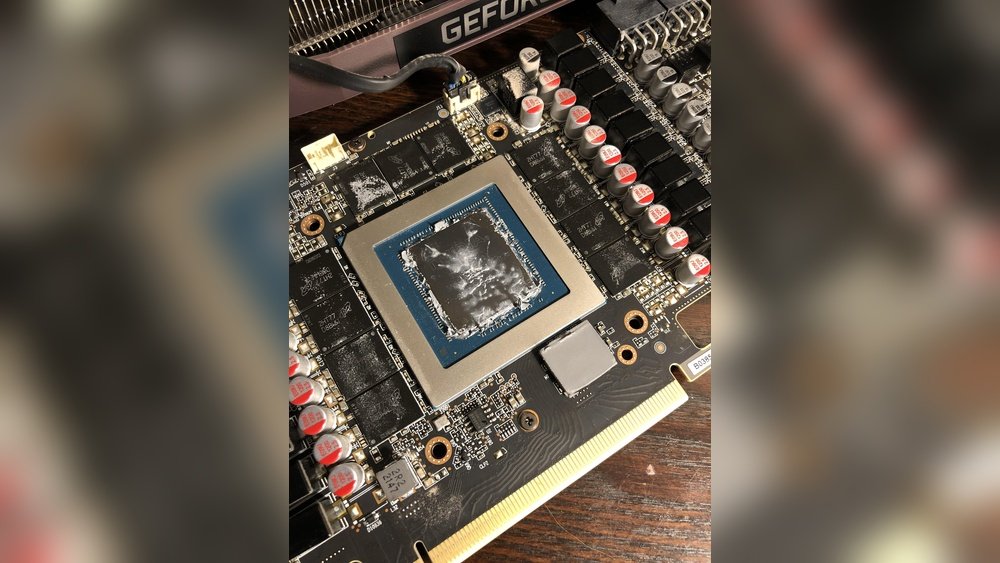
Reapply Thermal Paste
Thermal paste helps transfer heat from the GPU chip to the cooler. Over time, paste dries and loses effectiveness. Remove the old paste carefully with alcohol and a soft cloth. Apply a thin layer of new thermal paste for better heat transfer.
Upgrading Cooling Solutions
Upgrading cooling solutions is a key step to stop your GPU from overheating during gaming. Better cooling helps keep the GPU temperature low. This improves performance and extends the life of your graphics card.
There are several ways to upgrade your cooling system. Some options are easy and affordable. Others need more effort but offer stronger cooling power. Choose the best fit for your setup and budget.
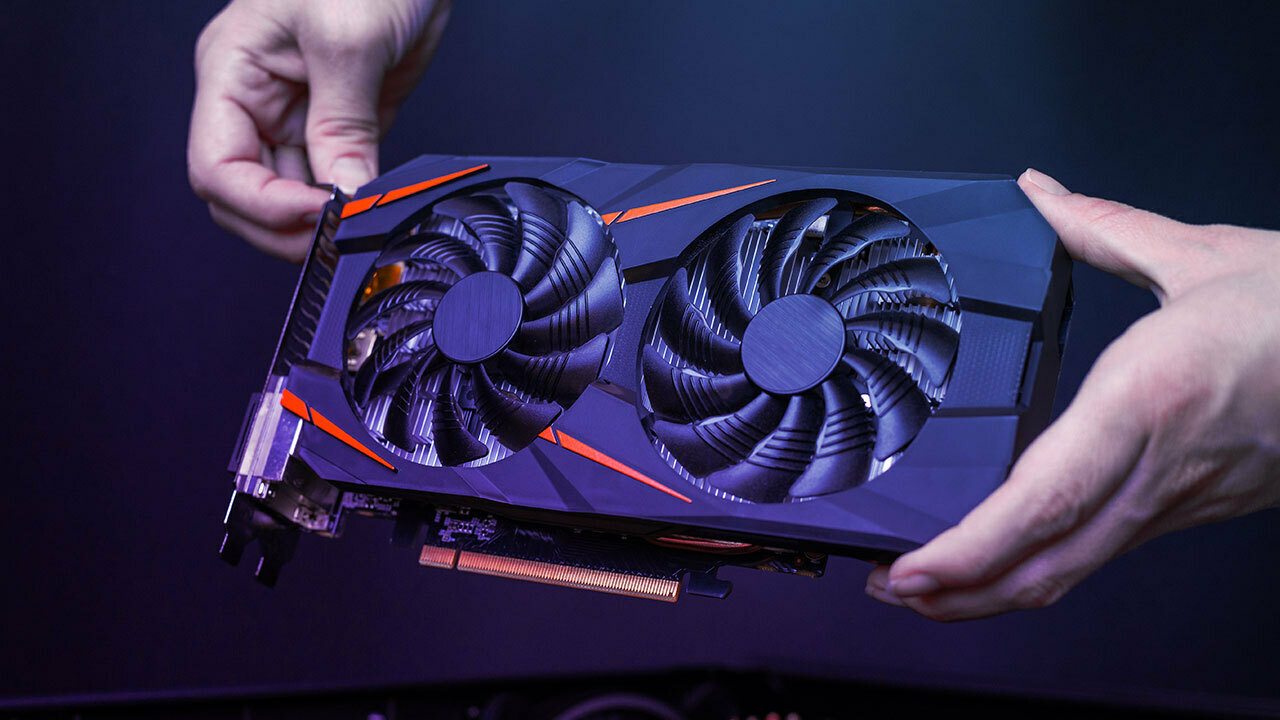
Install Better Fans
Stock fans may not cool well under heavy gaming. Installing better fans improves airflow inside your PC case. Larger fans move more air with less noise. Look for fans designed for high airflow and quiet operation. Place them to create a smooth path for hot air to exit your case.
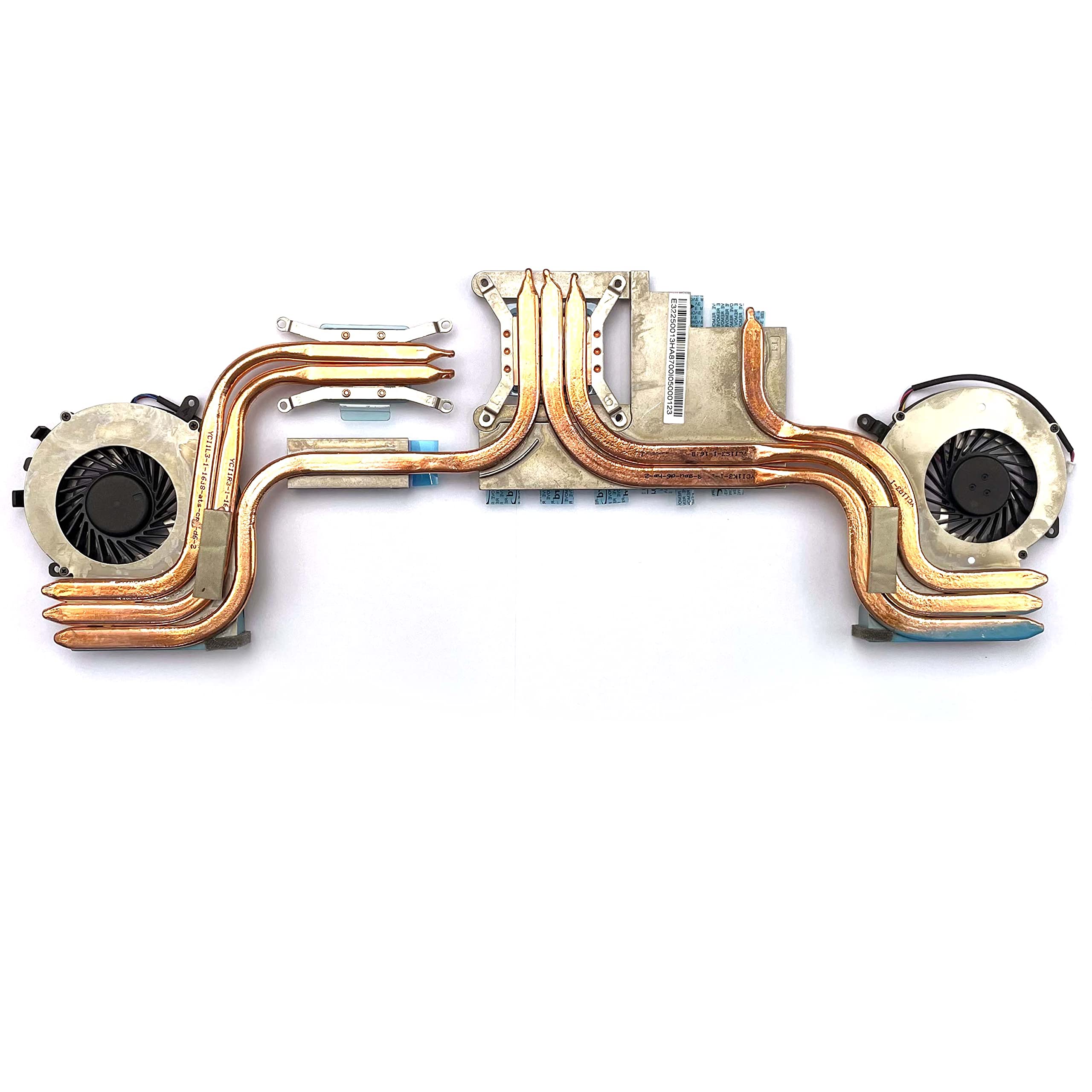
Use Aftermarket Coolers
Aftermarket coolers replace your GPU’s original cooler. They often have bigger heatsinks and more fans. This helps spread heat away from the GPU faster. Some coolers cover more parts of the card for better cooling. Make sure the cooler you pick fits your GPU model.
Consider Liquid Cooling
Liquid cooling offers strong heat removal. It uses liquid to carry heat away from the GPU. This keeps your GPU cooler than air coolers. Liquid coolers can be custom loops or all-in-one units. They are quieter and can lower temperatures significantly. Installation needs care and some experience.

Credit: www.reddit.com
Optimizing System Settings
Optimizing system settings helps keep your GPU cool during gaming. Proper adjustments can reduce heat and improve performance. These settings control how your graphics card works under stress. Simple changes can lower the temperature and prevent damage.
Adjust Fan Curves
Fan curves control the speed of your GPU fans based on temperature. Setting a more aggressive fan curve boosts fan speed early. This keeps the GPU cooler before it gets too hot. Use software like MSI Afterburner to customize fan curves. Faster fans mean more airflow and better cooling.
Limit Frame Rates
High frame rates push the GPU hard, creating more heat. Limiting frame rates reduces workload and lowers temperature. Set a cap close to your monitor’s refresh rate. This prevents the GPU from working harder than needed. Frame limiting saves power and keeps games smooth.
Avoid Aggressive Overclocking
Overclocking raises GPU speed but creates extra heat. Aggressive overclocking can cause overheating and crashes. Keep overclock settings mild for safer temperatures. Test stability after small changes. Balanced overclocking improves speed without excessive heat.
Monitoring Tools For Gpu Temps
Keeping an eye on your GPU temperature helps prevent overheating during gaming. Monitoring tools show real-time temps and performance. These tools help you act before your GPU gets too hot. Knowing your GPU temperature is key to safe gaming and longer hardware life.
Popular Software Options
Many software programs track GPU temperatures. MSI Afterburner is a common choice for gamers. It shows temps, fan speed, and GPU usage. HWMonitor displays detailed hardware info, including temps. GPU-Z focuses on your graphics card’s status. These programs run in the background while you play.
Setting Temperature Alerts
Some tools allow you to set temperature warnings. Alerts notify you if the GPU gets too hot. This gives you time to pause or cool down your PC. Setting alerts at 80°C or 85°C is a good start. You avoid damage by stopping gaming before temps rise too high.
Interpreting Temp Readings
Normal GPU temps during gaming range from 60°C to 80°C. Temps above 85°C may cause performance drops or crashes. Lower temps mean your cooling system works well. Watch for sudden spikes or constant high temps. These signs suggest cleaning or better cooling is needed.
When To Seek Professional Help
Sometimes, GPU overheating cannot be fixed with simple home methods. Professional help becomes necessary to avoid damage. Knowing when to seek expert support saves time and cost. It also protects your gaming setup from further problems.
Persistent Overheating Issues
If your GPU keeps overheating despite cleaning and improving airflow, call a professional. Persistent heat may signal deeper problems inside the card. Experts can run detailed tests to find hidden faults. They can check the thermal paste and fan condition accurately. This avoids guesswork and ensures the right fix.
Hardware Replacement Options
Some overheating issues need hardware replacement. Professionals can tell if the GPU needs a new fan or thermal pad. They can also advise on replacing the whole card if it is damaged beyond repair. Choosing the correct parts is critical for performance and safety. Experts provide proper installation and warranty support.
Credit: www.cyberpowerpc.com
Frequently Asked Questions
Why Does My Gpu Overheat During Gaming?
GPU overheating during gaming happens due to intense graphics processing. Poor ventilation, dust buildup, or high ambient temperatures can worsen it. Overclocking without proper cooling also increases heat generation, causing thermal throttling or hardware damage if unresolved.
How Can I Check My Gpu Temperature?
Use software like MSI Afterburner, HWMonitor, or GPU-Z to monitor GPU temperature. These tools display real-time data during gaming sessions. Keeping your GPU below 85°C ensures safe operation and prevents overheating-related performance drops.
What Are Quick Fixes For Gpu Overheating?
Clean your PC case and fans to improve airflow. Ensure your GPU fan is working properly. Lower in-game graphics settings to reduce GPU load. Also, consider applying new thermal paste if the GPU is old.
Does Updating Gpu Drivers Affect Temperature?
Yes, updated drivers optimize GPU efficiency and cooling management. They can fix bugs causing excessive power use or fan speed issues. Always install the latest official drivers to maintain optimal GPU temperature and performance.
Conclusion
Keeping your GPU cool during gaming is key to better performance. Clean dust from fans and vents often. Use good cooling systems and ensure proper airflow in your PC case. Monitor your GPU temperature regularly to avoid damage. Adjust game settings if your GPU runs too hot.
Small steps prevent big problems. Enjoy gaming without worry. Stay safe and keep your hardware healthy.
