
Are you frustrated because your GPU driver keeps crashing at the worst moments? You’re not alone, and the good news is that this problem can be fixed.
Imagine working smoothly without sudden freezes or errors stopping your flow. You’ll discover simple and effective steps to solve your GPU driver crash problem quickly. Keep reading, and you’ll get back to enjoying your games, videos, or work without interruptions.
Don’t let crashes hold you back—let’s fix this together.
Credit: www.liftingitalia.com
Common Causes Of Gpu Driver Crashes
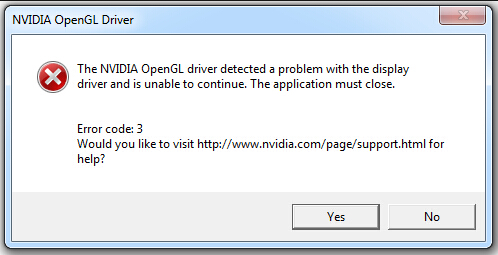
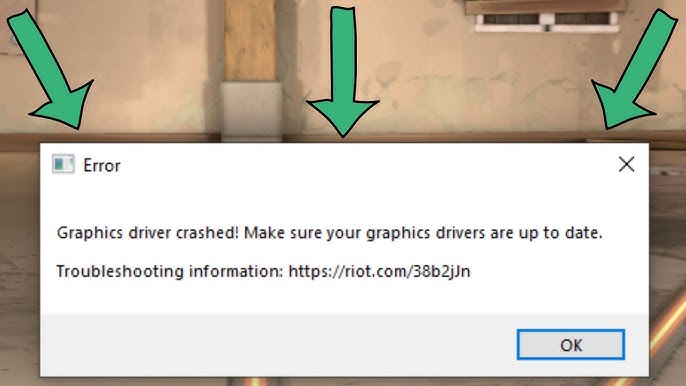
GPU driver crashes can disrupt your work or gaming experience. Understanding common causes helps fix the problem quickly. Many issues arise from software or hardware conflicts. Identifying the root cause is the first step toward stability.
Outdated Drivers
Old drivers often cause crashes and glitches. GPU manufacturers update drivers to fix bugs and improve performance. Running outdated drivers may lead to errors and system instability. Regular updates keep your GPU running smoothly.
Overheating Issues
Heat damages GPU components and causes driver crashes. Poor ventilation or dust buildup blocks airflow. Overheating triggers automatic shutdowns or errors. Cleaning fans and improving cooling prevents many problems.
Conflicting Software
Some programs clash with GPU drivers. Background applications may interfere with GPU functions. Antivirus or system tools sometimes cause conflicts. Closing unnecessary software reduces the risk of crashes.
Hardware Failures
Physical damage or aging hardware leads to driver issues. Faulty graphics cards or bad connections cause crashes. Testing hardware helps identify failing components. Replacing damaged parts restores system stability.

Credit: appuals.com
Checking Your Gpu Driver Version
Checking your GPU driver version helps identify if your graphics card runs the latest software. Outdated drivers often cause crashes and performance issues. Knowing your current version guides you to update or reinstall the driver correctly.
This step is simple and can prevent many GPU problems.
Using Device Manager
Open Device Manager by typing it in the Start menu search box. Expand the “Display adapters” section to find your GPU. Right-click your GPU and select “Properties.” Go to the “Driver” tab to see the driver version and date. Compare this version with the latest available on the manufacturer’s website. This method uses built-in Windows tools, so no extra software is needed.
Using Manufacturer Software
Many GPU makers offer software to manage drivers easily. For example, NVIDIA users can use GeForce Experience. AMD users have Radeon Software. These apps automatically check your driver version and notify you of updates. They also allow you to download and install updates directly. This method is quick and ensures you get the correct driver for your GPU model.
Updating Gpu Drivers Safely
Updating GPU drivers is important to keep your graphics card running smoothly. Outdated drivers cause crashes and slow performance. Updating drivers safely avoids errors and protects your system. Follow clear steps for a safe update process.
Manual Driver Update
First, identify your GPU model. Visit the official website of your GPU manufacturer. Look for the drivers section and find the latest driver for your model. Download the correct driver matching your operating system.
Before installing, close all running programs. Run the downloaded file and follow the instructions. Restart your computer after installation to apply changes. Manual updates give full control and ensure you get the right driver version.
Using Automatic Update Tools
Many GPU makers offer tools to update drivers automatically. These tools scan your system and find the correct drivers. They download and install updates with minimal input from you.
Automatic tools reduce human errors during installation. They also notify you about new driver releases. Keep the tool installed and run it regularly to maintain updated drivers. This method is simple and effective for most users.
Credit: www.youtube.com
Reinstalling Gpu Drivers
Reinstalling GPU drivers can fix many driver crash problems. This process removes old files and adds fresh ones. It helps clear conflicts and errors in the system. A clean reinstall often restores GPU stability and performance. Follow the steps below to do it safely and correctly.
Uninstalling Current Drivers
Start by removing the current GPU drivers. Open Device Manager and find your display adapter. Right-click it and select “Uninstall device.” Check the box to delete driver software if available. This removes all files related to the old driver. Restart your computer after uninstalling. This step clears out corrupted files causing crashes.
Performing A Clean Installation
Download the latest GPU driver from the official website. Choose the exact model and operating system. Run the installer and look for “Custom” or “Advanced” options. Select “Perform a clean installation” if offered. This option deletes previous driver settings completely. Follow the prompts to finish installation. Restart your PC once again. The GPU should now work without driver crashes.
Managing Gpu Temperature
Managing GPU temperature is key to fixing driver crashes. Overheating can cause your graphics card to fail or slow down. Keeping the GPU cool helps it work better and last longer. Let’s explore simple ways to control temperature and avoid crashes.
Cleaning Dust From Hardware
Dust blocks airflow and traps heat inside your computer. Clean your GPU and fans regularly. Use compressed air to blow dust away from vents and heatsinks. Avoid using a vacuum as it can cause static damage. Clean hardware improves cooling and stops overheating.
Improving Cooling Systems
Better cooling lowers GPU temperature fast. Add extra fans to your case for more airflow. Replace old or noisy fans with high-quality ones. Consider using a liquid cooling system for heavy use. Good cooling helps keep your GPU stable during work or play.
Monitoring Temperatures
Use software tools to check GPU temperature often. Programs like MSI Afterburner or HWMonitor show real-time heat levels. Set alerts for high temperatures to act quickly. Regular monitoring prevents damage and driver crashes. Stay aware of your GPU’s heat for smooth performance.
Resolving Software Conflicts
Resolving software conflicts is key to fixing GPU driver crashes. Conflicts between programs can cause your graphics driver to fail. Identifying and stopping these conflicts helps keep your system stable.
Some applications use the GPU heavily. This can clash with the graphics driver and cause crashes. Removing or disabling these conflicting programs often solves the problem.
Disabling Conflicting Programs
Start by closing all non-essential programs. Check for apps that use the GPU, like video editors or games. Temporarily disable them and see if the GPU driver still crashes.
Use Task Manager to end tasks that may interfere. Some background apps cause hidden conflicts. Disabling them helps isolate the problem quickly.
Also, check your startup programs. Some load automatically and may cause issues. Disable unnecessary startup apps to reduce conflicts at boot.
Checking For Malware
Malware can disrupt GPU drivers and cause system instability. Run a full antivirus scan to detect harmful software. Remove any threats found immediately.
Use trusted security tools to scan deeply. Some malware hides well and needs special tools to find. Keeping your system clean prevents driver crashes caused by malware.
Regular malware checks improve overall system health. A clean system runs GPU drivers smoothly and without errors.
Adjusting Gpu Settings
Adjusting GPU settings can help fix driver crashes. Changing these settings reduces stress on your graphics card. This can stop your system from freezing or crashing during use. Simple tweaks often improve stability and performance. Start with small adjustments and test your system after each change.
Lowering Graphics Settings
Lower the graphics quality in your games or apps. Reduce resolution, shadows, and effects like anti-aliasing. This lowers the load on your GPU. It helps prevent overheating and driver failures. Use presets like medium or low if available. These settings make your GPU work less hard.
Disabling Overclocking
Turn off any overclocking on your GPU. Overclocking increases speed but can cause crashes. It pushes your card beyond safe limits. Reset clock speeds to default in your GPU software. This can stabilize your system and stop driver errors. Overclocking may give more power but risks instability.
Advanced Troubleshooting Steps
Advanced troubleshooting steps help solve tricky GPU driver crashes. These methods dive deeper than basic fixes. They reveal system problems and driver conflicts that cause crashes. Follow these steps carefully to find the root issue and restore stability.
Checking System Logs
System logs record errors and warnings from your computer. They give clues about why the GPU driver crashes. Open the Event Viewer on Windows. Look under “Windows Logs” and then “System” or “Application.” Search for errors related to the GPU or display driver. Note any error codes or messages. These details help pinpoint the problem and guide your next actions.
Rolling Back Drivers
New drivers can sometimes cause crashes. Rolling back means returning to an older, stable driver version. Open Device Manager and find your GPU under “Display adapters.” Right-click and select “Properties.” Go to the “Driver” tab and click “Roll Back Driver” if available. Restart your computer after this. Test if the crashes stop. This step fixes issues caused by recent driver updates.
Testing With Different Gpu
Try using a different GPU if possible. This test checks if your current GPU is faulty. Install the other GPU and run your system normally. If crashes stop, your original GPU might be damaged. If crashes continue, the issue may lie in software or other hardware parts. This test narrows down the cause and helps decide the next fix step.
When To Seek Professional Help
Knowing when to get professional help for GPU driver crashes saves time and stress. Some issues need expert tools and knowledge. Trying to fix complex problems alone can worsen damage. Trusting a skilled technician ensures a safe and proper repair.
Persistent Crashes
Crashes that happen all the time need expert attention. Simple updates or restarts won’t stop the problem. Professionals can run deep diagnostics to find the root cause. They check software conflicts and driver errors carefully. Fixing persistent crashes often requires special software or hardware tests.
Hardware Repairs
Physical damage to your GPU must be handled by experts. Opening your computer without experience risks further harm. Professionals have the right tools to replace or fix components. They can spot issues like overheating, broken fans, or damaged circuits. Hardware repairs done wrong can cause permanent damage to your PC.
Frequently Asked Questions
What Causes Gpu Driver Crashes During Gaming?
GPU driver crashes often occur due to outdated drivers, overheating, or incompatible software. Faulty hardware and corrupted files can also trigger crashes, disrupting your gaming experience and system stability.
How To Update Gpu Drivers Safely And Effectively?
Visit your GPU manufacturer’s official website or use their software tool. Download the latest stable driver version, then install it following on-screen instructions to avoid errors or conflicts.
Can Overheating Cause Gpu Driver Crashes?
Yes, excessive heat can cause GPU driver crashes. Ensure your PC has proper cooling with clean fans and good airflow to maintain optimal GPU temperature and prevent crashes.
Should I Uninstall Old Gpu Drivers Before Updating?
Yes, uninstalling old GPU drivers helps prevent conflicts and crashes. Use Display Driver Uninstaller (DDU) in safe mode for a clean removal before installing new drivers.
Conclusion
GPU driver crashes can disrupt your work or play. Fixing these issues often starts with updating your drivers. Check your system for hardware problems too. Simple steps like reinstalling drivers can solve many crashes. Keep your system clean and free from malware.
Regular updates help maintain smooth GPU performance. Don’t ignore warning signs of trouble. Small fixes can prevent bigger problems later. Stay patient and try each step carefully. Your GPU will thank you with stable performance.
