

Are you wondering whether streaming your favorite shows or games uses your CPU or GPU? Knowing which part of your computer does the heavy lifting can help you improve your streaming experience.
It can also guide you in upgrading your system the right way. Keep reading to discover how streaming impacts your CPU and GPU, and learn simple tips to get the best performance without spending a fortune. Your smooth, lag-free streaming session starts here.
Streaming Basics
Streaming lets you watch or share videos live over the internet. It sends data in small pieces to your device. This way, you can see the video without waiting for the whole file to download. Streaming needs a steady internet connection and some hardware to process the video.
How Streaming Works
Streaming starts by capturing video or audio from a source. The data is then compressed to use less bandwidth. Compression uses either the CPU or GPU to make files smaller. Next, the data is sent over the internet to viewers. Viewers’ devices decode the stream to show video or play sound. This process happens in real-time, with little delay.
Common Streaming Platforms
Many platforms offer streaming services today. YouTube and Twitch focus on video sharing and live broadcasts. Netflix and Hulu provide movies and TV shows on demand. Facebook and Instagram allow users to stream live to friends and followers. Each platform uses similar technology but targets different audiences.
Role Of Cpu In Streaming
The CPU plays a key role in streaming. It handles many tasks that keep your stream smooth and clear. Understanding its role helps you know how your system works during streaming.
Encoding And Processing
The CPU encodes video and audio data before sending it online. It compresses the stream to reduce file size without losing quality. This process uses many CPU resources. A stronger CPU makes encoding faster and smoother. It also processes background tasks like managing the streaming software. Without enough CPU power, the stream can lag or drop frames.
Impact On System Performance
Streaming puts extra load on the CPU. This can slow down other programs on your computer. High CPU usage may cause overheating and system crashes. Balancing CPU load is important for stable streaming. Closing unnecessary apps helps reduce CPU strain. Monitoring CPU usage during streaming can prevent performance issues.
Role Of Gpu In Streaming
The GPU plays a key role in streaming videos and live content. It handles many tasks that make streaming smooth and clear. Using the GPU reduces the load on the CPU, allowing better performance. This helps avoid lag and keeps the video quality high. The GPU works by processing graphics and video data quickly.
Streaming needs fast video encoding and decoding. The GPU is built to do this efficiently. It can handle multiple tasks at once, which is important for live streaming. This ensures the stream runs without interruptions. The GPU also helps reduce power use compared to the CPU alone.
Hardware Acceleration
Hardware acceleration allows the GPU to speed up video processing. It takes over tasks that the CPU would normally do. This includes encoding and decoding video streams. Hardware acceleration improves streaming quality and reduces buffering. It makes the video playback smooth and clear. Many streaming apps support hardware acceleration to boost performance.
Video Encoding Technologies
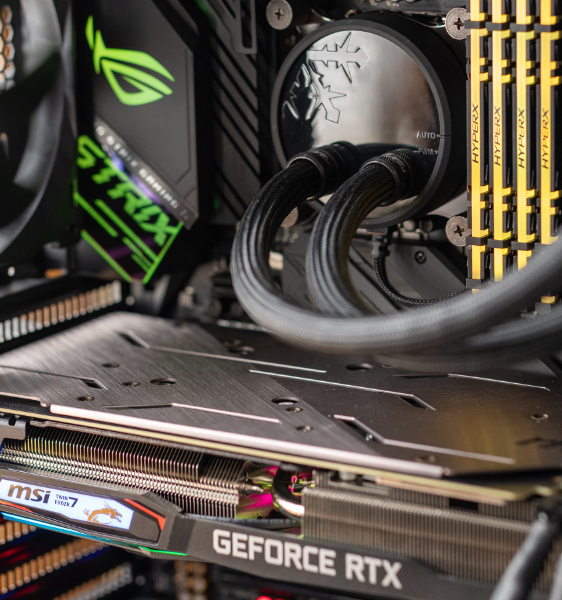
Modern GPUs use special technologies for video encoding. Examples include NVIDIA NVENC and AMD VCE. These tools compress video data efficiently. They keep the quality high while lowering the file size. Encoding with the GPU is faster than using the CPU. This is important for live streaming and recording. Using these technologies helps deliver a better viewing experience.
Credit: www.cclonline.com
Cpu Vs Gpu Encoding
Streaming requires encoding video to send it online. This process can use either the CPU or the GPU. Both have different ways to handle encoding. Choosing the right one can affect your stream quality, speed, and delay. Understanding CPU vs GPU encoding helps you pick what fits best for your setup.
Quality Comparison
CPU encoding usually gives better video quality. It uses complex algorithms to compress video. This means fewer artifacts and smoother images. GPU encoding focuses on speed, so quality can be lower. Some modern GPUs have improved quality but still lag behind CPUs. For high-quality streams, CPU encoding is often preferred.
Performance And Efficiency
GPU encoding is faster and uses less power. It frees the CPU to run other tasks during streaming. This makes your system more stable and responsive. CPU encoding is slower and can use more energy. It may cause lag if your CPU is weak. For long streaming sessions, GPU encoding saves resources.
Latency Considerations
Latency means the delay between your action and its appearance online. GPU encoding generally has lower latency. This is important for live interaction with viewers. CPU encoding can add more delay, especially on weaker computers. Streamers who need quick response times prefer GPU encoding.
Choosing The Right Hardware
Streaming requires the right hardware to run smoothly. Choosing the correct parts helps avoid lag and poor video quality. The CPU and GPU play different roles in streaming. Knowing their strengths guides your choice.
This section explains how to pick hardware that fits your streaming needs. Simple factors can help you decide. The right setup can improve your streaming experience a lot.
Factors To Consider
First, check your streaming software’s requirements. Some software uses the CPU more, while others rely on the GPU. Your budget matters too. Higher-end parts cost more but offer better performance.
Think about the games or content you stream. Fast games need a strong GPU for smooth graphics. Streaming talk shows or podcasts need less GPU power but a good CPU.
Also, consider multitasking. Running multiple apps during streaming needs a powerful CPU. Cooling and power supply are important for stability. Poor cooling can cause crashes or slowdowns.
Best Hardware For Different Streaming Needs
For casual streaming and low-demand games, a mid-range CPU with integrated graphics works well. This setup is budget-friendly and handles basic tasks fine.
For serious gamers who stream, a strong GPU paired with a good CPU is best. The GPU handles game graphics, while the CPU manages the streaming process.
Content creators using complex editing or multiple streams benefit from high-end CPUs. These CPUs process data faster and keep streams smooth even under heavy load.
Some streamers use dedicated capture cards. These reduce CPU and GPU load by handling video input separately. Capture cards improve overall performance but add to the cost.

Credit: softwareg.com.au
Optimizing Streaming Performance
Optimizing streaming performance improves video quality and reduces lag. It requires a balance between software and hardware. Proper settings and upgrades help your computer handle streaming smoothly. Resource management ensures your system does not slow down during streams.
Software Settings
Adjust encoding settings to reduce CPU load. Use hardware encoding if your GPU supports it. Lower the stream resolution or frame rate to ease processing. Close unnecessary apps to free up system resources. Choose streaming software that fits your hardware capabilities.
Hardware Upgrades
Upgrade your CPU for better processing power. Invest in a modern GPU with hardware encoding features. Add more RAM to help multitasking during streams. Use fast storage like SSDs to speed up data handling. Ensure your internet connection supports your streaming quality.
Balancing Resources
Divide tasks between CPU and GPU to avoid overload. Use GPU for video encoding and CPU for game or app performance. Monitor system usage to identify bottlenecks. Adjust settings based on your hardware limits. Keep your system cool to maintain steady performance.
Future Trends In Streaming Tech
The future of streaming technology is moving fast. New tools and hardware keep changing how we stream videos and games. These changes affect how much the CPU or GPU is used during streaming. Understanding upcoming trends helps users and creators get better quality and smoother streams.
Advances In Encoding
Encoding is the process of turning raw video into streamable data. New encoding methods use less CPU power. They send higher quality video at lower data sizes. Hardware encoders built into GPUs handle this work more often. This shift helps reduce lag and improve stream quality.
Software encoding is also getting smarter. It uses better algorithms to compress video efficiently. This reduces CPU load and makes streams smoother. These advances help people with mid-range computers stream without problems.
Emerging Gpu Capabilities
GPUs are growing stronger and more efficient. Modern GPUs have special units for video encoding and decoding. These units free up the main GPU cores to focus on graphics. This means better game performance while streaming.
Future GPUs will support new video formats and higher frame rates. They will handle 4K and even 8K streaming more easily. This reduces the CPU’s role and improves overall streaming experience. Streaming will become more accessible on a wider range of devices.

Credit: vixencomposites.com
Frequently Asked Questions
Does Streaming Primarily Use Cpu Or Gpu?
Streaming mainly uses the CPU for encoding and processing video. The GPU can assist, especially with hardware acceleration. However, the CPU handles most of the workload in typical streaming setups.
How Does Cpu Affect Streaming Performance?
A powerful CPU improves video encoding speed and stream stability. It handles multitasking and background processes during streaming. Higher CPU performance reduces lag and frame drops.
Can Gpu Improve Streaming Quality?
Yes, GPUs with hardware encoding can offload tasks from the CPU. This leads to smoother streams and better video quality. Using GPU encoding also reduces CPU load during streaming.
Is Cpu Or Gpu Better For Live Game Streaming?
Both are important, but CPU plays a bigger role in encoding. GPU impacts game performance and visuals. A balanced system with a strong CPU and GPU ensures smooth streaming.
Conclusion
Streaming mainly uses the CPU to handle video and audio tasks. The GPU helps if you use advanced graphics or game streaming. Most streaming apps rely on the CPU for smooth performance. Choosing the right hardware can improve your streaming quality.
Keep your system balanced to avoid slowdowns or lag. Simple setups work well for casual streaming. Understanding how streaming uses CPU and GPU helps you pick the best device. This knowledge makes streaming easier and more enjoyable.
