

Are you wondering if your GPU supports Vulkan? Knowing this can unlock better graphics performance and smoother gameplay on your PC.
But how can you be sure without digging through confusing tech specs? This article will guide you step-by-step to quickly check your GPU’s Vulkan compatibility. By the end, you’ll have the confidence to make the most of your hardware and enjoy the best visual experience possible.
Keep reading to find out exactly how to check if your GPU supports Vulkan—and why it matters to you.

Credit: www.reddit.com
What Is Vulkan Api
Vulkan API is a modern graphics technology used by many games and apps. It helps your computer’s graphics card work better and faster. Vulkan gives developers more control over the hardware. This control leads to improved graphics and smoother performance.
This API works across many platforms like Windows, Linux, and Android. It is designed to use the power of multi-core processors efficiently. Vulkan reduces the load on the CPU and lets the GPU handle more tasks.
What Does Vulkan Api Do?
Vulkan API allows software to communicate directly with the GPU. It reduces delays and increases speed in rendering images. This helps games and graphics apps run smoothly, with better visuals.
Why Is Vulkan Api Important?
It offers better performance compared to older APIs like OpenGL. Vulkan uses less CPU power and gives developers more flexibility. This means better frame rates and less lag in games.
How Does Vulkan Api Improve Graphics?
Vulkan supports advanced features like multi-threading and high-quality rendering. It allows detailed textures and effects without slowing down the system. This makes games look more realistic and vibrant.
Why Vulkan Matters For Gpus
Vulkan is a modern graphics API that helps GPUs run games and apps better. It lets the GPU work faster and use its power more wisely. This means smoother gameplay and better visuals without extra hardware.
Vulkan works well with many types of GPUs. It allows developers to create software that uses the GPU more directly. This reduces delays and makes the GPU respond quicker to tasks.
Efficient Use Of Gpu Resources
Vulkan allows the GPU to handle more tasks at once. It reduces the work the CPU does, freeing it up for other processes. This balance improves overall system speed.
Better Performance In Games And Apps
Games using Vulkan often run smoother. Frame rates can be higher and more stable. The GPU can deliver richer graphics without slowing down.
Support For Newer Gpu Technologies
Vulkan supports the latest GPU features and hardware. It helps developers use advanced graphics techniques. This keeps games and apps looking fresh and modern.
Cross-platform Compatibility
Vulkan works on many operating systems like Windows and Linux. It supports different GPU brands too. This makes it easier for developers to reach more users.
Checking Gpu Compatibility
Checking if your GPU supports Vulkan is important before installing or playing games. Vulkan is a modern graphics API that can improve performance and visuals. Not all GPUs support Vulkan, so you need to verify your device’s compatibility first.
There are simple ways to check if your GPU works with Vulkan. These methods include official lists, tools from GPU makers, and third-party checkers. Each method helps you confirm support quickly and safely.
Official Vulkan Support Lists
The Vulkan website provides official support lists for GPUs. These lists show which models can run Vulkan. Check your GPU brand and model in these lists to see if it is included. This is the most reliable source for compatibility info.
Using Gpu Manufacturer Tools
GPU makers like NVIDIA, AMD, and Intel offer tools to check your GPU’s features. These tools often give detailed info about Vulkan support. Download the official utility from your GPU maker’s website to test your hardware. They are easy to use and accurate.
Third-party Compatibility Checkers
Some websites and apps scan your system to detect Vulkan support. These third-party tools are handy if you want a quick check. Use trusted sites to avoid security risks. They provide fast results and help confirm your GPU’s status.
How To Find Your Gpu Model
Knowing your GPU model is the first step to check Vulkan support. The GPU, or graphics processing unit, handles images and video on your computer. Each GPU has a model name and number that tells you its features. Finding this model is easy and quick.
This guide shows simple ways to find your GPU model on different operating systems. Follow the steps for Windows, MacOS, or Linux. After finding your GPU, you can check if Vulkan works with it.
Windows Methods
Press the Windows key and the letter R together. Type dxdiag in the box and hit Enter. The DirectX Diagnostic Tool will open. Click the Display tab. Look for the name under Device. That is your GPU model.
Another way is to right-click the desktop. Select Display settings, then click Advanced display settings. Under Display information, find Display adapter properties. The Adapter tab shows your GPU model.
Macos Methods
Click the Apple menu at the top-left corner. Choose About This Mac. A window will open showing your Mac’s details. Look for Graphics or Graphics/Displays. The GPU model appears here.
You can also open System Report from the same window. Under Hardware, select Graphics/Displays. The detailed GPU information will show up.
Linux Methods
Open a terminal window. Type lspci | grep VGA and press Enter. The result shows your GPU model name and vendor.
Another command is glxinfo | grep "OpenGL renderer". This gives the GPU details used by your system. You might need to install mesa-utils to use this command.
Interpreting Vulkan Versions
Understanding Vulkan versions helps you know what your GPU can do. Vulkan updates add new features and improve performance. Each version builds on the last, bringing better graphics and efficiency. Checking your GPU’s Vulkan support means knowing which version it handles well. This knowledge guides you in running software or games smoothly.
Core Features By Version
Vulkan 1.0 introduced low-level control of graphics and compute operations. It gave developers better power over GPU resources.
Vulkan 1.1 added support for multi-GPU setups and improved shader capabilities. It made graphics rendering more flexible and efficient.
Vulkan 1.2 focused on better memory management and enhanced synchronization. This helped reduce lag and improve frame rates.
Vulkan 1.3 brought new extensions for ray tracing and advanced rendering techniques. It supports more realistic lighting and shadows in games.
Backward Compatibility
New Vulkan versions keep support for older features. GPUs that support newer versions also run apps made for older ones.
This means your GPU can handle many Vulkan-based applications, even if they use older versions.
Backward compatibility reduces the need to upgrade hardware for every Vulkan update. It ensures your system stays useful longer.
Updating Gpu Drivers For Vulkan
Updating your GPU drivers is important for Vulkan support. New drivers often include fixes and improvements for Vulkan. This helps your graphics card run Vulkan games and apps smoothly. Keeping drivers updated ensures better performance and fewer crashes.
Manufacturer Websites
Visit your GPU maker’s website to get the latest drivers. NVIDIA, AMD, and Intel provide official driver downloads. Choose the correct model and operating system. Download and install the newest driver version for Vulkan support.
Automatic Driver Updates
Many systems can update GPU drivers automatically. Windows Update sometimes offers driver updates. GPU software like NVIDIA GeForce Experience or AMD Radeon Software can update drivers too. These tools simplify keeping your drivers current and compatible with Vulkan.
Common Driver Issues
Old or incorrect drivers cause Vulkan errors. Some updates may fail or install wrongly. This can lead to crashes or poor performance. Uninstalling old drivers before installing new ones helps. Restart your PC after updates for proper setup.
Troubleshooting Vulkan Support Issues
Troubleshooting Vulkan support issues can be tricky. Many users face problems despite having a compatible GPU. Understanding common errors helps fix these issues faster. This section covers typical Vulkan problems and easy solutions.
Common Errors
One frequent error is the “Vulkan not supported” message. This happens if the GPU driver is outdated or missing Vulkan support. Another error is a crash or failure to launch Vulkan apps. Sometimes, the GPU hardware may not fully support Vulkan features. Incorrect installation of Vulkan runtime can also cause errors.
Workarounds And Fixes
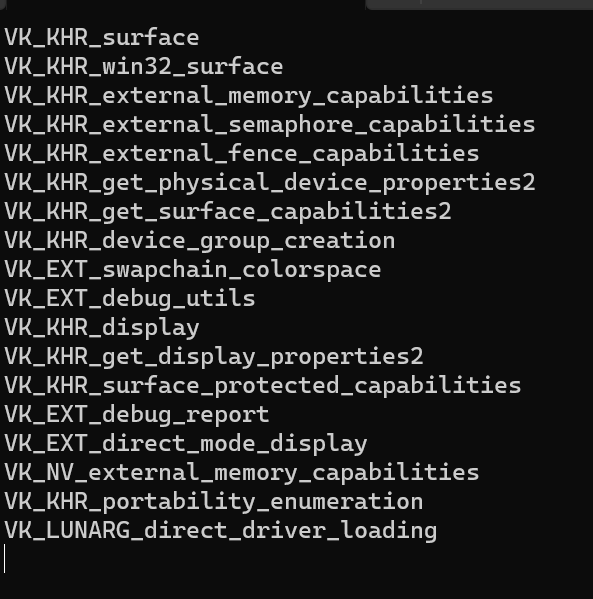
Updating your GPU drivers can solve many Vulkan issues. Visit the official GPU manufacturer website for the latest drivers. Installing the latest Vulkan runtime libraries also helps. Use tools like Vulkan Caps Viewer to check your GPU’s Vulkan support. If errors persist, try reinstalling the Vulkan runtime. Disabling other graphics software that conflicts with Vulkan may fix problems. Restarting your computer after updates ensures changes take effect.
Credit: forums.developer.nvidia.com
Future Of Vulkan And Gpu Support
The future of Vulkan looks bright as it grows in popularity. Vulkan offers better performance and lower CPU usage than older graphics APIs. Many developers prefer Vulkan for creating games and apps that run smoothly on many devices.
More GPU makers are adding Vulkan support to their products. This means more users can enjoy fast, efficient graphics without needing the latest hardware. Vulkan helps extend the life of older GPUs by improving their performance.
New Vulkan versions bring added features and better tools. These updates help developers create richer visual effects and more detailed graphics. The API’s open nature encourages innovation across hardware brands and platforms.
Expanding Hardware Compatibility
Vulkan support keeps growing across many GPU brands. Both integrated and dedicated GPUs are getting updates for Vulkan. This expansion means more devices, from laptops to smartphones, can run Vulkan-based apps.
Older GPUs receive driver updates that add Vulkan support. This lowers the barrier for users to access new software. It also helps developers reach a wider audience with less worry about hardware limits.
Impact On Gaming And Applications
Games using Vulkan often run faster and look better. Developers can better control how the GPU handles tasks. Vulkan allows games to use multiple CPU cores efficiently, improving frame rates.
Applications that need heavy graphics, like 3D modeling or virtual reality, also benefit. Vulkan’s efficient design reduces lag and stutter. This leads to smoother user experiences in complex software.
Collaboration Between Gpu Makers And Vulkan
GPU companies work closely with Vulkan’s developers. This teamwork ensures new GPUs fully support Vulkan features. It also helps fix bugs and improve driver stability quickly.
Such collaboration drives the development of new GPU technologies that match Vulkan’s capabilities. It creates a cycle where software and hardware improve together. Users get better graphics and faster performance as a result.

Credit: www.reddit.com
Frequently Asked Questions
Does My Gpu Support Vulkan Api?
Most modern GPUs from NVIDIA, AMD, and Intel support Vulkan. Check your GPU model on the official Vulkan website or your manufacturer’s site to confirm compatibility and driver support.
How To Check If Vulkan Works On My Pc?
Install Vulkan-compatible drivers and use tools like VulkanCapsViewer. These tools show Vulkan support details and the highest version your GPU can run.
Can Vulkan Improve My Gaming Performance?
Yes, Vulkan can boost gaming performance by reducing CPU overhead and allowing better multi-threading. Supported games often run smoother and faster on Vulkan-enabled GPUs.
Is Vulkan Support Available On Older Gpus?
Some older GPUs support Vulkan, but with limited features. Check your GPU specifications and driver updates to see if Vulkan is partially or fully supported.
Conclusion
Checking if your GPU supports Vulkan is simple and useful. Vulkan can improve graphics and performance in many games and apps. Most modern GPUs have Vulkan support, but older ones might not. Visit the GPU maker’s website for clear details.
Keep your drivers up to date to ensure compatibility. Knowing your GPU’s features helps you choose the right software and games. Stay informed, and enjoy better visuals and smoother experiences.
