
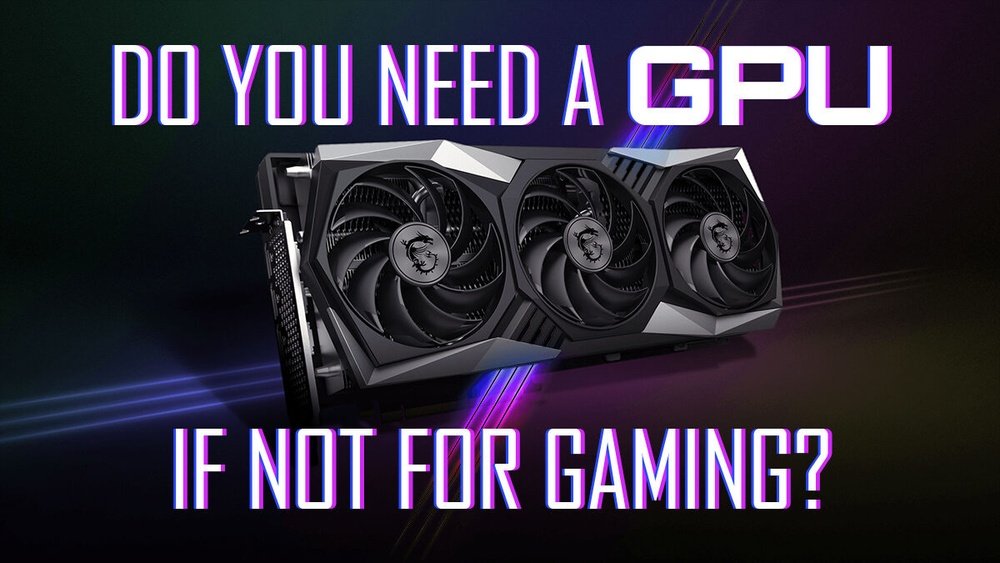
Are you wondering if you really need a GPU for your computer? Maybe you’ve heard about how important it is for gaming or video editing, but you’re not sure if it’s necessary for what you do.
This article will help you understand what a GPU does, when it makes a difference, and how it can improve your experience. By the end, you’ll know exactly whether investing in a GPU is right for you—and your budget. Keep reading to find out!
When A Gpu Matters
A Graphics Processing Unit (GPU) plays a key role in many computer tasks. It helps with more than just showing images on your screen. Knowing when a GPU is important can save you money and improve your computer’s speed and performance.
Some activities need a strong GPU to run smoothly. Other tasks work fine with just the basic graphics built into a computer. Understanding these differences helps in choosing the right computer setup.
Gaming And Graphics
Modern games use complex graphics that require a powerful GPU. This helps the game run faster and look better. A GPU reduces lag and improves frame rates. It makes gaming more enjoyable and visually stunning.
Video Editing And Rendering
Video editing needs a GPU to handle large files and effects. Rendering videos without a GPU takes much longer. A good GPU speeds up the process and helps create smooth, clear videos. It handles colors and details better.
Machine Learning And Ai
Machine learning uses many calculations that a GPU can do fast. AI programs run quicker with a strong GPU. This means less waiting and better results. GPUs help with training models and running smart applications.
Everyday Computing Needs
Basic tasks like browsing, email, and word processing do not need a strong GPU. Most computers have enough built-in graphics for these jobs. A dedicated GPU is not necessary for simple, everyday use.
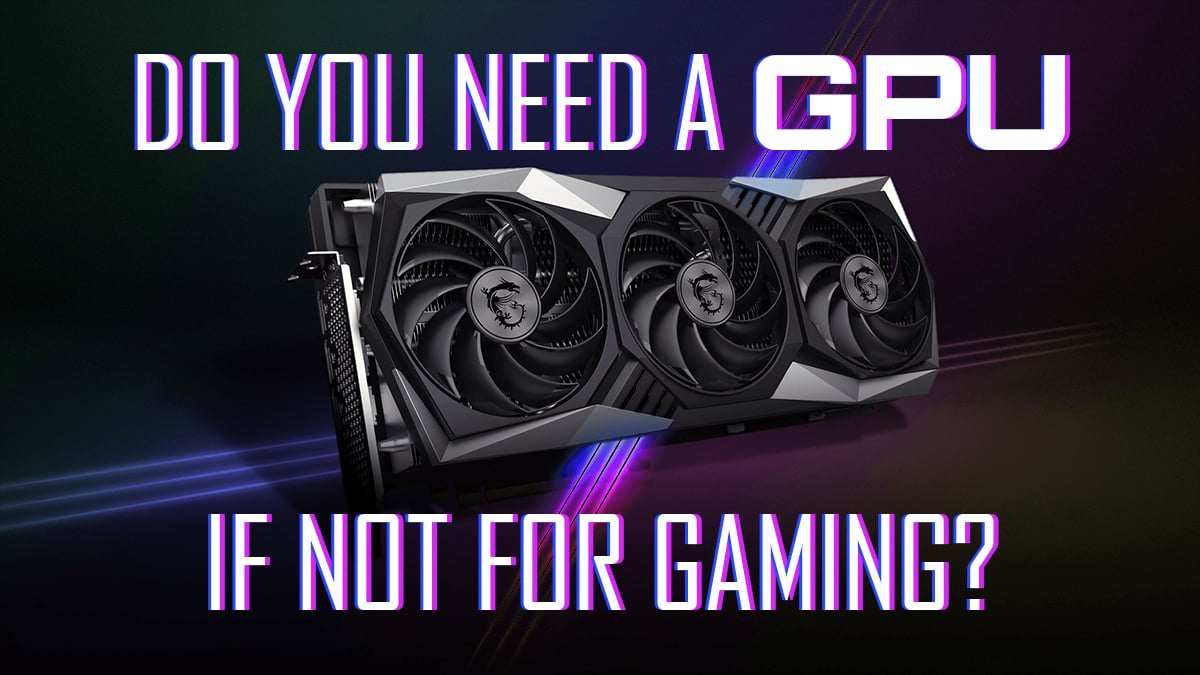
Credit: www.cgdirector.com
Integrated Vs Dedicated Gpu
Choosing between an integrated and a dedicated GPU matters for your computer’s graphics. Both types process images and videos but work in different ways. Understanding their key differences helps you pick the right one for your needs.
Performance Differences
Integrated GPUs share memory with the main processor. They handle basic tasks like browsing or watching videos well. Dedicated GPUs have their own memory and power. They excel at gaming, video editing, and 3D rendering. Dedicated GPUs deliver faster and smoother graphics than integrated ones.
Power Consumption
Integrated GPUs use less power because they share resources with the CPU. This helps laptops last longer on battery. Dedicated GPUs consume more power due to higher performance. This can reduce battery life and increase heat in devices.
Cost Implications
Integrated GPUs come built into the processor, lowering computer cost. They suit users who don’t need heavy graphics work. Dedicated GPUs add to the overall price but boost graphics power. Buying a dedicated GPU makes sense for gaming or creative work.
Signs You Need A Gpu Upgrade
Knowing when to upgrade your GPU can save you time and frustration. A graphics card that no longer meets your needs affects your computer’s performance. Watch for clear signs that your GPU is holding you back.
Lag And Slow Performance
Games and videos run slowly or look choppy. Frame rates drop during play or video editing. Visual glitches or stuttering appear often. These issues show your GPU struggles with the task.
Incompatibility With Software
New software won’t install or crashes frequently. Some apps ask for a newer graphics card. Features may be disabled or limited in your current setup. This means your GPU cannot support modern programs.
High Cpu Usage
Your CPU works too hard while the GPU stays idle. The processor handles tasks that the GPU should do. This imbalance causes slowdowns and overheating. Upgrading the GPU helps balance the workload and improve speed.
Credit: www.reddit.com
Choosing The Right Gpu
Choosing the right GPU matters a lot for your PC’s performance. A good GPU improves graphics, speed, and overall experience. Picking the best one depends on many things. Consider your needs, budget, and system before buying.
Every GPU is different. Some are made for gaming, others for work or casual use. Knowing what fits your setup helps avoid problems.
Budget Considerations
Set a clear budget before shopping for a GPU. Prices vary widely from low-end to high-end models. Decide how much you want to spend. Higher price usually means better performance. But not always necessary for basic use.
Think about long-term value. A slightly more expensive GPU might last longer. Avoid very cheap options that may fail soon.
Compatibility With Your Pc
Check your PC’s specs before buying a GPU. Make sure it fits in your case physically. Also, confirm your power supply can support it. Some GPUs need extra power connectors.
Your motherboard should have the right slot, usually PCIe. Older PCs might not support new GPUs fully. Look at your CPU to avoid bottlenecks.
Brand And Model Options
Choose well-known brands for reliability and support. Nvidia and AMD are the top GPU makers. Each offers different models for various needs.
Research specific models for features like VRAM, clock speed, and cooling. Reviews and user feedback help find the best fit. Avoid unknown brands with little support.
Installing And Optimizing Your Gpu
Installing and optimizing your GPU improves your computer’s speed and graphics quality. Proper setup ensures your GPU runs smoothly. Optimizing settings boosts performance and reduces problems. Follow simple steps to install and tune your GPU for the best results.
Installation Steps
Turn off your computer and unplug it. Open the case carefully. Find the PCIe slot on the motherboard. Remove the slot cover if needed. Gently insert the GPU into the slot. Press down until it clicks in place. Secure the GPU with screws. Connect the power cables from the PSU to the GPU. Close the case and plug in your computer. Turn it on and check if the GPU is detected.
Driver Updates
Download the latest drivers from the GPU maker’s website. Choose the correct model and operating system. Install the driver and follow the prompts. Restart your computer after installation. Updated drivers fix bugs and improve speed. Regular updates keep your GPU running well.
Performance Tweaks
Use the GPU control panel to adjust settings. Lower shadow quality for better speed. Turn off unnecessary effects. Set resolution to match your monitor. Enable V-Sync to reduce screen tearing. Monitor temperatures to avoid overheating. Clean your PC to keep airflow strong. Small changes help your GPU run longer and faster.
Credit: www.reddit.com
Alternatives To A Gpu Upgrade
Upgrading your computer’s graphics card can be costly and time-consuming. Many users want better performance but do not want to buy a new GPU. There are several alternatives to improve your system without a GPU upgrade. These options can help boost speed and graphics quality in different ways. They work well for casual users and those on a budget.
Upgrading Ram
Adding more RAM helps your computer run smoother. It allows programs to use more memory without slowing down. Games and apps that need more space can perform better. More RAM reduces lag and improves multitasking. This is a simple way to improve your system without a new GPU.
Using Cloud Gaming Services
Cloud gaming lets you play games on remote servers. The heavy graphics work happens online, not on your PC. This means even old computers can run new games smoothly. You only need a good internet connection. It is a cost-effective way to enjoy high-quality games without a powerful GPU.
Optimizing Software Settings
Changing graphics settings can boost performance. Lowering resolution or turning off shadows helps games run faster. Close background apps to free up resources. Update drivers and software for better compatibility. These simple tweaks can improve your experience without extra hardware.
Frequently Asked Questions
What Is A Gpu And Why Is It Important?
A GPU, or graphics processing unit, handles image rendering and video output. It boosts visual performance and speeds up complex calculations. GPUs are vital for gaming, video editing, and AI tasks, offering faster and smoother experiences compared to CPUs alone.
Do I Need A Gpu For Gaming?
Yes, a GPU is essential for gaming. It renders high-quality graphics and ensures smooth gameplay. Without a dedicated GPU, games may run poorly or not at all, especially modern titles requiring high graphical power.
Can I Use A Computer Without A Gpu?
You can use a computer without a dedicated GPU if it has integrated graphics. Basic tasks like browsing, streaming, and office work don’t need a powerful GPU. However, performance will be limited for gaming and graphic-intensive software.
How Does A Gpu Improve Video Editing?
A GPU accelerates video rendering and effects processing. It reduces export times and improves playback smoothness. Many editing programs optimize workflows by offloading tasks to the GPU, making it crucial for efficient video production.
Conclusion
Choosing a GPU depends on what you need your computer to do. Basic tasks like browsing or writing do not require one. But, for gaming or video editing, a GPU helps a lot. It makes graphics smooth and faster. Also, some programs run better with a good GPU.
Think about how you use your PC. Then decide if investing in a GPU makes sense. It saves money and avoids extra work later. Simple and clear choices work best. Your computer should match your needs, not the other way around.
