
Is your computer running slow even when you’re not using it? High CPU usage at idle can be frustrating and confusing.
You expect your PC to rest when you’re not working, but instead, it feels like it’s working overtime. This can cause lag, overheating, and even shorten your device’s lifespan. Don’t worry—you’re not alone, and there are simple steps you can take right now to fix this problem.
Keep reading to discover what’s causing your CPU to stay busy and how you can bring it back to normal. Your computer’s smooth, fast performance is just a few fixes away.
Causes Of High Cpu Usage At Idle
High CPU usage at idle means your computer works hard even when you do nothing. This issue slows down your system and wastes power. Understanding the causes helps you fix it faster. Several factors can cause your CPU to run high while idle.
Background Processes
Many programs run quietly in the background. Some use more CPU than they should. These processes include software updates, syncing files, or system scanning. Too many background tasks can overload your CPU.
Malware And Viruses
Malicious software can secretly use your CPU. Viruses, spyware, or trojans work without your knowledge. They slow down your system and cause high CPU usage. Running a malware scan is important to detect threats.
Software Bugs
Faulty programs may cause CPU spikes. Bugs in software lead to inefficient CPU use. Sometimes apps get stuck in loops, consuming more power. Updating or reinstalling software can help.
System Updates
Operating system updates often run in the background. They check, download, and install files automatically. These tasks use CPU resources and may cause temporary high usage. Letting updates finish reduces CPU load.
Driver Issues
Outdated or faulty device drivers cause CPU problems. Drivers control hardware like graphics cards or printers. When drivers fail, the CPU compensates, working harder. Keeping drivers updated improves system performance.

Credit: community.fly.io
Checking Cpu Usage
Checking CPU usage helps find why your computer is slow at idle. It shows which programs use most of the processor. This step is key to fix high CPU usage problems. You can check CPU usage with built-in Windows tools or third-party apps. Each tool offers different details and views.
Using Task Manager
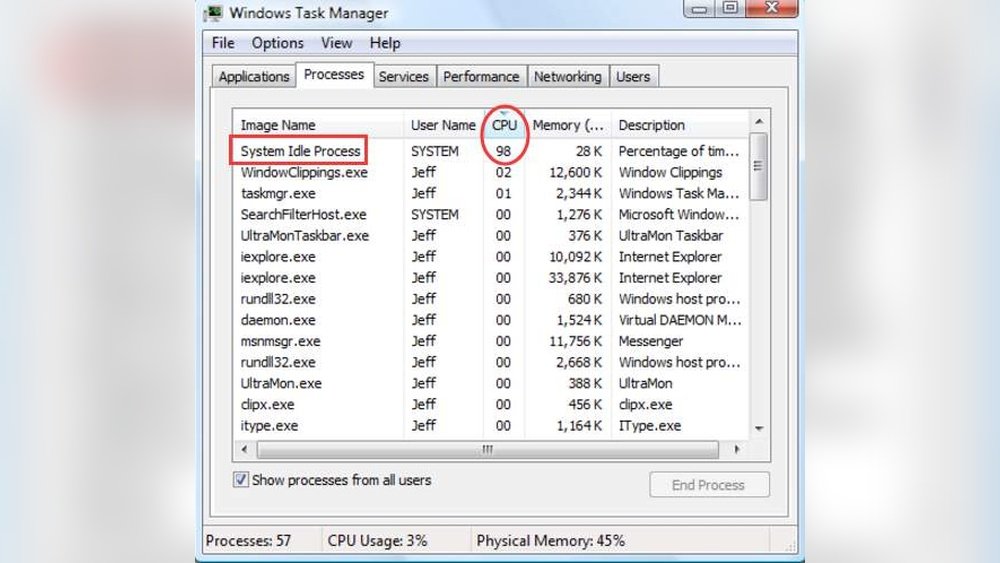
Task Manager is the easiest way to see CPU usage. Open it by pressing Ctrl + Shift + Esc. Click the “Processes” tab to view running apps and their CPU use. Sort by CPU column to find the top users. You can end tasks that use too much CPU here. Task Manager also shows overall CPU usage at the bottom.
Using Resource Monitor
Resource Monitor gives more detailed CPU data. Open it by typing “Resource Monitor” in the Start menu. Switch to the “CPU” tab to see active processes and services. It shows CPU usage per core and handles. Use it to spot hidden processes that use CPU. Resource Monitor updates in real time for live monitoring.
Third-party Tools
Third-party tools offer extra features for CPU monitoring. Apps like Process Explorer and HWMonitor provide deep insights. These tools show detailed CPU stats and history. They help find hard-to-spot problems and background apps. Many third-party apps are free and easy to use. Choose one based on your needs and skill level.
Basic Troubleshooting Steps
High CPU usage at idle can slow down your PC and cause frustration. Basic troubleshooting steps often fix this issue. These steps are simple and easy to follow. They help identify common causes of the problem. Try these methods before seeking advanced solutions.
Restarting Your Pc
Restarting your PC clears temporary files and resets processes. It stops apps that run in the background without your knowledge. This simple step can reduce CPU load quickly. Always restart your computer before trying other fixes.
Closing Unnecessary Apps
Many apps use CPU power even when you do not use them. Check your task manager to see active programs. Close apps that are not needed at the moment. This lowers CPU usage and frees up system resources.
Updating Software And Drivers
Outdated software and drivers can cause high CPU usage. Updates fix bugs and improve performance. Check for updates for your operating system and drivers. Install all available updates to keep your PC running smoothly.

Credit: osxdaily.com
Scanning For Malware
High CPU usage at idle can be caused by malware running in the background. Scanning your system for malware helps find hidden threats. Removing these threats can reduce CPU load and improve performance.
Using Built-in Antivirus
Your computer has a built-in antivirus tool. It helps detect common viruses and malware. Open the antivirus program from your system settings. Keep it updated for better protection.
Running Full System Scan
Run a full scan to check all files and programs. This process can take some time but is thorough. It finds malware that quick scans might miss. Let the scan complete without interrupting it.
Removing Detected Threats
The antivirus will show detected threats after the scan. Follow the prompts to remove or quarantine them. Restart your computer after removal to finish cleaning. This step lowers CPU usage caused by malware.
Adjusting System Settings
High CPU usage at idle often happens due to system settings running many tasks. Adjusting these settings helps reduce CPU load. It makes your computer faster and cooler. Start with simple changes for better performance.
Disabling Startup Programs
Many programs start automatically when Windows boots. They use CPU even if you don’t need them. Open Task Manager and click the Startup tab. Disable programs you rarely use. This frees CPU resources and speeds up your PC.
Changing Power Settings
Power plans control how your CPU works. A balanced or power saver plan lowers CPU use. Go to Control Panel, select Power Options. Choose a plan that limits CPU speed when idle. This saves energy and reduces CPU load.
Managing Background Apps
Background apps run tasks even when you do not see them. Open Settings and go to Privacy > Background apps. Turn off apps that you do not need running. This cuts down CPU usage and makes your system responsive.
Credit: www.reddit.com
Advanced Fixes
Advanced fixes target deeper issues causing high CPU usage at idle. These steps require more care and time but can solve stubborn problems. Follow each step carefully to avoid system issues. These fixes help when basic methods fail to reduce CPU load.
Updating Bios And Firmware
BIOS and firmware control hardware at a low level. Old versions can cause hardware conflicts and high CPU usage. Visit your computer or motherboard manufacturer’s website. Download the latest BIOS and firmware updates. Follow the official instructions to install updates safely. Updating can improve system stability and reduce unnecessary CPU activity.
Resetting Windows
Resetting Windows returns your system to a clean state. It removes software errors causing high CPU usage. Save your important files before starting. Go to Settings > Update & Security > Recovery. Select “Reset this PC” and choose to keep your files or remove everything. This process reinstalls Windows and can fix deep system issues that raise CPU usage.
Reinstalling Problematic Applications
Some apps may cause high CPU use even at idle. Identify apps using too much CPU in Task Manager. Uninstall these applications completely. Restart your PC before reinstalling them. Use the latest app versions from official sources. Reinstalling can fix bugs or corrupted files that increase CPU demand.
Preventing Future High Cpu Usage
High CPU usage at idle can slow your computer and cause frustration. Preventing this problem saves time and keeps your system healthy. Simple habits help your CPU run smoothly and avoid unnecessary stress.
Regular Maintenance
Clean your computer often to remove dust and dirt. Dust blocks airflow and causes overheating. Overheating makes your CPU work harder. Check for unnecessary programs running in the background. Close or uninstall apps that use too much power. Run antivirus scans regularly to catch malware early. Malware can increase CPU use without your knowledge.
Keeping Software Updated
Always update your operating system and software. Updates fix bugs that cause high CPU use. New versions improve performance and security. Set your system to update automatically. Outdated drivers can also lead to CPU problems. Visit the manufacturer’s website to download the latest drivers.
Safe Browsing Habits
Avoid visiting unsafe websites. Many sites contain scripts that use CPU power. Don’t click on unknown links or pop-ups. Use trusted antivirus and browser extensions for protection. Clear your browser cache and cookies regularly. This helps keep your browser fast and reduces CPU load.
Frequently Asked Questions
What Causes High Cpu Usage At Idle?
High CPU usage at idle is often caused by background processes, malware, or system updates running silently. Faulty drivers or software conflicts can also contribute to the issue.
How Can I Check Which Process Uses Cpu?
Open Task Manager by pressing Ctrl+Shift+Esc, then click on the “Processes” tab. Sort by CPU usage to identify the culprit easily.
Can Malware Cause High Cpu Usage At Idle?
Yes, malware can run hidden tasks that consume CPU resources even when idle. Running a full antivirus scan can help detect and remove malware.
Does Windows Update Affect Cpu Usage?
Windows updates sometimes run in the background, causing temporary high CPU usage. Let the update complete to restore normal CPU performance.
Conclusion
High CPU usage at idle can slow your computer and waste energy. Fixing this issue helps your system run smoothly. Check for background apps, update drivers, and scan for viruses. Simple steps often solve the problem quickly. Keep your PC clean and updated for best results.
A healthy computer means better performance and longer life. Take action today to avoid future headaches.
