
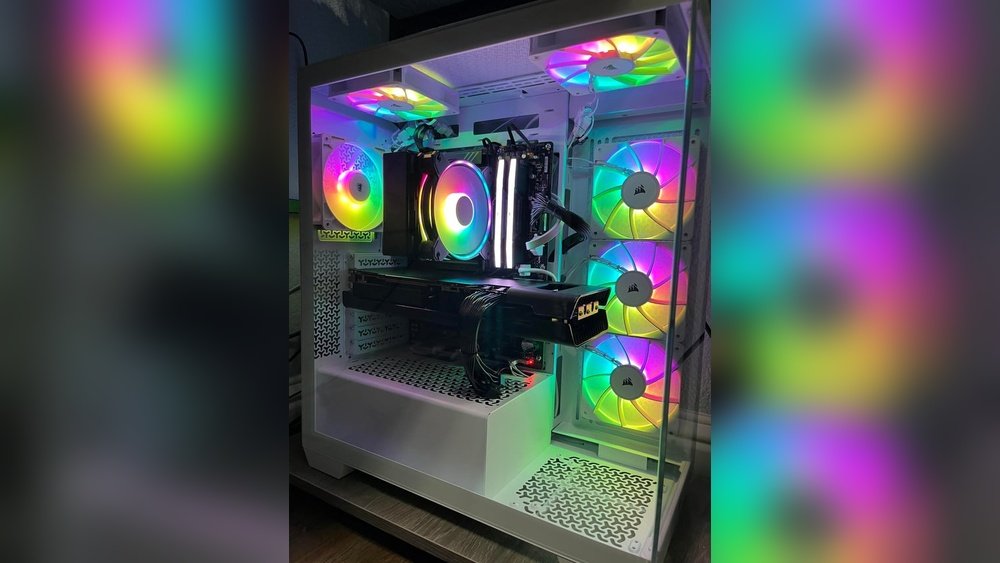
You’ve just finished building your PC, but now your CPU is overheating. That’s frustrating, and you’re probably worried about damaging your new setup.
Don’t panic—this is a common problem that can be fixed with the right steps. You’ll discover simple and effective ways to cool down your CPU and protect your computer. Keep reading, and you’ll learn how to enjoy your build without the stress of overheating.

Credit: www.reddit.com
Common Causes Of Cpu Overheating
CPU overheating is a common problem after building a new PC. Understanding the main causes helps fix the issue fast. Overheating can damage your processor and reduce your computer’s life. Many factors affect CPU temperature. Knowing them saves time and effort.
Poor Thermal Paste Application
Thermal paste helps transfer heat from the CPU to the cooler. Using too little or too much paste causes poor heat transfer. Uneven application creates air pockets that trap heat. Always apply a thin, even layer of thermal paste.
Inadequate Cooling System
A weak or faulty cooler cannot remove enough heat from the CPU. Stock coolers may not handle high-performance CPUs well. Check if the fan spins properly and the heatsink is firmly attached. Upgrading to a better cooler often reduces overheating.
Dust And Dirt Accumulation
Dust blocks airflow and clogs cooling fans. Dirt on the heatsink reduces heat dissipation. Clean your PC regularly to keep dust out. Use compressed air to blow dust off fans and heatsinks gently.
Improper Case Ventilation
Poor airflow inside the PC case traps hot air near the CPU. Lack of intake or exhaust fans limits fresh air circulation. Arrange cables neatly to avoid airflow blockage. Ensure your case has enough fans for good ventilation.
Overclocking Risks
Overclocking pushes the CPU beyond its default speed. This increases heat output significantly. Without proper cooling, the CPU overheats quickly. Reduce clock speeds or improve cooling to manage temperature.

Credit: www.reddit.com
Checking Your Cpu Temperature
Checking your CPU temperature is a key step after building your PC. It helps find out if your processor gets too hot. High temperatures can cause your computer to slow down or shut off. Monitoring the temperature keeps your CPU safe and working well.
Using Bios And Uefi Tools
BIOS or UEFI is the first place to check your CPU temperature. Restart your computer and enter BIOS or UEFI by pressing a key like F2, Del, or Esc. Look for the hardware monitor or PC health section. You will see the current CPU temperature there. This method does not need any extra software. It shows the temperature before Windows starts.
Third-party Temperature Monitoring Software
There are many free programs to check CPU temperature inside Windows. Tools like HWMonitor, Core Temp, or SpeedFan work well. They show real-time temperature and other details. These programs let you watch the CPU heat while using the computer. Some can alert you if the temperature gets too high. This helps prevent damage by acting fast.
Improving Cooling Performance
Improving cooling performance is key to solving CPU overheating issues. Proper cooling keeps your PC stable and extends its life. This section covers simple steps to boost cooling and reduce heat.
Reapplying Thermal Paste Correctly
Thermal paste helps transfer heat from the CPU to the cooler. Old or poorly applied paste can cause high temperatures. Remove the old paste carefully with isopropyl alcohol. Apply a small pea-sized amount of new paste in the center. Spread it evenly when you install the cooler. This ensures better heat transfer and lowers CPU temperature.
Upgrading Cpu Cooler
Stock coolers often struggle with heavy CPU loads. Upgrading to a better air or liquid cooler helps a lot. Air coolers with larger fans move more air. Liquid coolers use water to move heat away quickly. Choose a cooler that matches your CPU’s power and case size. This reduces heat and keeps your CPU running smoothly.
Installing Additional Case Fans
Good airflow inside the case is essential. Add more case fans to move hot air out and bring cool air in. Place intake fans at the front and exhaust fans at the back or top. This creates a steady airflow path. More fans mean better cooling for all components, not just the CPU. Check fan direction to avoid air blockage.

Credit: www.reddit.com
Enhancing Case Airflow
Proper airflow inside your PC case helps keep the CPU cool. It moves hot air out and brings cool air in. Enhancing case airflow can reduce overheating and improve performance. Small changes can make a big difference in temperature.
Focus on clearing air paths and using the right case and filters. Clean airflow means your CPU runs smoother and lasts longer. Let’s explore easy ways to improve your case airflow.
Organizing Cables For Better Airflow
Cables can block air movement inside the case. Messy cables stop cool air from reaching the CPU. Use cable ties or Velcro straps to bundle cables neatly. Route cables behind the motherboard tray if possible. This frees space for air to flow. Neat cables also make cleaning easier.
Choosing The Right Case
The PC case affects how air moves inside. Choose a case with good ventilation and space for fans. Look for cases with mesh panels or large vents. Cases with multiple fan mounts help push hot air out. Bigger cases usually have better airflow. A good case design reduces heat buildup around the CPU.
Cleaning Dust Filters And Vents
Dust blocks airflow and traps heat. Dust filters catch dirt but need regular cleaning. Remove and wash dust filters every few weeks. Use compressed air to blow dust from vents and fans. Clean filters and vents keep air flowing freely. A dust-free case helps the CPU stay cool longer.
Adjusting Bios And Power Settings
Adjusting BIOS and power settings can help fix CPU overheating after building a PC. The BIOS controls how your hardware works with your system. Setting it up right can keep your CPU cool and stable. Power settings also affect how much energy your CPU uses and how hot it gets.
Simple BIOS tweaks can lower temperatures and improve performance. Let’s explore key BIOS adjustments you can make without stress.
Resetting Bios To Default
Start by resetting the BIOS to its default settings. This clears any wrong changes that might cause overheating. It puts all settings back to factory values. This step helps identify if custom BIOS tweaks cause the heat issue.
To reset, enter BIOS during startup by pressing keys like Delete or F2. Find the option “Load Setup Defaults” or “Reset to Default.” Save changes and restart your PC. This fresh start often fixes overheating problems.
Disabling Overclocking Features
Overclocking increases CPU speed beyond factory limits. It raises performance but also heat output. Disabling overclocking in BIOS lowers CPU temperature. It sets the processor to run at normal speeds.
Open BIOS and find overclocking settings under “Advanced,” “CPU,” or “Performance” menus. Turn off options like “Intel Turbo Boost” or “AMD Precision Boost.” Save and exit BIOS. This prevents extra heat from pushing your CPU too hard.
Enabling Cpu Fan Controls
Your CPU fan cools the processor by spinning faster when needed. BIOS lets you control fan speed settings. Enabling and adjusting fan controls improves airflow and cooling.
In BIOS, look for “Hardware Monitor,” “Fan Control,” or “PC Health” sections. Set fan mode to “Auto” or “PWM.” You can also create custom fan curves to increase speed at lower temperatures. This keeps your CPU cooler and quieter.
Preventive Measures For Long-term Health
Keeping your CPU cool after building a PC is key to its long-term health. Overheating can cause slowdowns, crashes, and even hardware damage. Taking preventive steps helps avoid these problems and keeps your computer running smoothly for years.
Regular Cleaning Schedule
Dust buildup blocks airflow and traps heat inside your PC. Clean your computer every few months to remove dust from fans, vents, and heatsinks. Use compressed air or a soft brush to clear dust without damaging parts. A clean PC runs cooler and lasts longer.
Monitoring Temperatures Routinely
Use software tools to check your CPU temperature regularly. Monitoring helps spot heat issues early before damage occurs. Set alerts for high temperatures to act quickly. Keeping an eye on temperatures ensures your system stays within safe limits.
Using Quality Components
Cheap parts often lack proper cooling or durability. Invest in quality CPU coolers, thermal paste, and fans for better heat management. Good components improve airflow and heat transfer. This reduces overheating risks and extends your PC’s lifespan.
Frequently Asked Questions
Why Is My Cpu Overheating After Building My Pc?
CPU overheating often happens due to poor cooling installation or insufficient thermal paste. Check if the cooler is mounted correctly and reapply thermal paste if needed.
How Can I Improve Cpu Cooling In A New Pc Build?
Use high-quality thermal paste, ensure proper cooler mounting, and optimize airflow with case fans. Cleaning dust regularly also helps maintain cooling efficiency.
What Role Does Thermal Paste Play In Cpu Temperature?
Thermal paste fills microscopic gaps between the CPU and cooler. It improves heat transfer, preventing overheating and ensuring stable CPU performance.
Can Incorrect Fan Setup Cause Cpu Overheating?
Yes, improper fan orientation can restrict airflow. Make sure intake and exhaust fans are correctly positioned to create effective airflow inside the case.
Conclusion
Fixing CPU overheating after building a PC is important. Check your cooling system first. Make sure the fans work well and clean any dust. Apply thermal paste correctly for better heat transfer. Keep your PC in a cool, well-ventilated place.
Monitor your CPU temperature regularly to catch issues early. Small steps can prevent big problems. Stay patient and follow the tips carefully. Your PC will run cooler and last longer.
