
Is your CPU fan spinning, but your computer still feels like it’s overheating? That can be frustrating and worrying.
You might think the fan should keep your CPU cool, but sometimes it’s not enough. If you want to stop your computer from overheating and keep it running smoothly, you need to understand why this happens and how to fix it.
Keep reading, and you’ll discover simple steps you can take right now to solve the problem and protect your device.
Credit: www.reddit.com
Symptoms Of Overheating
Overheating is a common problem in computers, even if the CPU fan is spinning. It can cause damage and reduce the computer’s lifespan. Recognizing the symptoms of overheating early helps prevent serious issues. This section highlights key signs and how overheating affects performance.
Signs To Watch For
One clear sign is the computer shutting down suddenly. It protects itself from heat damage this way. Another sign is the case feeling very hot to touch. You might notice loud fan noise as it tries to cool down. Slow or freezing programs also suggest overheating. Sometimes, screen flickering or strange colors appear. These symptoms mean the CPU is too hot.
Impact On Performance
Overheating slows the CPU to reduce heat. This causes your computer to run much slower. Tasks take longer, and apps may crash. Video playback can stutter or freeze. Games may lag and have low frame rates. Overall, the computer feels sluggish and unresponsive. Constant overheating can damage hardware over time.
Common Causes
When the CPU fan spins but the computer still overheats, common causes often lie inside the system. These issues stop the fan from cooling the CPU properly. Fixing them helps keep your computer safe and running well.
Dust And Debris Build-up
Dust blocks air flow inside the computer case. It settles on the fan blades and heatsink. This stops the fan from moving air efficiently. Dust also traps heat around the CPU. Cleaning the dust regularly helps the fan cool better.
Thermal Paste Issues
Thermal paste sits between the CPU and the heatsink. It transfers heat from the CPU to the heatsink. Old or dried-out thermal paste can stop heat transfer. This causes the CPU to get too hot. Reapplying fresh thermal paste improves cooling.
Fan Placement And Speed Problems
The fan might spin but not fast enough. Low fan speed reduces cooling power. Sometimes, the fan is placed wrongly. A wrong position causes poor air flow over the CPU. Adjusting the fan speed or placement fixes this problem.
Case Ventilation
Poor case ventilation traps hot air inside. This raises the temperature around the CPU. Fans need clear paths to pull in cool air and push out hot air. Adding more case fans or cleaning vents can improve airflow and lower temperatures.
Checking The Fan Functionality
Checking the fan functionality is a key step in fixing CPU overheating. The fan may spin but might not work well enough to cool the CPU. It is important to make sure the fan runs at the right speed and is properly connected. This helps prevent damage to your computer and keeps it running smoothly.
Verifying Fan Speed
Start by checking the fan speed in the BIOS or using software tools. The fan should speed up when the CPU gets hotter. A slow or constant speed might mean the fan is not working correctly. Watch for any unusual noises or vibrations. These signs can show the fan needs cleaning or replacing.
Inspecting Fan Connections
Next, check the fan’s power connection to the motherboard. A loose cable can cause the fan to spin but not cool well. Make sure the connector is firmly plugged in. Look for any damaged wires or pins. Secure and clean connections improve fan performance and prevent overheating.
Cleaning And Maintenance
Cleaning and maintenance keep your CPU fan working well. Dust and dirt can block airflow. This makes the CPU hotter even if the fan spins fast. Regular cleaning improves cooling and stops overheating problems.
Safe Dust Removal Techniques
Turn off your computer and unplug it. Use a soft brush to gently remove dust. A can of compressed air works well to blow dust away. Hold the fan blades in place to stop spinning. Avoid using a vacuum as it can cause static damage. Clean your computer in a dry, open area.
Cleaning Fan Blades And Heatsink
Remove the fan carefully from the CPU cooler. Wipe the fan blades with a soft, damp cloth. Do not use too much water. Clean the heatsink fins with a brush or compressed air. Make sure all dust is gone. Reassemble the parts only after they are dry.
Replacing Thermal Paste
Replacing thermal paste is a key step to fix CPU overheating. Thermal paste helps the CPU and cooler work together. It fills tiny gaps to improve heat transfer. Old or dried paste cannot do this well. This causes the CPU to get very hot, even if the fan spins fast. Changing the thermal paste can lower temperatures and protect the CPU.
Choosing The Right Thermal Paste
Pick a thermal paste that works well for your CPU type. Look for pastes that have good heat conductivity. Silicone-based pastes are common and easy to use. Metal-based pastes offer better cooling but need careful handling. Avoid cheap pastes that dry out quickly. Check reviews and brand reputation. A good paste lasts longer and keeps the CPU cool.
Step-by-step Application Guide
First, turn off the PC and unplug it. Remove the CPU cooler carefully from the processor. Clean off the old thermal paste using isopropyl alcohol and a soft cloth. Let the surface dry completely. Apply a small pea-sized dot of new thermal paste in the center of the CPU. Reattach the cooler firmly but not too tight. Make sure the paste spreads evenly when the cooler presses down. Power on the PC and check the temperature. The CPU should run cooler and more stable.
Credit: www.dell.com
Optimizing Airflow
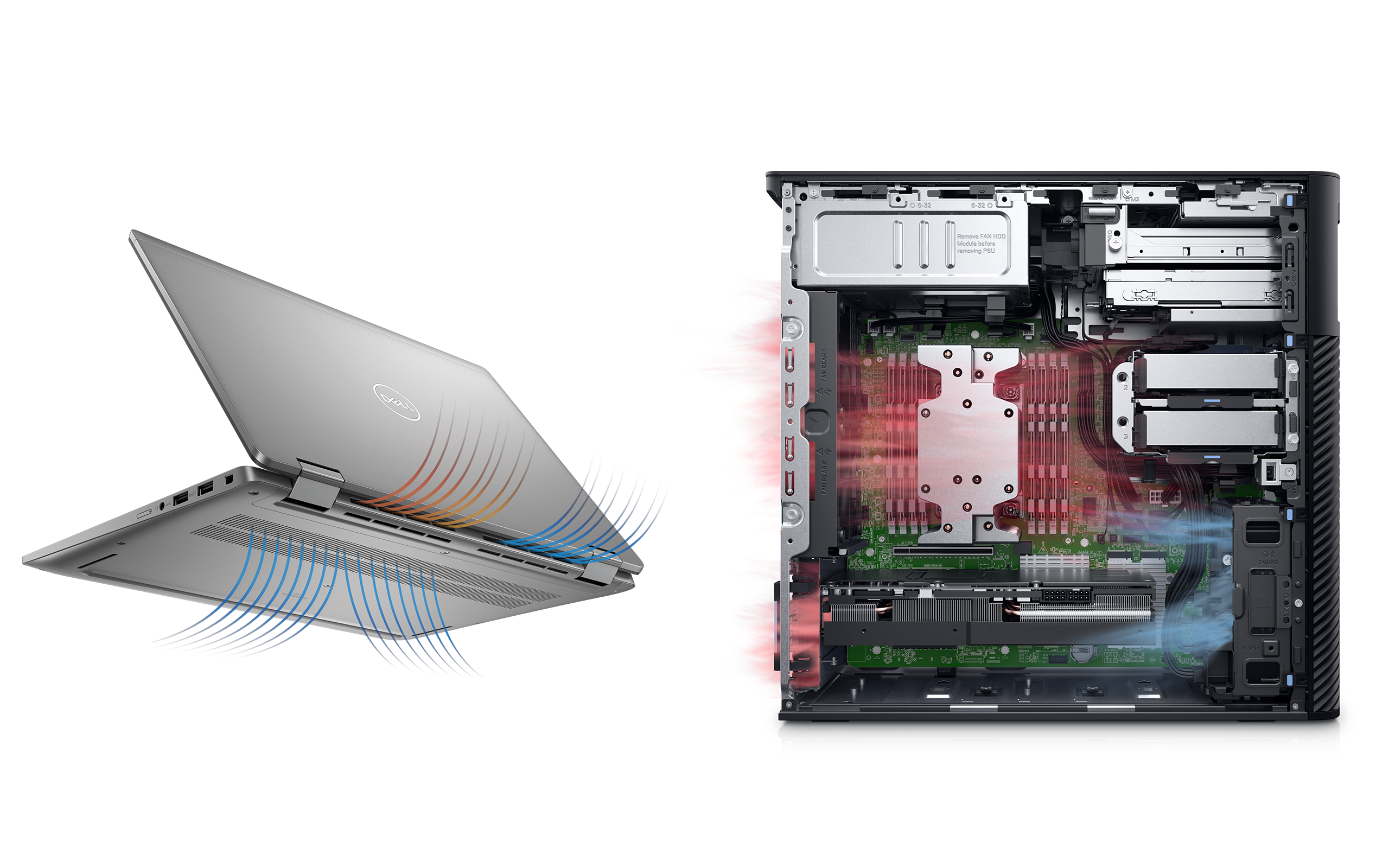
Optimizing airflow inside your PC case is key to fixing CPU overheating. Proper airflow helps cool down the CPU by moving hot air out and bringing cool air in. Without good airflow, the CPU fan alone cannot stop overheating. Small changes in fan placement and cable arrangement can make a big difference.
Rearranging Case Fans
Place case fans to create a smooth path for air to flow. Intake fans should pull cool air from the front or bottom. Exhaust fans should push hot air out from the back or top. Avoid blocking airflow with too many fans fighting each other. Balance the number of intake and exhaust fans for steady airflow.
Cable Management Tips
Keep cables tidy and out of airflow paths. Use zip ties or Velcro straps to bundle cables together. Route cables behind the motherboard tray if possible. Loose cables can block air and reduce cooling efficiency. Clean cable management helps air move freely and cools the CPU better.
Upgrading Cooling Solutions
Upgrading your CPU cooling can stop overheating issues even if the fan spins fast. Stock coolers often can’t handle high temperatures from powerful CPUs. Better cooling parts help keep your processor cool and stable. A few options fit different needs and budgets.
Aftermarket Cpu Coolers
Aftermarket CPU coolers offer stronger cooling than stock fans. They come with bigger heatsinks and better fans. These coolers move heat away from the CPU faster. Many models are quiet and easy to install. Some even have multiple fans for extra airflow. Choosing the right size is important to fit your case. These coolers suit most users who want a simple upgrade.
Liquid Cooling Options
Liquid cooling uses water or coolant to cool the CPU. It moves heat to a radiator that fans then cool down. This method is very effective for high-performance CPUs. Liquid coolers run quieter than air coolers at high loads. Installation is a bit more complex but manageable with guides. They often come in compact all-in-one kits for easy setup. This option suits users needing strong cooling for gaming or heavy tasks.
Credit: gizmopros.com
Monitoring Temperatures
Monitoring your CPU temperature is key to fixing overheating problems. It tells you if the cooling system works well. Watching these numbers helps spot issues early. You can act before damage occurs. This section explains how to track temperatures easily.
Using Software Tools
Many free programs show your CPU temperature in real time. They run on Windows, Mac, and Linux. Some popular options include HWMonitor, Core Temp, and SpeedFan. These tools display temperature, fan speed, and voltage. They help you check if the CPU stays cool. Run them while using your computer normally.
These programs update data every second or so. You can see spikes during heavy use. This helps find when overheating happens. Some software also logs temperatures for later review.
Setting Temperature Thresholds
Setting a temperature limit keeps your CPU safe. You can set alerts if the CPU gets too hot. Most software allows you to choose a warning level. A common safe max is around 75 to 85 degrees Celsius.
When the temperature crosses this limit, the program alerts you. This warning tells you to stop heavy tasks or check cooling. Some tools can even trigger automatic shutdowns to avoid damage. Setting thresholds helps keep your system stable and healthy.
When To Seek Professional Help
Sometimes, the CPU fan spins but the computer still overheats. This problem can be tricky to fix alone. Knowing when to ask for professional help saves time and prevents damage. Professionals have the tools and skills to find hidden issues. They can test parts that look fine but might fail under stress. Getting expert advice ensures the problem is fixed correctly and safely.
Diagnosing Hardware Failures
Hardware issues often cause overheating despite the fan working. Faulty thermal paste, broken sensors, or damaged heat sinks can be the cause. Professionals use special tools to check these parts. They can spot problems that are hard to see with the naked eye. Early diagnosis avoids bigger damage and costly repairs later.
Warranty And Repair Considerations
Many computers come with warranties that cover repairs. Opening your device or fixing it yourself can void this warranty. Professionals know how to handle repairs without breaking warranty rules. They can also guide you on whether repair or replacement is best. Using authorized service centers protects your rights and device value.
Frequently Asked Questions
Why Is My Cpu Fan Spinning But Overheating?
Your CPU fan might spin but still overheat due to poor thermal paste, clogged vents, or high CPU usage. Dust buildup and improper fan speed can also cause inefficient cooling, leading to overheating despite the fan running.
How To Fix Cpu Overheating With A Spinning Fan?
Clean dust from the fan and heatsink. Reapply thermal paste between the CPU and cooler. Check fan speed settings in BIOS and improve case airflow to fix overheating issues.
Can Software Cause Cpu Overheating Despite Fan Spinning?
Yes, high CPU usage from software can cause overheating. Background processes or malware may overwork the CPU. Close unnecessary programs and scan for malware to reduce heat generation.
Does Improper Thermal Paste Cause Overheating With Fan Running?
Yes, old or insufficient thermal paste reduces heat transfer from CPU to cooler. Reapplying quality thermal paste improves cooling efficiency and prevents overheating despite the fan spinning.
Conclusion
A spinning CPU fan does not always stop overheating. Dust, poor thermal paste, or blocked airflow cause heat build-up. Clean your fan and case often. Replace old thermal paste to help heat transfer. Check if the fan runs at the right speed.
Keep your computer in a cool, open place. These simple steps can reduce overheating and keep your PC safe. Stay patient and try each fix carefully. Your computer will run cooler and last longer.
